
Product Overview
The Havit H2030d Gaming Headphone is designed for an immersive audio experience, featuring 50mm speakers and a detachable microphone. Its ergonomic design with an adjustable suspended headband and memory foam ear muffs ensures comfort during extended use. This headset is compatible with PS4 and XBOX consoles via a 3.5mm connector.

Figure 1: Havit H2030d Gaming Headphone, showcasing its overall design with the detachable microphone.
Key Features
- Detachable 3.5mm Microphone: Offers clear communication and can be removed when not needed. Compatible with PS4 and XBOX.
- Adjustable Suspended Headband: Provides an ergonomic fit for various head sizes, ensuring comfort and durability.
- Memory Foam Ear Muffs: Adapts to the user's head shape for enhanced comfort during long gaming sessions and provides good sound isolation.
- 50mm Speakers: Delivers strong sound quality with distinct audio for games and detailed frequencies for music.
- Simple and Generous Design: Features a proportional appearance and texture.
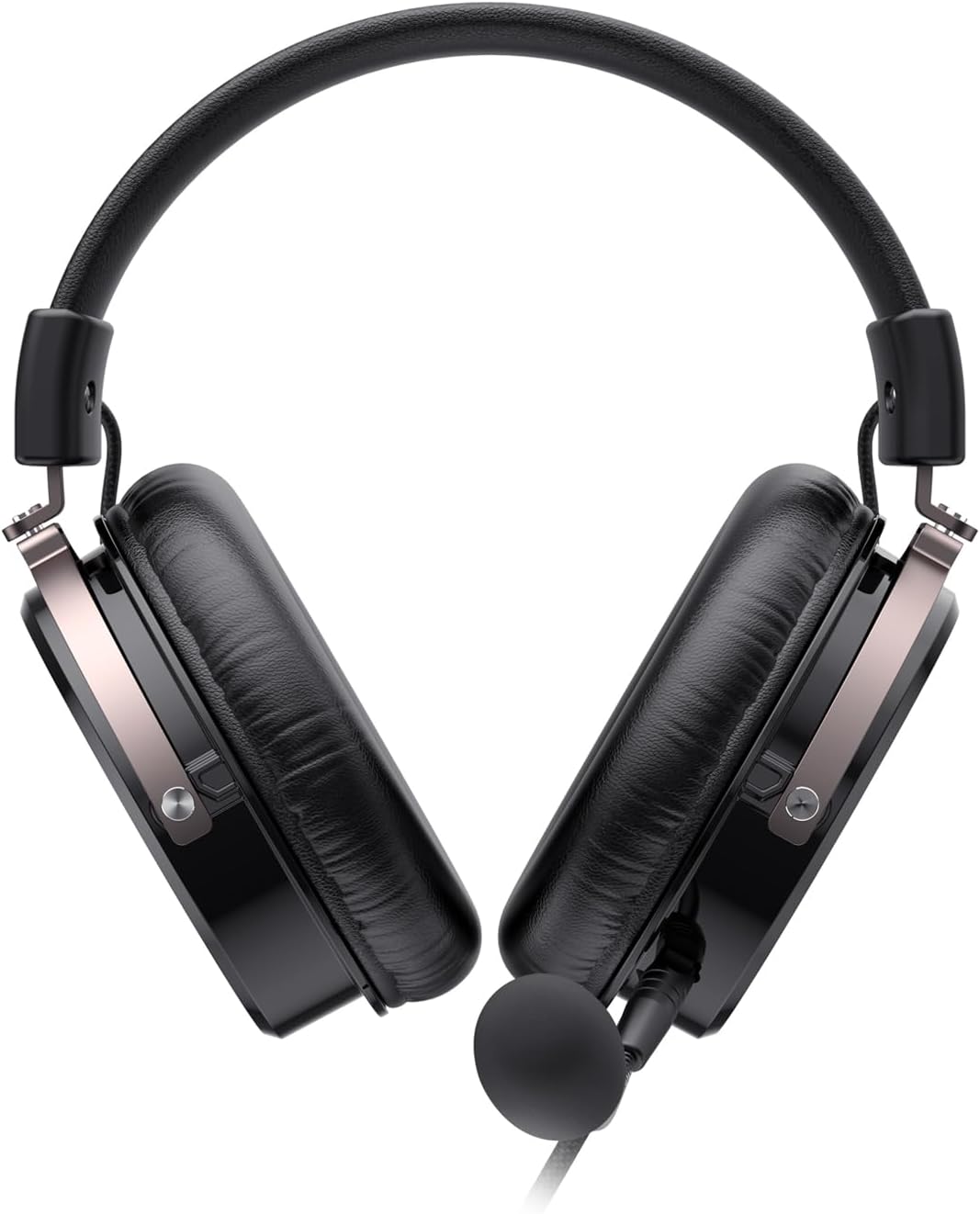
Figure 2: Front view of the Havit H2030d Headphone, highlighting the ear muffs and headband.
Setup Guide
- Unpack the Headphone: Carefully remove the Havit H2030d headphone and its accessories from the packaging.
- Attach the Microphone: Locate the detachable microphone. Align the 3.5mm connector of the microphone with the corresponding port on the left earcup of the headphone and gently push it in until it is securely seated.
- Adjust the Headband: Place the headphone on your head. The suspended headband will automatically adjust to your head size for a comfortable fit.
- Connect to Device: Insert the 3.5mm audio jack of the headphone into the audio port of your PS4, XBOX controller, PC, or other compatible device.
- Configure Audio Settings: On your device, navigate to the audio settings. Ensure that the Havit H2030d is selected as the input (microphone) and output (headphone) device. Adjust volume levels as needed.

Figure 3: Side view of the Havit H2030d Headphone, showing the microphone connection point and earcup design.
Operating Instructions
- Volume Control: Use the inline volume wheel (if present on the cable) or your device's audio settings to adjust the headphone volume.
- Microphone Mute: If an inline mute switch is present, use it to quickly mute or unmute the microphone. Otherwise, use your device's software settings.
- Comfort Adjustment: Periodically adjust the position of the ear muffs and headband to maintain comfort during long gaming or listening sessions.
Maintenance
- Cleaning: Use a soft, dry cloth to wipe down the headphone and ear muffs. For stubborn dirt, a slightly damp cloth can be used, but ensure no moisture enters the speaker grilles or microphone.
- Storage: Store the headphone in a cool, dry place away from direct sunlight and extreme temperatures. Avoid tangling the cable.
- Cable Care: Do not pull on the cable to disconnect the headphone. Always grasp the plug firmly. Avoid sharp bends or kinks in the cable.
- Microphone Care: When detaching the microphone, pull it straight out from the port. Avoid twisting or bending the connector.
Troubleshooting
| Problem | Possible Cause | Solution |
|---|---|---|
| No sound from headphone. |
|
|
| Microphone not working. |
|
|
| Sound quality is poor or distorted. |
|
|
Specifications
| Feature | Detail |
|---|---|
| Speaker Diameter | Φ50 mm |
| Impedance | 32Ω ± 15% |
| Headphone Sensitivity | 115dB ± 3 dB |
| Frequency Response | 20 Hz – 20 kHz |
| Microphone Sensitivity | -42dB ± 3 dB |
| Cable Length | 2.0 m ± 10% |
| Plug Type | 1 x 3.5 mm |
| Microphone Dimensions | Ø6.0 × 2.7 mm |
| Product Dimensions (L x W x H) | 89 x 138 x 198 mm |
| Product Weight | 338g |
| Compatibility | PS4, XBOX, PC, and other devices with 3.5mm audio jack |
| Connection Type | Wired |
| Microphone Type | Detachable |
Warranty and Support
For specific warranty information and support, please refer to the warranty card included with your product or visit the official Havit website. Keep your proof of purchase for warranty claims.
For technical assistance or customer service inquiries, please contact Havit customer support through their official channels.