1. Introduction
Thank you for choosing the Dkelincs 47.2 Inch Red T-Shaped Gaming Desk. This manual provides detailed instructions for assembly, operation, maintenance, and troubleshooting to ensure you get the best experience from your new desk. Please read this manual carefully before assembly and retain it for future reference.
2. Product Overview
The Dkelincs H200 Gaming Desk is designed for both gaming and home office use, featuring a sturdy T-shaped metal frame and a durable carbon fiber textured desktop. It includes convenient accessories like a headphone hook and a cup holder to enhance your workspace.
Key Features:
- Sturdy Construction: T-shaped metal legs and frame provide stability.
- Carbon Fiber Surface: Smooth, scratch-resistant, waterproof, and sweat-proof desktop.
- Ergonomic Design: Includes a headphone hook and cup holder for convenience.
- Adjustable Leg Pads: Ensures stability on uneven surfaces.
- Spacious Desktop: Ample space for monitors, keyboard, mouse, and other gaming gear.
Dimensions:
The desk measures approximately 47.2 inches (L) x 23.6 inches (W) x 29.3 inches (H).

Image 2.1: Overview of the Dkelincs Gaming Desk with key dimensions (Length 47.2", Width 23.6", Height 29.3") indicated.

Image 2.2: The Dkelincs Gaming Desk showcasing a typical setup with a monitor, keyboard, mouse, tablet, headphones, and a cup holder.
3. Setup Instructions
Assembly of the Dkelincs Gaming Desk is designed to be straightforward and typically takes about 15 minutes. Please ensure all components are present before beginning.
Included Components:
- Gaming Desk components (desktop, legs, frame)
- Headphone Hook
- Cup Holder
- Assembly Manual
- Tool Kit (includes necessary wrenches and screws)
Assembly Steps:
- Unpack Components: Carefully remove all parts from the packaging and lay them out on a clean, soft surface to prevent scratches. Verify all listed components are present.
- Assemble Frame: Attach the T-shaped legs to the main support frame using the provided screws and tools. Ensure all connections are secure but do not overtighten initially.
- Attach Desktop: Carefully place the desktop onto the assembled frame. Align the pre-drilled holes on the desktop with the frame. Secure the desktop using the appropriate screws.
- Install Accessories: Attach the headphone hook and cup holder to the designated locations on the desk frame or desktop edge as per the assembly manual.
- Adjust Leveling Feet: Once the desk is fully assembled, place it in its desired location. Adjust the leveling feet at the bottom of the legs to ensure the desk is stable and does not wobble on uneven floors.
- Final Tightening: Once the desk is level and stable, go back and securely tighten all screws.

Image 3.1: An example of the Dkelincs Gaming Desk fully assembled and set up with a computer, monitor, and PC tower.
4. Operating Instructions
The Dkelincs Gaming Desk is designed for versatile use, accommodating various setups for gaming, studying, or working.
Desktop Usage:
- The spacious 47.2"L x 23.6"W desktop can comfortably hold multiple monitors, a keyboard, mouse, and other peripherals.
- The carbon fiber texture provides a smooth surface for mouse movement and is resistant to minor spills.
Accessory Use:
- Headphone Hook: Utilize the integrated hook to keep your headphones organized and easily accessible, preventing clutter on your desk.
- Cup Holder: Place your beverage in the cup holder to prevent accidental spills on your electronics and workspace.

Image 4.1: A top-down view illustrating the spacious desktop layout, accommodating a keyboard, mouse, and highlighting the edge design.

Image 4.2: The Dkelincs Gaming Desk demonstrating its versatility for gaming, writing, and multi-monitor work setups.


Image 4.3: Detailed views of the integrated cup holder and headphone hook.
5. Maintenance
Proper care and maintenance will extend the life and appearance of your Dkelincs Gaming Desk.
Cleaning the Desktop:
- The carbon fiber surface is waterproof and sweat-proof. For general cleaning, wipe the desktop with a soft, damp cloth.
- For tougher stains, use a mild soap solution and then wipe dry immediately. Avoid abrasive cleaners or harsh chemicals, as these can damage the finish.
Frame and Legs:
- Wipe the metal frame and legs with a dry or slightly damp cloth to remove dust.
- Periodically check all screws and connections to ensure they remain tight. Retighten if necessary to maintain stability.

Image 5.1: Illustration of the desktop's waterproof property and its construction from P2 level environmental board.
6. Troubleshooting
If you encounter any issues with your Dkelincs Gaming Desk, refer to the following common problems and solutions:
Desk Wobbles:
- Cause: Uneven floor or loose leg connections.
- Solution: Adjust the leveling feet at the bottom of each leg until the desk is stable. Ensure all assembly screws are securely tightened.

Image 6.1: Detail of an adjustable foot, which can be rotated to stabilize the desk on uneven surfaces.
Missing Parts:
- Cause: Packaging error or lost during unpacking.
- Solution: Double-check all packaging materials. If parts are still missing, contact Dkelincs customer service immediately with your purchase details.
Scratches on Desktop:
- Cause: Sharp objects or abrasive cleaning.
- Solution: While the carbon fiber surface is scratch-resistant, it is not scratch-proof. Use mouse pads and avoid dragging sharp objects across the surface. Minor scratches may be less visible due to the textured finish.
7. Specifications
| Feature | Detail |
|---|---|
| Model Number | H200 |
| Brand | Dkelincs |
| Product Dimensions (L x W x H) | 47.2" x 23.6" x 29.3" |
| Desktop Material | Carbon Fiber Textured Wood (P2 Level Environmental Board) |
| Frame Material | Alloy Steel |
| Color | Red |
| Weight | Approximately 40 Pounds |
| Special Features | Adjustable Leg Pads, Headphone Hook, Cup Holder |
| Assembly Required | Yes |
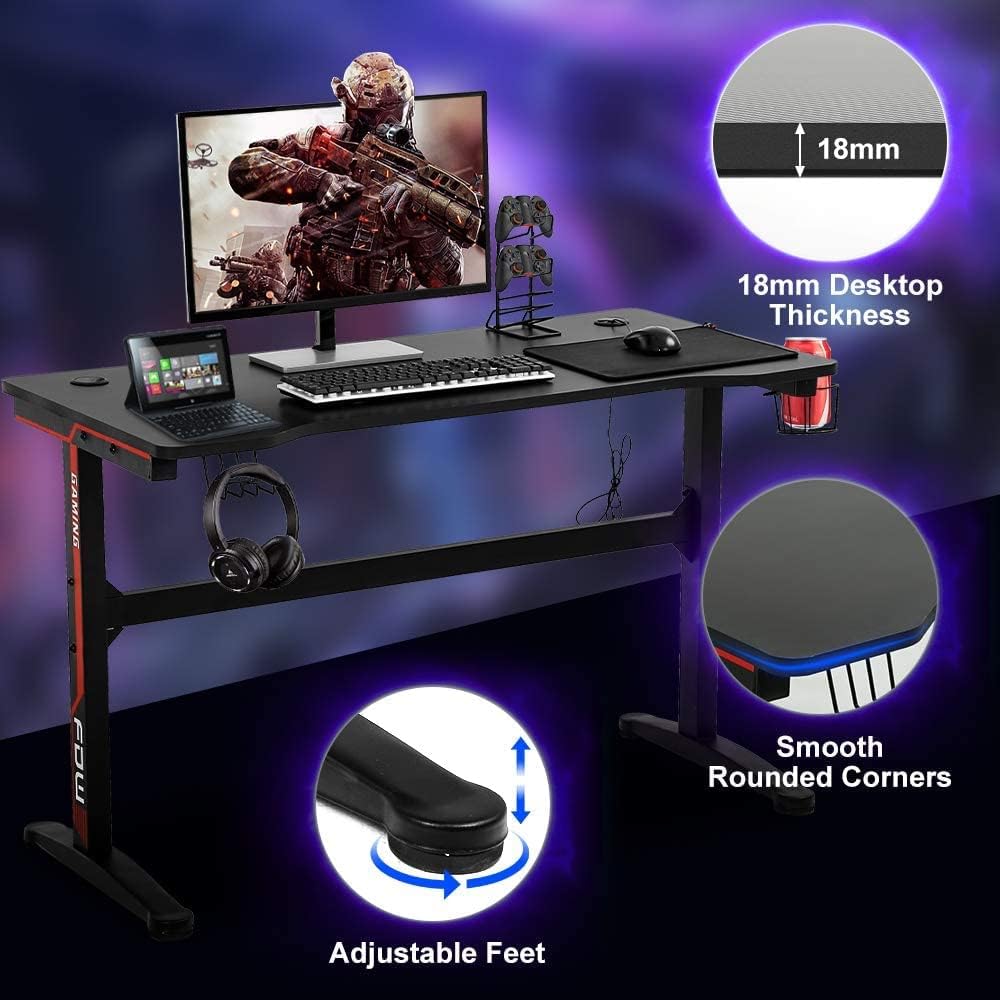
Image 7.1: Visual details of the desk, including 18mm desktop thickness, smooth rounded corners, and adjustable feet.
8. Warranty Information
The Dkelincs H200 Gaming Desk comes with a Limited Warranty. Please refer to the warranty card included in your product packaging for specific terms, conditions, and duration of coverage. This warranty typically covers manufacturing defects and material flaws under normal use.
9. Customer Support
For any questions, concerns, or assistance with your Dkelincs Gaming Desk, please do not hesitate to contact our customer service team. We are committed to providing prompt and helpful support.
Contact Information:
- Refer to the contact details provided in your product packaging or on the official Dkelincs website.
- When contacting support, please have your model number (H200) and purchase information readily available.


