
Introduction
Thank you for choosing the HUPEJOS V7PRO 3 Channel Dash Cam. This manual provides essential information for installing, operating, and maintaining your device. Please read it thoroughly to ensure proper usage and to maximize the benefits of your dash cam.
Package Contents
Verify that all items listed below are included in your package:
- 1 x V7-Pro Dash Cam
- 1 x Car Charger with Type C USB Cable
- 1 x Suction Cup Mount
- 1 x Car Wiring Tool
- 1 x 3M Adhesive Mounts
- 1 x GPS Module and 2.5m Cable
- 1 x User Manual
- 1 x 128GB SD Memory card (pre-installed)

Product Overview
The HUPEJOS V7PRO is a sophisticated 3-channel dash cam designed to provide comprehensive vehicle surveillance. Key features include:
- Three Channel Recording: Simultaneously records front, left, and right views (1440P+1080P+1080P) or 4K front with 1080P left/right.
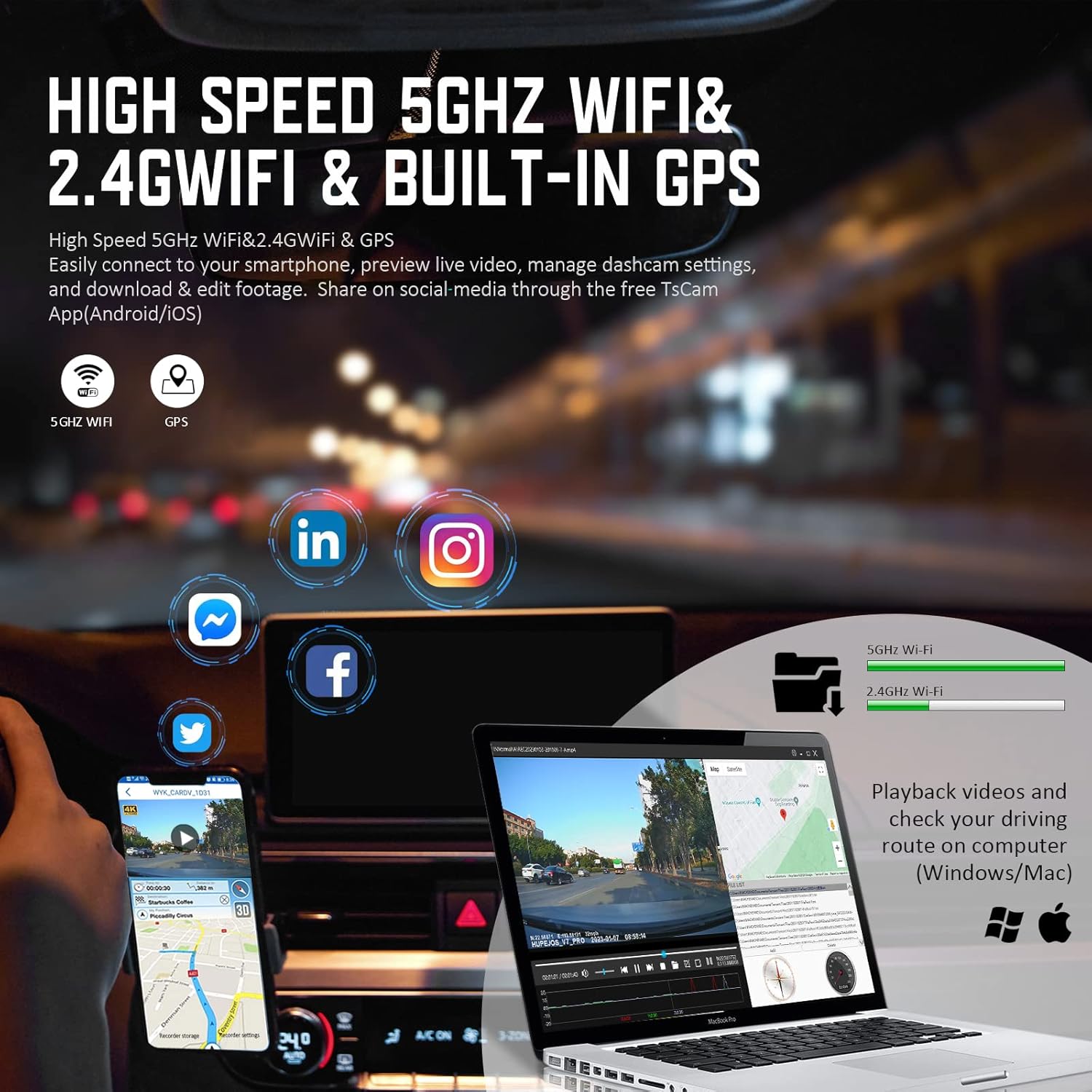
- 5GHz WiFi & GPS: Built-in 5G WiFi for faster app connectivity and GPS for tracking driving trajectory and speed.
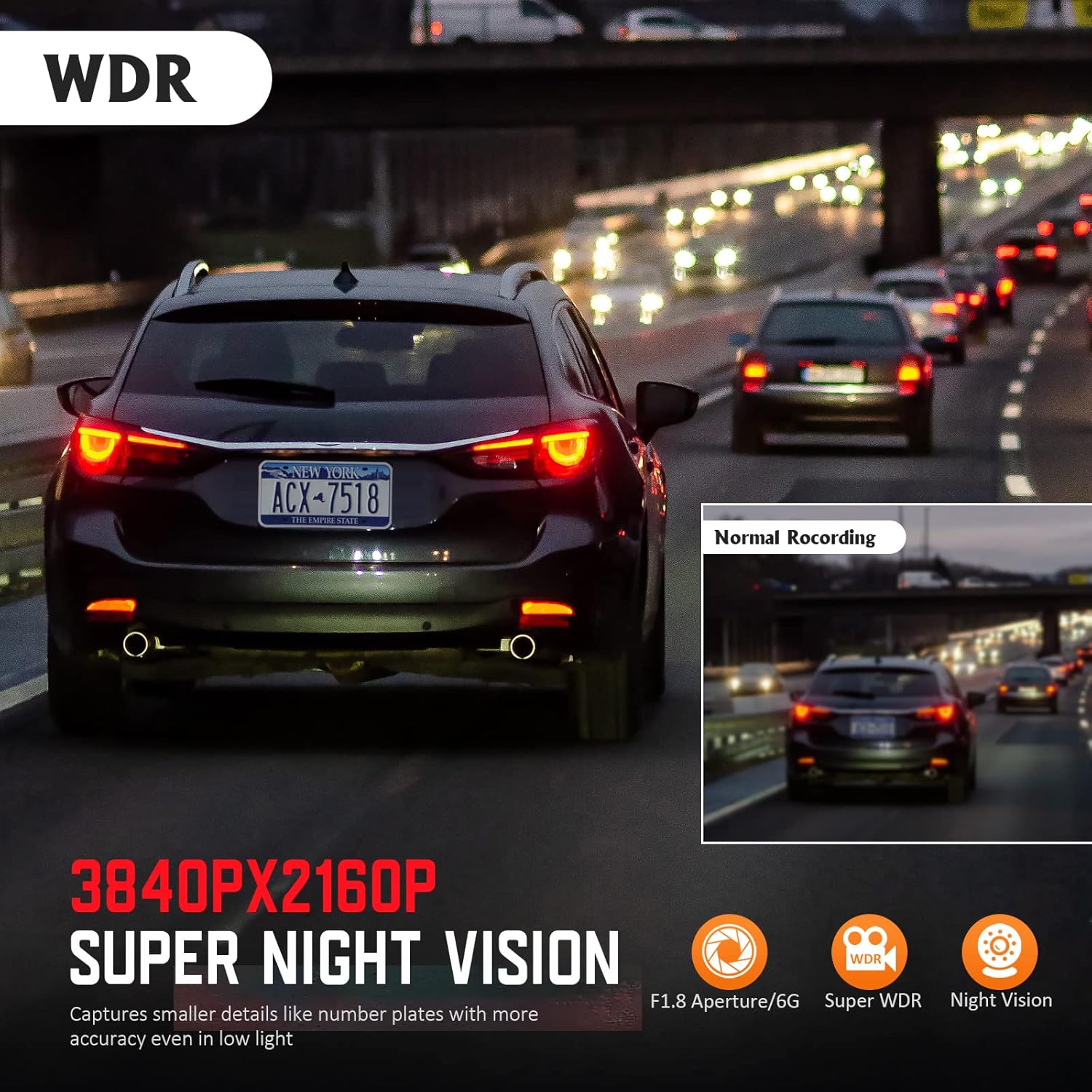
- Super Night Vision: Equipped with 8 IR lamps and 6-glass lenses for clear recordings in low-light conditions.
- 24-Hour Parking Mode: Offers Collision Detection and Radar Intelligent Monitoring (requires optional hardwire kit).
- Dashboard Function: Displays real-time speed (KM/H or MP/H) and synchronizes clock with GPS time.
- Loop Recording: Automatically overwrites the oldest footage when the memory card is full.
- Automatic Incident Detection: G-Sensor detects collisions and locks footage to prevent overwriting.


Setup
Installation Steps
- Mounting the Dash Cam: Attach the suction cup mount to your windshield, ensuring it does not obstruct your view. Securely attach the dash cam to the mount.
- Connecting Power: Connect the Type C USB cable to the dash cam and the car charger. Plug the car charger into your vehicle's cigarette lighter socket. Route the cable neatly along the windshield and dashboard using the provided car wiring tool to avoid interference with driving.
- Installing the GPS Module: Connect the GPS module to the designated port on the dash cam. Position the GPS module on your dashboard or near the windshield for optimal signal reception. Route its cable discreetly.
Initial Configuration
- SD Card: The 128GB SD card is pre-installed. Ensure it is properly seated in the slot. The dash cam will prompt you to format the SD card periodically for optimal performance.
- Power On/Off: The dash cam will automatically power on when your vehicle starts and power off when the engine is turned off.
Operating the Dash Cam
Basic Recording
Once powered on, the dash cam automatically begins recording. It utilizes loop recording, meaning it continuously records and overwrites the oldest files when the memory card is full. Video segments are typically 1-minute long.
Manual Event Recording (G-Sensor)
The built-in G-Sensor detects sudden impacts or collisions. When triggered, it automatically locks the current video segment, preventing it from being overwritten by loop recording. You can also manually lock footage by pressing the designated button on the dash cam.

Wi-Fi and App Connectivity
The dash cam features built-in 5GHz Wi-Fi for fast connection to the TsCam app on your smartphone (iOS/Android). This allows you to:
- View real-time video feeds.
- Manage dash cam settings.
- Download and edit footage.
GPS Functionality
The integrated GPS module records your driving trajectory and speed. This information can be viewed later:
- Within the TsCam app for mobile playback.
- On a computer using the GXPlayer software (compatible with Windows and Mac) to view Google Map GPS driving position track.
Dashboard Display
The V7PRO features a unique dashboard interface that displays your real-time speed in KM/H or MP/H directly on the screen. The dash cam's clock is automatically synchronized with GPS time.
Night Vision
The dash cam is equipped with 8 IR lamps and 6-glass lenses, along with WDR technology, to enhance night vision. This ensures clear video and image capture even in low-light conditions. To manually control the IR LED, navigate to the dash cam Menu, select 'IRLED', and choose 'ON' or 'OFF'. If not set, it will operate automatically.
Parking Monitoring
The HUPEJOS V7PRO offers two parking monitor modes to protect your vehicle when parked. Both modes require connection to an optional hardwire kit (sold separately) to draw power directly from your car battery.
- 1. Collision Detection: When the dash cam detects a collision, it automatically powers on and records a 1-minute protected video. (Requires hardwire kit ASIN: B0BLMRPNQT).
- 2. Radar Intelligent Monitoring System: In the car-off state, this system monitors objects approaching the car within a 3-4 meter range. The dash cam automatically records a 1-minute video. If movement continues, it records until the object leaves the monitored area. (Requires hardwire kit ASIN: B0BV2CJ5SW).

Maintenance
Regular maintenance ensures the longevity and optimal performance of your dash cam:
- SD Card Formatting: It is recommended to format the SD card at least twice a month to prevent data corruption and ensure continuous recording. This can typically be done through the dash cam's menu settings.
- Cleaning: Use a soft, dry cloth to clean the camera lenses and the display screen. Avoid using abrasive cleaners or solvents.
- Firmware Updates: Periodically check the manufacturer's website for any available firmware updates to improve performance and add new features.
Troubleshooting
Here are solutions to common issues you might encounter:
- Q: Does it include the SD card?
A: Yes, a 128GB SD card is pre-installed inside the dash cam. Please check the dash cam SD card slot. - Q: Why can't I view the live video on the APP?
A: Cellular data can interfere with live video viewing. Please disable the 'Peztio' cellular data for the TsCam app on your cellphone (Settings → Peztio → Disable 'Cellular Data'). - Q: Why the APP won't show real-time recording?
A: The app needs to be connected to the DVR's dedicated wireless network. Switch your mobile WiFi network to 'HUPEJOS_V7PRO_****' and then enter the app to view real-time video. - Q: Can't connect to WiFi or connection failed?
A: Ensure the app has album, location, WLAN, and cellular data permissions. Turn off any VPN, security software, or anti-virus apps on your mobile phone, as these can interfere with the WiFi connection. - Q: Why doesn't WiFi connect automatically?
A: Automatic WiFi connection is disabled to prevent issues with 4G/5G usage on single-channel mobile phones. Manual connection ensures mobile data functionality is not interrupted. - Q: How to view GPS information?
A: GPS driving position track can be seen in the TsCam app mobile playback after downloading the video. For computer viewing, install GXPlayer (Windows and Mac compatible) to watch Google Map GPS driving position track. Tablets are not recommended for viewing GPS information.
Specifications
| Product Dimensions | 3.86 x 0.8 x 2.76 inches |
| Item Weight | 1.21 pounds |
| Model Number | V7PRO-3CH-128G |
| Connectivity Technology | Wi-Fi (5GHz) |
| Video Capture Resolution | 4K Front + 1080P Left or Right, 1440P Front + 1080P*2 Left Right |
| Field Of View | 150 Degrees |
| Special Features | 3 Channel Recording, Built-In GPS, Built-In WiFi, 24 Hours Buffered Parking Mode, Built-In Microphone, Built-In Display, Built-In Supercapacitor, Loop Recording, Automatic Incident Detection, Super Night Vision, 360 Degree, App Control |
| Mounting Type | Windshield Mount |
| Color | Black |
Warranty and Support
For warranty information, please refer to the documentation included with your purchase or contact the manufacturer directly. If you have any questions or require technical assistance, please contact HUPEJOS customer support.
Customer Support Email: hupejos@gmail.com