
FOXWELL NT909
FOXWELL NT909 OBD2 Scanner User Manual
Wireless Bidirectional Scan Tool with ECU Coding and Full System Coverage
1. Introduction
The FOXWELL NT909 OBD2 Scanner is a professional-grade diagnostic tool designed for comprehensive vehicle system analysis and maintenance. This wireless bidirectional scan tool offers advanced functionalities such as ECU Coding, full system coverage, and support for modern protocols like CAN FD and DoIP. It is an upgraded version of the NT809 BT, providing faster performance and a wider range of service functions to enhance your diagnostic capabilities.
With its intuitive Android 9.0 operating system and 8-inch responsive touchscreen, the NT909 simplifies complex automotive diagnostics, making it suitable for both professional mechanics and advanced DIY enthusiasts. Its robust hardware ensures stable and efficient operation, while continuous free updates keep your tool equipped with the latest vehicle data and features.

Figure 1.1: FOXWELL NT909 Diagnostic Tool and its packaging.
2. What's in the Box
Upon opening the FOXWELL NT909 package, you will find the following components:
- 1x NT909 Diagnostic Tool: The main tablet unit for performing diagnostics.
- 1x Carry Case: A durable case for protecting and transporting the diagnostic tool and accessories.
- 1x Bluetooth VCI Dongle: The Vehicle Communication Interface dongle for wireless connection to the vehicle's OBD-II port.
- 1x USB Charging Cable & 3x Charged Adapters: For charging the diagnostic tool, including adapters for various international power outlets.
- 1x Quick Start Guide: A concise guide to help you begin using the device quickly.
- 1x User Manual: A comprehensive manual providing detailed instructions for all features and functions.

Figure 2.1: All components included in the FOXWELL NT909 package.
Video 2.1: An unpacking display of the Foxwell NT909, showing the contents of the package and initial setup.
3. Setup
3.1 Initial Device Setup
- Charge the Device: Connect the NT909 tablet to a power source using the provided USB charging cable and adapter. Ensure the device is fully charged before first use.
- Power On: Press and hold the power button located on the side of the tablet until the screen illuminates.
- Initial Configuration: Follow the on-screen prompts to select your preferred language, time zone, and connect to a Wi-Fi network. A stable Wi-Fi connection is crucial for software updates and online features.
- Register Account: Create or log in to your FOXWELL account as prompted. This is necessary to access updates and certain online services.
3.2 Connecting to Vehicle
- Locate OBD-II Port: The OBD-II port is typically located under the dashboard on the driver's side of the vehicle.
- Connect VCI Dongle: Plug the Bluetooth VCI Dongle firmly into the vehicle's OBD-II port. The dongle's indicator light should illuminate, indicating it is powered on.
- Establish Bluetooth Connection: On the NT909 tablet, navigate to the VCI settings (usually found in the main menu or settings). Select "Bluetooth" and pair with the VCI dongle. The device will typically auto-detect the dongle.
- Vehicle Identification: Once connected, the NT909 will attempt to automatically identify the vehicle's VIN (Vehicle Identification Number). If automatic VIN reading fails, you may manually enter the VIN or select the vehicle make, model, and year from the menu.
Video 3.1: A quick diagnostic portal demonstration for common functions, including VCI connection and Auto VIN identification.
4. Operating Instructions
4.1 Full System Diagnostics
The NT909 provides comprehensive OE-level diagnostics for all available vehicle systems, including Engine, ABS, SRS, Transmission, Body System, Chassis, and more. This allows for reading and clearing fault codes, viewing live data, and performing active tests.
- Access Diagnostic Menu: From the main screen, tap on "Diagnostic".
- Select Vehicle: Choose your vehicle make, or use the SmartVIN function for automatic identification.
- Perform Quick Scan: Select "Quick Scan" to scan all available systems for Diagnostic Trouble Codes (DTCs).
- Review Fault Codes: The scan results will display a list of systems and any detected fault codes. Tap on a system to view detailed information about the fault.
- Clear Codes: After addressing the underlying issue, select "Clear Codes" to erase the DTCs from the vehicle's ECU.

Figure 4.1: Overview of OE-Level All System Diagnostic capabilities.
4.2 Bidirectional Control (Active Tests)
Bidirectional control allows the diagnostic tool to send commands to vehicle systems and components to perform active tests, verifying their functionality. This is crucial for pinpointing faults and verifying repairs.
- Examples of Active Tests: Fuel pump on/off, A/C clutch activation, cooling fan tests, window and door lock operation, headlight activation, and more.
- Procedure: From the diagnostic menu for a specific system, select "Active Test" and choose the component you wish to test. Follow the on-screen instructions to activate or deactivate the component.

Figure 4.2: Full Bidirectional Controls for testing various vehicle components.
4.3 ECU Coding
The NT909 supports advanced ECU coding, allowing for personalization and optimization of vehicle functions. This includes guided offline coding for BMW E&F chassis models and activating hidden features.
- Functions: Disable auto start-stop, program folding mirrors, activate luxury functions, replace software in ECUs, and customize OE-settings for various brands.
- VAG Guided Functions: For Volkswagen, Audi, Skoda, and SEAT vehicles, the tool provides step-by-step instructions for complex procedures without manual input of channel numbers or login passwords.

Figure 4.3: Advanced ECU Coding for customizing vehicle settings.
Video 4.1: Demonstration of professional diagnostics, including reading fault codes and clearing them, and viewing live data streams.
5. Maintenance Services
The NT909 offers over 30 commonly used maintenance and reset services to keep your vehicle in optimal condition. These functions help in performing routine service tasks and addressing specific system resets after repairs or component replacements.
- Oil Reset: Resets the oil life system after an oil change.
- EPB Reset: Resets the electronic parking brake after brake pad replacement.
- ABS Bleeding: Bleeds the air from the ABS system.
- BMS Reset: Registers new battery replacements.
- DPF Regeneration: Clears particulate matter from the diesel particulate filter.
- Throttle Adaptation: Relearns the throttle body position.
- SAS Reset: Resets the steering angle sensor.
- Injector Coding: Codes new injector numbers to the ECU.
- Transmission Adaptation: Resets transmission adaptive learning values.
- Additional Services: Fuel pressure test, G-sensor learning, ODS initialization, OPDS initialization, and more.

Figure 5.1: A selection of 30+ popular maintenance services.
Video 5.1: Comprehensive diagnostic and maintenance functions of the FOXWELL NT909BT.
6. Troubleshooting
This section provides solutions to common issues you might encounter while using the FOXWELL NT909.
6.1 Connection Issues
- VCI Dongle Not Connecting:
- Ensure the VCI dongle is securely plugged into the OBD-II port and its indicator light is on.
- Verify Bluetooth is enabled on the NT909 tablet and the dongle is paired.
- Check the vehicle's ignition status; some functions require the ignition to be on.
- No Communication with ECU:
- Confirm the vehicle's VIN is correctly identified or manually entered.
- Ensure the vehicle's battery has sufficient charge.
- Check for any blown fuses related to the OBD-II port or vehicle's ECU.
6.2 Software & Performance Issues
- Device Freezes or Slows Down:
- Close any unnecessary background applications.
- Ensure the device has sufficient storage space.
- Perform a system update to ensure the latest software optimizations.
- Update Failures:
- Verify a stable and strong Wi-Fi connection.
- Ensure the device has enough battery charge or is connected to power during updates.
- Check for available storage space before downloading updates.
Video 6.1: A demonstration of how the Foxwell NT909 simplifies the diagnostic process.
7. Specifications
| Feature | Detail |
|---|---|
| Brand | FOXWELL |
| Model | NT909 Bi-directional Scan Tool |
| Operating System | Android 9.0 |
| CPU | 2.0GHz Quad-core |
| RAM | 2GB |
| Storage | 32GB |
| Display | 8-inch Touchscreen (1280x800 resolution) |
| Battery | 8,000mAh Lithium Ion |
| Connectivity | Dual-band Wi-Fi, Bluetooth (65ft wireless range) |
| Dimensions (L x W x H) | 10.6" x 6.3" x 1.5" |
| Item Weight | 6.63 pounds |
| Supported Protocols | CAN FD, DoIP, and more |
| Vehicle Coverage | 125+ vehicle brands (American, European, Asian) |
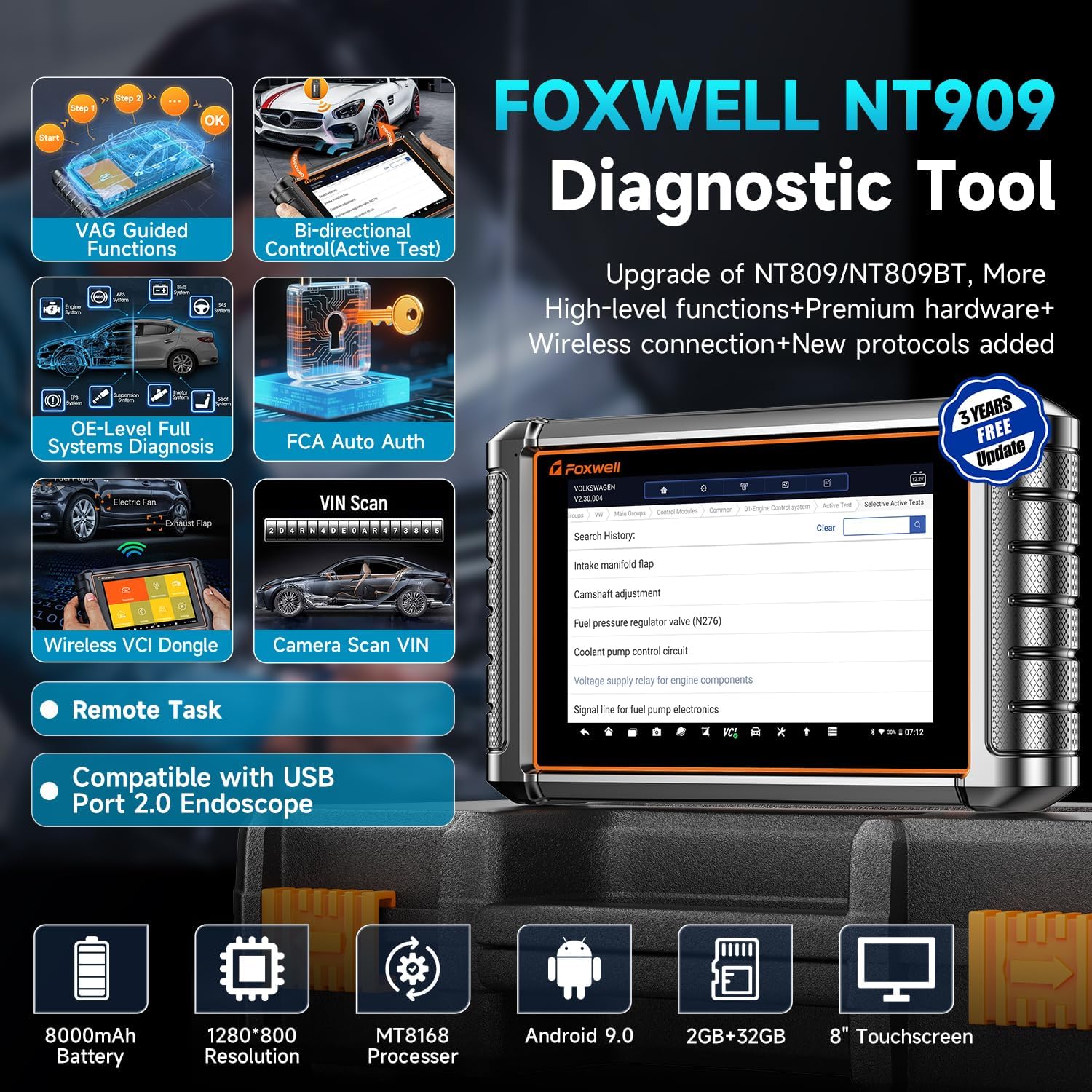
Figure 7.1: Key hardware specifications of the FOXWELL NT909.
8. Warranty & Support
8.1 Warranty Information
The FOXWELL NT909 comes with a 1-year hardware warranty from the date of purchase. This warranty covers defects in materials and workmanship under normal use. Please retain your proof of purchase for warranty claims.
8.2 Software Updates
Enjoy 3 years of free software updates for your NT909. These updates include new vehicle models, diagnostic functions, and performance enhancements. The tablet will automatically check for updates when connected to the internet. After the 3-year period, the device will continue to function, but new software updates will require a subscription.
8.3 Technical Support
For any technical assistance, compatibility questions, or troubleshooting not covered in this manual, please contact FOXWELL technical support. Lifetime technical support is included with your purchase.
- Online Support: Visit the official FOXWELL website for FAQs, knowledge base articles, and online support forms.
- Email Support: Contact support via email for detailed inquiries.
- Phone Support: Consult the quick start guide or official website for regional phone support numbers.

Figure 8.1: FOXWELL's commitment to reliable service and support.
Related documentsNT909


Ask a question about this manual
Ask about setup, troubleshooting, compatibility, parts, safety, or missing instructions. Manuals+ will review the question and use this page’s manual context to help answer it.