
1. Introduction
This manual provides detailed instructions for the safe and effective use of your SIRUI B25RD Bendable RGB Video Light. Please read this manual thoroughly before operating the device and retain it for future reference. The SIRUI B25RD is a versatile LED panel light designed for studio photography and video lighting, offering adjustable color temperature, full RGB color, and various lighting effects.
2. Safety Information
- Do not expose the light to water or high humidity.
- Avoid direct eye exposure to the LED light.
- Use only the specified power adapter or compatible NP-F970 batteries.
- Do not disassemble or attempt to repair the unit yourself. Contact authorized service personnel.
- Keep out of reach of children.
- Ensure proper ventilation during operation to prevent overheating.
3. Package Contents
Verify that all items are present in your package:
- B25R LED Light (x2)
- Power Adapter (x2)
- Connector (x1)
- Warranty Card (x1)
4. Product Overview
The SIRUI B25RD features a unique bendable design, allowing for flexible light shaping. It offers a wide range of color options and effects for creative lighting setups.
Key Features:
- Bendable Design: The light can be curved inwards or outwards to shape illumination.
- Quick Combination: Multiple B25R units can be connected to create larger light sources.
- RGB Full Color: Offers 360° full color control with HSI, CCT, and FX modes.
- Wide Color Temperature: Adjustable from 2700K to 8500K, with Green/Magenta adjustment in CCT mode.
- High Color Rendition: CRI rating of 96 and TLCI of 98 for accurate color reproduction.
- 13 Special Effects: Built-in lighting effects for various scenarios.
- Dual Control Options: Control via detachable 2.4G wireless remote or SIRUI Light APP.
- Dual Power Options: Supports DC power supply or NP-F970 batteries (sold separately).
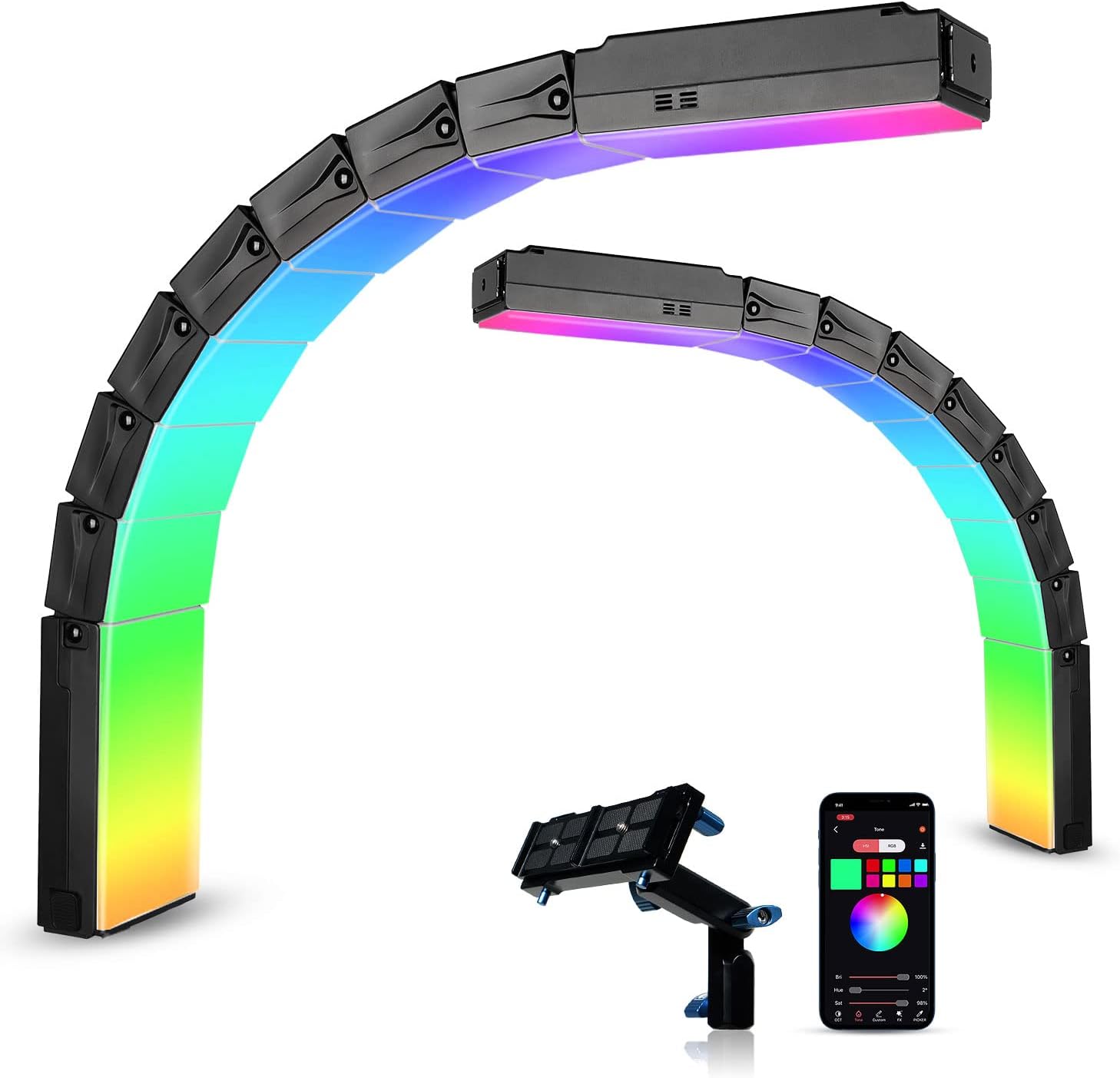
Figure 4.1: Overview of the SIRUI B25RD Bendable RGB Video Light and its control options.
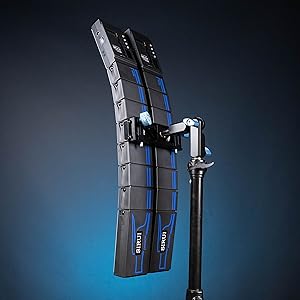
Figure 4.2: The bendable design allows for creative light shaping around subjects.
5. Setup
5.1 Powering the Light
The B25RD can be powered using the included DC power adapter or optional NP-F970 lithium batteries.
- DC Power: Connect the included power adapter to the DC input port on the light and then to a power outlet.
- Battery Power: Insert a fully charged NP-F970 battery into the battery case on the light. Ensure the battery is securely latched.
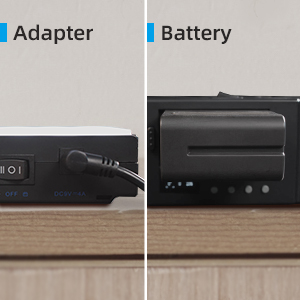
Figure 5.1: DC Adapter Connection.
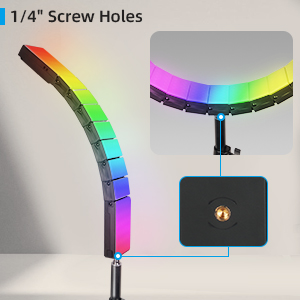
Figure 5.2: Battery Installation.
5.2 Mounting the Light
The B25RD features 1/4" screw holes for mounting onto light stands, tripods, or other compatible accessories.

Figure 5.3: 1/4" Screw Hole for Mounting.
5.3 Combining Multiple Lights
The quick-release design at each end of the B25RD allows for seamless combination of multiple units to create a longer or wider light source.
- Align the connector ends of two B25RD lights.
- Slide the lights together until they click into place, ensuring a secure connection.
- Repeat for additional units as desired.
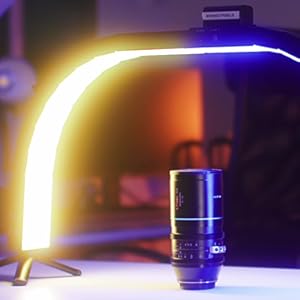
Figure 5.4: Connecting two B25RD units.

Figure 5.5: Multiple lights combined for extended coverage.
6. Operating Instructions
6.1 Power On/Off
Locate the power switch on the light unit. Toggle it to the 'ON' position to power on the light. Toggle to 'OFF' to power off.
6.2 Control Options
The B25RD can be controlled via its onboard controls, the detachable 2.4G wireless remote, or the SIRUI Light mobile application.
- Onboard/Remote Control: Use the buttons and dials on the light or the remote to navigate menus and adjust settings displayed on the LCD screen.
- App Control: Download the SIRUI Light APP to your smartphone. Connect to the light via Bluetooth to access all features and settings remotely. The app allows for group control and channel selection for multiple lights.
6.3 Lighting Modes
The B25RD offers three primary lighting modes: CCT, HSI, and FX.
6.3.1 CCT Mode (Correlated Color Temperature)
In CCT mode, you can adjust the color temperature from 2700K (warm) to 8500K (cool). Additionally, a Green/Magenta (G/M) adjustment is available to fine-tune color balance and match other light sources.
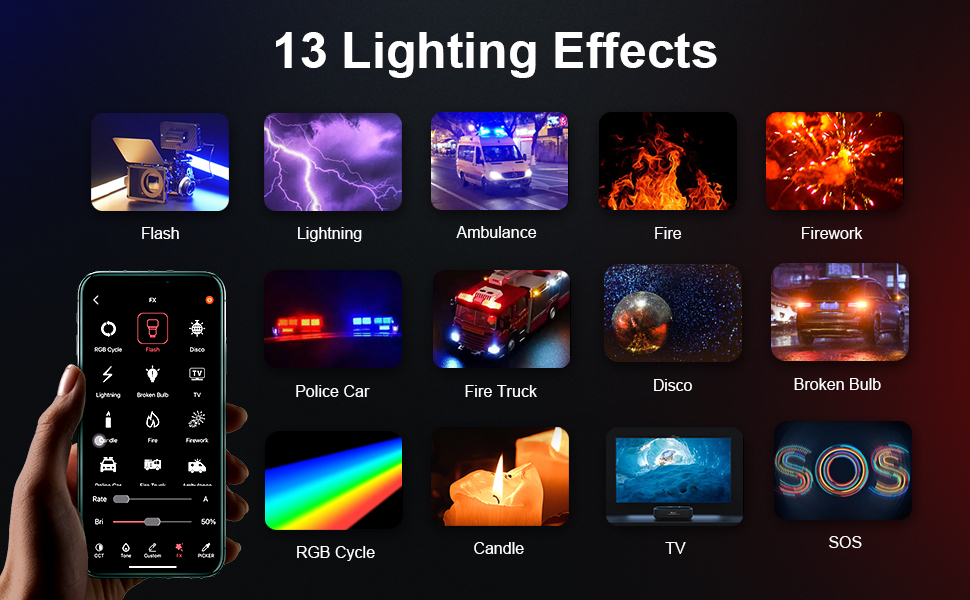
Figure 6.1: CCT and HSI Mode Adjustments.
6.3.2 HSI Mode (Hue, Saturation, Intensity)
HSI mode provides full 360° color control, allowing individual adjustment of hue, saturation, and brightness to achieve specific colors.

Figure 6.2: 360° HSI Color Control and CCT Range.
6.3.3 FX Mode (Special Effects)
The B25RD includes 13 built-in special lighting effects, categorized into three types (A, B, C), to simulate various scenarios such as flash, lightning, police car, fire, and more.
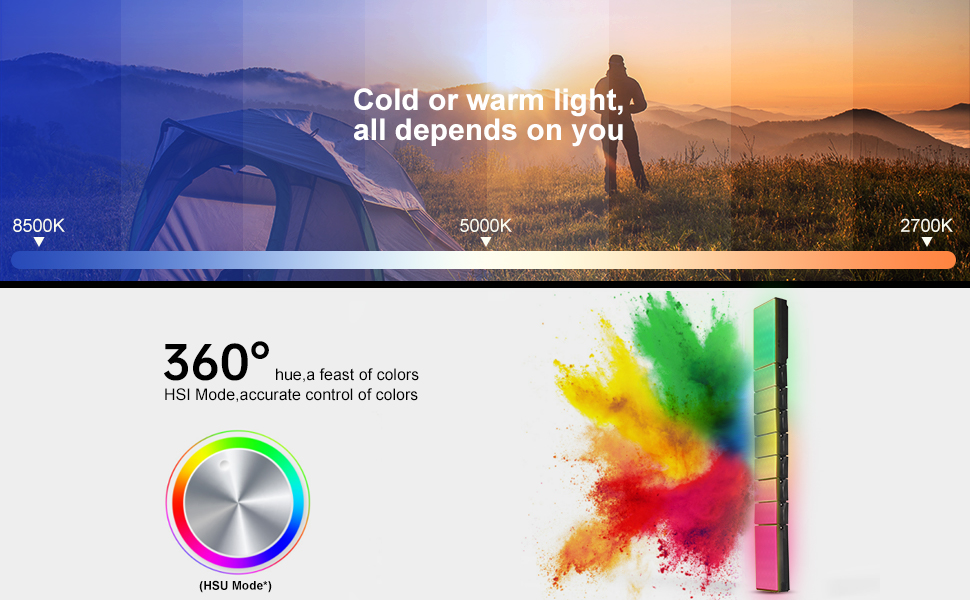
Figure 6.3: Available Lighting Effects in FX Mode.
7. Maintenance
- Clean the light's surface with a soft, dry cloth. Do not use abrasive cleaners or solvents.
- Ensure the light is powered off and unplugged before cleaning.
- Store the light in a dry, cool place away from direct sunlight when not in use.
- Regularly check cables and connections for any signs of damage.
8. Troubleshooting
- Light not turning on: Ensure the power adapter is securely connected or that the NP-F970 battery is fully charged and correctly inserted. Check the power switch position.
- Remote/App control not working: Verify that the remote has fresh batteries and is within range. For app control, ensure Bluetooth is enabled on your device and the light is paired correctly. Try restarting both the light and your control device.
- Inconsistent light output: Check for any obstructions or damage to the LED panel. Ensure power supply is stable.
- Overheating: Ensure the light has adequate ventilation and is not covered. If overheating persists, power off the unit and allow it to cool before resuming use.
9. Specifications
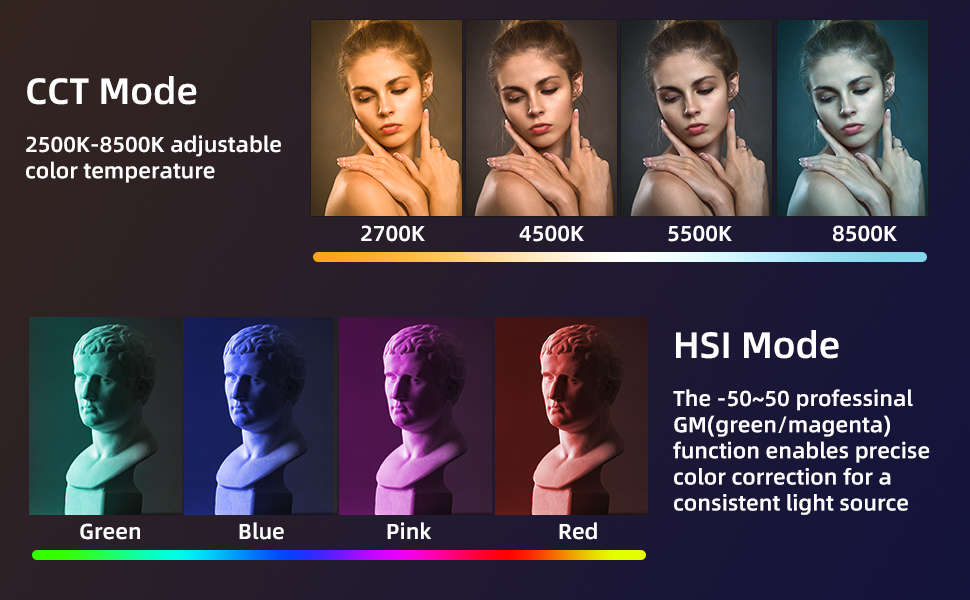
Figure 9.1: SIRUI B25R Specifications.
| Feature | Specification |
|---|---|
| Brand | Sirui |
| Model | B25RD |
| Dimensions | 583 × 75 × 32.3 mm |
| Item Weight | 6.69 pounds (approx. 3.03 kg for the double kit) |
| Color Temperature (CCT) | 2700K - 8500K |
| CRI | 96 |
| TLCI | 98 |
| Illuminance (0.5m) | 2000 lux |
| Power Consumption | Max 25W per light |
| Adapter Input | 9V 4A |
| Special Effects (FX) | 13 types |
| Connectivity Technology | Bluetooth |
| Ambient Temperature Operation | -10°C to 45°C |
10. Warranty and Support
Original SIRUI Lighting products are entitled to a 2-year warranty service. Please retain your proof of purchase for warranty claims.
For technical support, service, or further inquiries, please visit the official Sirui website or contact their customer service department. Refer to the warranty card included in your package for specific contact details and terms.