
1. Introduction
Thank you for choosing the Guiheng Bluetooth Keyboard and Mouse Combo. This wireless set offers a seamless and efficient input experience for a wide range of devices. Featuring a 7-color LED backlit keyboard and a comfortable mouse, this combo is designed for productivity and convenience. Please read this manual carefully to ensure proper setup and operation.
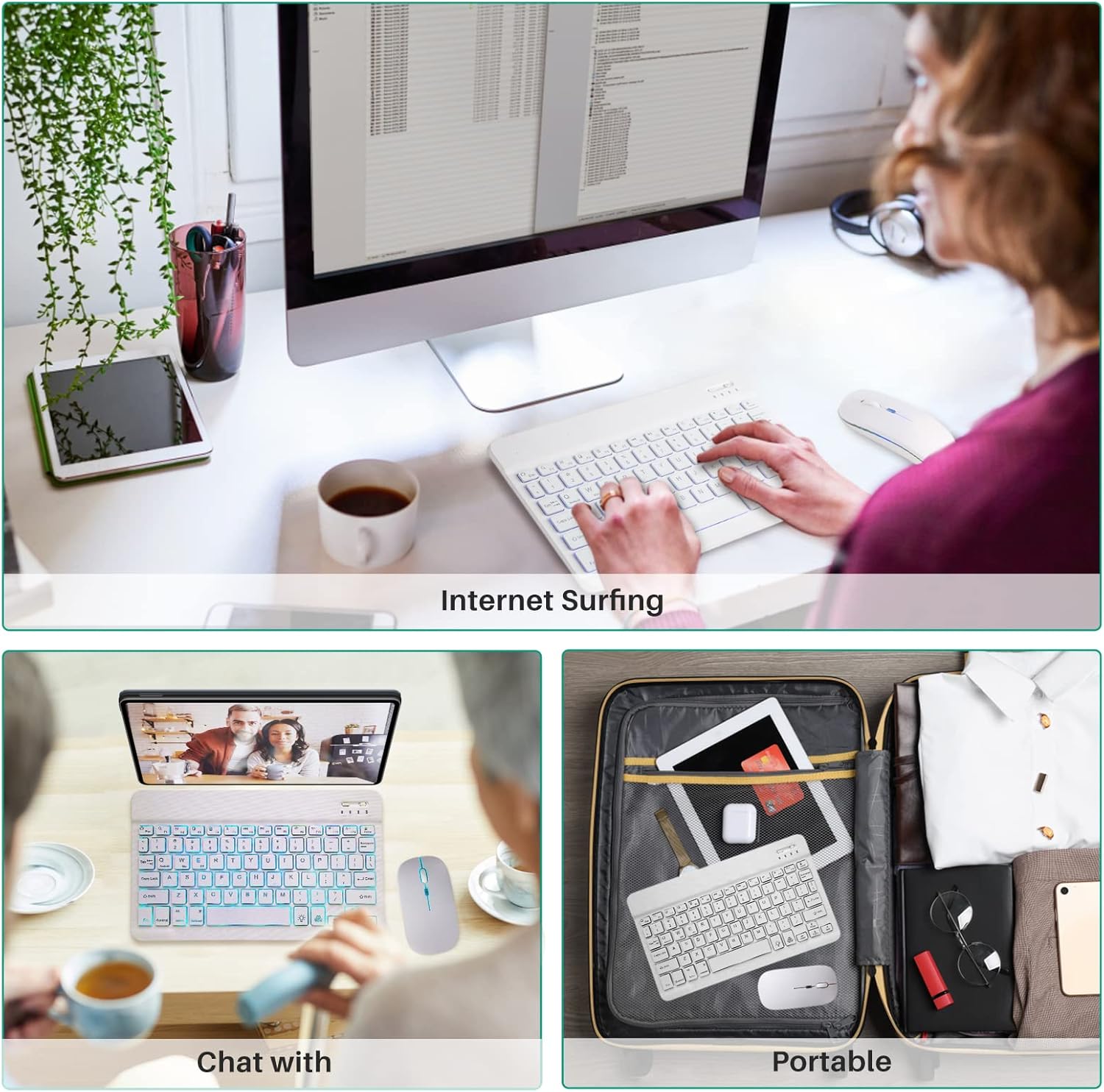
The keyboard and mouse combo is versatile, suitable for various uses such as internet surfing, chatting, and is highly portable for on-the-go use.
2. Product Features
- 7-Color LED Backlit Keyboard: The keyboard features a 7-color LED backlight with adjustable modes, providing a visually appealing and functional typing experience, especially in low-light conditions.
- Wireless Bluetooth Connection: Both the keyboard and mouse utilize Bluetooth wireless technology for a stable and clutter-free connection.
- Scissor Key Structure: The keyboard employs a scissor key structure for comfortable and responsive typing.
- Built-in Rechargeable Battery: Both devices are equipped with built-in polymeric lithium batteries, offering long battery life and convenient recharging.
- Automatic Sleep Mode: The keyboard enters sleep mode after 10 minutes of inactivity to conserve power.
- Adjustable Mouse DPI: The mouse offers 3 adjustable DPI settings (800/1200/1600 DPI) for precise cursor control.
- Wide Compatibility: Compatible with iOS (iPad, iPhone), Android tablets, Windows PCs, laptops, and other Bluetooth-enabled devices.
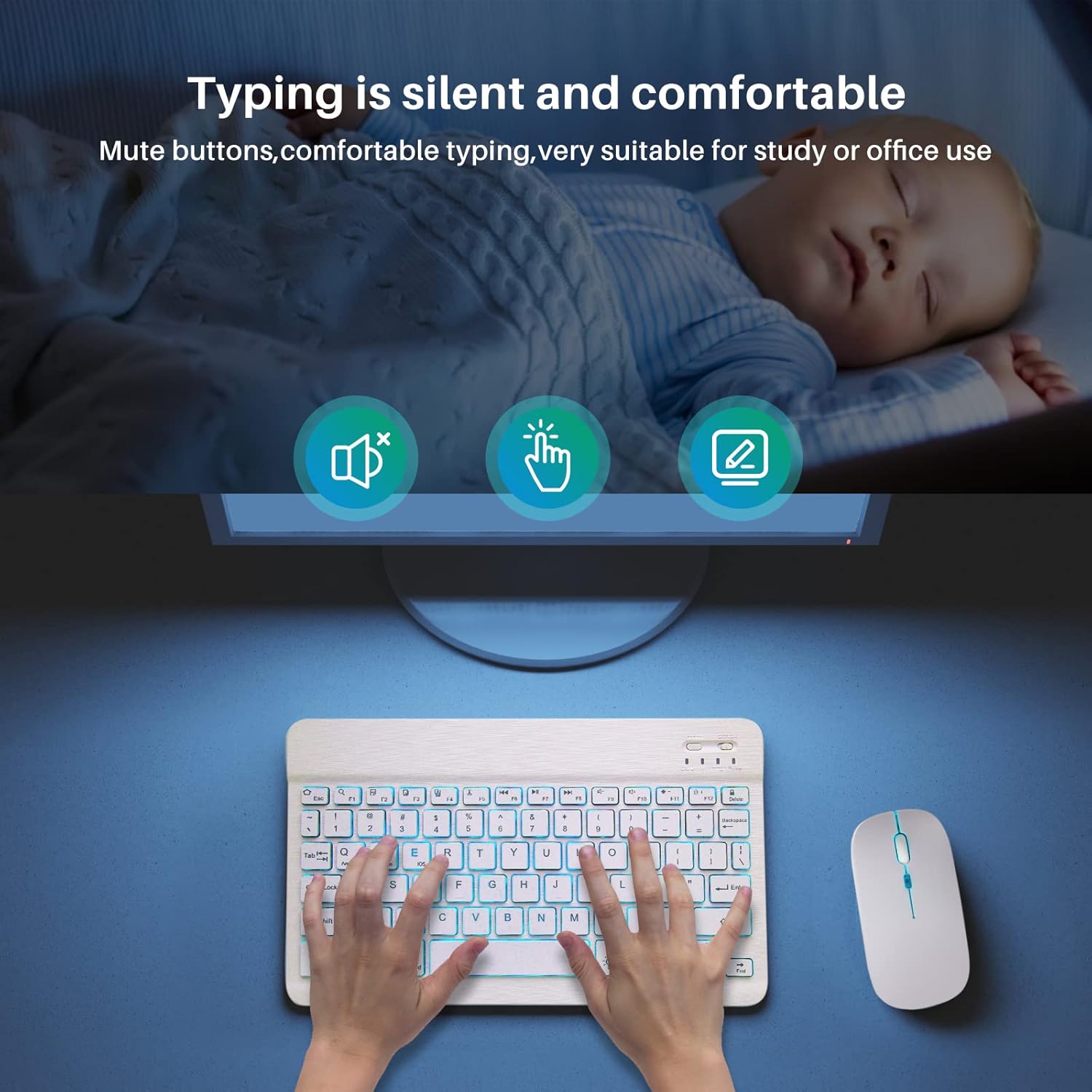
The keyboard and mouse are designed for silent and comfortable typing, making them suitable for study or office environments.
3. Setup Instructions
3.1 Keyboard Pairing
Before using the keyboard, it must be connected to your tablet or other device. Once successfully paired, you will not need to reconnect it in the future. Follow these steps to connect the keyboard:
- Turn on the keyboard using the ON/OFF switch located on the top right.
- Press the "Connect" button for 3 seconds. The blue Bluetooth indicator light will blink, indicating it is in pairing mode.
- On your iPad or other device, open the Bluetooth settings.
- Find "Bluetooth Keyboard" in the list of available devices and tap to connect. This is a password-free connection.
3.2 Mouse Pairing
The mouse also connects via Bluetooth. Ensure the mouse is turned on and in pairing mode (often indicated by a blinking light on the mouse). Then, follow similar steps as the keyboard to find and connect the mouse in your device's Bluetooth settings.
4. Operating Instructions
4.1 Hot Keys and Indicators
The keyboard features various hot keys accessible by pressing the FN key in combination with function keys (F1-F12). Refer to the key labels for specific functions (e.g., volume control, media playback).
- Power LED: Flashes for 1-2 seconds when the keyboard is turned on, then goes out automatically.
- Charging LED: Flashes while charging and turns off when the battery is full.
- BT LED: Flashes when the keyboard is connecting and turns off once connected.
4.2 Backlight Control
The keyboard's 7-color LED backlight can be controlled using dedicated keys:
- Press the 💡 (light bulb) key to turn the backlight on or off.
- Press the 🌐 (RGB circle) key to cycle through the different backlight colors.

The keyboard offers 2 modes and 7 colors for its backlight, controlled by dedicated keys.
4.3 Mouse DPI Adjustment
The mouse features adjustable DPI settings to change cursor sensitivity. Press the DPI button on the mouse to cycle through 800, 1200, and 1600 DPI settings.

The mouse offers 3 adjustable DPI settings (800/1200/1600 DPI) for customized cursor speed and precision.
5. Charging Instructions
To ensure optimal battery life and performance, please follow these charging guidelines:
- For the first use, charge the keyboard for at least 6 hours.
- Subsequently, when the battery is low, charge for at least 2 hours.
- A flashing red indicator light signifies a low battery. Please charge the device promptly.
- Connect the charging cable correctly to the designated charging port on the keyboard and mouse.

Both the keyboard and mouse feature built-in rechargeable batteries for convenient power management.
6. Troubleshooting
If you encounter issues with your keyboard or mouse, please refer to the following troubleshooting steps:
- Keyboard Not Working Properly:
- Ensure your computer's Bluetooth function is enabled.
- Verify the keyboard is within 10 meters (approximately 33 feet) of the computer/device.
- Confirm that the connection password (if any, though typically password-free) was entered correctly during pairing.
- Check the keyboard's built-in battery power. If it's too low, please charge the keyboard.
- Connection Issues (Delay, Typing Errors after Pairing):
If the keyboard is not connected or paired correctly, or if text input delays or typing errors occur after successful pairing, follow these steps:
- Delete all existing Bluetooth devices from your tablet/computer's Bluetooth settings.
- Turn off the Bluetooth option on your tablet/computer.
- Restart both the keyboard and your tablet/computer.
- Attempt to pair the keyboard and mouse with your device again following the setup instructions.
7. Specifications
| Feature | Detail |
|---|---|
| Brand | Guiheng |
| Model | B0BP2MDB1W |
| Color | White |
| Connectivity Technology | Bluetooth |
| Special Feature | Rechargeable |
| Compatible Devices | Tablet (iOS, Android, Windows), PC, Laptop, iPhone, Android Phone |
| Keyboard Dimensions | Approx. 9.8 x 5.9 x 0.2 inches |
| Mouse Dimensions | Approx. 4.3 x 2.3 x 1 inches |
| Item Weight | 12.3 ounces (total combo) |
| Mouse DPI Settings | 800 / 1200 / 1600 DPI |
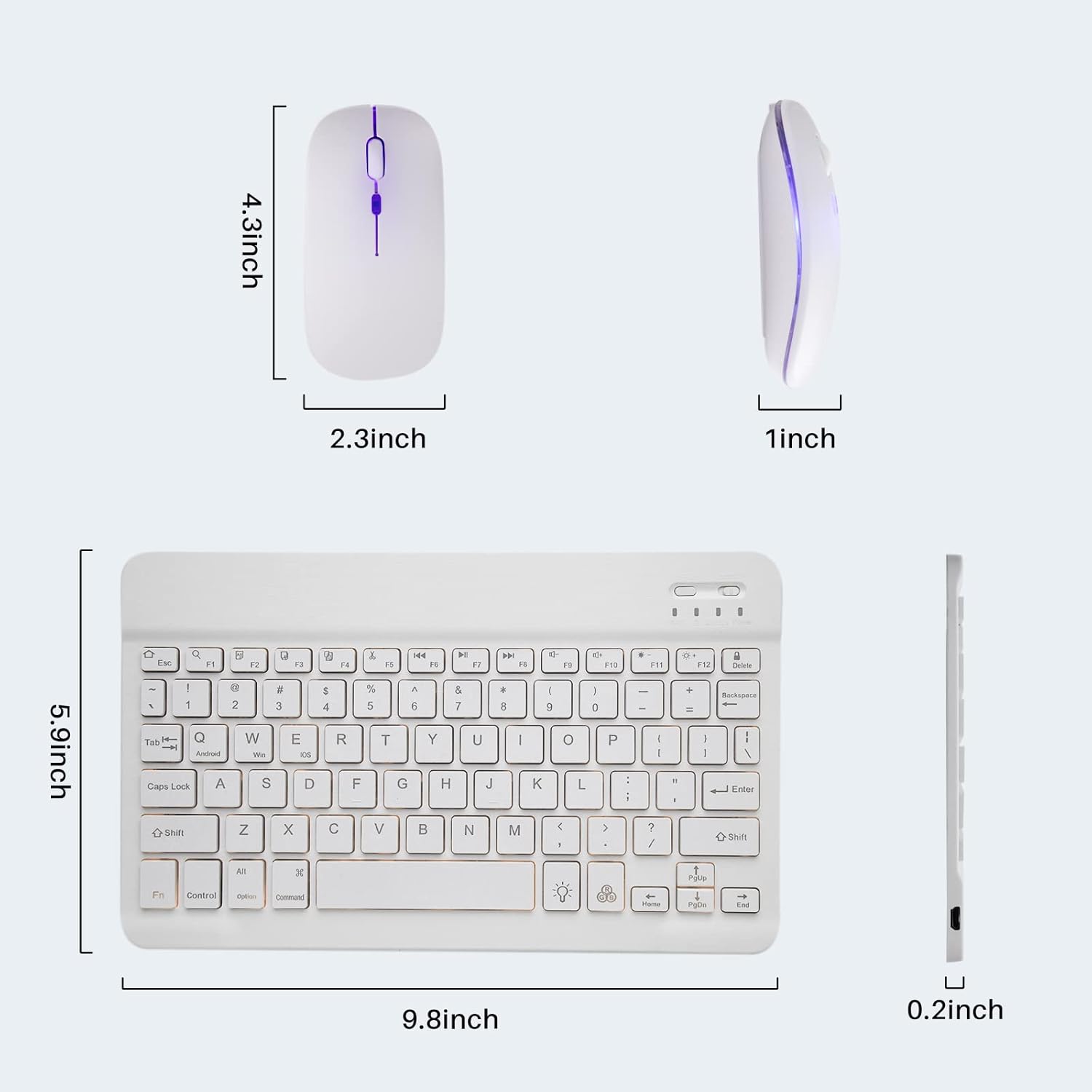
Detailed dimensions of the keyboard and mouse for reference.
8. Warranty and Support
For warranty information or technical support, please refer to the product packaging or contact Guiheng customer service directly. Keep your purchase receipt for any warranty claims.