
1. Introduction
This manual provides comprehensive instructions for the installation, operation, and maintenance of your Sungale 1300Mbps WiFi Wireless LAN Adapter. Please read this manual carefully before using the product to ensure proper functionality and to avoid any potential issues. Keep this manual for future reference.
2. Product Overview
The Sungale 1300Mbps WiFi Wireless LAN Adapter is designed to provide high-speed wireless connectivity for your desktop or laptop computer. Featuring USB 3.0 connectivity and dual-band (2.4GHz/5GHz) support with 802.11ac standard, it offers fast and stable internet access for various applications.

Image 2.1: The Sungale 1300Mbps WiFi Wireless LAN Adapter, featuring a compact design with two external antennas for enhanced signal reception.
Key features include:
- AC1300Mbps High-Speed: Offers speeds up to 400Mbps on 2.4GHz and 867Mbps on 5GHz.
- USB 3.0 Interface: Provides data transfer speeds up to 10 times faster than USB 2.0.
- Dual-Band Support: Operates on both 2.4GHz and 5GHz frequencies for flexible and stable connections.
- High-Gain Antennas: Equipped with two 5dBi antennas for extended range and improved signal penetration.
- Wide Compatibility: Supports Windows 11/10/8.1/8/7/XP/Vista and Mac OS X (10.9-10.14).

Image 2.2: A laptop connected to the Sungale WiFi adapter, illustrating its wireless connectivity capabilities with icons for 2.4G/5G, USB, and antennas.

Image 2.3: A close-up view of the Sungale WiFi adapter connected to a laptop, emitting wireless signals, highlighting its role in establishing a network connection.
3. Setup Instructions
Follow these steps to install your Sungale WiFi Wireless LAN Adapter:
- Insert the Driver CD: Insert the included compact disc into your computer's CD-ROM drive. If your computer does not have a CD-ROM drive, you may need to download the driver from the manufacturer's website (refer to the support section for more information).

Image 3.1: Visual guide for driver installation, showing the driver CD, the adapter being plugged into a USB port, and the network selection screen.
- Install the Driver: Follow the on-screen instructions to install the necessary drivers. For Windows 11/10, the adapter may be plug-and-play, meaning drivers might install automatically. However, manual installation via CD or download is recommended if automatic installation fails or for other operating systems.
- Connect the Adapter: Plug the USB WiFi adapter into an available USB 3.0 port on your desktop or laptop computer. Ensure the connection is secure.
- Connect to a Network: Once the driver is installed and the adapter is connected, your computer should detect available Wi-Fi networks. Select your desired network from the list and enter the password if prompted.
The adapter supports a wide range of operating systems:

Image 3.2: An illustration of the adapter's broad compatibility, displaying icons for Windows, Mac, and Linux operating systems, alongside desktop, laptop, and mobile device types.
4. Operating Instructions
After successful installation, the adapter will function as your computer's primary wireless network interface. You can switch between 2.4GHz and 5GHz bands depending on your router's capabilities and network conditions.
- 2.4GHz Band: Offers wider coverage and better penetration through obstacles like walls. Ideal for general web browsing, email, and tasks that do not require extremely high bandwidth. Max speed up to 400Mbps.
- 5GHz Band: Provides faster speeds and less interference, suitable for online gaming, HD video streaming, and video calls. Max speed up to 867Mbps.

Image 4.1: A visual representation of the dual-band capabilities, detailing the advantages of 2.4GHz (wider range, better penetration) and 5GHz (higher speed, less interference) for different activities like streaming, gaming, and video conferencing.
The adapter supports two operational modes:
- Station Mode (Client/Receiver): The adapter connects to an existing Wi-Fi network (router) to provide internet access to your computer. This is the standard mode for most users.
- AP Mode (Access Point/Transmitter): The adapter can create a Wi-Fi hotspot, allowing other devices (e.g., smartphones, tablets) to connect to your computer's internet connection. This mode requires specific software configuration.
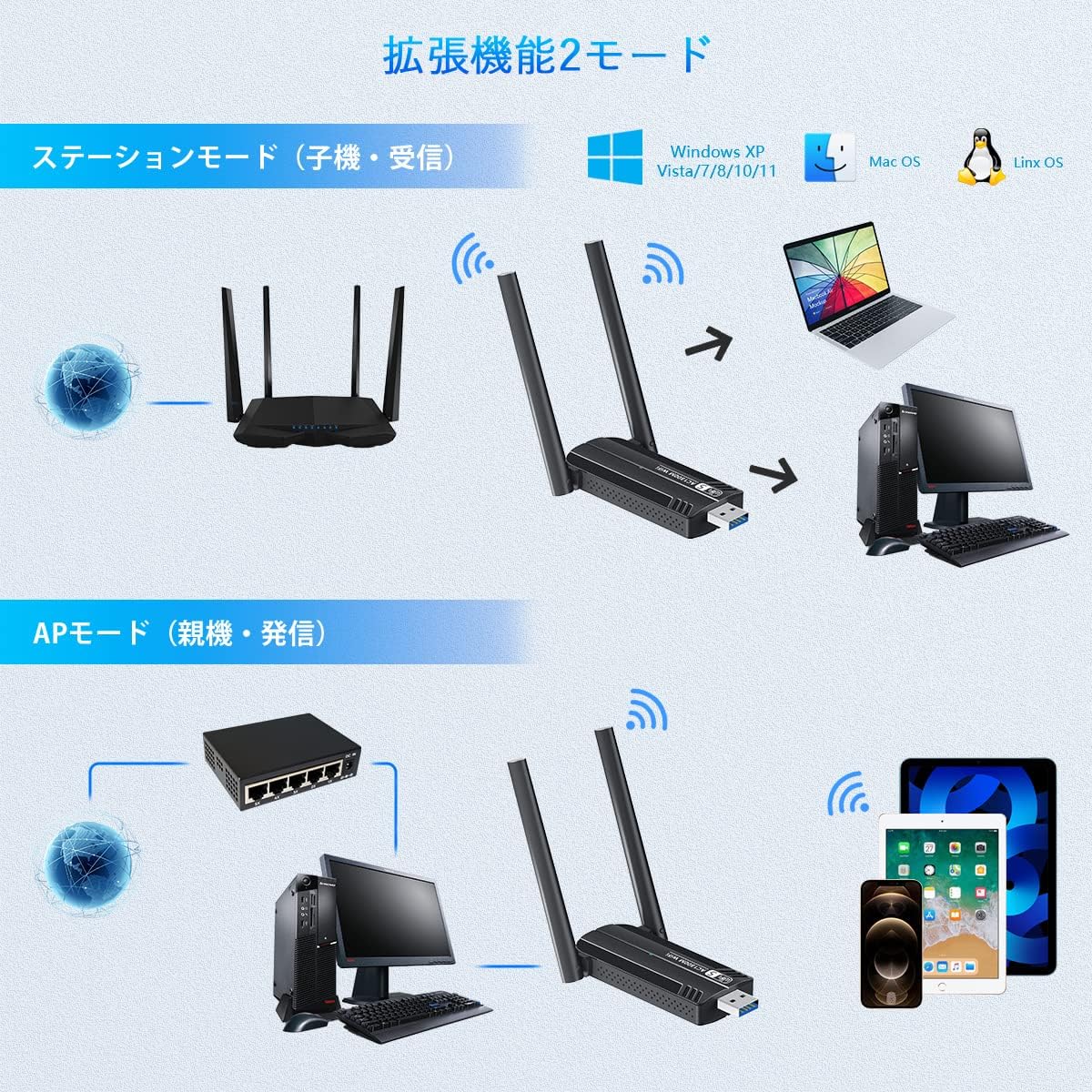
Image 4.2: A diagram explaining the two functional modes: Station Mode, where the adapter acts as a client connecting to a router, and AP Mode, where it functions as an access point for other devices.
5. Maintenance
To ensure the longevity and optimal performance of your Sungale WiFi adapter, consider the following maintenance tips:
- Keep the adapter clean and free from dust. Use a soft, dry cloth for cleaning.
- Avoid exposing the adapter to extreme temperatures, humidity, or direct sunlight.
- Do not attempt to disassemble or repair the adapter yourself, as this will void the warranty.
- Ensure the antennas are not bent or damaged.
- Periodically check for updated drivers on the Sungale support website to ensure compatibility and performance improvements.
6. Troubleshooting
If you encounter issues with your WiFi adapter, refer to the following troubleshooting steps:
- No Wi-Fi Connection:
- Ensure the adapter is securely plugged into a USB port.
- Verify that the drivers are correctly installed. Reinstall if necessary.
- Check if your computer's Wi-Fi is enabled (if applicable).
- Restart your computer and router.
- Slow Connection Speed:
- Ensure you are connected to the 5GHz band if your router supports it and you are within range.
- Move closer to your Wi-Fi router to improve signal strength.
- Check for interference from other electronic devices.
- Update your adapter's drivers to the latest version.
- Frequent Disconnections:
- Ensure the adapter is not overheating.
- Check for driver conflicts or outdated drivers.
- Try plugging the adapter into a different USB port.
- Adjust the antenna position for better signal stability.
- Driver Installation Issues:
- Ensure your operating system is supported.
- Disable any antivirus software temporarily during installation if it interferes.
- If using the CD, ensure the CD drive is functioning correctly.
- Download the latest drivers from the official Sungale support website if the CD is not working or unavailable.
7. Specifications
The following table details the technical specifications of the Sungale 1300Mbps WiFi Wireless LAN Adapter:
| Feature | Specification |
|---|---|
| Model Number | SGE120535 |
| Brand | Sungale |
| Data Transfer Rate | Up to 1300 Mbps (400Mbps on 2.4GHz, 867Mbps on 5GHz) |
| Data Link Protocol | IEEE 802.11ac |
| Hardware Interface | USB 3.0 |
| Antenna | 2 x 5dBi External Antennas |
| Color | Black |
| Compatible Devices | Desktop PC, Laptop |
| Operating System Support | Windows 11/10/8.1/8/7/XP/Vista, Mac OS X (10.9-10.14) |
| Package Dimensions | 11.9 x 9 x 1.9 cm |
| Weight | 40 g |
8. Warranty and Support
For warranty information, please refer to the documentation included with your product or visit the official Sungale website. If you require technical assistance or have questions not covered in this manual, please contact Sungale customer support through their official channels.
Please retain your proof of purchase for warranty claims.
