Introduction
The WAVLINK USB C Docking Station is designed to expand the connectivity of your laptop or compatible device, offering a comprehensive solution for multi-monitor setups, high-speed data transfer, and efficient power delivery. This manual provides detailed instructions for setup, operation, and troubleshooting to ensure optimal performance.
- Triple 4K@60Hz Displays: Features 1 x 4K 60Hz HDMI port and 2 x 4K 60Hz DisplayPort for simultaneous connection of three 4K displays.
- 130W Power Delivery: Includes a USB-C PD 100W port for rapid charging of laptops and other smart devices, with an additional 30W allocated for other USB ports.
- 5Gbps Swift Data Transmission: Equipped with 4 USB-A and 1 USB-C ports supporting data transfer speeds up to 5Gbps.
- Gigabit Ethernet & Audio: Integrated 1 Gigabit Ethernet port for stable network connection and a 3.5 mm headphone jack for audio.
- Wide Compatibility: Fully compatible with macOS and Windows, including Apple M1, M2, M3, and M4 chipsets, requiring the latest DisplayLink driver.
Package Contents
Please verify that all items are present in your package:
- WAVLINK USB C Docking Station
- 130W DC Power Adapter
- USB-C to USB-C Cable
- USB-C to USB-A Converter
- Instruction Manual
- USB Storage Device (containing drivers)
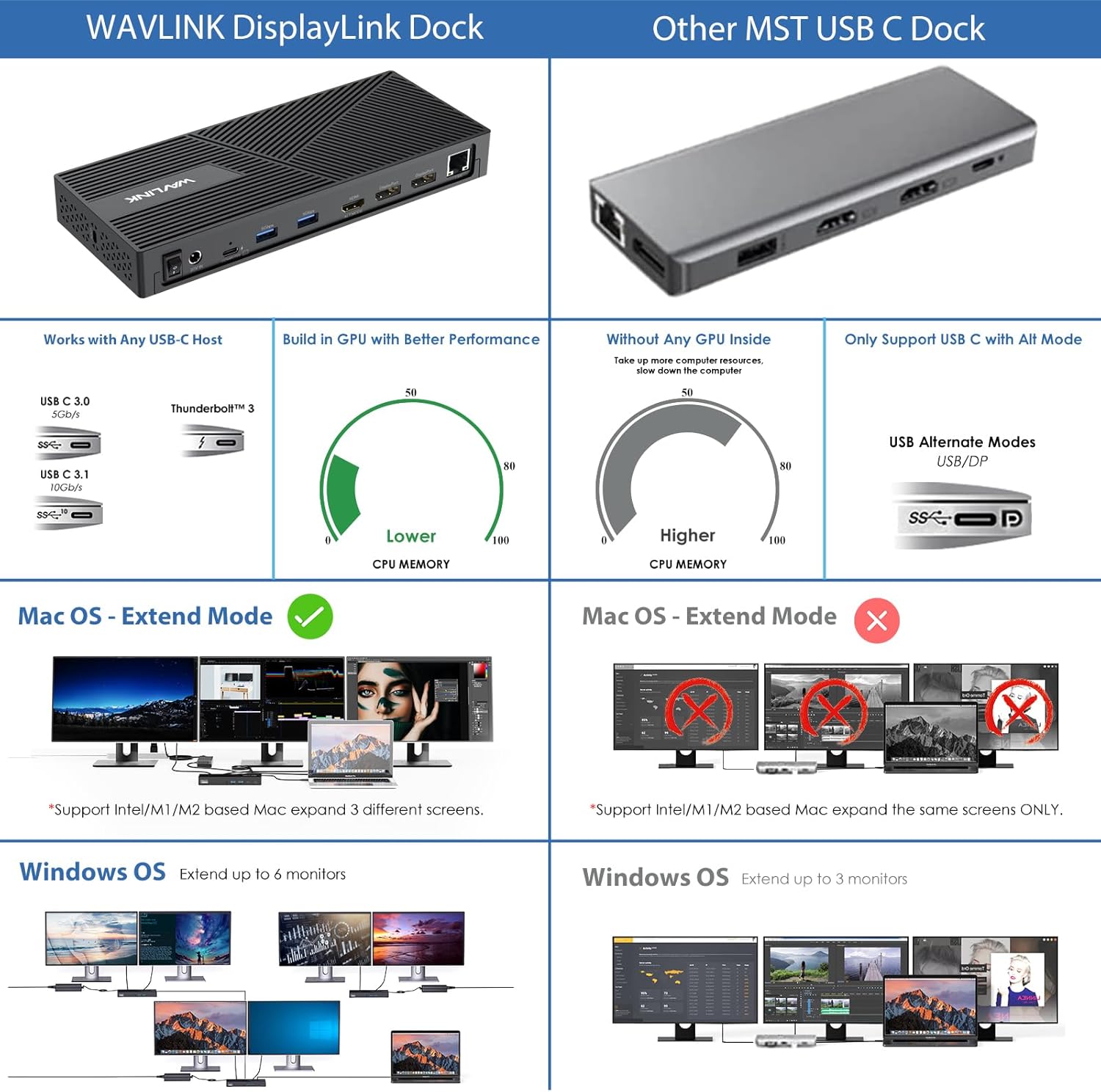
Image: The docking station, power adapter, USB-C cable, USB-C to USB-A converter, instruction manual, and a USB drive containing drivers are included in the package.
Product Overview & Port Layout
The docking station features a robust design with various ports for extensive connectivity. The metal casing aids in heat dissipation, ensuring stable performance.
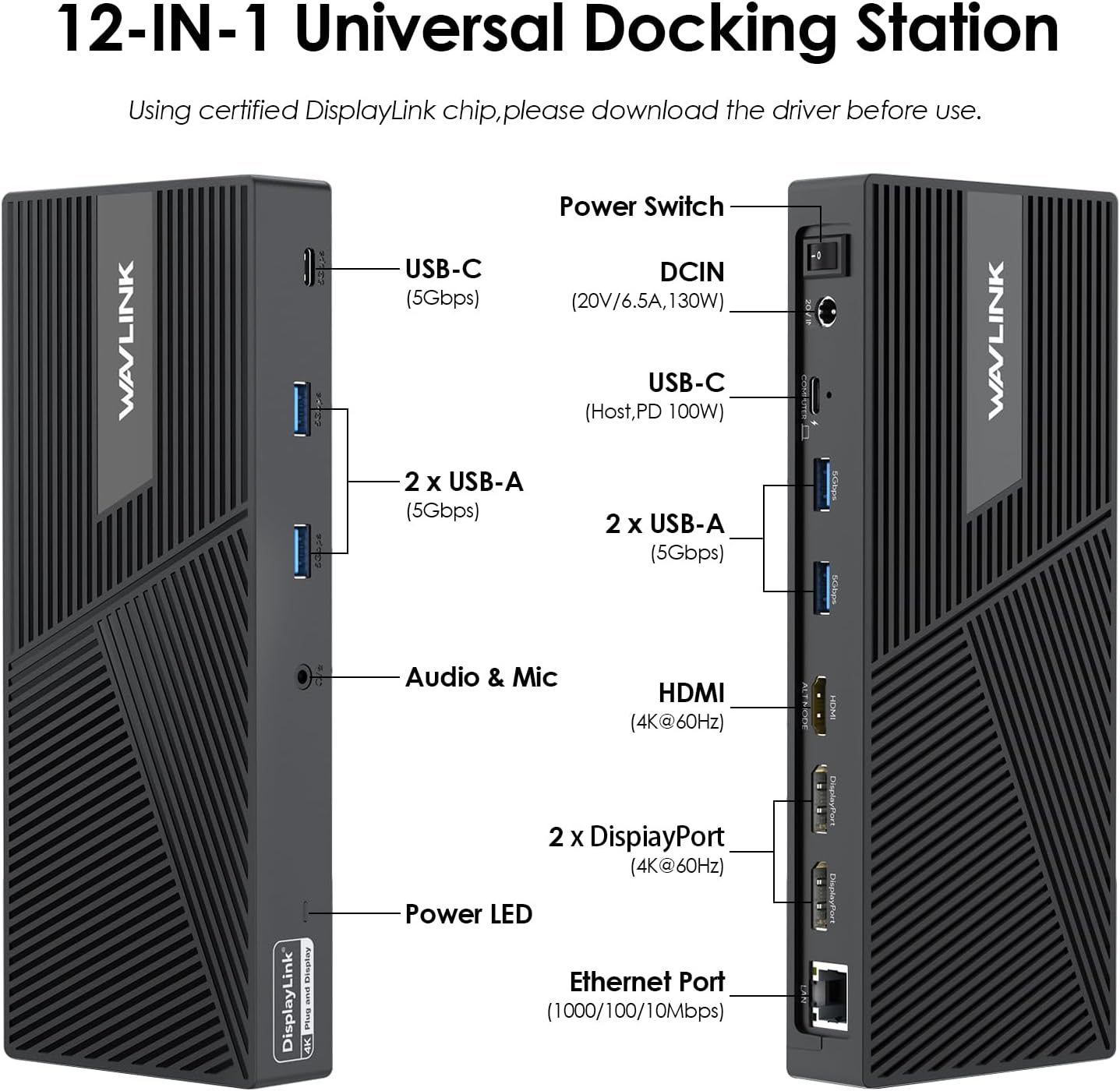
Image: Front and back views of the WAVLINK USB C Docking Station with all ports clearly labeled. The front includes USB-C (5Gbps), 2x USB-A (5Gbps), and Audio & Mic jacks. The back features a Power Switch, DCIN (20V/6.5A, 130W), USB-C (Host, PD 100W), 2x USB-A (5Gbps), HDMI (4K@60Hz), 2x DisplayPort (4K@60Hz), and an Ethernet Port (1000/100/10Mbps).
Front Panel Ports:
- USB-C (5Gbps): 1 port for data transfer.
- USB-A (5Gbps): 2 ports for data transfer.
- Audio & Mic: 3.5mm jack for headphones and microphone.
- Power LED: Indicates power status.
Rear Panel Ports:
- Power Switch: To turn the docking station on/off.
- DCIN (20V/6.5A, 130W): Connect the provided power adapter here.
- USB-C (Host, PD 100W): Connect to your laptop for data and power delivery.
- USB-A (5Gbps): 2 additional ports for data transfer.
- HDMI (4K@60Hz): 1 port for connecting a 4K monitor.
- DisplayPort (4K@60Hz): 2 ports for connecting 4K monitors.
- Ethernet Port (1000/100/10Mbps): For wired network connection.
Setup
Follow these steps to set up your WAVLINK USB C Docking Station:
- Install DisplayLink Driver: This docking station requires the DisplayLink driver for full functionality, especially for macOS and multi-monitor setups. Access www.displaylink.com/downloads, choose the corresponding driver for your operating system (Windows, macOS, Android, Chrome OS, Ubuntu), and download & install it.
- Connect Power: Plug the provided 130W DC Power Adapter into the DCIN port on the rear of the docking station and then into a power outlet.
- Connect to Laptop: Use the provided USB-C to USB-C cable to connect the docking station's USB-C (Host, PD 100W) port to your laptop's USB-C port. If your laptop only has USB-A ports, use the provided USB-C to USB-A converter.
- Connect Monitors: Connect your external monitors to the HDMI and DisplayPort outputs on the rear of the docking station using appropriate cables.
- Connect Peripherals: Plug in your USB devices (keyboard, mouse, external drives) into the available USB-A and USB-C ports. Connect your Ethernet cable and audio devices as needed.
- Power On: Press the Power Switch on the rear panel to turn on the docking station. The Power LED on the front will illuminate.

Image: A laptop connected to the docking station, with a prominent 'Driver Required' warning on the screen, emphasizing the need to install the DisplayLink driver.
Video: A seller-provided video demonstrating the physical setup of the WAVLINK USB C Docking Station, including connecting power, laptop, and peripherals.
Display Configuration
The docking station supports various display modes for both macOS and Windows.
Triple 4K@60Hz Displays:
The docking station is capable of driving three 4K displays simultaneously at 60Hz. This includes 1 HDMI port and 2 DisplayPort outputs.

Image: A laptop connected to the docking station, extending its display across three external 4K monitors, showcasing a multi-screen workspace.
Display Modes:
- Extend Mode (A-BCD): Allows each connected monitor to display different content, expanding your workspace. This mode is supported on both macOS (M1/M2/M3 based MacBooks support expansion of 3 different screens) and Windows.
- Mirror Mode (A-AAA): All connected monitors display the same content as your primary screen. This mode is supported on both macOS and Windows.

Image: A visual representation of Extend Mode (A-BCD) and Mirror Mode (A-AAA) for multi-monitor setups, indicating compatibility with macOS and Windows.
Important Note for HDMI (Alt Mode):
The HDMI (Alt Mode) port requires your laptop's Type-C port to support video output. If your laptop's Type-C port does not support DP Alt Mode, only dual 4K@60Hz displays will be output, and the HDMI (Alt Mode) port will not function.
Video: A seller-provided video offering a quick view of the Docking Station 69PD24, demonstrating its features and connectivity.
Operating Instructions
Power Delivery:
The USB-C PD 100W port provides high power for rapid charging of most MacBooks, laptops, tablets, iPhones, Android devices, and other smart devices. Ensure your laptop's USB-C port supports the PD protocol for charging via the docking station.

Image: A laptop and a smartphone are shown charging simultaneously via the WAVLINK USB C Docking Station, highlighting its 130W power delivery capability.
Data Transfer:
Utilize the 4 USB-A and 1 USB-C ports for rapid file transfer speeds up to 5Gbps. These ports are backward compatible with USB 2.0 and 1.1 devices.

Image: An external hard drive connected to the WAVLINK USB C Docking Station, illustrating its 5Gbps data transfer capabilities through its USB 3.0 ports.
Network and Audio:
The Gigabit Ethernet port provides stable and fast network support, ideal for streaming 4K videos. The integrated 3.5mm audio jack supports both audio output and microphone input.
Compatibility
The WAVLINK USB C Docking Station offers broad compatibility:
- Operating Systems: Windows 11/10/8.1/8/7/XP/Vista, macOS 10.14-13.x and latest, Harmony OS, Ubuntu, Android, Chrome OS.
- Compatible Devices: Dell, HP, MacBook Air, MacBook Pro, Microsoft Surface, Mobile Phones, Tablets.
Note: If the USB-C port of your host doesn't support data transfer, PD, and DP Alt Mode simultaneously, some of the product's ports will not be available.
Image: A visual representation of the WAVLINK USB C Docking Station's wide compatibility with different operating systems (Windows, macOS, Android, Chrome OS, Ubuntu, Harmony OS) and devices (laptops, mobile phones, tablets).
Troubleshooting
If you encounter issues with your docking station, refer to the following common problems and solutions:
- Monitors Not Displaying:
- Ensure all connections are secure.
- Verify the DisplayLink driver is installed and up to date.
- Check if your laptop's USB-C port supports video output (DP Alt Mode).
- Restart your computer and the docking station.
- For Mac users, sometimes opening the DisplayLink Manager app, even if already running, can resolve display issues.
- Charging Issues: Ensure your laptop's USB-C port supports the Power Delivery (PD) protocol. Use the provided power adapter for the docking station.
- USB Ports Not Functioning: Check cable connections. Ensure the docking station is receiving adequate power.
- Bluetooth Mouse/Keyboard Issues (Mac): Some users report glitches with Bluetooth devices when waking a Mac from sleep. Restarting the DisplayLink Manager or reconnecting devices may help.
- Monitor Orientation Not Saved (Mac): Some users report monitor orientation not saving after restart. Ensure DisplayLink Manager is updated.
Video: A seller-provided video demonstrating how to troubleshoot common monitor issues with the docking station.
Specifications
- Model: Displaylink Dock 3 Monitor
- Brand: WAVLINK
- Package Dimensions: 11.1 x 5.39 x 2.83 inches
- Item Weight: 2.42 pounds
- Hardware Interface: DisplayPort, Ethernet, HDMI, USB 3.1 Type C, USB 3.2 Gen 1
- Total USB Ports: 4 (USB-A) + 1 (USB-C)
- Number of Ports: 12-in-1
- Total HDMI Ports: 1
- Total DisplayPort: 2
- Wattage: 130W (100W PD to host, 30W to other ports)
- Input Voltage: 20 Volts (DC)
Maintenance
To ensure the longevity and optimal performance of your docking station, follow these maintenance guidelines:
- Cleaning: Use a soft, dry cloth to clean the exterior of the docking station. Avoid liquid cleaners or solvents.
- Ventilation: Ensure the docking station is placed in a well-ventilated area to prevent overheating. Do not block the ventilation fins.
- Storage: When not in use for extended periods, store the docking station in a cool, dry place away from direct sunlight and extreme temperatures.
- Cable Management: Keep cables organized and avoid sharp bends or kinks to prevent damage.
- Firmware/Driver Updates: Regularly check the WAVLINK website or DisplayLink website for the latest firmware and driver updates to ensure compatibility and performance improvements.
Warranty & Support
For technical support, warranty claims, or any questions regarding your WAVLINK USB C Docking Station, please contact us through the following channels:
- Email Support: support@wavlink.com
- Live Chat Support: Visit wavlink.com
- Phone Support (US Local): +1 (888) 973-0883 (Mon-Fri 09:00 am - 10:00 pm UTC-5)
Please feel free to contact us via Amazon Message for any inquiries.


