
Introduction
This manual provides instructions for setting up, operating, and maintaining your GEEZER Wireless Keyboard and Mouse Combo. This combo features a full-sized 104-key keyboard with round keycaps and an optical mouse, connecting wirelessly via a single 2.4G USB receiver. It is designed for compatibility with various operating systems including Windows, Mac, and Chrome OS.
Setup
1. Unpacking and Battery Installation
Carefully remove the keyboard and mouse from their packaging. The keyboard requires one AA battery, and the mouse requires one AAA battery. Batteries are not included and must be purchased separately.
- Keyboard Battery: Locate the battery compartment on the underside of the keyboard. Insert one AA battery, ensuring correct polarity.
- Mouse Battery: Locate the battery compartment on the underside of the mouse. Insert one AAA battery, ensuring correct polarity.
Note: The USB receiver is stored inside the mouse's battery compartment for safekeeping during transport.
2. Connecting to Your Device (Plug & Play)
The GEEZER Wireless Keyboard and Mouse Combo uses a single USB nano receiver for both devices.
- Remove the USB nano receiver from the mouse's battery compartment.
- Insert the USB nano receiver into an available USB port on your computer (PC, Laptop, Desktop, Chromebook, Mac, Smart TV).
- Your operating system will automatically detect and install the necessary drivers. No additional software installation is required.
- The keyboard and mouse are now ready for use.

Image: The USB nano receiver connects both the wireless keyboard and mouse to your computer, offering a stable 2.4G wireless connection up to 33 feet.
Operating Instructions
Wireless Range
The wireless connection operates up to 10 meters (33 feet) from the USB receiver, providing flexibility in your workspace.
Intelligent Auto-Sleep Function
To conserve battery life, both the keyboard and mouse feature an intelligent auto-sleep mode:
- If the keyboard is not used for more than one minute, it will enter sleep mode.
- The mouse will enter sleep mode after 5-10 minutes of inactivity.
- To wake up either device, simply click the mouse or press any key on the keyboard. The device will resume operation immediately.

Image: The intelligent auto-sleep function helps extend battery life by putting the devices into sleep mode when not in use.
Ergonomic Design
The keyboard is designed with a comfortable inclination to help reduce wrist fatigue during extended typing sessions. It includes foldable stands and silicone non-slip pads for stability and adjustable typing angle.

Image: The keyboard features foldable stands and silicone non-slip pads for an ergonomic typing experience, reducing wrist pressure.
Hotkey Functions
The keyboard includes 13 hotkey functions (F1-F12, and Esc) for quick access to multimedia controls and other common tasks. These functions are typically accessed by pressing the Fn key in combination with the desired F-key.

Image: The keyboard features 13 hotkey functions for enhanced productivity and entertainment control.
Compatibility
This wireless keyboard and mouse combo is compatible with a wide range of operating systems and devices, including:
- Windows XP/X/7/8/10/2000/ME/Vista
- iOS OS (Mac)
- PC, Laptop, Desktop, Chromebook, Smart TV
Maintenance
Cleaning the Keyboard
The keyboard features detachable round keycaps, allowing for thorough cleaning.
- Gently pull up on the keycaps to remove them.
- Use the included cleaning brush (if provided) or a soft brush to remove dust and debris from underneath the keycaps and from the keyboard base.
- Wipe the keycaps with a soft, damp cloth if necessary. Ensure they are completely dry before reattaching.
- Align the keycaps with their respective switches and press down firmly until they click into place.

Image: The keyboard's detachable keycaps facilitate easy cleaning with the provided brush.
Battery Replacement
When the devices show signs of low power (e.g., delayed response, intermittent connection), it is time to replace the batteries.
- Keyboard: Replace the AA battery in the compartment on the underside.
- Mouse: Replace the AAA battery in the compartment on the underside.
Always use fresh batteries of the correct type and dispose of old batteries responsibly.
Troubleshooting
| Problem | Possible Cause | Solution |
|---|---|---|
| Keyboard/Mouse not responding | Low or dead batteries; USB receiver not properly connected; device in sleep mode. | Replace batteries. Ensure USB receiver is firmly plugged into a working USB port. Click mouse or press any key to wake devices from sleep mode. Try a different USB port. |
| Intermittent connection or lag | Low batteries; interference from other wireless devices; too far from receiver. | Replace batteries. Move closer to the USB receiver. Ensure no large metal objects are between the devices and the receiver. Avoid using near other 2.4GHz wireless devices. |
| Mouse cursor is glitchy or jumps | Dirty optical sensor; surface not suitable for optical mouse; temporary software glitch. | Clean the optical sensor on the underside of the mouse. Use a mouse pad or a smooth, non-reflective surface. Unplug and re-plug the USB receiver. Restart your computer if the issue persists. |
| Keys are slow to respond or hard to press | Debris under keycaps; low battery; software issue. | Clean under the keycaps (refer to Maintenance section). Replace keyboard battery. Restart your computer. |
Specifications
- Brand: GEEZER
- Model: B0BP1QWRQ1
- Connectivity Technology: Wireless 2.4G
- Keyboard Layout: QWERTY, Full-Size (104 Keys)
- Special Feature: Round Keycaps
- Mouse Movement Detection: Optical
- Hand Orientation (Mouse): Ambidextrous
- Compatible Devices: Laptop, Personal Computer (PC, Desktop, Chromebook, Mac, Smart TV)
- Operating Systems: Windows XP/X/7/8/10/2000/ME/Vista, iOS OS
- Power Source: Battery Powered
- Batteries Required: 1x AA for Keyboard, 1x AAA for Mouse (not included)
- Wireless Range: Up to 10m / 33ft
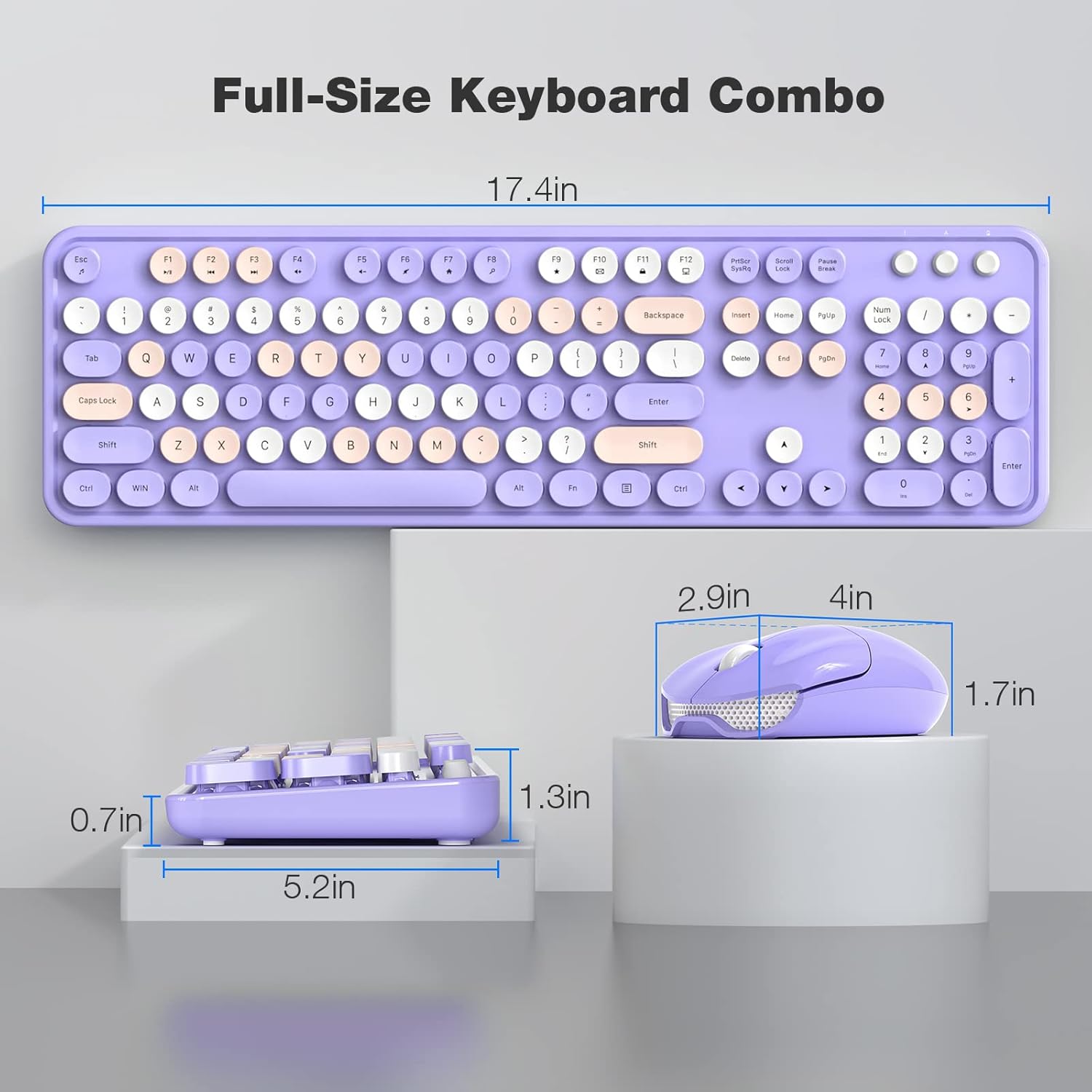
Image: Dimensions of the GEEZER Wireless Keyboard and Mouse Combo.
Warranty
This GEEZER product comes with a 1-year warranty from the date of purchase. This warranty covers manufacturing defects and malfunctions under normal use. It does not cover damage caused by misuse, accidents, unauthorized modifications, or normal wear and tear.
Please retain your proof of purchase for warranty claims.
Support
If you encounter any problems during the use of your GEEZER Wireless Keyboard and Mouse Combo, please contact our customer support team.
Contact Method: Please reach out via Amazon email for assistance. Our support team aims to respond within 12 hours and provide satisfactory solutions.
For further information or to register your product, please visit the official GEEZER store on Amazon: GEEZER Amazon Store


