1. Introduction
This manual provides essential information for the safe and efficient use of your HP EliteOne 840 G9 All-in-One Computer. Please read this manual thoroughly before operating the device and retain it for future reference. It covers setup, operation, maintenance, and troubleshooting.
2. Safety Information
Observe the following safety precautions to prevent damage to the device or injury to yourself:
- Ensure the computer is placed on a stable, flat surface to prevent tipping.
- Do not block ventilation openings. Maintain adequate space around the device for proper airflow.
- Use only the power adapter supplied with the device.
- Keep the device away from liquids and excessive moisture.
- Avoid exposing the device to extreme temperatures or direct sunlight.
- Disconnect the power cable before cleaning or if the device will be unused for an extended period.
3. Package Contents
Verify that all items are present in the package:
- HP EliteOne 840 G9 All-in-One Computer
- Power Adapter and Cable
- Keyboard
- Mouse
- Documentation (including this manual)
4. Component Overview
Familiarize yourself with the main components and ports of your HP EliteOne 840 G9 All-in-One Computer.
4.1 Front View

Figure 4.1: Front view of the HP EliteOne 840 G9 All-in-One Computer, displaying the 23.8-inch Full HD screen, integrated webcam at the top, and Bang & Olufsen speakers at the bottom. A wired keyboard and mouse are connected.
4.2 Rear and Side Views
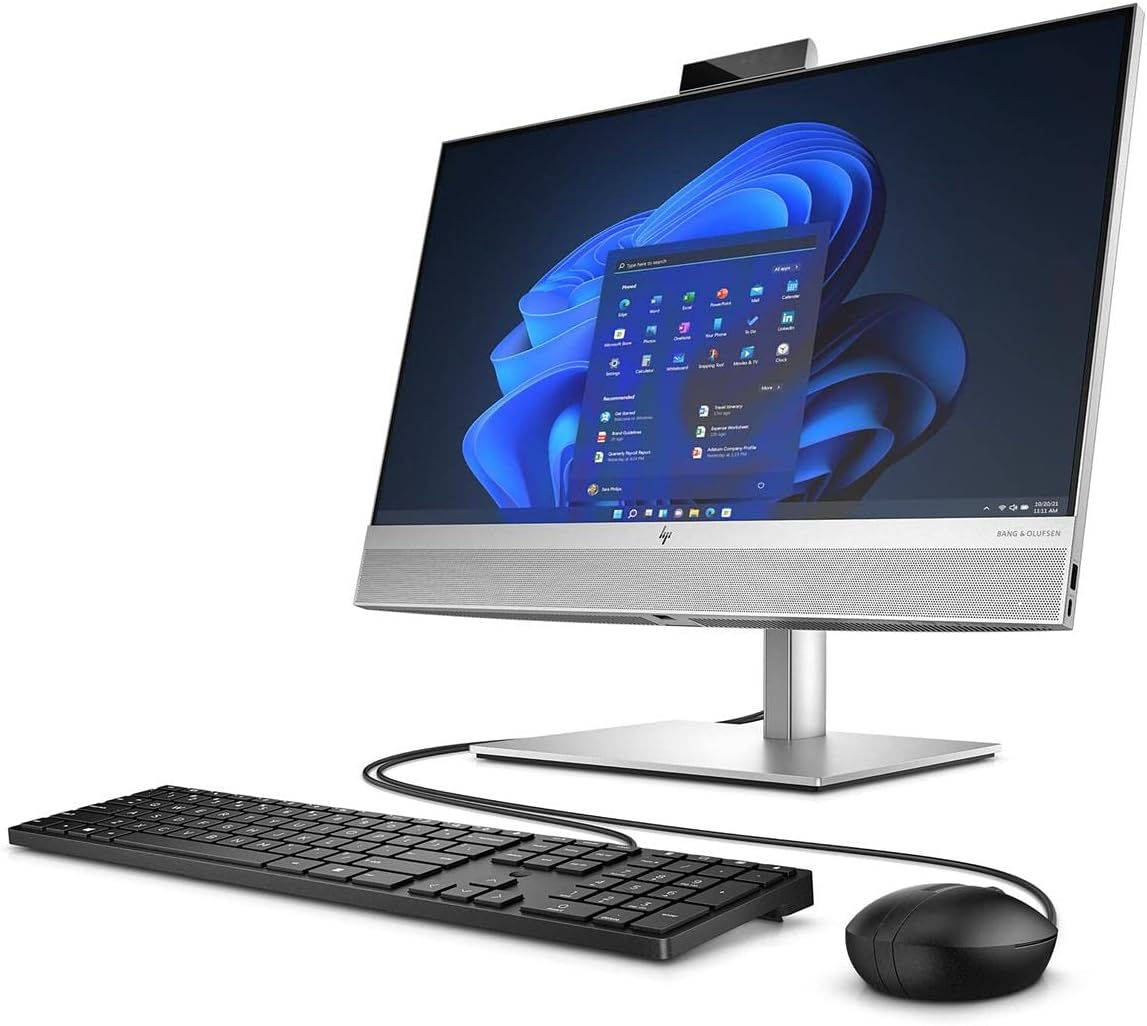
Figure 4.2: Rear-side view of the HP EliteOne 840 G9, highlighting the connectivity ports on the back panel and side. These typically include USB ports, video output ports, and an Ethernet port.

Figure 4.3: A different angle of the rear and side of the HP EliteOne 840 G9, providing a clearer view of the stand mechanism and additional port locations.
The HP EliteOne 840 G9 features a 23.8-inch Full HD display, an integrated webcam, and various ports for peripheral connectivity. The stand provides stability and allows for screen angle adjustments.
5. Setup
Follow these steps for the initial setup of your All-in-One computer:
- Unpack the Computer: Carefully remove the computer and all accessories from the packaging. Place the computer on a sturdy, flat surface.
- Connect Keyboard and Mouse: Connect the wired keyboard and mouse to the available USB ports on the back or side of the computer.
- Connect Power: Plug the power cable into the power adapter, then connect the adapter to the power input port on the back of the computer. Plug the other end of the power cable into a grounded electrical outlet.
- Power On: Press the power button, usually located on the side or bottom bezel of the display. The computer will start and guide you through the initial Windows 11 setup process.
- Complete Windows Setup: Follow the on-screen instructions to configure Windows 11, including language, region, network connection, and user account creation.
6. Operating Instructions
6.1 Power On/Off
- To Power On: Press the power button.
- To Shut Down: Click the Start button in Windows, then select Power > Shut down.
- To Restart: Click the Start button in Windows, then select Power > Restart.
- To Sleep: Click the Start button in Windows, then select Power > Sleep.
6.2 Using Windows 11
Your HP EliteOne 840 G9 comes pre-installed with Windows 11. Navigate the operating system using the connected keyboard and mouse. The Start menu provides access to applications, settings, and system functions.
6.3 Display and Audio
- Adjusting Display Brightness: Use the function keys on your keyboard or the display settings within Windows to adjust brightness.
- Audio Control: Adjust volume using the keyboard's media keys or the volume icon in the Windows taskbar. The integrated Bang & Olufsen speakers provide high-quality audio.
6.4 Webcam Usage
The integrated webcam can be used for video conferencing and other applications. Ensure proper lighting for optimal video quality. Privacy settings for the webcam can be managed within Windows settings.
7. Maintenance
7.1 Cleaning
- Screen: Use a soft, lint-free cloth slightly dampened with water or a screen cleaner. Do not spray cleaner directly onto the screen.
- Chassis: Wipe with a soft, dry cloth. Avoid abrasive cleaners.
- Ventilation: Periodically check and gently clean the ventilation openings to prevent dust buildup, which can affect performance.
7.2 Software Updates
Regularly update your Windows operating system and drivers to ensure optimal performance and security. Windows Update can be accessed through the Settings menu.
7.3 Data Backup
Regularly back up important data to an external drive or cloud storage to prevent data loss.
8. Troubleshooting
This section addresses common issues you might encounter.
8.1 No Power
- Ensure the power cable is securely connected to both the computer and the electrical outlet.
- Verify the electrical outlet is functioning by plugging in another device.
- Check the power adapter for any visible damage.
8.2 Display Issues
- If the screen is blank, ensure the computer is powered on and not in sleep mode.
- Adjust the display brightness.
- If an external monitor is connected, ensure the correct display output is selected in Windows settings.
8.3 Peripheral Not Responding
- For wired devices (keyboard, mouse), ensure they are securely plugged into the correct USB ports. Try a different USB port.
- Restart the computer.
- Check device drivers in Windows Device Manager.
8.4 Slow Performance
- Close unnecessary applications running in the background.
- Ensure Windows and drivers are up to date.
- Check for malware or viruses.
- Ensure sufficient free space on the SSD.
9. Specifications
Key technical specifications for the HP EliteOne 840 G9 All-in-One Computer:
| Feature | Specification |
|---|---|
| Model Name | EliteOne 840 G9 |
| Item Model Number | 69S91UT#ABA |
| Processor | Intel Core i5-12500 Hexa-core (6 Core) 3 GHz (12th Gen) |
| RAM | 16 GB DDR5 SDRAM |
| Storage | 512 GB M.2 PCI Express NVMe SSD |
| Display | 23.8" Full HD (1920 x 1080) |
| Graphics Coprocessor | Intel UHD Graphics 630 (Integrated) |
| Operating System | Windows 11 |
| Dimensions (LxWxH) | 19.5 x 15.6 x 7.9 inches |
| Item Weight | 12.71 pounds |
| Color | Black |
| Optical Drive Type | BD-R |
| UPC | 196548574346 |
10. Warranty and Support
For warranty information and technical support, please refer to the documentation included with your product or visit the official HP support website. HP provides resources for troubleshooting, driver downloads, and service options.
You can typically find support information by visiting www.hp.com/support.