1. Safety Information
Please read all safety warnings and instructions carefully before using this product. Failure to follow these instructions may result in electric shock, fire, and/or serious injury.
- Do not disassemble or modify the device.
- Do not expose the device to extreme temperatures or direct sunlight for extended periods.
- Ensure the device is securely mounted to your helmet before riding.
- Always prioritize road safety. Do not operate the device in a way that distracts you from riding.
- Keep the device away from children.
- For better waterproof effect, keep the speaker ports facing downwards for 1-2 hours after use in rainy conditions.
2. Package Contents
Verify that all items are present in your package:

Image: Contents of the FODSPORTS M1S-AIR package, showing two intercom units, speaker sets, microphone options (boom and button), USB-C charging cables, mounting clips, adhesive pads, and a user manual.
- M1S-AIR Bluetooth Intercom Unit (2x)
- Helmet Speakers (2x sets)
- Boom Microphone (2x)
- Button Microphone (2x)
- Mounting Bracket (2x)
- Adhesive Pads (various)
- USB-C Charging Cable (2x)
- User Manual (this document)
3. Product Overview
The FODSPORTS M1S-AIR is a Bluetooth 5.0 helmet communication system designed for motorcycle riders. It features two-way intercom, music sharing, FM radio, and CVC noise reduction.

Image: A pair of FODSPORTS M1S-AIR intercom units, highlighting their sleek design and primary control buttons. The units are silver and black with blue LED accents.
3.1. Unit Features
- Bluetooth 5.0 technology for stable connections.
- Two-way intercom communication.
- Music sharing capability.
- Three distinct music sound effects.
- CVC noise reduction for clear audio.
- Built-in FM radio.
- USB-C charging port.
- Glove-friendly buttons for easy operation.

Image: A rider in a helmet and gloves interacting with the M1S-AIR unit, illustrating the ease of use with motorcycle gloves.
3.2. Ports and Indicators

Image: A detailed view of the M1S-AIR unit's side, showing the USB-C charging port and an illuminated display indicating battery status. Icons for charging, music, phone calls, standby, and intercom are visible.
- USB-C Port: For charging the device.
- Speaker/Mic Port: Connects the helmet speakers and microphone.
- LED Indicator: Displays device status (e.g., pairing, connected, charging).
4. Setup and Installation
Follow these steps to install the M1S-AIR unit onto your helmet.

Image: A step-by-step visual guide demonstrating the installation process of the M1S-AIR unit. It shows attaching the adhesive pad to the mounting clip, securing the clip to the helmet, and sliding the intercom unit into the clip.
- Choose Mounting Location: Select a flat surface on the left side of your helmet.
- Attach Mounting Clip:
- Adhesive Mount: Clean the helmet surface. Peel off the protective film from the adhesive pad and firmly press the mounting clip onto the helmet. Hold for 30 seconds.
- Clamp Mount: If your helmet allows, use the clamp mount by sliding it between the helmet shell and padding. Tighten the screws.
- Install Speakers: Place the speakers inside the helmet's ear pockets. Ensure they are positioned directly over your ears for optimal sound.
- Install Microphone:
- Boom Microphone: For open-face or modular helmets. Attach it to the inside of the helmet, positioning the microphone close to your mouth.
- Button Microphone: For full-face helmets. Attach it to the inside of the chin bar, ensuring it is not obstructed.
- Connect Cables: Plug the speaker and microphone cables into the corresponding port on the M1S-AIR unit.
- Mount Intercom Unit: Slide the M1S-AIR unit onto the installed mounting clip until it clicks into place.
5. Operating Instructions
5.1. Power On/Off
- Power On: Press and hold the Power button for approximately 3 seconds until the LED indicator lights up.
- Power Off: Press and hold the Power button for approximately 3 seconds until the LED indicator turns off.
5.2. Bluetooth Pairing (Mobile Phone)
- With the M1S-AIR powered off, press and hold the Power button for about 5-7 seconds until the LED indicator flashes red and blue alternately, indicating pairing mode.
- On your mobile phone, enable Bluetooth and search for "FODSPORTS M1S-AIR".
- Select the device to connect. Once paired, the LED indicator will flash blue slowly.
5.3. Intercom Communication
The M1S-AIR supports two-way intercom communication between two units.

Image: Two motorcyclists riding on a road, visually representing two-way communication through their M1S-AIR intercom systems. Speech bubbles illustrate a clear conversation between them.
- Ensure both M1S-AIR units are powered on and within range.
- On one unit, press the Intercom button once to initiate pairing with another M1S-AIR unit. The LED will flash rapidly.
- On the second unit, also press the Intercom button once.
- Once connected, both units will have a steady blue LED, and you can begin speaking.
- To end intercom, press the Intercom button once.
5.4. Music Playback and Sharing
You can play music from your paired phone and share it with another M1S-AIR unit.

Image: Two motorcyclists riding, with a smartphone displaying a music player interface. Music notes are depicted flowing from one rider's helmet to the other, illustrating the music sharing feature of the M1S-AIR intercom system.
- Play/Pause: Press the Multi-function button once.
- Next Track: Press the Volume Up button.
- Previous Track: Press the Volume Down button.
- Music Sharing: While music is playing, press and hold the Music Share button (specific button, refer to device layout) to share with a paired M1S-AIR unit. Note: Music sharing only works between two M1S-AIR units. Pause music before initiating sharing.
5.5. Sound Effects
The M1S-AIR offers three distinct sound effects for music playback.

Image: An illustration showing three distinct sound effect modes: "Pure human voice" (depicted by a singer), "Popular Golden Classic" (depicted by a concert stage), and "HiFi bass" (depicted by a saxophonist), indicating customizable audio experiences.
- To cycle through "Pure human voice", "Popular Golden Classic", and "HiFi bass" effects, press the EQ button (refer to device layout).
- Note: The selected music effect needs to be reset each time the M1S-AIR unit is powered on.
5.6. FM Radio
The M1S-AIR includes a built-in FM radio.

Image: A motorcycle helmet with the M1S-AIR unit attached, overlaid with a graphic of radio waves and an FM frequency tuner dial ranging from 76-108 MHz, indicating the device's FM radio capability.
- Turn On/Off FM Radio: Press the FM button once.
- Scan Channels: Press and hold the Volume Up or Volume Down button to automatically scan for available FM channels.
- Change Channel: Briefly press the Volume Up or Volume Down button to switch between saved channels.
5.7. Voice Assistant (Siri/Google Assistant)
Activate your smartphone's voice assistant directly from the M1S-AIR.
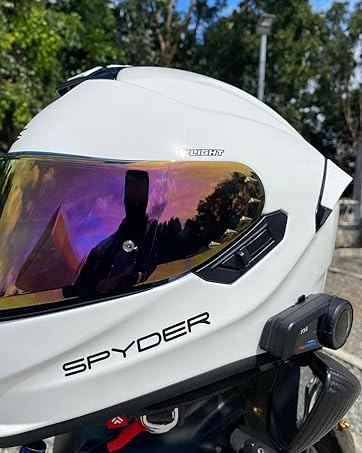
Image: A motorcyclist in a helmet, with a speech bubble indicating "Hey~ Siri, Call Alice!". A smartphone screen shows "Call in progress...", demonstrating the voice command feature for activating a voice assistant like Siri through the M1S-AIR unit.
- Activate Voice Assistant: Briefly press the Voice Assistant button (refer to device layout).
5.8. Volume Control
- Increase Volume: Press the Volume Up button.
- Decrease Volume: Press the Volume Down button.
6. Maintenance
- Cleaning: Use a soft, damp cloth to clean the unit. Do not use harsh chemicals or abrasive cleaners.
- Water Resistance: The M1S-AIR is IP65 waterproof. However, for optimal longevity, avoid prolonged exposure to heavy rain. After use in wet conditions, ensure speaker ports are facing down for 1-2 hours to allow drainage.
- Storage: Store the device in a cool, dry place when not in use.
- Battery Care: Charge the battery regularly, even if the device is not used frequently, to maintain battery health.
7. Troubleshooting
If you encounter issues with your M1S-AIR unit, refer to the following common problems and solutions:
| Problem | Possible Cause | Solution |
|---|---|---|
| Cannot Power On | Low battery. | Charge the device for at least 3 hours. |
| Cannot Pair with Phone | Device not in pairing mode; Bluetooth off on phone. | Ensure M1S-AIR is in pairing mode (red/blue flashing LED). Enable Bluetooth on your phone. |
| Intercom Connection Issues | Units out of range; incorrect pairing procedure. | Ensure units are within 1000m. Re-initiate intercom pairing. |
| Music Sharing Not Working | Music not paused before sharing; unit occupied. | Pause music on the source unit before sharing. Ensure the unit is not in another mode (e.g., intercom call). |
| Low Volume at High Speed | External noise (wind); speaker placement. | Adjust speaker position closer to ears. Ensure helmet fit is snug to minimize wind noise. The CVC noise reduction helps, but extreme conditions may still affect audio. |
| Sound Effects Reset | Normal operation. | The selected music effect needs to be reset each time the M1S-AIR unit is powered on. This is by design. |

Image: A graphic illustrating the effect of CVC noise control. A motorcyclist is shown with sound waves around their helmet, depicting a reduction in echo and background noise, resulting in clearer audio.
8. Specifications
Key technical specifications for the FODSPORTS M1S-AIR Bluetooth Motorcycle Intercom System:
| Feature | Detail |
|---|---|
| Model Name | M1S-AIR Motorcycle Bluetooth Intercom |
| Bluetooth Version | 5.0 |
| Connectivity Technology | Bluetooth 5, Wireless |
| Intercom Distance | Up to 1000 meters (2 riders) |
| Battery Life (Intercom) | 15 Hours |
| Battery Life (Music/Phone) | 15 Hours |
| Standby Time | 300 Hours |
| Charging Time | 3 Hours |
| Charging Interface | USB-C |
| Water Resistance Level | IP65 Waterproof |
| Noise Control | Active Noise Cancellation, Wind Noise Reduction (CVC) |
| Control Method | Touch, Voice (Siri/Google Assistant) |
| Item Weight | 1.52 pounds (for 2 units) |
| Manufacturer | FODSPORTS |

Image: The underside of the M1S-AIR unit, displaying the FODSPORTS brand, model number (M1S-AIR), and various regulatory compliance logos such as CE, UKCA, FC, and RoHS.
9. Official Product Video
Watch this introductory video for a visual guide to the FODSPORTS M1S-AIR Bluetooth Motorcycle Intercom System.
Video: An official introduction to the Fodsports M1S AIR Motorcycle Bluetooth Intercom, showcasing its features like Bluetooth 5.0, 3-rider intercom, USB-C charging, HiFi sound, and CVC noise reduction technology.
10. Warranty and Support
FODSPORTS products are designed for reliability and performance. For warranty information, technical support, or service inquiries, please refer to the contact information provided on the product packaging or visit the official FODSPORTS website.
Keep your purchase receipt as proof of purchase for warranty claims.


