1. Setup
1.1 Package Contents
Verify that all items are present in the package:
- J-Tech Digital V913 Wireless Ergonomic Mouse (JTD-2970) x1
- USB Receiver (located inside the mouse) x1
- User Manual x1
- Battery x1

Image: Contents of the J-Tech Digital V913 mouse package.
1.2 Battery Installation
The V913 mouse requires one AAA battery for operation. The USB receiver is stored within the battery compartment.
- Locate the battery compartment cover on the underside of the mouse.
- Gently slide or lift the cover to open the compartment.
- Remove the USB receiver from its storage slot.
- Insert the provided AAA battery, ensuring correct polarity (+/-). The mouse can also use an AA battery if preferred.
- Replace the battery compartment cover.

Image: Battery and USB receiver placement in the mouse.
1.3 Connecting the USB Receiver
The V913 mouse utilizes a 2.4GHz wireless connection via a USB receiver.
- Retrieve the USB receiver from the mouse's battery compartment.
- Plug the USB receiver into an available USB port on your computer (Windows, Mac, PC, or Laptop).
- Turn on the mouse using the power switch located on its underside.
- Your computer should automatically detect and install the necessary drivers. The mouse is ready for use once detected.

Image: J-Tech Digital V913 mouse and its USB receiver.
2. Operating Instructions
2.1 Basic Mouse Functions
The V913 mouse features standard left and right click buttons and a scroll wheel for vertical navigation.
2.2 Ergonomic Design
The V913 is designed with an ergonomic shape for right-handed users, aiming to reduce wrist and arm strain during extended use. The integrated palm rest supports a relaxed grip.

Image: Right-handed ergonomic design of the mouse.

Image: Ergonomic design and wireless working distance.
2.3 Adjustable DPI Settings
The mouse offers three adjustable DPI (Dots Per Inch) levels to control cursor sensitivity. Press the DPI button to cycle through the settings.
- 800 DPI: Indicator flashes once.
- 1200 DPI (Default): Indicator flashes twice.
- 1600 DPI: Indicator flashes three times.
The DPI setting does not have a memory function and will reset upon power cycle.

Image: DPI adjustment levels and indicator feedback.
2.4 Side Thumb Scroll Wheel
A dedicated side thumb scroll wheel allows for convenient horizontal scrolling, useful for navigating wide documents or spreadsheets.

Image: Functionality of the side thumb scroll wheel.
2.5 One-Click Desktop Function
The mouse includes a button that allows for a quick return to the desktop, minimizing all open windows. This feature is supported on Windows 7, 8, and 10, and Mac OS.

Image: One-click desktop function in use.
3. Maintenance
3.1 Cleaning
To maintain optimal performance, periodically clean the mouse. Use a soft, dry cloth to wipe the exterior. For stubborn dirt, a slightly damp cloth can be used, ensuring no moisture enters the internal components.
3.2 Battery Replacement
When the mouse performance degrades or it stops responding, replace the battery by following the steps in Section 1.2.
4. Troubleshooting
4.1 Mouse Not Responding
- Check Battery: Ensure the battery is correctly installed and has sufficient charge. Replace if necessary.
- Check USB Receiver: Verify the USB receiver is securely plugged into a working USB port on your computer. Try a different USB port.
- Power Switch: Ensure the mouse's power switch is in the 'ON' position.
- Re-pair: In rare cases, you may need to re-pair the mouse with the receiver. Consult J-Tech Digital support for specific instructions if this issue persists.
4.2 Side Scroll Function Not Working
If the side scroll wheel does not function as expected, it may require specific drivers.
- Visit the official J-Tech Digital website.
- Search for 'jtd-2970' in the search bar.
- Download and install the mouse drivers provided.
4.3 Intermittent Connectivity
- Distance: Ensure the mouse is within the 32ft (10m) working range of the USB receiver.
- Interference: Move the mouse and receiver away from other wireless devices or large metal objects that might cause interference.
5. Specifications
| Feature | Detail |
|---|---|
| Model Number | V913 |
| Connectivity Technology | 2.4GHz Wireless, USB |
| Movement Detection Technology | Optical |
| Adjustable DPI Levels | 800 / 1200 / 1600 |
| Number of Buttons | 3 (Left, Right, DPI) + Scroll Wheel + Side Scroll Wheel |
| Hand Orientation | Right |
| Power Source | 1 x AAA battery (included) or 1 x AA battery |
| Product Dimensions | 12.49 x 7.3 x 4.49 cm |
| Item Weight | 18 g |
| Compatible Operating Systems | Windows 7, Windows XP, Mac OS |
| Working Range | Up to 32 ft (10m) |
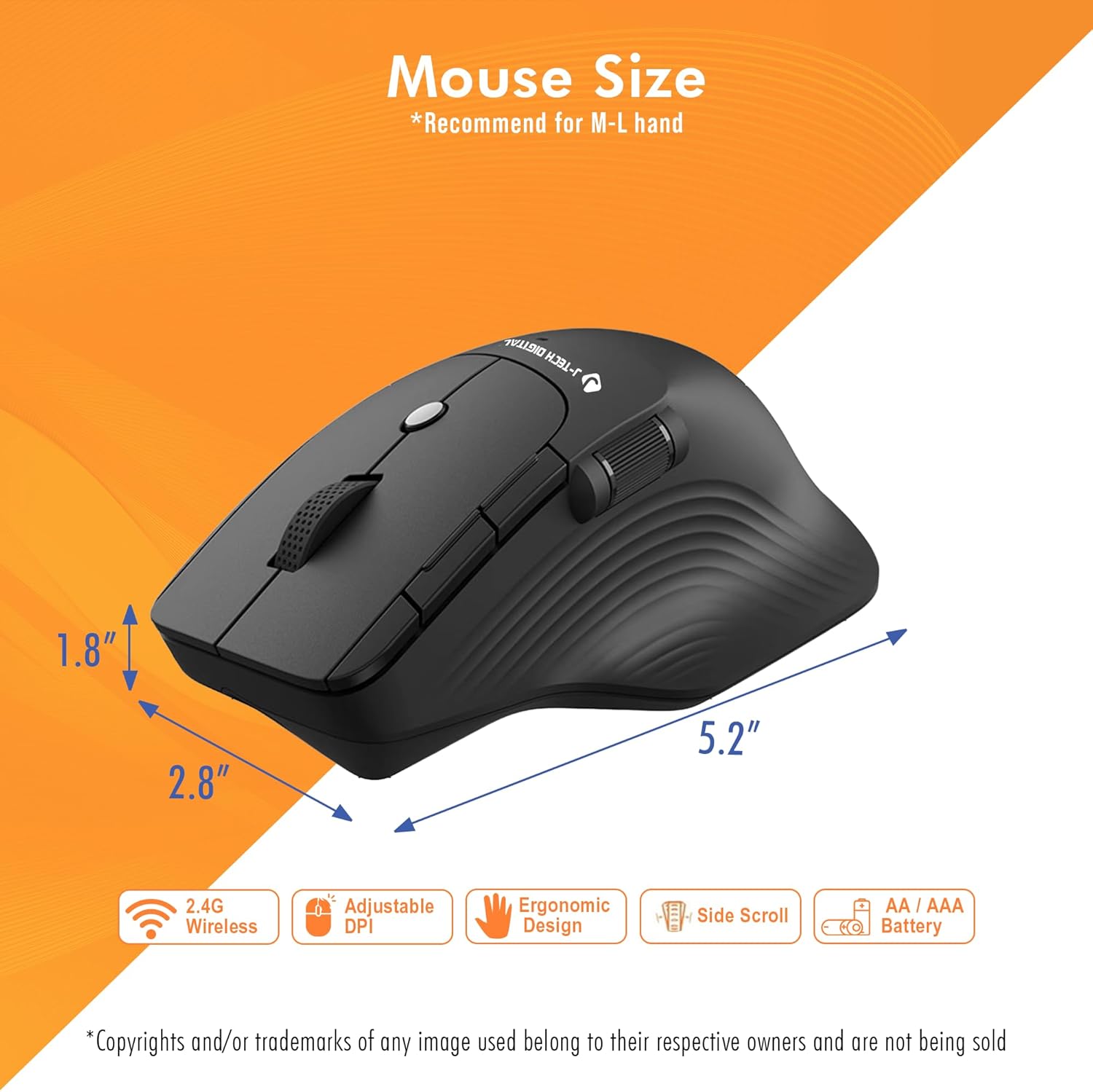
Image: Mouse dimensions.
6. Warranty and Support
6.1 Manufacturer Warranty
All J-Tech Digital products include a one-year manufacturer replacement warranty from the date of purchase.
6.2 Lifetime Technical Support
J-Tech Digital provides free lifetime technical support for all its products. Our customer support team is located in Stafford, TX, and is available to assist you.
- Availability: Monday - Friday, 9 AM - 6 PM CST.
- Contact Information: Please refer to the J-Tech Digital seller page or official website for current contact details.


