1. Introduction
This manual provides detailed instructions for the installation, operation, and maintenance of your AINAVITO 10-Inch QLED Car Radio. This unit is specifically designed for Jeep Compass and Patriot models manufactured between 2010 and 2016, offering an upgraded in-car entertainment and navigation experience. Please read this manual thoroughly before use to ensure proper functionality and safety.

Figure 1: AINAVITO 10-Inch QLED Car Radio with included backup camera and a smartphone demonstrating CarPlay/Android Auto functionality.
2. Setup and Installation
2.1 Package Contents
Verify that all components are present in the package:
- 1x Car Head unit with Frame
- 1x RCA Cable
- 1x Power Cable
- 1x Car Microphone
- 1x GPS Antenna
- 1x Frame Removal Tools
- 1x Rear View 1080P Camera (approx. 16.40 ft cable)
- 2x USB Cables
- 1x Reversing Control Cable
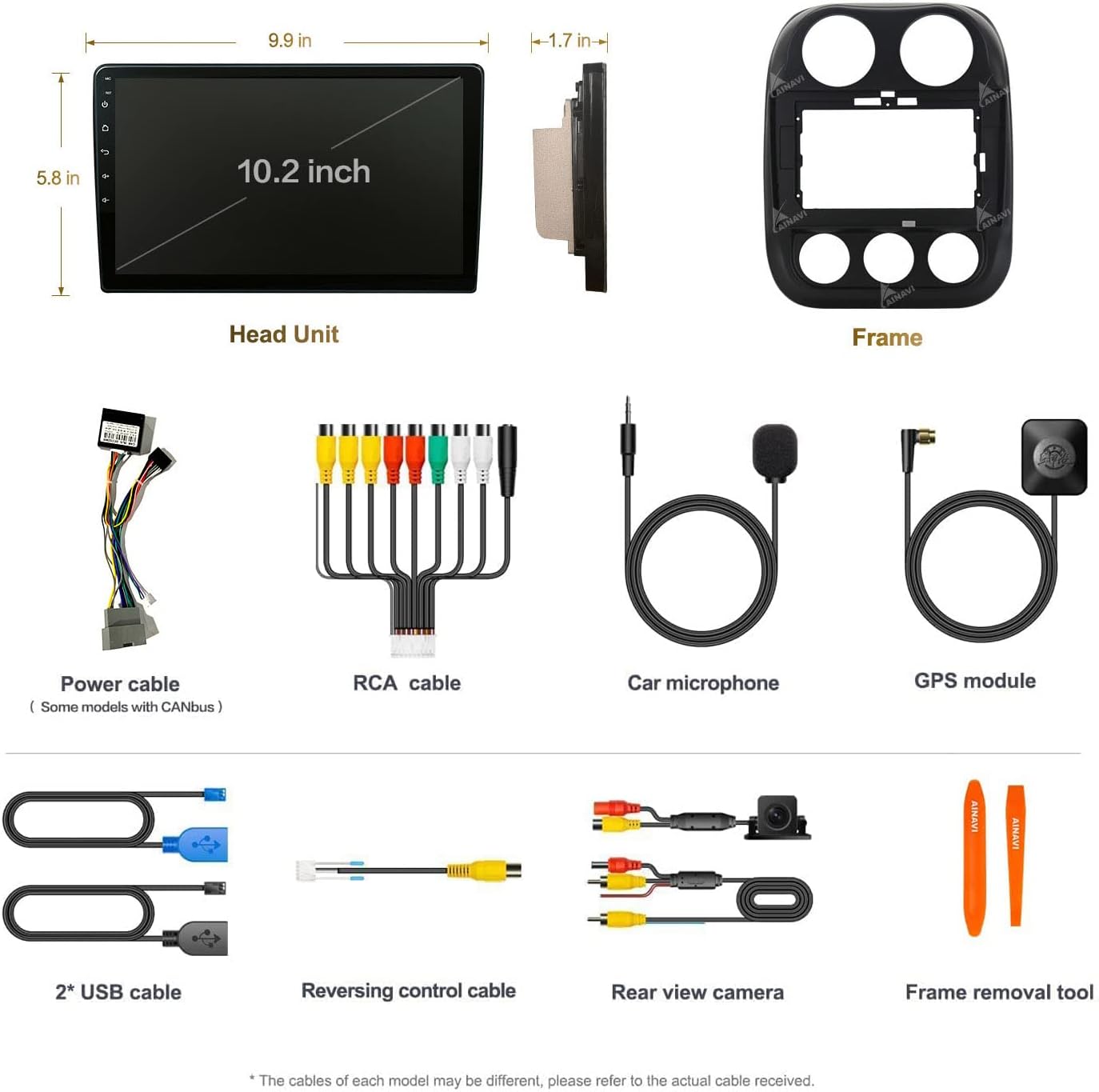
Figure 2: Overview of all components included in the AINAVITO 10-Inch QLED Car Radio package.
2.2 Installation Overview
This car stereo is designed for plug-and-play installation, minimizing the need for vehicle modifications. It supports the car's original information display and steering wheel control functions.

Figure 3: Visual comparison of the car's dashboard before and after the installation of the AINAVITO car radio.
2.3 Backup Camera Installation
The included AHD 1080P backup camera provides a clear view when reversing. Connect the camera to the designated input on the head unit. Ensure proper routing of the cable to avoid interference and damage.

Figure 4: Details of the Ultra HD 1080P Adjustable Reversing Camera.
3. Operating Instructions
3.1 User Interface (UI 3.0)
The device features a customized UI 3.0 with an intuitive desktop layout and editable applications. Navigate through the main interface to access various functions such as navigation, music, radio, and settings.

Figure 5: Main interface of the AINAVITO Car Radio with UI 3.0.
3.2 Wireless CarPlay & Android Auto
Connect your smartphone via Bluetooth or USB cable to access Apple CarPlay or Android Auto. This allows you to use mobile functions like navigation, messaging, and music directly on the car radio display, enhancing driving safety.
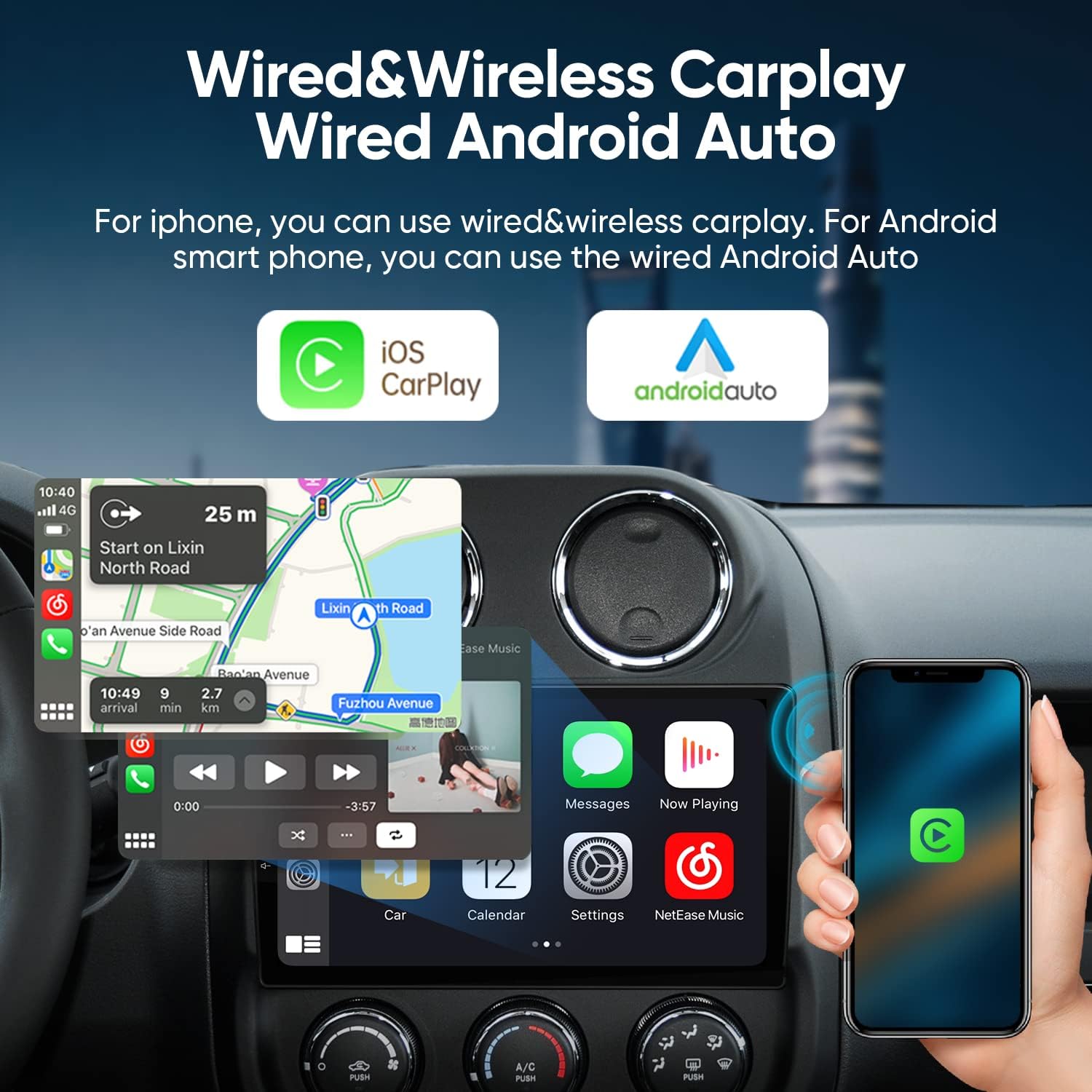
Figure 6: Wireless CarPlay and Android Auto connectivity.
Video 1: Demonstrates CarPlay and Android Auto connection and other functions of the car radio. (Source: Roinvou, Seller)
Video 2: Shows the MT8163 Android Car Stereo and Wireless Apple CarPlay functionality. (Source: Dongguan Yanningqiu Trading Company, Seller)
Video 3: Illustrates the MT8163 Android Car Stereo and Wireless Android Auto features. (Source: Dongguan Yanningqiu Trading Company, Seller)
3.3 Connectivity and Navigation
The unit supports 5G WiFi and mobile hotspots for internet access. Built-in Bluetooth 5.0 enables hands-free calls, phone book download, and music playback. With WiFi connected, online GPS navigation is fully functional.

Figure 7: Features including 5G WiFi, GPS Map, FM Radio, and Google Assistant.
3.4 Sound Quality and Equalizer
Experience enhanced audio with the built-in 48-band EQ and various music effects. The professional tuning system allows for personalized sound settings.

Figure 8: 48-band Equalizer for sound customization.
3.5 Split Screen Display
The split-screen function allows for simultaneous display of multiple applications, such as navigation and music, or entertainment and phone calls.

Figure 9: Split Screen Display functionality.
3.6 Voice Control
Utilize voice commands for various functions, including navigation and general queries, with increased sensitivity for ease of use.

Figure 10: Voice control integration with the car radio.
4. Maintenance
To ensure the longevity and optimal performance of your AINAVITO Car Radio, follow these general maintenance guidelines:
- Cleaning: Use a soft, dry cloth to clean the screen and exterior. Avoid abrasive cleaners or solvents that may damage the display or finish.
- Temperature: Avoid exposing the unit to extreme temperatures, both hot and cold, for extended periods.
- Software Updates: Periodically check for available software updates to ensure you have the latest features and performance enhancements.
- Cable Connections: Ensure all cables are securely connected and free from damage. Loose connections can lead to intermittent issues.
5. Troubleshooting
If you encounter any issues with your AINAVITO Car Radio, refer to the following common troubleshooting steps:
- No Power: Check all power connections. Ensure the vehicle's ignition is on. Verify the fuse in the power cable.
- No Sound: Check speaker connections. Ensure the volume is not muted or set to zero. Verify audio settings in the system menu.
- Bluetooth Connection Issues: Ensure Bluetooth is enabled on both the car radio and your smartphone. Delete previous pairings and attempt to re-pair. Check the device name and PIN.
- GPS Signal Loss: Ensure the GPS antenna is properly installed and has a clear line of sight to the sky. Move the vehicle to an open area if signal is weak.
- Touchscreen Unresponsive: Try restarting the unit. If the issue persists, a factory reset may be necessary (note: this will erase all user data).
- CarPlay/Android Auto Not Connecting: Ensure your phone's operating system is up to date. Try connecting with a different USB cable. Verify that the Zlink application is running correctly on the head unit.
For persistent issues not resolved by these steps, please contact customer support.
6. Specifications
| Product Dimensions | 3.94 x 5.91 x 3.94 inches |
| Item Weight | 2.39 ounces |
| Brand | AINAVITO |
| Vehicle Service Type | Car |
| Screen Size | 9 Inches |
| Special Features | 1080P Reversing Camera, Colorful keylight, Four Themes, 48EQ (Voice point touch control) + Professional DSP, 8Core, High Level QLED, Split Screen, Secondary Video Window, Dual USB, Support SWC, APK install |
| Connectivity Technology | Auxiliary, Bluetooth, Mirroring + Airplay, Wi-Fi, Wireless/Wire (CarPlay + Android Auto) |
| Map Type | Europe, North America, South America, Worldwide |
| Audio Output Mode | Stereo |
| Mounting Type | Panel Mount |
| Resolution | 720 x 1280 |
7. Warranty and Support
AINAVITO is committed to providing satisfactory service. For any installation assistance or technical inquiries, 24-hour after-sale service is available.
7.1 Contacting Support
If you require technical support or have questions regarding your car stereo, please follow these steps:
- Locate the seller's information on the platform where you purchased the product.
- Utilize the 'Ask a question' feature to submit your query directly to the seller.

Figure 11: Steps to contact technical support for assistance.


