1. Introduction
This manual provides detailed instructions for the installation, configuration, and maintenance of your Biostar B650MT AM5 Micro-ATX Motherboard. This motherboard is designed to support AMD Ryzen 7000 series processors, DDR5 memory, and high-speed PCIe 4.0 M.2 storage, offering a robust foundation for your computing needs.
2. Safety Information
Please read and follow these safety guidelines carefully to prevent damage to the motherboard or injury to yourself:
- Always disconnect the power supply from the wall outlet before installing or removing any components.
- Wear an anti-static wrist strap or frequently touch a grounded metal object to discharge static electricity before handling the motherboard or other components.
- Handle the motherboard by its edges to avoid touching sensitive components.
- Ensure proper ventilation within your PC case to prevent overheating.
- Keep the motherboard away from moisture and extreme temperatures.
3. Package Contents
Verify that all items are present in your motherboard package:
- Biostar B650MT Motherboard
- Quick Guide
- DVD Driver
- I/O Protector (I/O Shield)
- 2 x SATA Cables
4. Product Overview
The Biostar B650MT is a Micro-ATX motherboard designed for the latest AMD Ryzen 7000 series processors. It features two DDR5 memory slots supporting up to 96GB, a PCIe 4.0 x16 slot for graphics cards, and a PCIe 4.0 M.2 slot for high-speed NVMe SSDs. The board also includes comprehensive connectivity with USB 3.2 Gen1, USB 2.0, Gigabit LAN, HDMI, and DisplayPort outputs.
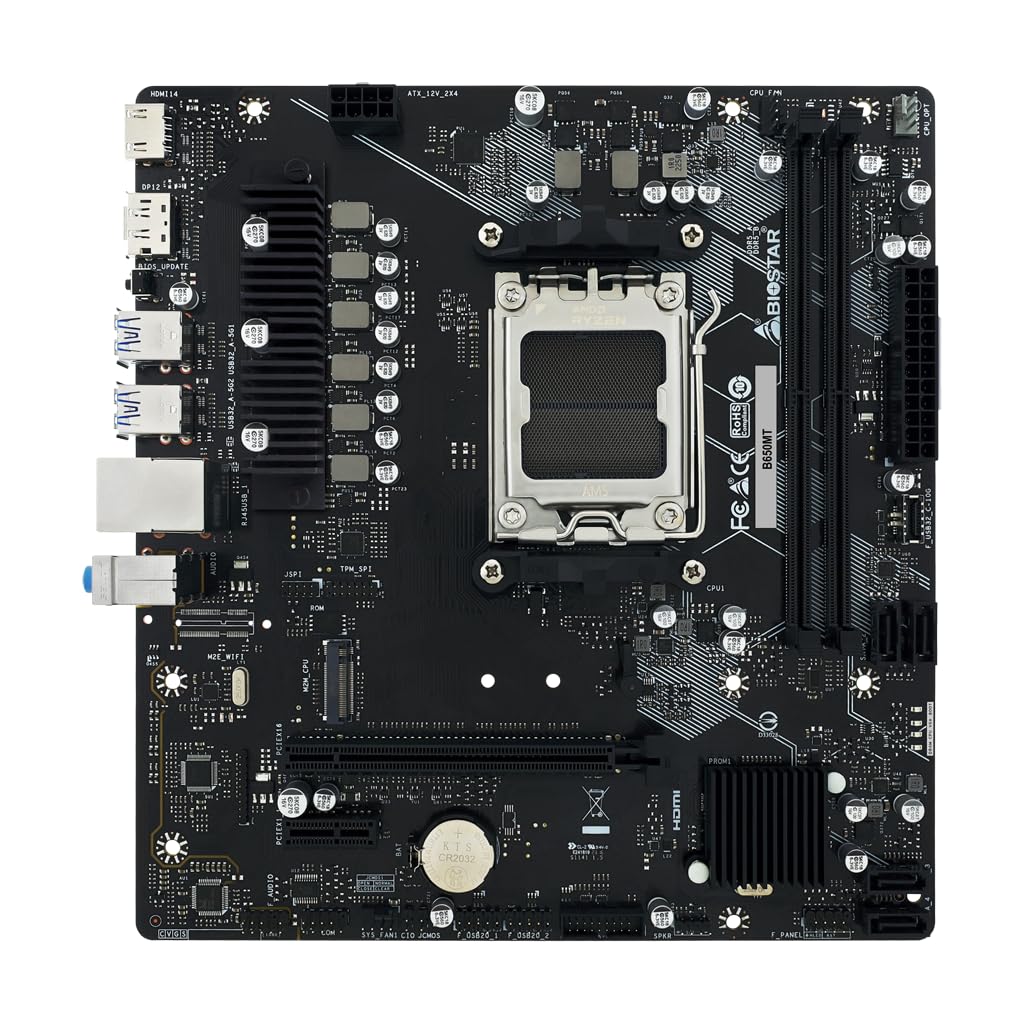
Figure 4.1: Top-down view of the Biostar B650MT motherboard, showing the AM5 CPU socket, DDR5 RAM slots, PCIe slots, and various headers.
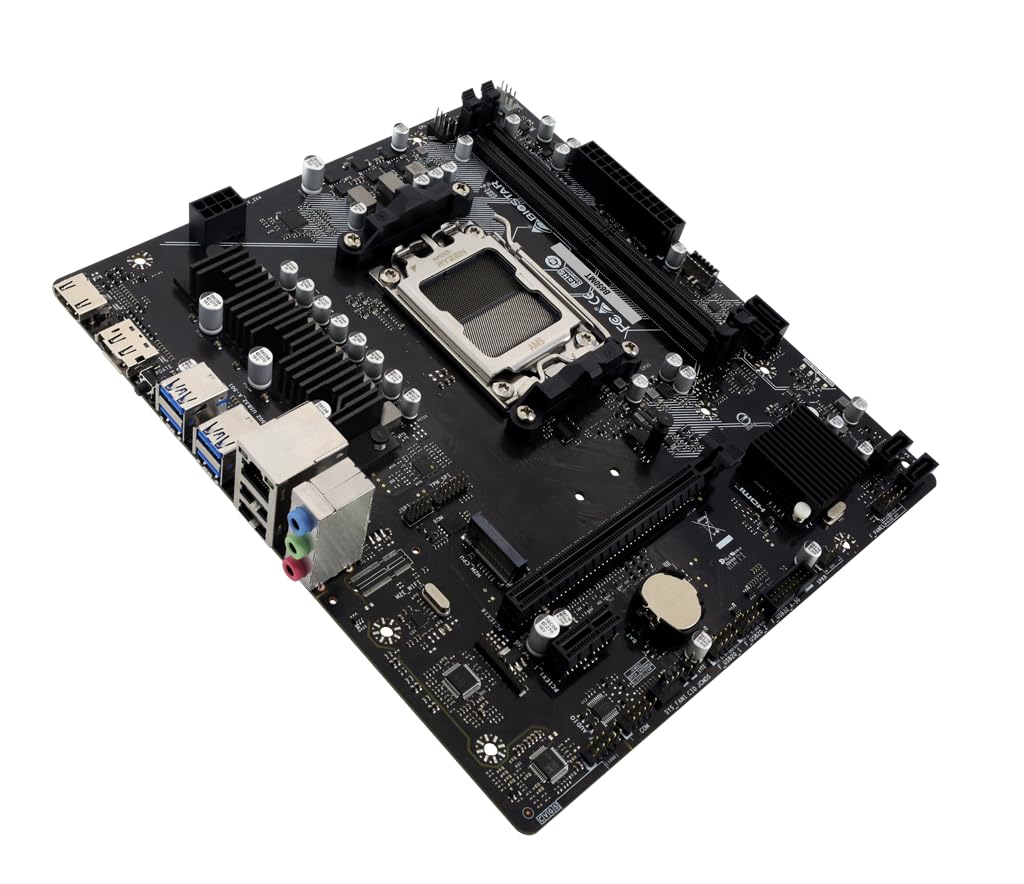
Figure 4.2: Angled view of the Biostar B650MT motherboard, highlighting the heatsinks, I/O ports, and overall layout.

Figure 4.3: Close-up view of the rear I/O ports, including HDMI, DisplayPort, USB 3.2 Gen1, USB 2.0, Gigabit LAN, and audio jacks.
5. Setup and Installation
Follow these steps to install your motherboard and essential components:
5.1 CPU Installation
- Open the CPU socket lever on the AM5 socket.
- Carefully align the triangular mark on the CPU with the mark on the socket.
- Gently place the CPU into the socket without forcing it.
- Close the socket lever to secure the CPU.
- Install the CPU cooler according to its manufacturer's instructions.
5.2 Memory (RAM) Installation
- Open the clips at both ends of the DDR5 memory slots.
- Align the notch on the DDR5 memory module with the key in the slot.
- Press down firmly on both ends of the memory module until the clips snap into place.
5.3 M.2 SSD Installation
- Locate the M.2 Socket (M2M_CPU) on the motherboard.
- Remove the M.2 screw and standoff.
- Insert the M.2 SSD into the slot at a 30-degree angle.
- Gently push the SSD down and secure it with the screw.
5.4 SATA Drive Installation
- Connect one end of a SATA cable to a SATA III connector on the motherboard.
- Connect the other end of the SATA cable to your SATA hard drive or SSD.
- Connect a SATA power cable from your power supply to the drive.
5.5 Power Connections
- Connect the 24-pin ATX power connector from your power supply to the 24-pin power socket on the motherboard.
- Connect the 8-pin ATX 12V power connector from your power supply to the 8-pin CPU power socket.
5.6 Front Panel and Other Connectors
- Connect the front panel headers (Power LED, HDD LED, Power Switch, Reset Switch) to the corresponding pins on the motherboard. Refer to the motherboard's quick guide for pin assignments.
- Connect USB 2.0 and USB 3.2 (Gen1) headers for front panel USB ports.
- Connect the front audio header.
- Connect CPU fan, system fan, and CPU water cooling (CPU_OPT) connectors.
6. Operating Instructions
6.1 Initial Boot
After assembling all components and connecting peripherals, power on your system. The system should display the BIOS/UEFI splash screen.
6.2 Accessing BIOS/UEFI
To enter the BIOS/UEFI setup utility, press the DEL key repeatedly during the initial boot sequence. The BIOS/UEFI allows you to configure system settings, boot order, and monitor hardware status.
6.3 Operating System Installation
Insert your Windows 10 (64-bit) or Windows 11 (64-bit) installation media (USB drive or DVD) and set it as the primary boot device in the BIOS/UEFI. Follow the on-screen instructions to install your operating system.
7. Maintenance
7.1 Cleaning
Regularly clean your PC case and motherboard to prevent dust buildup, which can lead to overheating. Use compressed air to gently remove dust from components and heatsinks. Ensure the system is powered off and unplugged before cleaning.
7.2 BIOS Updates
Biostar may release BIOS updates to improve system stability, compatibility, or add new features. Visit the official Biostar website for the latest BIOS versions and update instructions. The motherboard features a BIOS Update Button on the rear I/O for convenient updates.
8. Troubleshooting
If you encounter issues, refer to the following common troubleshooting steps:
- No Power: Ensure all power cables (24-pin ATX, 8-pin CPU) are securely connected. Check the power supply unit (PSU) and wall outlet.
- No Display: Verify that your monitor is connected to the correct video output (HDMI or DisplayPort) on the motherboard or discrete graphics card. Reseat the RAM modules and graphics card.
- System Not Booting: Check all component connections. Try booting with only essential components (CPU, one RAM stick, graphics card if no integrated graphics). Clear CMOS by shorting the Clear CMOS Header or removing the CMOS battery for a few minutes.
- Operating System Errors: Ensure all drivers are installed correctly. Reinstall the operating system if necessary.
9. Specifications
| Feature | Specification |
|---|---|
| CPU Compatibility | AMD Ryzen 7000 series processors (AM5 Socket) |
| Memory | 2 x DDR5 DIMM slots, Dual Channel, up to 96GB. Supports DDR5 4800/ 5200/ 5400(OC)/ 5600(OC)/ 6000+(OC) MHz. Each slot supports 8/16/24/32/48GB modules. |
| Integrated Video | Supports DX12, HDCP. 1x HDMI Port (HDMI 1.4), 1x DisplayPort (DP 1.2). HDMI 4K compatible. |
| Network | Realtek RTL8111H 10/100/1000 Mb/s Gigabit LAN. Half/Full duplex capability. |
| Storage | 1 x M.2 (Key M) Socket (M2M_CPU) for Type 2242/2260/2280 SSD modules, supports PCIe 4.0x4 (64Gb/s) NVMe SSD. 4 x SATA III Connectors (6Gb/s), supports AHCI & RAID 0, 1, 10. |
| Expansion Slots | 1 x PCIe 4.0 x16 Slot (x16 or x8/x8 mode). 1 x PCIe 3.0 x1 Slot. |
| Rear I/O Ports | 1x BIOS Update Button, 1x HDMI Port, 1x DisplayPort, 4x USB 3.2 (Gen1) Type-A Ports, 2x USB 2.0 Type-A Ports, 1x Giga LAN Port, 3x Audio Jacks. |
| Internal I/O Connectors | 4x SATA III Connectors, 2x USB 2.0 Headers (supports 4 USB 2.0 ports), 1x USB 3.2 (Gen1) Header (supports 2 USB 3.2 Gen1 ports), 1x USB 3.2 (Gen1) Type-C Header, 1x 8-Pin Power Connector, 1x 24-Pin Power Connector, 1x CPU Fan Connector, 1x System Fan Connector, 1x CPU Water Cooling Connector (CPU_OPT), 1x Front Panel Header, 1x Front Audio Header, 1x Internal Stereo Speaker Header, 1x Clear CMOS Header, 1x TPM Header. |
| Operating System Support | Windows 10 (64-bit), Windows 11 (64-bit). |
| Dimensions | Micro ATX Form Factor (221mm x 235mm). |
10. Warranty and Support
The Biostar B650MT Motherboard comes with a manufacturer's warranty. Please refer to the warranty card included in your package or visit the official Biostar website for detailed warranty terms and conditions. For technical support, driver downloads, and further assistance, please visit the Biostar support page or contact their customer service.


