
1. Product Overview
The REOLINK E1 Outdoor PoE IP Camera is a high-performance 4K surveillance solution designed for both indoor and outdoor use. It features Pan-Tilt-Zoom (PTZ) capabilities, allowing for a 360° view of your surroundings with 3X optical zoom for detailed monitoring. Advanced smart detection distinguishes between humans, vehicles, and pets, providing accurate alerts. The camera supports two-way audio, color night vision, and flexible recording options via microSD card, NVR, or FTP server.

Figure 1.1: REOLINK E1 Outdoor PoE IP Camera
Key Features:
- 8MP 4K Ultra HD Resolution: Captures sharp and clear images and videos.
- 3X Optical Zoom: Zoom in on details without compromising image quality.
- 355° Pan & 50° Tilt: Provides extensive coverage of the monitored area.
- Smart Detection: Accurately identifies humans, vehicles, and pets, reducing false alarms.
- Color Night Vision: Enhanced visibility in low-light conditions with integrated spotlights.
- Two-Way Talk: Communicate directly through the camera via the Reolink App.
- Power over Ethernet (PoE): Simplified installation with power and data transmission over a single Ethernet cable.
- Flexible Storage: Supports up to 256GB microSD card, Reolink NVR, or FTP server for continuous recording.
- IP64 Weatherproof: Suitable for outdoor installation, resistant to dust and splashing water.
2. Setup and Installation
2.1 Package Contents
- REOLINK E1 Outdoor PoE Security Camera
- 1m Network Cable
- Quick Start Guide
- Mounting Template
- Screws and Anchors
2.2 Powering On and Initial Setup
The E1 Outdoor PoE camera can be powered via Power over Ethernet (PoE) or a DC 12V power adapter (not included). For PoE, connect the camera directly to an IEEE802.3af PoE NVR, switch, or injector using the provided network cable. This single cable provides both power and data transmission.

Figure 2.1: PoE and DC Power Connection Options
After powering on, download the Reolink App from your device's app store. Ensure your phone is connected to the same network as the camera for automatic device detection. If automatic detection fails, you can manually add the camera by scanning the QR code on the device or entering its UID/IP address.
Upon first connection, you will be prompted to create a device password and name your camera. Follow the on-screen instructions within the Reolink App to complete the initialization process.
2.3 Physical Installation
The E1 Outdoor PoE camera offers flexible installation options for both wall and ceiling mounting. For outdoor use, it is recommended to install the camera upside down to ensure better waterproof performance.

Figure 2.2: Indoor and Outdoor Installation Examples
Wall Mounting:
- Place the mounting template on the desired wall location and mark the drill holes.
- Drill holes according to the template. For masonry walls, use the provided anchors before screwing.
- Screw the camera bracket securely to the wall.
- Slide the button on the camera bracket to detach the mounting plate.
- Attach the mounting plate to the camera by aligning and twisting it clockwise until secure.
- Slide the camera with the attached mounting plate onto the bracket until it clicks into place.
Ceiling Mounting:
- Place the mounting template on the ceiling and mark the drill holes.
- Drill holes and insert expansion screws if necessary.
- Secure the camera bracket to the ceiling using screws.
- Attach the mounting plate to the camera.
- Turn the camera clockwise to screw it onto the mounting plate attached to the ceiling bracket.
Important Installation Tip: Avoid pointing the camera directly at strong light sources, mirrors, or glass windows to prevent glare and image distortion. Position the camera to minimize direct sunlight exposure.
Video 2.1: REOLINK 4K PTZ PoE Security Camera, E1 Outdoor PoE - This video provides a brief overview of the camera's features and capabilities.
Video 2.2: REOLINK E1 Outdoor PoE - 4K PTZ PoE Security Outdoor Camera - A detailed guide on setting up and installing the camera, including power connections and physical mounting steps.
3. Operating the Camera
3.1 Live View and Playback
Access live video feeds and recorded footage anytime, anywhere through the intuitive Reolink App or Client software. The app allows you to view up to 12 simultaneous streams and supports up to 20 user accounts for sharing access with friends or family.

Figure 3.1: Live view and two-way talk functionality via the Reolink App.
3.2 Pan-Tilt-Zoom (PTZ) Control
Control the camera's movement directly from the Reolink App. Pan the camera 355° horizontally and tilt it 50° vertically to cover a wide area. The 3X optical zoom allows you to magnify specific areas for clearer details without pixelation.
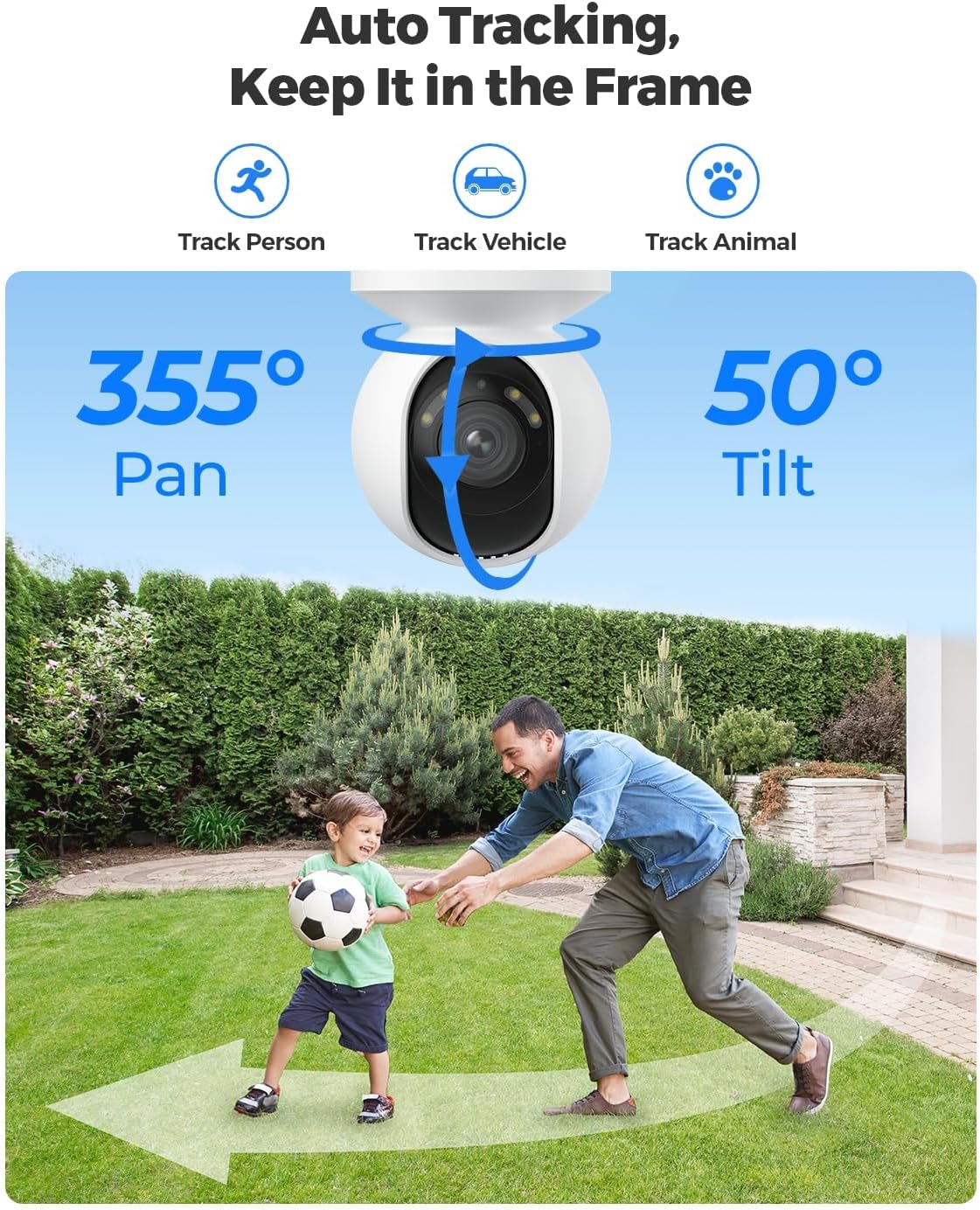
Figure 3.2: The camera's 355° pan and 50° tilt capabilities, along with auto-tracking.

Figure 3.3: Comparison showing the clarity retained with 3X optical zoom in 4K resolution.
3.3 Smart Detection and Alerts
The camera features intelligent detection capabilities, differentiating between humans, vehicles, and pets. This reduces false alarms triggered by irrelevant movements. You can customize detection zones, schedules, and sensitivity settings for each type of event.
Upon detection, you will receive instant app push notifications and email alerts. The integrated spotlights and siren can be triggered automatically to deter suspicious activity. The siren can also be customized with your own voice recordings for personalized deterrence.

Figure 3.4: Example of immediate alerts and the camera's deterrence features.
3.4 Two-Way Talk
Utilize the built-in microphone and speaker for real-time two-way communication. This allows you to speak to visitors, delivery personnel, or warn off intruders directly through the camera.
3.5 Recording Options
The camera offers multiple recording options without monthly fees:
- MicroSD Card: Supports up to 256GB for local storage.
- Reolink NVR: Connect to a Reolink Network Video Recorder for 24/7 continuous recording and massive storage.
- FTP Server: Upload recordings to an FTP server for remote access and backup.

Figure 3.5: Overview of flexible recording options including microSD, NVR, and FTP.
4. Maintenance
4.1 Cleaning and Care
Regularly clean the camera lens with a soft, dry cloth to ensure optimal image clarity. Avoid using harsh chemicals or abrasive materials that could damage the lens or camera body. Periodically check all cable connections to ensure they are secure and free from damage, especially for outdoor installations.
4.2 Firmware Updates
Keep your camera's firmware updated to the latest version to ensure optimal performance, security, and access to new features. Firmware updates are typically available through the Reolink App or official Reolink website. Follow the instructions provided with the update carefully.
5. Troubleshooting
This section addresses common issues you might encounter with your REOLINK E1 Outdoor PoE camera.
5.1 Image is Blurry
- Manually adjust the focus or zoom settings within the Reolink App or Client software.
- Check the mounting location. Ensure the camera is not facing a direct light source (e.g., sun, bright streetlights) or reflective surfaces like mirrors or glass windows, as this can cause glare and blurriness.
- If the issue persists, contact Reolink customer support via Amazon Message for further assistance.
5.2 Guard Point is Out of Place / Auto-Tracking Issues
- Perform a calibration on the Reolink App/Client. Navigate to PTZ > More > Calibration to reset and recalibrate the camera's movement and tracking.
- Ensure the camera's firmware is up to date.
5.3 Two-Way Audio Not Working
- Check the audio settings within the Reolink App to ensure the microphone and speaker are enabled and volume levels are appropriate.
- Verify network connectivity. A stable network connection is crucial for real-time audio transmission.
- Ensure there are no physical obstructions blocking the microphone or speaker on the camera.
5.4 Camera Reboots Frequently
- Verify the power supply. Ensure the PoE switch/injector or DC power adapter meets the camera's power requirements (8 watts). Insufficient power can cause instability.
- Check the network cable for damage or loose connections.
- Ensure the camera's firmware is updated.
6. Specifications
| Feature | Specification |
|---|---|
| Video Capture Resolution | 4K (8MP) |
| Optical Zoom | 3x |
| Pan Range | 355° |
| Tilt Range | 50° |
| Power Source | Power over Ethernet (PoE) |
| Connectivity Protocol | Ethernet |
| Wireless Communication Technology | PoE |
| Mounting Type | Wall Mount |
| Night Vision Range | 12 Meters |
| Wattage | 8 watts |
| Item Dimensions (L x W x H) | 8.54 x 5.91 x 5.2 inches |
| Item Weight | 2.01 pounds |
| International Protection Rating | IP64 |
| Model Number | E1 Outdoor PoE |
| Manufacturer | REOLINK |
| Included Components | E1 Outdoor PoE Security Camera, 1m Network Cable, Quick Start Guide |
7. Warranty and Support
REOLINK products are designed for reliability and performance. For any technical assistance, troubleshooting, or warranty inquiries, please contact REOLINK customer support directly. You can typically reach them via the support section of the Reolink App, their official website, or through the Amazon messaging system if purchased via Amazon.
Always refer to the official Reolink website for the most up-to-date warranty information and support resources.


