
RovyVon A2G3-SS
Contents
RovyVon A2 USB C Rechargeable Keychain Flashlight Instruction Manual
Model: A2G3-SS
1. Product Overview
The RovyVon A2 USB C Rechargeable Keychain Flashlight (A2 Gen 4 USB C version) is a super bright, compact EDC (Everyday Carry) flashlight designed for various uses including camping, running, hiking, and emergencies. It features a maximum output of 650 lumens, multiple brightness settings including a moonlight mode, and a durable stainless steel construction.

Figure 1: RovyVon A2 USB C Rechargeable Keychain Flashlight.
Key Features:
- USB-C Rechargeable: Convenient and modern charging interface.
- Super Bright: Max 650 lumens with high, medium, low, and moonlight settings.
- Long Lasting: Up to 56 hours in moonlight mode; supports use during charging.
- Quick Access & Memory Mode: Triple click for Strobe; momentary on function; remembers last used brightness level (if used for >3 mins).
- Durable Construction: Features a metal switch and stainless steel body.
- Water Resistant: Designed for various outdoor conditions.

Figure 2: Compact design of the RovyVon A2 Flashlight.
2. What's in the Box
- 1 x RovyVon A2 GEN 3 Flashlight
- 1 x SS Keyring
3. Specifications
| Feature | Specification |
|---|---|
| Brand | RovyVon |
| Model | A2G3-SS |
| Color | Silver(G4-6500K) |
| Material | Stainless Steel |
| Light Source Type | LED |
| White Brightness | Max 650 Lumens |
| Power Source | Battery Powered (Rechargeable Lithium Polymer) |
| Product Dimensions | 0.61"D x 0.61"W x 2.38"H |
| Item Weight | 1.2 ounces (34 Grams) |
| Water Resistance Level | Water Resistant |

Figure 3: Size comparison of the RovyVon A2 Flashlight.
4. Setup
4.1 Initial Charge
Before first use, fully charge your RovyVon A2 flashlight. The device is equipped with a USB-C charging port. Locate the USB-C port on the side of the flashlight, typically covered by a small rubber flap. Connect a standard USB-C cable to the flashlight and plug the other end into a compatible USB power source (e.g., computer, wall adapter).
- A charging indicator light will illuminate during charging.
- The indicator will change color or turn off once charging is complete.
- The flashlight can be used while charging.
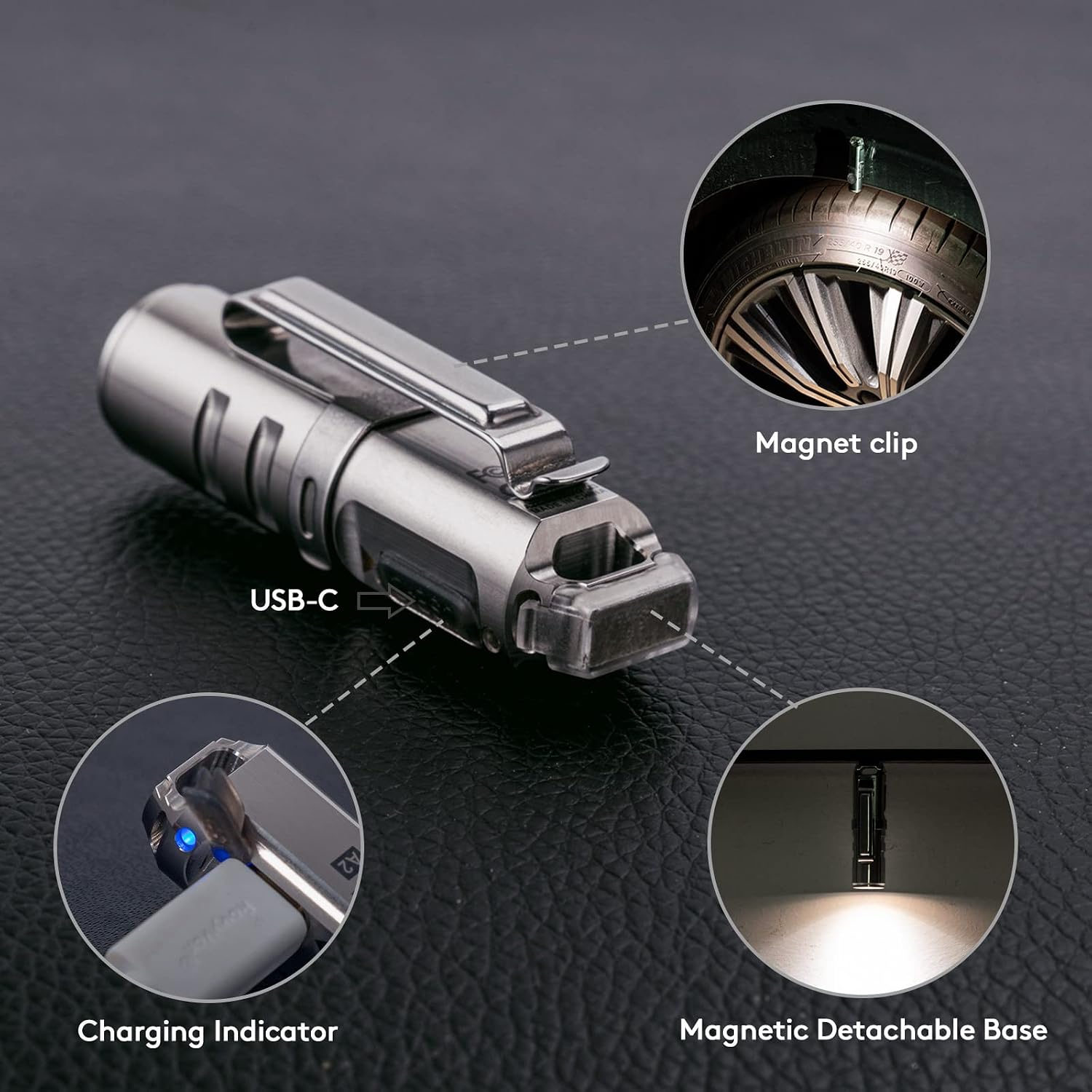
Figure 4: USB-C charging port and charging indicator.
4.2 Attaching Accessories
The RovyVon A2 comes with a detachable magnetic two-way clip and an SS keyring for versatile carrying options. The magnetic base allows the flashlight to be attached to metal surfaces for hands-free illumination.

Figure 5: Detachable magnetic base and two-way clip.
5. Operating Instructions
The RovyVon A2 features a single metal button for all operations. It includes a lock mode to prevent accidental activation.
5.1 Lock/Unlock Function
- To Lock: When the flashlight is OFF, quickly press the button 5 times. The light will flash twice to indicate it is locked. In locked mode, pressing the button will not turn the light on.
- To Unlock: When the flashlight is locked, quickly press the button 5 times. The light will flash three times to indicate it is unlocked.
5.2 Basic Operation (Unlocked Mode)
- Momentary On: Press and hold the button to turn the light on. Release the button to turn it off. This is useful for quick bursts of light.
- Turn On/Off: Double-click the button to turn the flashlight ON. The light will turn on to the last remembered mode (if it was on for more than 3 minutes). To turn OFF, press and hold the button for approximately 2 seconds.
- Cycle Brightness Modes: While the flashlight is ON, single-click the button to cycle through brightness levels: Moonlight > Low > Medium > High.
- Memory Mode: The flashlight will remember the last used brightness mode if it was active for more than 3 minutes. The next time you turn it on (double-click), it will activate in that mode.
5.3 Strobe Mode
- Activate Strobe: Triple-click the button from any status (ON or OFF) to quickly activate the Strobe mode. This is designed for prompt response in emergencies.
Video 1: Official RovyVon A2 G4 Keychain Flashlight demonstration, showing button functions and light modes. This video illustrates the momentary on, mode cycling, and strobe features.
6. Maintenance
- Cleaning: Wipe the flashlight body with a soft, damp cloth. Do not use harsh chemicals or abrasives.
- Charging: Recharge the battery regularly to maintain optimal performance, especially if the flashlight has not been used for an extended period.
- Storage: Store the flashlight in a cool, dry place away from direct sunlight and extreme temperatures.
- Water Resistance: While water resistant, avoid prolonged submersion or exposure to high-pressure water jets. Ensure the USB-C port cover is securely closed to maintain water resistance.
7. Troubleshooting
- Flashlight not turning on:
- Ensure the flashlight is unlocked (quick press 5 times).
- Check battery level and recharge if necessary.
- Verify the button is not stuck or obstructed.
- Light is dim or flickering:
- Battery may be low; recharge the flashlight.
- Ensure the lens is clean and free of debris.
- Flashlight not charging:
- Ensure the USB-C cable is properly connected to both the flashlight and the power source.
- Try a different USB-C cable or power adapter.
- Check if the charging port is clean and free of debris.
8. Warranty & Support
For warranty information or technical support, please refer to the official RovyVon website or contact the seller directly. The product may be eligible for extended protection plans available through the retailer.
Seller: RovyVon® Direct
For additional support or to explore other RovyVon products, visit the RovyVon Store on Amazon.
Documents and downloads
Ask a question about this manual
Ask about setup, troubleshooting, compatibility, parts, safety, or missing instructions. Manuals+ will review the question and use this page’s manual context to help answer it.