
Autel MaxiVCI VCI100
Autel MaxiVCI V100 Instruction Manual
Bluetooth Vehicle Communication Interface OBD Scanner
Introduction
The Autel MaxiVCI V100 is a compact and powerful Vehicle Communication Interface (VCI) designed to facilitate comprehensive vehicle diagnostics. It establishes a wireless Bluetooth connection between your vehicle's On-Board Diagnostics (OBD-II) port and your MaxiSys diagnostic tablet or PC, enabling efficient data transmission and diagnostic operations. This manual provides essential information on setting up, operating, maintaining, and troubleshooting your MaxiVCI V100.

Figure 1: Front, back, and side views of the Autel MaxiVCI V100.
Setup Guide
1. Components Overview
Familiarize yourself with the MaxiVCI V100 components. The device features an OBD-II connector, a USB port for wired connection and updates, and LED indicator lights for power, vehicle communication, and Bluetooth status.
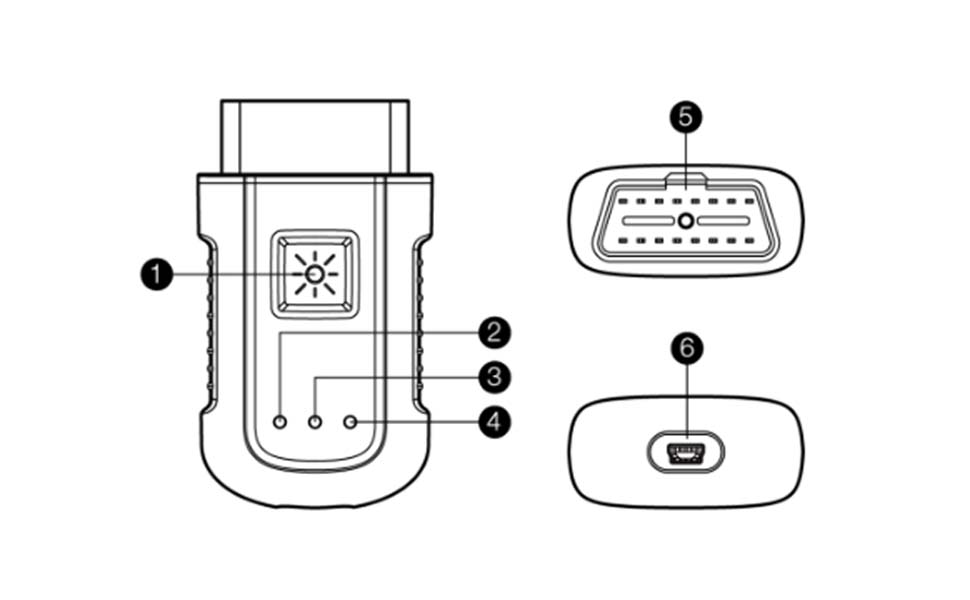
Figure 2: MaxiVCI V100 diagram showing key components.
2. Initial Connection to Vehicle
- Locate the vehicle's OBD-II port, typically found under the dashboard on the driver's side.
- Plug the MaxiVCI V100 directly into the OBD-II port. Ensure a secure connection.
- Once connected, the VCI's LED indicator lights will illuminate, indicating power and readiness for communication.

Figure 3: MaxiVCI V100 connected to the vehicle's OBD-II port, with its LED light indicating power.
3. Connecting to MaxiSys Tablet (Bluetooth)
- Ensure your MaxiSys tablet has Wi-Fi enabled and is connected to a stable internet network.
- On the MaxiSys tablet, navigate to the 'Settings' menu.
- Select 'Wi-Fi' and confirm connection to your network.
- Return to the main settings or application screen and locate the 'VCI Manager' or 'VCI' tab, usually found at the bottom of the screen.
- Within the VCI Manager, select the 'BT' or 'VCI BT' option to initiate Bluetooth scanning.
- Select your MaxiVCI V100 from the list of available devices to establish a Bluetooth connection.
4. Firmware Update Procedure
Keeping your MaxiVCI V100 firmware updated ensures optimal performance and compatibility with the latest vehicle models and diagnostic features. This process requires a wired USB connection to your MaxiSys tablet.
- Connect the MaxiVCI V100 to your MaxiSys tablet using the provided USB cable. The USB port on the VCI is located at the bottom.
- On the MaxiSys tablet, open the 'VCI Manager' application.
- Select the 'VCI Update' option from the left-hand menu.
- The system will check for available updates. If an update is found, you will be prompted to 'Update now'.
- Follow the on-screen instructions to complete the update. Do not disconnect the VCI or leave the page during the update process.
- After the update, the tablet may prompt you to reboot the VCI. Disconnect and then reconnect the USB cable to reboot the VCI.
- Once rebooted, the VCI firmware will be up to date.
Video 1: How to upgrade the VCI200 VCI100 VCI mini. This video demonstrates the firmware update process for Autel VCI devices, including the MaxiVCI V100.
Operating Instructions
1. Wireless Diagnostic Capabilities
The MaxiVCI V100 allows for flexible wireless access, enabling you to work freely around the vehicle while performing diagnostics. Its Bluetooth technology ensures stable and fast communication between the vehicle's ECU and your MaxiSys tablet.

Figure 4: Flexible wireless access with the MaxiVCI V100, allowing diagnostics from a distance.
2. Comprehensive Diagnostics
The MaxiVCI V100 supports comprehensive diagnostics and reading of control modules. When paired with a compatible MaxiSys tablet, it provides access to a wide range of diagnostic applications, including:
- Oil Reset
- Electronic Parking Brake (EPB)
- Tire Pressure Monitoring System (TPMS)
- Battery Management System (BMS)
- Language Change
- Headlamp Adjustment
- Seat Calibration
- Window/Door/Roof Systems
- Airbag Reset
- Transmission Adaptation
- Turbocharging
- Cylinder Management
- Brake Bleed
- Diesel Particulate Filter (DPF) / Selective Catalytic Reduction (SCR) Aftertreatment
- Injector Coding

Figure 5: The MaxiSys Diagnostic Platform, enabled by the MaxiVCI V100, offers a wide array of diagnostic and service functions.
3. Compatibility
The MaxiVCI V100 is designed to work seamlessly with various Autel MaxiSys diagnostic tools, ensuring broad applicability for professional technicians.
Compatible MaxiSys Tools:
- MS906BT
- MK906BT
- MS906TS
- MK908
- MS908
- MS908S Pro
- MS908 Pro
- MK908P
- MaxiSYS Elite
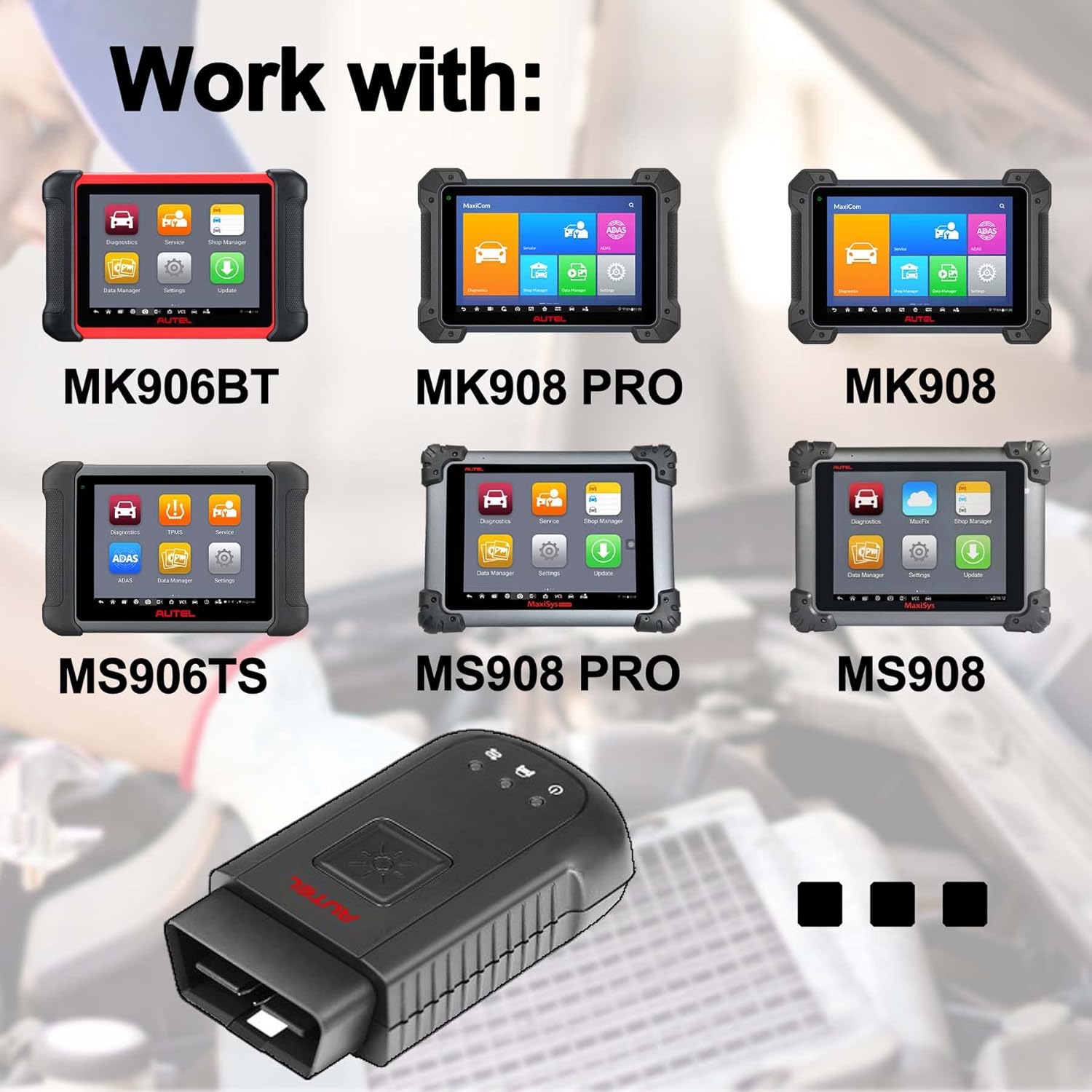
Figure 6: The MaxiVCI V100 is compatible with a wide range of Autel MaxiSys diagnostic tablets.
Maintenance
1. General Care
- Keep the MaxiVCI V100 clean and free from dust and debris. Use a soft, dry cloth for cleaning.
- Avoid exposing the device to extreme temperatures, direct sunlight, or high humidity.
- Store the VCI in a safe place when not in use to prevent physical damage.
2. Software and Firmware Updates
Regularly check for and install software and firmware updates for both your MaxiSys tablet and the MaxiVCI V100. Updates often include new vehicle coverage, bug fixes, and enhanced features. Refer to the Setup Guide for detailed instructions on updating the VCI firmware.
Troubleshooting
Common Issues and Solutions:
- VCI Not Powering On:
Ensure the VCI is securely plugged into the vehicle's OBD-II port. Check the vehicle's battery for sufficient power. - Bluetooth Connection Failure:
Verify that Bluetooth is enabled on your MaxiSys tablet. Ensure the VCI is within range (up to 75 feet). Try restarting both the VCI (by unplugging and replugging) and the tablet. Ensure no other devices are interfering with the Bluetooth signal. - Firmware Update Issues:
Ensure a stable Wi-Fi connection on your tablet. Use the provided USB cable for updates, as Bluetooth updates are not supported for all firmware components. Do not interrupt the update process. If an update fails, try again with a stable wired connection. - No Communication with Vehicle:
Check that the VCI is firmly connected to the OBD-II port. Verify that the vehicle's ignition is on (or in the correct position for diagnostics). Ensure the VCI's firmware is up to date.
Specifications
| Feature | Detail |
|---|---|
| Brand | Autel |
| Model Number | MaxiVCI VCI100 |
| Item Weight | 3.2 ounces |
| Product Dimensions | 6.34 x 3.58 x 1.46 inches |
| Power Source | Corded Electric (via OBD-II port or USB) |
| Operating System (for compatible tablets) | Android 4.4 and above |
| Connectivity | Bluetooth, USB |
| UPC | 792499186418 |

Figure 7: Physical dimensions of the MaxiVCI V100.
Warranty and Support
Warranty Information
Autel products typically come with a limited warranty covering manufacturing defects. For specific warranty terms and conditions, please refer to the warranty card included with your product or visit the official Autel website. Extended protection plans may also be available for purchase.
Customer Support
For any questions, technical assistance, or support regarding your Autel MaxiVCI V100, please contact Autel customer service:
- Email: mbdh2022@outlook.com
- Visit the official Autel Store on Amazon for more information and products: Autel Store
Additional resources, including FAQs and further instructional videos, may be available on the Autel official website.
Ask a question about this manual
Ask about setup, troubleshooting, compatibility, parts, safety, or missing instructions. Manuals+ will review the question and use this page’s manual context to help answer it.