
1. Introduction
Welcome to the NERUNSA Q23 Smart Watch user manual. This guide provides detailed instructions to help you get started with your new smart watch, understand its features, and maintain it for optimal performance. The NERUNSA Q23 is designed to monitor your health, track your fitness activities, and keep you connected.
2. What's in the Box
Upon unboxing your NERUNSA Q23 Smart Watch, please ensure all components are present:
- NERUNSA Q23 Smart Watch
- Charging Cable
- User Manual (this document)
3. Product Overview
The NERUNSA Q23 Smart Watch features a 1.69-inch HD screen and a comfortable, ergonomic strap. It offers various functionalities including health monitoring, fitness tracking, and smart notifications.

Image: Front view of the NERUNSA Q23 Smart Watch, showcasing its display with various health and activity metrics.

Image: The smart watch monitoring heart rate and sleep patterns while worn by a user.

Image: A visual representation of the various functions accessible on the smart watch's 1.69-inch screen.

Image: The smart watch receiving call and message alerts, demonstrating its long battery life.

Image: The smart watch is IP68 waterproof, suitable for various water-related activities.

Image: Customization options for watch faces, allowing users to personalize their device.
4. Setup
4.1. App Installation
To utilize all features of your NERUNSA Q23 Smart Watch, download and install the "Keep Health" application from your smartphone's app store (available for Android and iOS).
4.2. Pairing with iOS Devices
Follow these steps to connect your smart watch with an iPhone and enable notifications:
- Ensure Bluetooth is enabled on your iPhone.
- Open the "Keep Health" app, navigate to the "Device" section, and select "Add a new device".
- Select the corresponding Q23 watch model from the list. A successful connection will be indicated by a checkmark.
- To receive application notifications on the watch, manually enable permissions within the "Keep Health" app.
- When prompted by your iPhone for a Bluetooth pairing request, click "Pair".
- In the app's notification settings, turn on the "Notifications" button and grant permission for the watch to receive iPhone messages.
Video: Instructions on how to connect the NERUNSA Q23 Smart Watch to an iPhone and enable notification functions.
4.3. Pairing with Android Devices
Follow these steps to connect your smart watch with an Android phone and enable notifications:
- Ensure Bluetooth is enabled on your Android phone.
- Open the "Keep Health" app, navigate to the "Device" section, and select "Add a new device".
- Select the corresponding Q23 watch model from the list. A successful connection will be indicated.
- In the app's notification settings, turn on the "Notifications" button and grant permission for the watch to receive messages from selected applications.
Video: Instructions on how to connect the NERUNSA Q23 Smart Watch to an Android phone and enable notification functions.
5. Basic Operation
The NERUNSA Q23 Smart Watch is operated primarily through its touch screen and a side button. Swipe gestures and taps allow navigation through menus and selection of functions.
- Power On/Off: Press and hold the side button.
- Wake Screen: Raise your wrist or press the side button.
- Navigate Menus: Swipe left, right, up, or down on the screen.
- Select Item: Tap on the desired icon or option.
- Return: Swipe right or press the side button (functionality may vary by screen).
6. Key Features
6.1. Health Monitoring
The Q23 Smart Watch continuously monitors your heart rate and sleep patterns. All data is recorded and accessible through the "Keep Health" app, providing insights into your physical well-being.
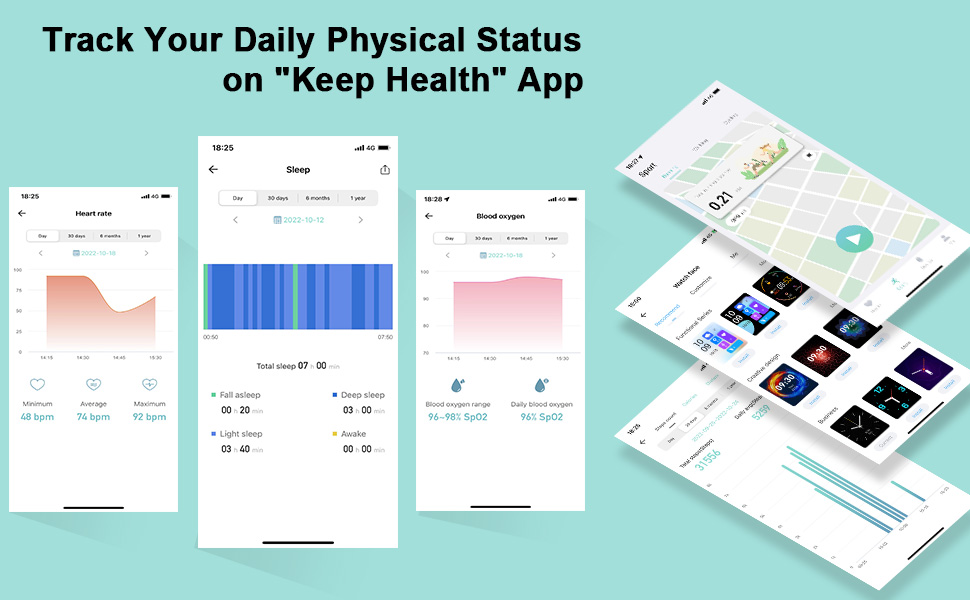
Image: The "Keep Health" app interface showing detailed health data, including heart rate, sleep, and blood oxygen levels.
6.2. Fitness Tracking (25 Sport Modes)
Track your daily activities with 25 built-in sport modes, including walking, running, cycling, swimming, and more. The watch records steps, calories burned, distance, and exercise duration.
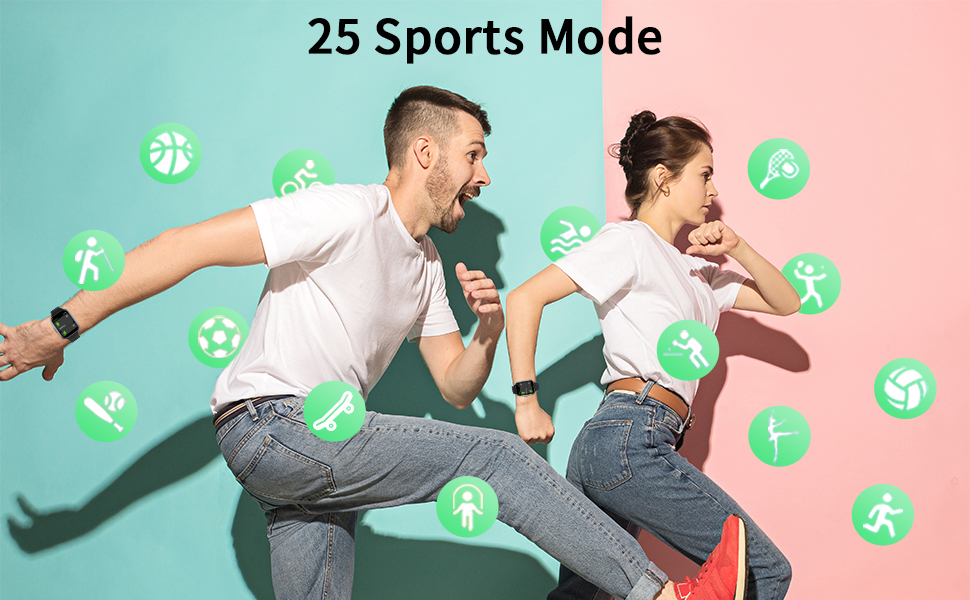
Image: The smart watch supports 25 different sports modes for comprehensive fitness tracking.
6.3. Smart Notifications
Receive notifications for calls, SMS, emails, and various social media apps directly on your wrist, ensuring you stay informed without needing to check your phone constantly.
6.4. Customization
Personalize your watch with a variety of watch faces available through the app. You can also use your own photos to create custom watch dials.
6.5. IP68 Waterproof Rating
The NERUNSA Q23 Smart Watch is IP68 waterproof, making it suitable for daily use, including hand washing, rain, and swimming. Avoid hot water or steam exposure.
6.6. Additional Functions
- Stopwatch & Timer: For precise timing during workouts or daily tasks.
- Alarms: Set multiple alarms for reminders.
- Weather Forecast: Get real-time weather updates.
- Music Control: Control music playback on your phone.
- Remote Camera Control: Use your watch as a remote shutter for your phone's camera.
- Sedentary & Drink Water Reminders: Prompts to stay active and hydrated.
- Find Watch: Locate your watch if misplaced.
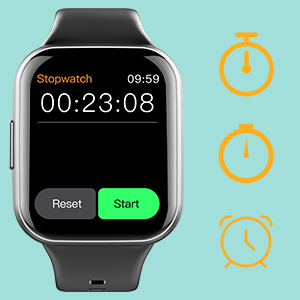
Image: The stopwatch function on the smart watch.
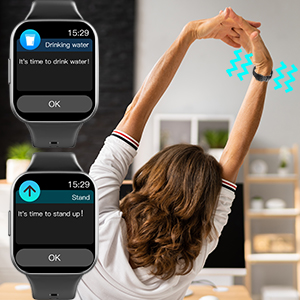
Image: Reminders for hydration and activity on the smart watch.
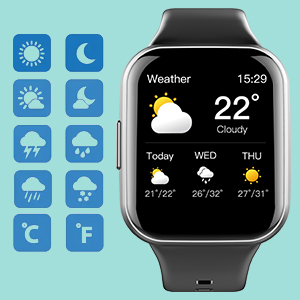
Image: Weather forecast display on the smart watch.
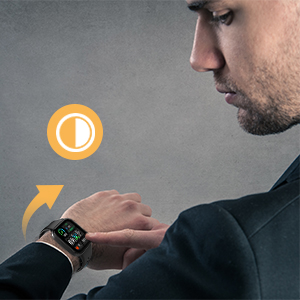
Image: The smart watch's screen brightness adjustment or wrist-raise-to-wake feature.

Image: Music control functionality on the smart watch, paired with a smartphone.
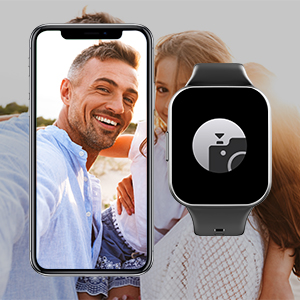
Image: Remote camera control feature, allowing the watch to trigger a smartphone's camera.
7. Maintenance
Proper care ensures the longevity and performance of your NERUNSA Q23 Smart Watch:
- Cleaning: Regularly wipe the watch and strap with a soft, dry cloth. For stubborn dirt, use a slightly damp cloth and mild soap, then rinse and dry thoroughly.
- Charging: Use the provided charging cable. Ensure the charging contacts on the watch and cable are clean and dry before charging.
- Storage: Store the watch in a cool, dry place away from direct sunlight and extreme temperatures.
- Avoid Chemicals: Do not expose the watch to strong chemicals, detergents, or solvents, as these can damage the materials.
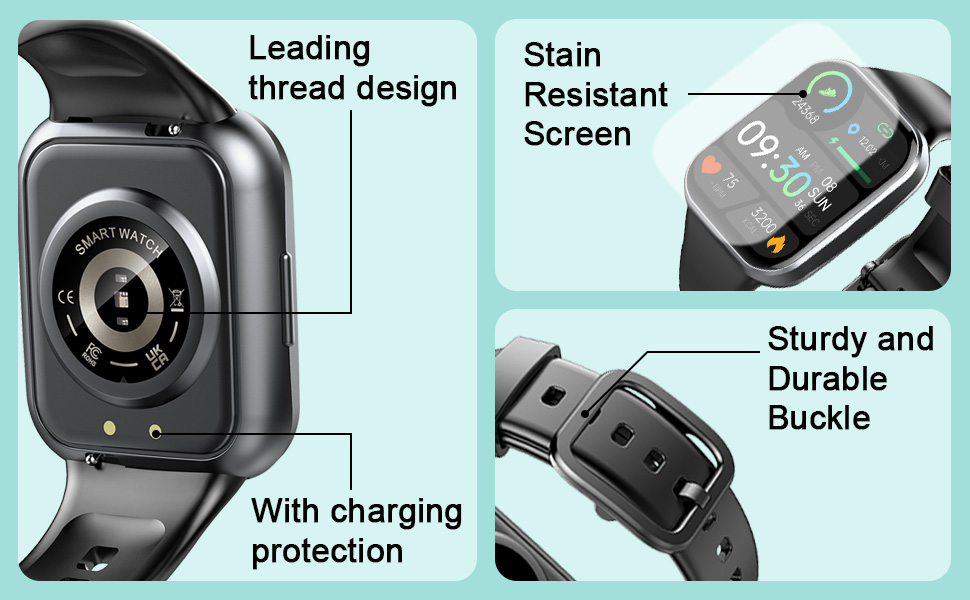
Image: Details of the watch's construction, including charging protection and strap design.
8. Troubleshooting
If you encounter issues with your NERUNSA Q23 Smart Watch, refer to the following common solutions:
- Watch not turning on: Ensure the watch is fully charged. Connect it to the charging cable and a power source.
- Cannot pair with phone: Make sure Bluetooth is enabled on your phone and the watch is within range. Restart both devices and try pairing again. Ensure the "Keep Health" app has necessary permissions.
- Notifications not received: Verify that notifications are enabled in both your phone's settings and the "Keep Health" app. Ensure the app is running in the background.
- Inaccurate health data: Ensure the watch is worn snugly on your wrist, not too tight or too loose. Clean the sensor on the back of the watch.
- Screen unresponsive: Restart the watch by pressing and holding the side button. If the issue persists, ensure the screen is clean and dry.
8.1. How to Disconnect from iOS Devices
If you need to completely unbind your NERUNSA Q23 Smart Watch from an iPhone, follow these steps:
- First, disconnect the Bluetooth connection in your iPhone's settings. Go to Settings > Bluetooth, find your Q23 watch, tap the information icon (i), and select "Forget This Device".
- Next, open the "Keep Health" app. Go to the "Device" section, tap "Unbind" (usually located at the top right or within device settings), and confirm the unbinding process.
Video: Instructions on how to completely disconnect the NERUNSA Q23 Smart Watch from an iPhone and the associated app.
9. Specifications
| Feature | Specification |
|---|---|
| Model Name | Q23 |
| Screen Size | 1.7 Inches |
| Shape | Square |
| GPS | True |
| Battery Cell Composition | Lithium Polymer |
| Wireless Communication Standard | Bluetooth |
| Connectivity Technology | Bluetooth |
| Special Feature | Heart Rate Monitor |
| Operating System | Android, iOS |
| Item Weight | 3.52 ounces |
| Waterproof Rating | IP68 |
10. Warranty and Support
For warranty information and customer support, please refer to the documentation included with your purchase or visit the official Nerunsa website. If you encounter any issues not covered in this manual, please contact customer service for assistance.
Note: If you experience any problems downloading the "Keep Health" App or connecting the smart watch with your phone, please contact Nerunsa customer support for immediate assistance.

