
1. Introduction
The ABASK J05PRO is a high-performance 4K WiFi Dual Dash Cam designed to provide comprehensive video surveillance for your vehicle. It features a front camera recording in Ultra HD 4K (3840*2160P) and an interior camera recording in Full HD 1080P, offering a wide 310° field of view (170° front, 140° interior). Equipped with advanced features such as Night Vision, G-Sensor, Parking Monitor, and Loop Recording, this dash cam ensures reliable evidence capture and enhanced vehicle security. This manual provides detailed instructions for setup, operation, maintenance, and troubleshooting to help you maximize the functionality of your device.

Image: The ABASK J05PRO Dual Dash Cam, showcasing its compact design, front and interior cameras, display screen, and included 64GB SD card.
2. Key Features
- 4K+1080P Dual Recording: Records simultaneously in Ultra HD 4K for the front view and Full HD 1080P for the interior, capturing critical details like road signs and license plates.
- Built-in Wi-Fi & Dedicated Free APP: Connects easily to the "LuckyCam" APP for convenient video checking, downloading, sharing, and settings adjustment. Supports OTA updates for firmware.
- Superior Night Vision: Features 4 infrared LED lights, F1.8 aperture, and WDR technology for clear visibility in low-light conditions, automatically adjusting between day and night modes.
- 7/24 Parking Monitor: Provides continuous parking surveillance with time-lapse recording to conserve power and storage. Requires an optional ACC hardwire kit for this function.
- Seamless Loop Recording & G-Sensor: Automatically overwrites the oldest footage when the TF card is full. The G-Sensor detects sudden shaking or collisions, locking relevant video files to prevent overwriting.
- Total 310° Wide-Angle Field of View: Provides a comprehensive view of the road ahead (170° front) and the entire vehicle interior (140° interior), minimizing blind spots.
- 1.5 Inch Display: Compact screen for easy viewing of live footage and recorded videos directly on the device.

Image: Visual representation of the dash cam's dual recording capability, showing clear 4K front footage and 1080P cabin footage in both daylight and night mode.

Image: A smartphone displaying the LuckyCam app interface, demonstrating live view and control. QR codes are provided for downloading the app for both iOS and Android devices.
Download LuckyCam App: Android | iOS

Image: The dash cam's lens with visible infrared lights, illustrating its enhanced night vision capabilities for clear recording in dark environments.

Image: A car depicted within a motion detection zone, highlighting the 24-hour motion-activated parking mode feature.

Image: Illustrations demonstrating the G-Sensor's ability to emergency lock footage during an impact and the continuous loop recording process.
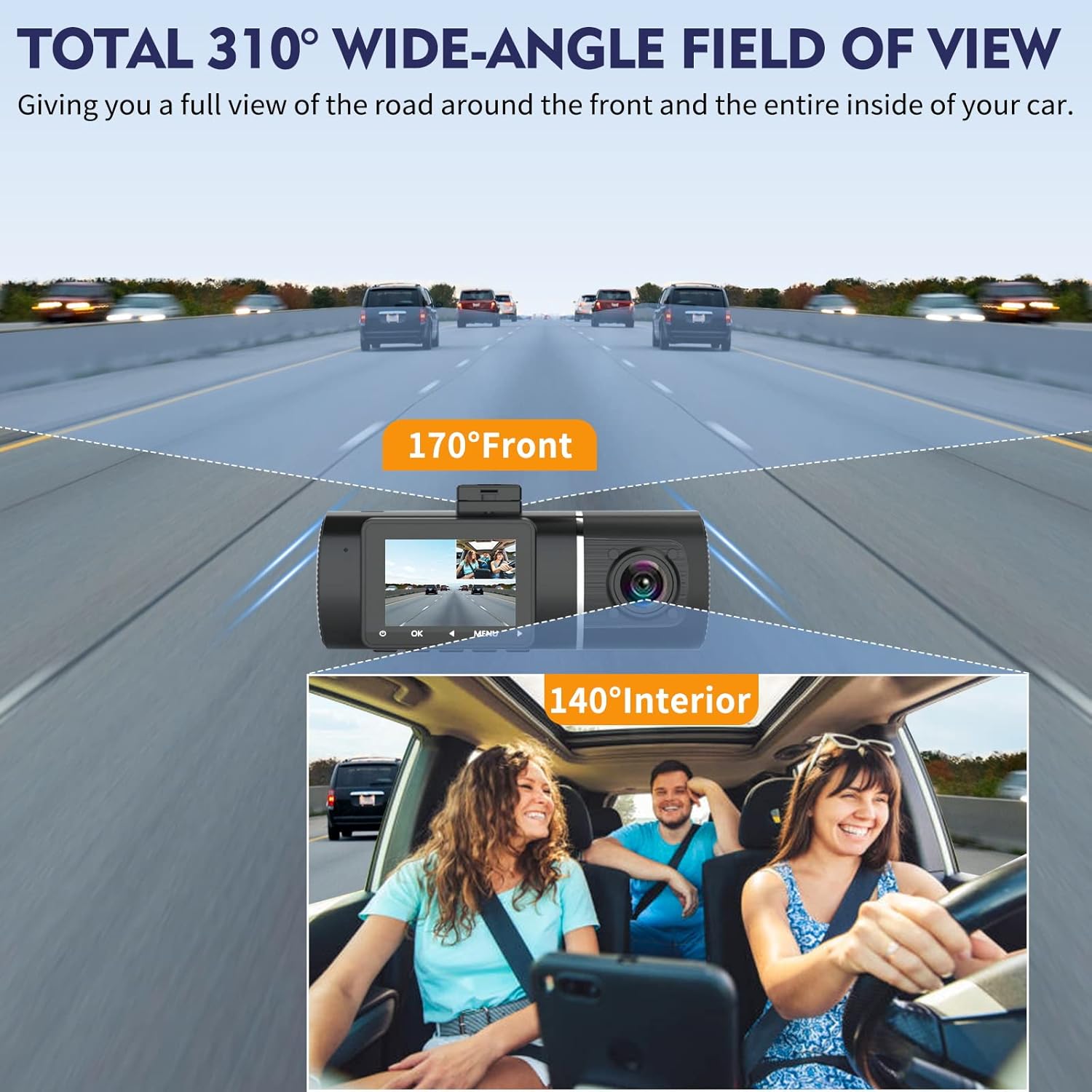
Image: An overhead view of a car on a multi-lane road, illustrating the expansive 170° front and 140° interior wide-angle coverage provided by the dash cam.

Image: A close-up of the dash cam's display, indicating its 1.5-inch screen size.
3. Setup Guide
3.1 Package Contents
Before starting, ensure all components are present in the package:
- ABASK J05PRO Dash Cam
- Suction Mount
- 64GB Memory Card (pre-inserted)
- Car Charger (cigarette lighter port power cable)
- USB Cable
- User Manual
- Cable Management Clips
- Pry Tool

Image: A visual display of all items included in the ABASK J05PRO dash cam package.
3.2 Initial Preparation
- Format the SD Card: For optimal performance, it is highly recommended to format the included 64GB TF card before first-time use. This can be done via the dash cam's menu settings.
- Power Connection: The dash cam must always be powered by the provided car charger connected to your vehicle's cigarette lighter port. It does not operate wirelessly.
3.3 Mounting the Dash Cam
- Clean the windshield area where you intend to mount the dash cam.
- Attach the suction mount to the dash cam.
- Press the suction cup firmly against the cleaned windshield and flip the lever to secure it.
- Adjust the camera angle to ensure a clear view of the road and the vehicle interior.
- Route the power cable neatly along the windshield and dashboard, using the provided cable management clips and pry tool if necessary, to the cigarette lighter port.

Image: An illustration demonstrating the recommended method for routing the dash cam's power cable discreetly within the vehicle's interior.
4. Operating Instructions
4.1 Basic Operation
- Power On/Off: The dash cam will automatically power on and begin recording when connected to power and the vehicle ignition is turned on. It will power off shortly after the ignition is turned off.
- Recording: Once powered on, the dash cam automatically starts continuous loop recording.
- Menu Navigation: Use the physical buttons on the device to navigate through settings and playback options.
- App Control: For more convenient control and viewing, connect your smartphone to the dash cam via Wi-Fi using the "LuckyCam" app. This allows you to view live footage, playback recordings, download files, and adjust settings directly from your phone.
4.2 G-Sensor Function
The built-in G-Sensor detects sudden impacts or rapid acceleration/deceleration. When triggered, it automatically locks the current video segment, preventing it from being overwritten by loop recording. These locked files are stored in a separate folder on the SD card.
4.3 Loop Recording
The dash cam records video in continuous loops (e.g., 1, 3, or 5-minute segments). When the SD card reaches its capacity, the oldest unlocked video files are automatically overwritten by new recordings. This ensures continuous recording without manual intervention.
4.4 Parking Monitoring
With an optional ACC hardwire kit (not included), the dash cam can monitor your vehicle 24/7. It uses time-lapse recording to efficiently capture events while parked, conserving power and storage. If motion or impact is detected, it will record and save the event.
5. Maintenance
- SD Card Formatting: To maintain optimal performance and prevent data corruption, it is recommended to format the TF card every two weeks. This can be done through the dash cam's menu settings.
- Lens Cleaning: Periodically clean the camera lenses with a soft, lint-free cloth to ensure clear video quality.
- Firmware Updates: Check for firmware updates via the "LuckyCam" app to ensure your device has the latest features and bug fixes.
6. Troubleshooting
- Dash Cam feels warm during operation: It is normal for the dash cam to run slightly hot, especially during prolonged use or in warm environments. The working temperature range is -20℃ to 70℃ (-4°F to 158°F).
- Wi-Fi connection issues: Ensure your phone is close to the dash cam. Remember that Wi-Fi functionality is for connecting your phone to the dash cam for viewing and settings, not for wireless power. The dash cam requires a constant power connection via the cigarette lighter port.
- "Card Full" error or recording stops: This usually indicates the SD card needs formatting or is corrupted. Format the SD card via the dash cam's menu. If the issue persists, try a new high-quality U3 (or higher) microSD card.
- Video quality issues (blurry, dark): Ensure the protective film is removed from the lens. Clean the lens regularly. Check if WDR (Wide Dynamic Range) is enabled in settings for better exposure balance.
- Parking Monitor not working: The 24-hour parking mode requires an optional ACC hardwire kit (not included) for continuous power when the vehicle is off. Ensure it is correctly installed.
7. Specifications
| Feature | Specification |
|---|---|
| Brand | ABASK |
| Model | J05PRO |
| Video Capture Resolution | Front: 4K (3840*2160P), Interior: 1080P |
| Actual Viewing Angle | Front: 170 Degrees, Interior: 140 Degrees (Total 310 Degrees) |
| Display Size | 1.5 Inches |
| Display Type | LED |
| Flash Memory Type | microSD |
| Included Memory Card Size | 64 GB |
| Max Supported Memory Card | 256 GB |
| Special Features | G-Sensor, Night Vision, Parking Monitor, Loop Recording, WDR |
| Connectivity Technology | Wi-Fi |
| Mounting Type | Suction Mount |
| Power Source | Cigarette Lighter Port (5V 2A) |
| Operating Temperature | -20℃ to 70℃ (-4°F to 158°F) |
| Product Dimensions | 8 x 10 x 6 cm; 32 g |
8. Warranty & Support
The ABASK J05PRO Dash Cam comes with a full 12-month warranty. If you encounter any questions or issues regarding your product, please do not hesitate to contact ABASK customer service via Amazon. Our after-sale service team is available 24/7 to assist you. Additionally, a full refund is available within 30 days if you have any doubts about the product.


