
1. Product Overview
The NPET K10 Wired Computer Keyboard is a full-size, plug & play keyboard designed for efficiency and durability. It features 104 keys, including a numeric pad and 12 dedicated multimedia keys, making it suitable for both office work and gaming. Its spill-resistant design and robust construction ensure long-term reliability.

Image: NPET K10V1 Wired USB Keyboard Overview, highlighting quiet operation, 1.4m wired connection, and 104 US keys.
2. Key Features
- Full-Size Layout with Multimedia Control: Features 104 keys, including a numeric pad and 12 dedicated multimedia keys for instant access to volume, playback, and other controls.
- Plug & Play with Broad Compatibility: Ready to use instantly with USB-A connection; no drivers required. Compatible with Windows, macOS, and Linux operating systems, and works seamlessly with desktops, laptops, and other USB-supported devices.
- Spill-Resistant & Durable Build: Designed with internal drainage channels to protect against accidental liquid spills. Keys are tested for millions of keystrokes with wear-resistant legends, ensuring long-term reliability.
- Quiet & Comfortable Typing Experience: Optimized key travel offers soft tactile feedback ideal for extended typing sessions. The low-profile silent membrane design reduces noise, making it suitable for various environments.
- 6.2ft Long Cable & Sleek Design: Includes a generous 6.2ft (1.9m) braided USB cable for flexible setup. The black matte finish resists fingerprints, and non-slip feet keep the keyboard stable on any desk.

Image: Close-up of keyboard keys illustrating 50g key force, 2.2mm trigger route, and 10 million keystrokes durability.

Image: Close-up of doubleshot ABS keycaps, emphasizing a switch life of up to 1,000,000 keystrokes.
3. Package Contents
- NPET K10 Wired Computer Keyboard
- Keycap Puller
- User Manual (this document)
4. Setup Instructions
- Unpack the Keyboard: Carefully remove the keyboard and all accessories from the packaging.
- Connect to Your Device: Locate an available USB-A port on your computer (PC or laptop). Insert the USB connector of the keyboard into the USB-A port.
- Driver Installation: The NPET K10 keyboard is plug & play. Your operating system (Windows, macOS, Linux) should automatically detect and install the necessary drivers. No manual driver installation is typically required.
- Adjust Tilt Legs (Optional): For ergonomic comfort, you can extend the adjustable tilt legs located on the underside of the keyboard to achieve your preferred typing angle.

Image: The NPET K10 keyboard with its USB cable, illustrating its plug & play corded connection.
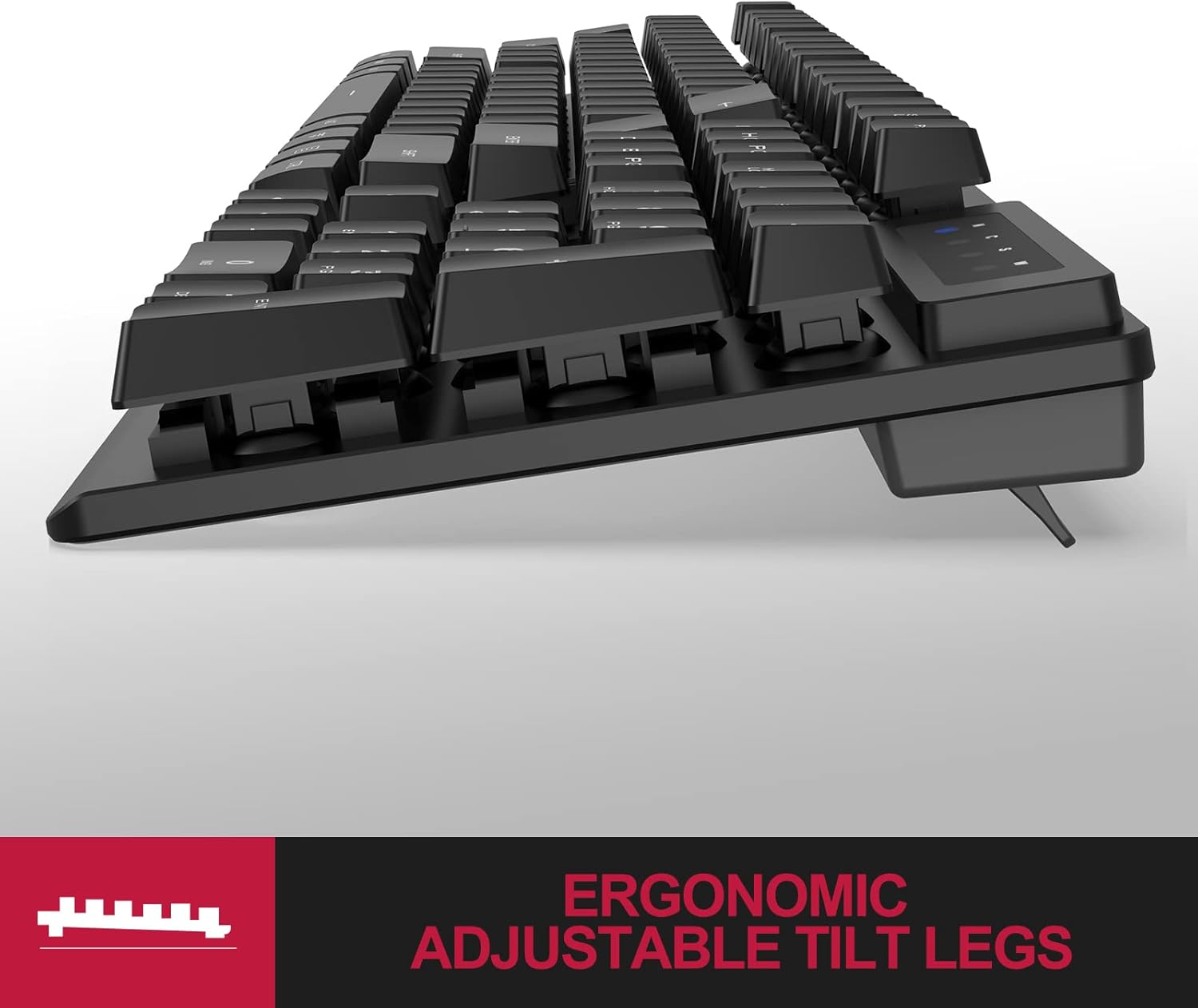
Image: Side view of the keyboard showing the ergonomic adjustable tilt legs extended.
5. Operating Instructions
5.1 Basic Typing
The NPET K10 keyboard functions as a standard 104-key QWERTY keyboard. Simply begin typing to input text into your computer.
5.2 Multimedia Keys
The keyboard includes 12 dedicated multimedia keys (F1-F12) that provide quick access to various functions. These keys are typically activated by pressing the Fn key (if present, though not explicitly listed for this model, standard for multimedia functions) in combination with the desired F-key, or directly if configured by your operating system.
- F1-F12: Functions may include media playback control (play/pause, stop, previous/next track), volume control (mute, volume down, volume up), web browser, email, and calculator access. Refer to your operating system's settings for specific key assignments if direct functionality is not observed.

Image: Top-down view of the keyboard highlighting the full-size layout and the F-keys with multimedia icons.

Image: Close-up of the F1-F12 keys, indicating their multimedia functions.
6. Maintenance
6.1 Cleaning the Keyboard
To maintain optimal performance and hygiene, regularly clean your keyboard.
- Dust Removal: Use a can of compressed air to blow away dust and debris from between the keys.
- Surface Cleaning: Wipe the keycaps and keyboard surface with a soft, damp cloth. For stubborn grime, a small amount of mild soap or an electronics-safe cleaning solution can be used. Ensure the cloth is not dripping wet.
- Keycap Removal (Advanced): The included keycap puller can be used to carefully remove individual keycaps for deeper cleaning. Gently attach the puller to the keycap and pull upwards. Realign the keycap and press firmly to reattach.
6.2 Spill Protection
The NPET K10 features a spill-resistant design with internal drainage channels. In case of accidental liquid spills:
- Immediately disconnect the keyboard from your computer.
- Turn the keyboard upside down to allow liquid to drain out.
- Wipe the surface thoroughly with a dry cloth.
- Allow the keyboard to air dry completely for several hours (or ideally 24 hours) before reconnecting it to your computer.

Image: Keyboard with water droplets, demonstrating its spill-resistant feature and durable metal base.

Image: Close-up of keyboard with water, reinforcing its spill-resistant and durable construction.
7. Troubleshooting
- Keyboard Not Responding:
- Ensure the USB cable is securely plugged into both the keyboard and the computer's USB-A port.
- Try plugging the keyboard into a different USB-A port on your computer.
- Restart your computer.
- Test the keyboard on another computer to determine if the issue is with the keyboard or the original computer.
- Keys Not Registering or Sticking:
- Clean the affected keys and the area around them using compressed air or by carefully removing the keycap with the provided puller for deeper cleaning.
- Ensure no debris is lodged beneath the keycap.
- Multimedia Keys Not Functioning:
- Some operating systems may require specific settings or software to fully utilize multimedia keys. Check your computer's keyboard settings or manufacturer's website for potential software.
- Ensure you are pressing the correct combination (e.g., Fn + F-key) if required by your system.
8. Specifications
| Feature | Detail |
|---|---|
| Model Number | K10 |
| Product Dimensions | 17.32 x 5.51 x 0.98 inches (44 x 14 x 2.5 cm) |
| Item Weight | 1.9 pounds (0.86 kg) |
| Connectivity Technology | USB-A Wired |
| Cable Length | 6.2 feet (1.9 meters) |
| Number of Keys | 104 |
| Multimedia Keys | 12 |
| Compatible Devices | PC, Laptop (Windows, macOS, Linux) |
| Special Features | Waterproof, Ergonomic, Hotkeys and Media Keys |
| Material | Acrylonitrile Butadiene Styrene, Metal |
| Color | Black |
| Style | No backlit Keyboard |
9. Warranty and Support
For warranty information and customer support, please refer to the official NPET website or contact their customer service directly. Keep your purchase receipt for warranty claims.
NPET Official Website: Visit the NPET Store on Amazon


