
1. Introduction
The Autel MaxiVCI V200 is a sophisticated Bluetooth Vehicle Communication Interface (VCI) designed to facilitate comprehensive vehicle diagnostics. It enables wireless communication between a MaxiSYS display tablet or a standalone PC and the vehicle's onboard diagnostic system, allowing for data transmission and testing outside the vehicle.
This device supports the latest diagnostic protocols, including DoIP and CAN FD (4-pin sets), ensuring broad compatibility with a wide range of modern vehicles. Its wireless Bluetooth technology provides a stable and fast connection, enhancing efficiency for diagnostic tasks.

Image: Autel MaxiVCI VCI200 OBDII Bluetooth Connector.
2. Product Overview
The MaxiVCI V200 is a compact and robust device. Understanding its components is essential for proper use.

Image: Key components of the MaxiVCI V200.
The diagram above illustrates the main parts of the VCI200, including its diagnostic port, indicator lights, and USB connection point.
3. Setup and Initial Connection
Before using your MaxiVCI V200, ensure it is properly set up and connected to your diagnostic tablet or PC.
3.1. Connecting to the Vehicle
The MaxiVCI V200 connects to the vehicle's Data Link Connector (DLC).
- Standard OBDII Port: For vehicles with a standard OBDII port (generally located under the vehicle dash), simply insert the VCI200 directly into the DLC.
- Non-OBDII Port: If your vehicle has a non-OBDII port, an appropriate OBDI adapter is required. Connect the 16-pin jack of the OBDI adapter to the Vehicle Data Connector on the MaxiVCI V200, then connect the OBDI adapter to the vehicle's DLC.
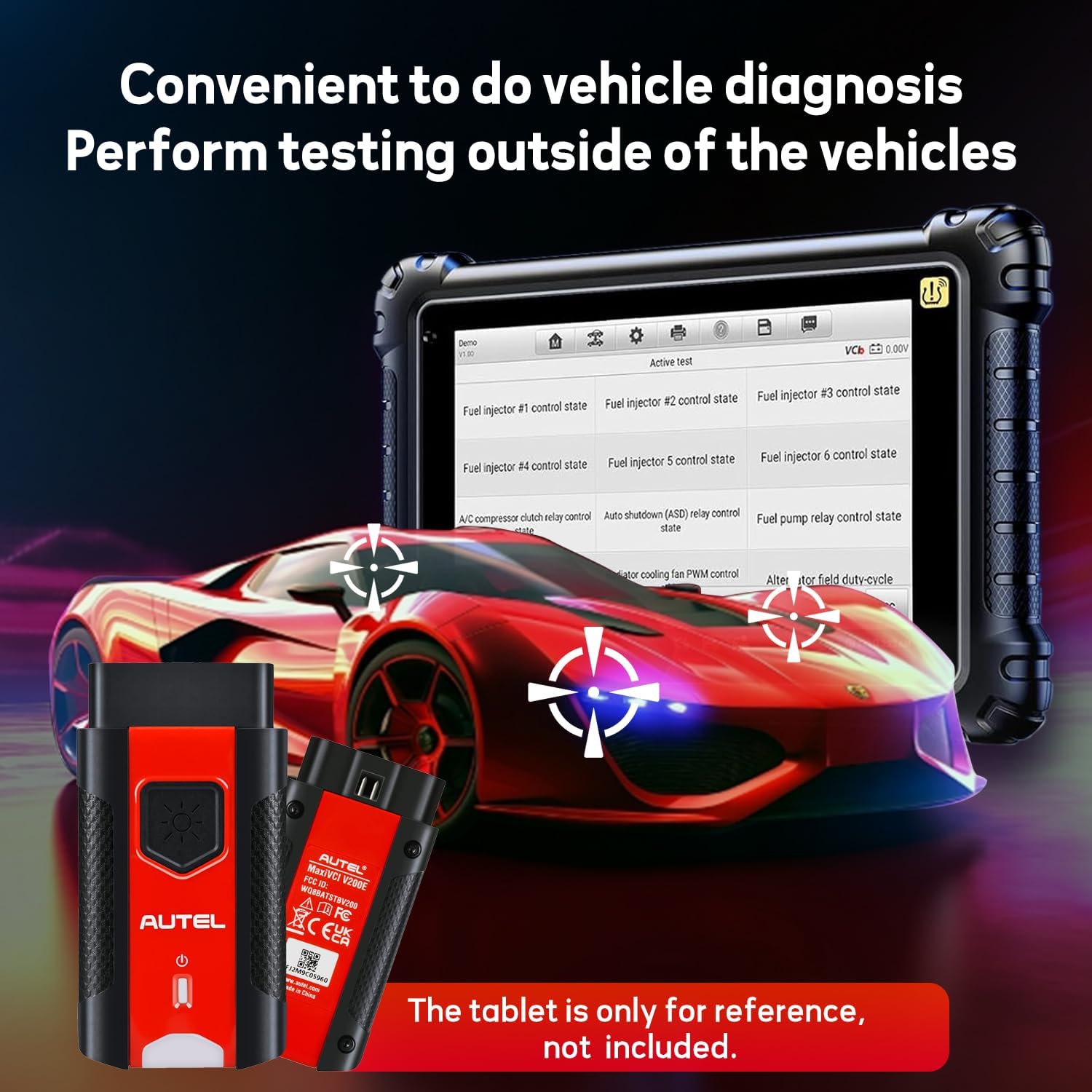
Image: MaxiVCI V200 in use for vehicle diagnosis.
3.2. Connecting to the Diagnostic Tablet/PC
The MaxiVCI V200 is designed for wireless communication with your MaxiSYS display tablet or PC via Bluetooth. The tablet and VCI200 are typically configured to automatically synchronize on first use, eliminating the need for manual pairing.
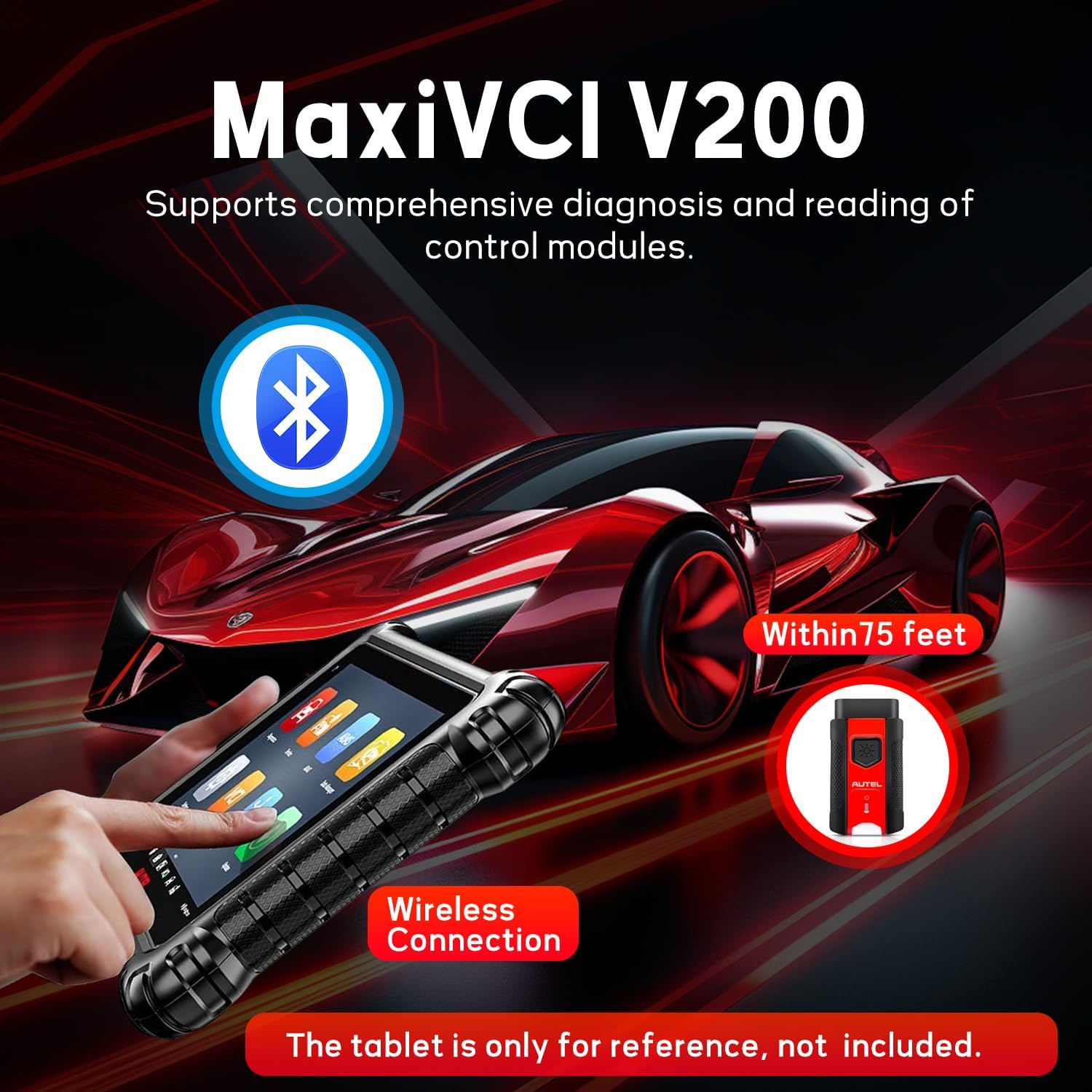
Image: Wireless connection between MaxiVCI V200 and a diagnostic tablet.
4. Operating the MaxiVCI V200
The MaxiVCI V200 serves as a bridge for vehicle data transmission, enabling comprehensive diagnostic functions.
- Wireless Communication: The VCI200 utilizes ultra-fast Bluetooth technology for stable and quick data transfer within a range of up to 75 feet. This allows for flexible operation and testing outside of the vehicle.
- Supported Protocols: It supports the latest OBD2 protocols, including DoIP (Diagnostics over Internet Protocol) and CAN FD (Controller Area Network Flexible Data-Rate), ensuring compatibility with newer vehicle models.
- System Support: The device supports various vehicle systems such as Electronic Parking Brake (EPB), Steering Angle Sensor (SAS), Supplemental Restraint System (SRS), and Tire Pressure Monitoring System (TPMS), among others.

Image: MaxiVCI V200 supporting DoIP and CAN FD protocols.
5. Maintenance and Firmware Updates
Keeping your MaxiVCI V200's firmware up-to-date ensures access to the latest features and optimal performance.
5.1. Firmware Update Procedure
Follow these steps to update the VCI200 firmware:
- Ensure your diagnostic tablet is connected to a stable Wi-Fi network.
- Connect the MaxiVCI V200 to your diagnostic tablet using the provided USB cable. The USB port on the VCI200 is located at the bottom.
- On your tablet, navigate to the VCI Manager application.
- Select the "VCI Update" option from the menu.
- If updates are available, the system will prompt you to "Update now". Follow the on-screen instructions.
- After the update is complete, you may be asked to reboot the VCI. To do this, simply unplug the USB cable from the VCI and then plug it back in.
- Once rebooted, the VCI will reconnect, and your software will be up to date.
Video: Instructions on how to upgrade the VCI200, VCI100, and VCI mini firmware.
Regular firmware updates are crucial for maintaining compatibility with new vehicle models and ensuring the VCI operates with the latest diagnostic capabilities.
5.2. General Care and Storage
To prolong the life of your MaxiVCI V200:
- Store the device in a clean, dry environment away from extreme temperatures.
- Avoid dropping or subjecting the device to strong impacts.
- Clean the exterior with a soft, damp cloth. Do not use abrasive cleaners or solvents.
6. Troubleshooting
If you encounter issues with your MaxiVCI V200, consider the following common solutions:
| Problem | Possible Cause | Solution |
|---|---|---|
| VCI not connecting to tablet via Bluetooth. | Bluetooth is off on tablet or VCI, out of range, or interference. | Ensure Bluetooth is enabled on both devices. Move VCI closer to the tablet (within 75 feet). Check for other wireless devices causing interference. |
| Firmware update fails or gets stuck. | Unstable Wi-Fi connection, VCI disconnected during update, or low battery. | Ensure strong Wi-Fi signal. Do not disconnect the VCI or leave the update page during the process. If failure occurs, try rebooting the VCI and retrying the update. |
| No communication with vehicle. | Incorrect connection to DLC, faulty OBDI adapter (if used), or vehicle power issue. | Verify the VCI is securely plugged into the vehicle's DLC. Ensure the vehicle's ignition is on. If using an adapter, check its connection and integrity. |
For further assistance, please refer to the Support section.
7. Specifications
| Feature | Detail |
|---|---|
| Brand | Autel |
| Model Number | VCI200 (MaxiVCI V200) |
| Power Source | Corded Electric |
| Operating System | Supports DoIP and CAN-FD (4-pin sets) Communications: BDR+EDR |
| Language | English |
| UPC | 792499186401 |
| Item Weight | 4.8 ounces |
| Product Dimensions | 9.06 x 6.38 x 1.34 inches |

Image: Physical dimensions of the MaxiVCI V200.
8. Warranty and Support
8.1. Warranty Information
For detailed warranty information regarding your Autel MaxiVCI V200, please refer to the documentation included with your product or visit the official Autel website. Standard warranty terms typically cover manufacturing defects.
8.2. Technical Support
Should you encounter any issues or require technical assistance with your MaxiVCI V200, please contact Autel support directly. You can reach them via email at mbdh2022@outlook.Com.
For additional resources and product information, you may also visit the official Autel Store on Amazon.