1. Introduction
Thank you for choosing the Yindiao T8 60% Mechanical Gaming Keyboard. This compact 68-key keyboard is designed for an optimal gaming and typing experience, featuring responsive blue mechanical switches, vibrant RGB backlighting, and a durable coiled USB-C cable. This manual provides detailed instructions for setup, operation, maintenance, and troubleshooting to ensure you get the most out of your new keyboard.

Image: Yindiao T8 60% Mechanical Keyboard with 68 keys layout, highlighting its compact design, RGB backlighting, blue switches, ergonomic design, and anti-ghosting features.
2. Package Contents
- Yindiao T8 60% Mechanical Gaming Keyboard
- Pro Custom Coiled USB-C Cable
3. Setup Instructions
3.1 Connecting the Keyboard
- Locate the Pro Custom Coiled USB-C Cable included in the package.
- Connect the USB-C end of the cable to the USB-C port on the Yindiao T8 keyboard.
- Connect the USB-A end of the cable to an available USB port on your computer or compatible device.
- The keyboard is plug-and-play; no additional drivers are typically required for basic functionality.

Image: A detailed view of the Pro Custom Coiled USB-C Cable, showing its metal aviation connector, TPU coiled section, and USB-A connector for connecting to a device.
3.2 Compatibility
The Yindiao T8 keyboard is compatible with a wide range of operating systems and devices:
- Windows 7 / 8 / 10 / 11 / 2000 / XP / Vista
- Mac OS (or the latest version)
- PS4, XBOX ONE (may require an adapter, not included)
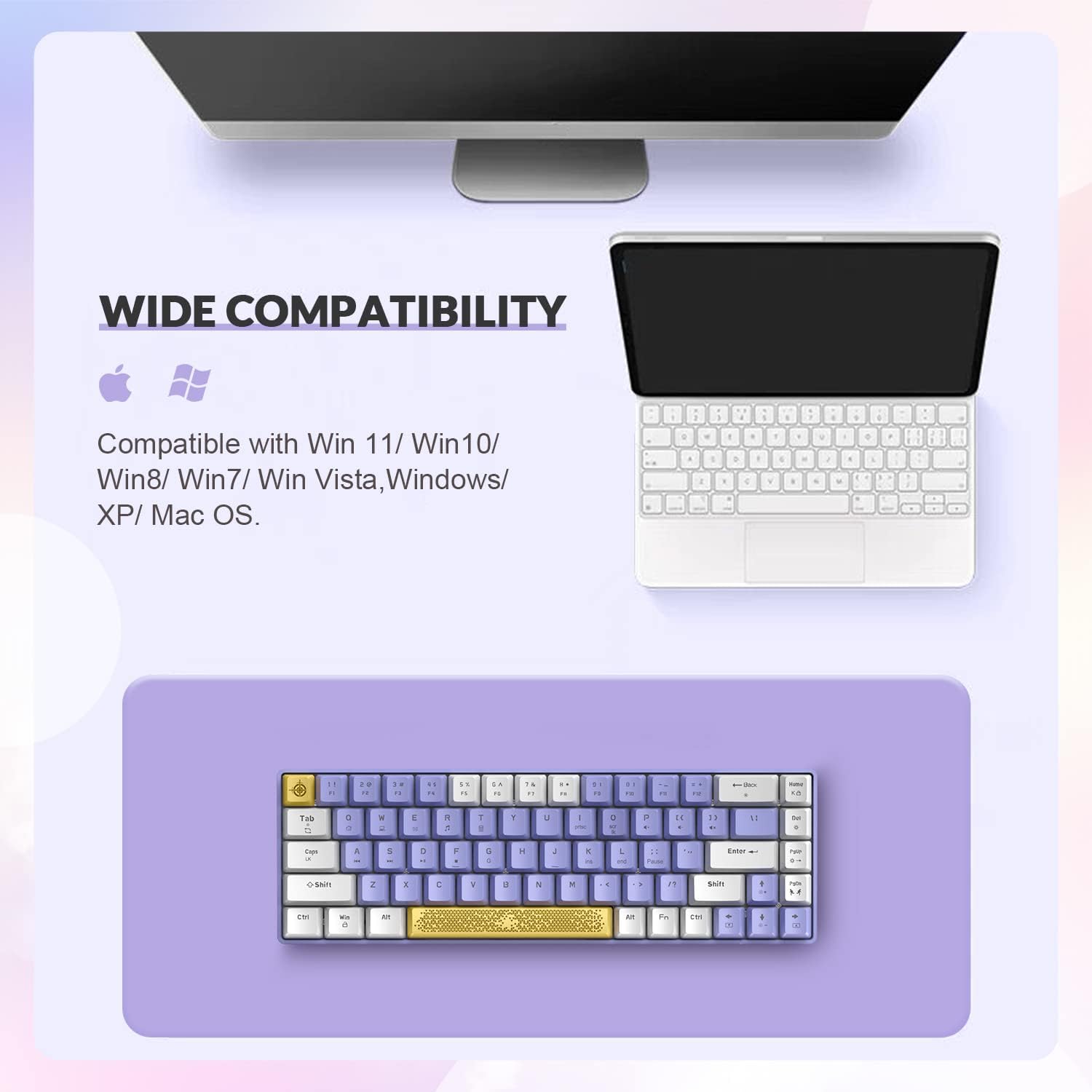
Image: The Yindiao T8 keyboard positioned below a laptop and a tablet, indicating its wide compatibility with Windows, Mac OS, and other systems.
4. Operating Instructions
4.1 RGB Backlighting Control
The Yindiao T8 keyboard features 16.8 million color combinations and up to 18 RGB backlit effects. Use the following key combinations to control the lighting:
- Fn + \|: Turn on/off the backlight.
- Fn + Tab: Switch between different backlight modes (18 effects available).
- Fn + [ {: Decrease backlight speed.
- Fn + ] }: Increase backlight speed.
- Fn + ; :: Decrease backlight brightness.
- Fn + ' ": Increase backlight brightness.
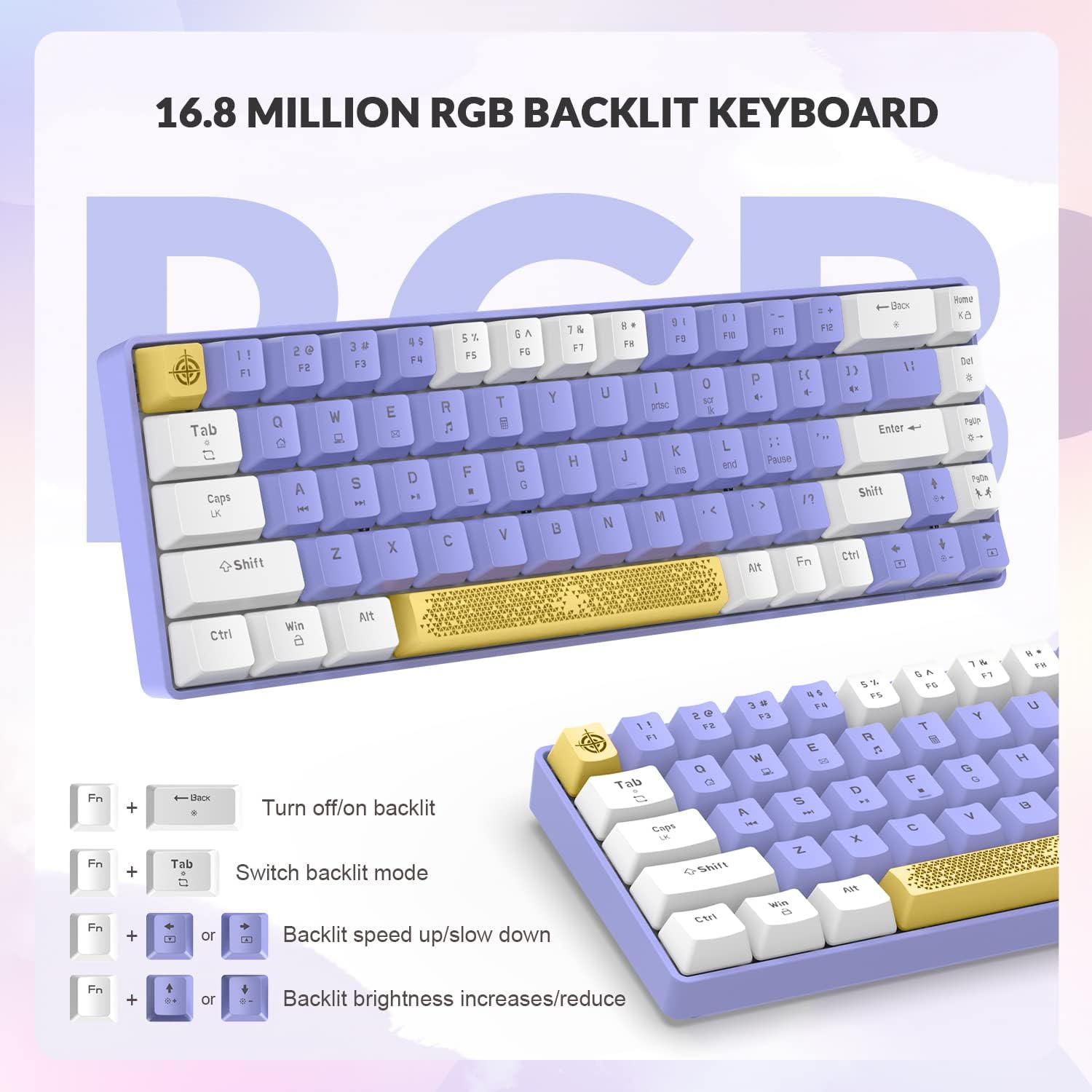
Image: The Yindiao T8 keyboard displaying various RGB lighting effects and illustrating the Fn key combinations for controlling backlight on/off, mode switching, speed adjustment, and brightness control.
4.2 Key Functions and Switches
- 68-Key Layout: This compact layout includes separate arrow keys, providing full standard keyboard functionality while saving desktop space.
- Anti-Ghosting: The keyboard features full-key anti-ghosting, ensuring that all key presses are registered accurately, even during rapid, simultaneous inputs.
- Blue Mechanical Switches: Equipped with blue switches, the keyboard provides a distinct tactile "click" sound and precise feedback, ideal for both typing and gaming.
- Ergonomic Design: The stepped keycaps are designed for ergonomic comfort during extended use.

Image: A close-up view of the Yindiao T8 keyboard with several keycaps removed, revealing the blue mechanical switches underneath. This highlights the durable and solid construction of the switches.
5. Maintenance
5.1 Cleaning the Keyboard
To maintain optimal performance and appearance, regularly clean your keyboard:
- Disconnect the keyboard from your device before cleaning.
- Use a soft, lint-free cloth slightly dampened with water or a mild cleaning solution to wipe down the keycaps and surface.
- For dust and debris between keys, use compressed air.
- The color-blocking keycaps are made of oil-resistant ABS double-injection material, ensuring clear fonts and resistance to fading.
5.2 Cable Care
The Pro Custom Coiled USB-C Cable is made of durable and highly elastic TPU material. To prolong its lifespan:
- Avoid sharp bends or excessive pulling on the cable.
- Keep the cable free from tangles to maintain its aesthetic and functional integrity.
6. Troubleshooting
If you encounter issues with your Yindiao T8 keyboard, please refer to the following common solutions:
- Keyboard Not Responding: Ensure the USB-C cable is securely connected to both the keyboard and your device. Try connecting to a different USB port or a different device to rule out port issues.
- RGB Backlighting Not Working: Check if the backlight is turned off using the Fn + \| key combination. Ensure the keyboard is properly connected.
- Keys Not Registering / "Dead Switches": While the keyboard features durable blue switches, if a specific key consistently fails to register, ensure no debris is lodged under the keycap. If the issue persists, contact customer support.
- Compatibility Issues with PS4/Xbox: As noted, PS4 and Xbox ONE devices may require an external adapter for full functionality. Ensure you are using a compatible adapter if necessary.
- Software/App Not Detecting Device: If using third-party software for customization (not officially supported by this manual), ensure the keyboard is properly connected and recognized by your operating system first.
7. Specifications
| Feature | Detail |
|---|---|
| Model Number | T8 |
| Layout | 60% (68 Keys) |
| Switches | Blue Mechanical Switches |
| Backlighting | RGB (18 effects, 16.8 Million colors) |
| Connectivity | Wired USB-C (Coiled Cable) |
| Anti-Ghosting | Full-key Anti-Ghosting |
| Keycap Material | Oil-resistant ABS Double-injection |
| Product Dimensions | 13.78 x 5.91 x 1.97 inches |
| Item Weight | 1.87 pounds |
| Manufacturer | YINDIAO |
| Compatible Devices | PC, Mac, PS4, Xbox ONE |

Image: A diagram illustrating the physical dimensions of the Yindiao T8 keyboard and the coiled USB-C cable, including measurements in feet.
8. Warranty and Support
For warranty information or technical support, please refer to the documentation provided with your purchase or contact Yindiao customer service directly. Keep your purchase receipt for warranty claims.
For further assistance, visit the official Yindiao website or contact their support channels.


