
Introduction
Thank you for choosing the Strex Laptop Cooling Pad. This device is designed to enhance your laptop's performance by preventing overheating and to improve your ergonomic posture during use. This manual provides essential information on setup, operation, maintenance, and specifications to ensure optimal use of your cooling pad.

Image: A top-down view of the Strex Laptop Cooling Pad, showcasing its five active fans with bright blue LED illumination, designed to cool laptops.
Important Safety Information
- Do not expose the device to water or excessive moisture.
- Avoid placing the device in direct sunlight or near heat sources.
- Do not attempt to disassemble or repair the device yourself. Contact qualified personnel for service.
- Keep out of reach of children.
- Ensure proper ventilation around the cooling pad during operation.
Package Contents
Please check the package for the following items:
- Strex Laptop Cooling Pad (Model SP163)
- Integrated USB-A to USB-A cable
- Instruction Manual

Image: Contents of the Strex Laptop Cooling Pad package, showing the cooling pad, its box, and the instruction manual.
Setup Instructions
- Unpack the Cooling Pad: Carefully remove the Strex Laptop Cooling Pad from its packaging.
- Place on a Flat Surface: Position the cooling pad on a stable, flat surface where you intend to use your laptop.
- Adjust Height (Optional): The cooling pad features 6 adjustable height levels. Lift the rear stand and select your desired height for an ergonomic working posture.

Image: Side view of the Strex Laptop Cooling Pad demonstrating the six adjustable height settings for ergonomic use.
- Place Your Laptop: Carefully place your laptop on top of the cooling pad. Ensure it is centered and stable. The cooling pad is suitable for laptops between 10 and 17 inches.

Image: A collage showing the Strex Laptop Cooling Pad in use with laptops in various settings, illustrating its versatility and stable platform.
- Connect Power: The cooling pad is "plug and play." Connect the integrated USB-A cable from the cooling pad to an available USB-A port on your laptop. The fans will start automatically, and the blue LED lighting will activate.

Image: Close-up of the control panel on the Strex Laptop Cooling Pad, showing the USB ports and mode buttons.
Operating Instructions
The Strex Laptop Cooling Pad features five fans (one large central fan and four smaller fans) and three cooling modes to optimize airflow and temperature reduction for your laptop.
Fan Control and Cooling Modes:
The cooling pad is equipped with two mode buttons (labeled Modusknop 1 and Modusknop 2) and LED indicators to select different fan configurations:
- Mode 1 (Stand 1): Press "Modusknop 1" to activate a specific set of fans (e.g., the large central fan).
- Mode 2 (Stand 2): Press "Modusknop 2" to activate another specific set of fans (e.g., the four smaller fans).
- Combined Mode (Stand 1+2): Activate both Mode 1 and Mode 2 to engage all five fans for maximum cooling.
Image: Diagram showing the two mode buttons and LED indicators for selecting different fan configurations (Mode 1, Mode 2, and Combined Mode) on the Strex Laptop Cooling Pad.
The fans operate quietly, with a minimal sound production of 19 dB, ensuring a non-disruptive environment for work or leisure.
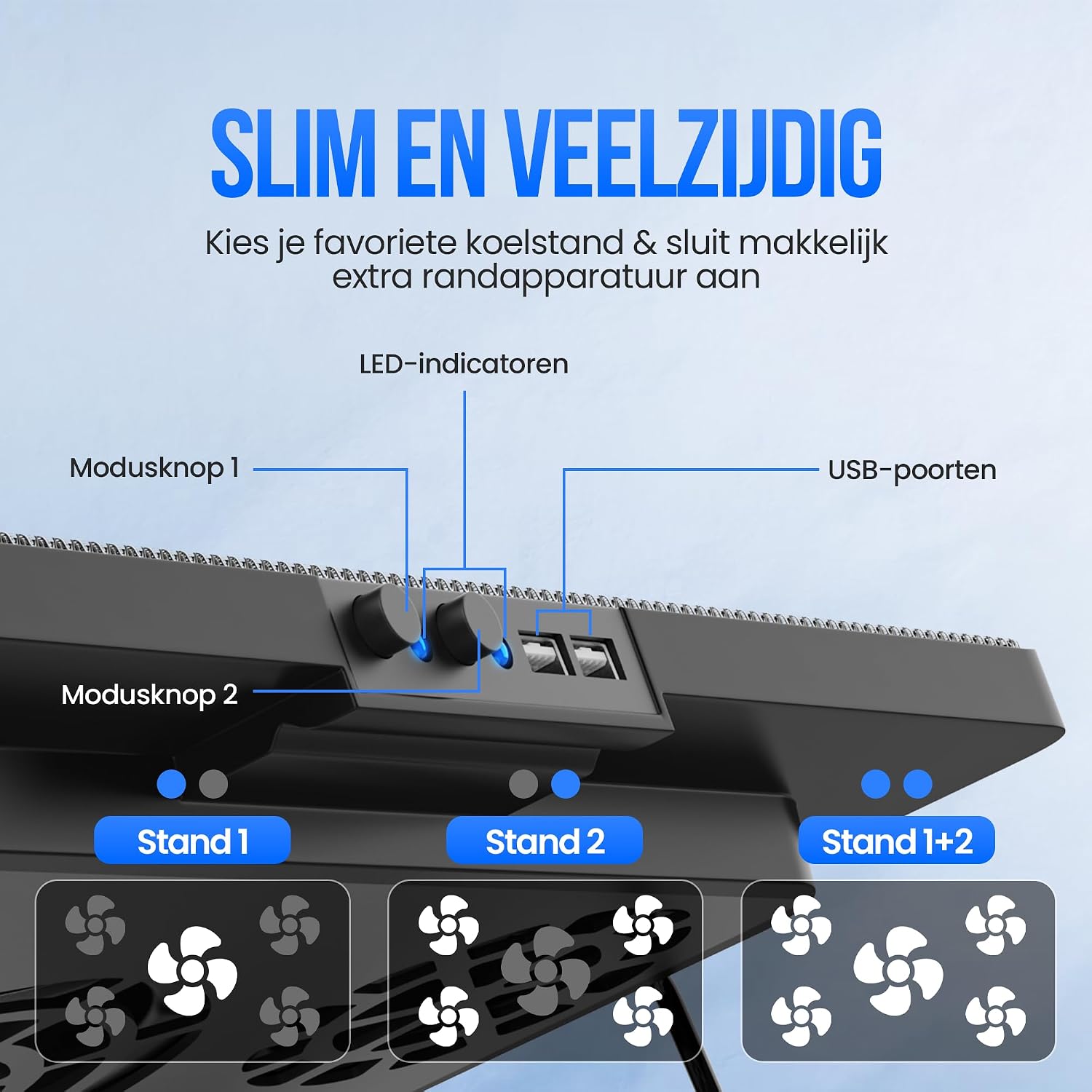
Image: A laptop on the Strex Cooling Pad, illustrating its quiet operation with a baby sleeping peacefully in the background, emphasizing the low noise level (Max 19 decibels).
Ergonomic Adjustment:
Utilize the 6 adjustable height levels to achieve an optimal ergonomic posture, reducing strain on your neck and back. Adjust the stand to find the perfect angle for your comfort.

Image: Illustration of correct and incorrect ergonomic postures when using a laptop, demonstrating how the Strex Cooling Pad's adjustable height helps achieve the ideal angle.
Maintenance and Care
- Cleaning: Regularly wipe the surface of the cooling pad with a soft, dry cloth to remove dust. For stubborn dirt, a slightly damp cloth can be used, ensuring the device is unplugged and completely dry before next use.
- Fan Cleaning: Periodically inspect the fan blades for dust accumulation. Use compressed air or a soft brush to gently clean the fan blades and vents to maintain optimal airflow.
- Storage: When not in use, store the cooling pad in a cool, dry place. The integrated USB cable can be neatly stored in the designated space on the underside of the pad.
- Avoid Liquids: Do not spray cleaning liquids directly onto the cooling pad.
Troubleshooting
- Problem: Fans are not spinning / LED lights are off.
- Solution:
- Ensure the USB cable is securely connected to both the cooling pad and a functioning USB port on your laptop.
- Try connecting to a different USB port on your laptop.
- Verify that your laptop is powered on.
- Check if the mode buttons (Modusknop 1, Modusknop 2) have been pressed to activate the fans.
- Problem: Insufficient cooling performance.
- Solution:
- Ensure all five fans are active by selecting the combined mode (Stand 1+2).
- Check for any obstructions blocking the airflow to or from the cooling pad's fans.
- Clean any dust accumulation on the fan blades or vents.
- Ensure your laptop's own vents are not blocked.
- Problem: Cooling pad is unstable.
- Solution:
- Ensure the cooling pad is placed on a flat, stable surface.
- Verify that the adjustable stand is securely locked into the desired height level.
- Confirm your laptop is centered on the cooling pad.
Product Specifications
| Feature | Detail |
|---|---|
| Brand | Strex |
| Model Number | SP163 |
| Product Type | Laptop Cooling Pad |
| Number of Fans | 5 (1 large, 4 small) |
| Cooling Modes | 3 (Individual fan sets, All fans) |
| Compatibility | Laptops 10 to 17 inches |
| Adjustable Height Levels | 6 |
| Connectivity | USB-A (Plug and Play) |
| USB Ports | 2 x USB-A |
| LED Lighting | Blue |
| Noise Level | Minimum 19 dB |
| Material | Heat-resistant ABS |
| Color | Black |
| Product Weight | 950 g |
| Product Dimensions (L x W x H) | 38 x 30 x 3.5 cm |
Warranty and Support
Specific warranty information is not provided in this manual. For details regarding warranty coverage, returns, or technical support, please refer to the retailer's policy where the product was purchased or visit the official Strex website.
For further assistance, please contact Strex customer service through their official channels.