
HOOISE DQ201-New
HOOISE DQ201-New 2K Wireless Outdoor Solar Security Camera User Manual
Model: DQ201-New | Brand: HOOISE
Introduction
The HOOISE DQ201-New is a versatile 2K wireless outdoor security camera designed for comprehensive home surveillance. Featuring solar power capabilities, battery operation, color night vision, PIR motion detection, two-way audio, and IP65 waterproofing, it offers reliable protection in various outdoor conditions. This manual provides detailed instructions for setup, operation, and maintenance to ensure optimal performance of your security camera.
What's in the Box
- 1 x Battery Camera
- 1 x Solar Panel
- 1 x Type-C Cable
- 2 x Screw Set
- 1 x Perforated Positioning sticker
- 1 x Metal Bracket (for solar panels)
- 1 x User Manual
Specifications
| Feature | Detail |
|---|---|
| Compatible Devices | Smartphone |
| Power Source | Solar Powered |
| Connectivity Protocol | Wi-Fi |
| Mounting Type | Wall Mount |
| Video Capture Resolution | 1296p (2K) |
| Color | White |
| Included Components | Battery Camera, Solar Panel, Type-C Cable, Screw Set, Perforated Positioning sticker, Metal Bracket, User Manual |
| Wireless Communication Technology | Wi-Fi |
| Form Factor | Bullet |
| Effective Video Resolution | 1296 Pixels |
| Wattage | 4 watts |
| Item dimensions L x W x H | 5.28 x 3.39 x 4.76 inches |
| Batteries Required? | Yes (1 Lithium Polymer included) |
| Field Of View | 108 Degrees (Horizontal: 336°/108°) |
| Low light technology | Night Color |
| Alert Type | Motion Only |
| Specific Uses For Product | Outside |
| International Protection Rating | IP65 |
| Control Method | App |
| Special Feature | Motion Sensor |
| Indoor/Outdoor Usage | Outdoor |
Setup Guide
1. Unboxing and Initial Inspection
Carefully unbox all components and ensure all items listed in the "What's in the Box" section are present and undamaged.
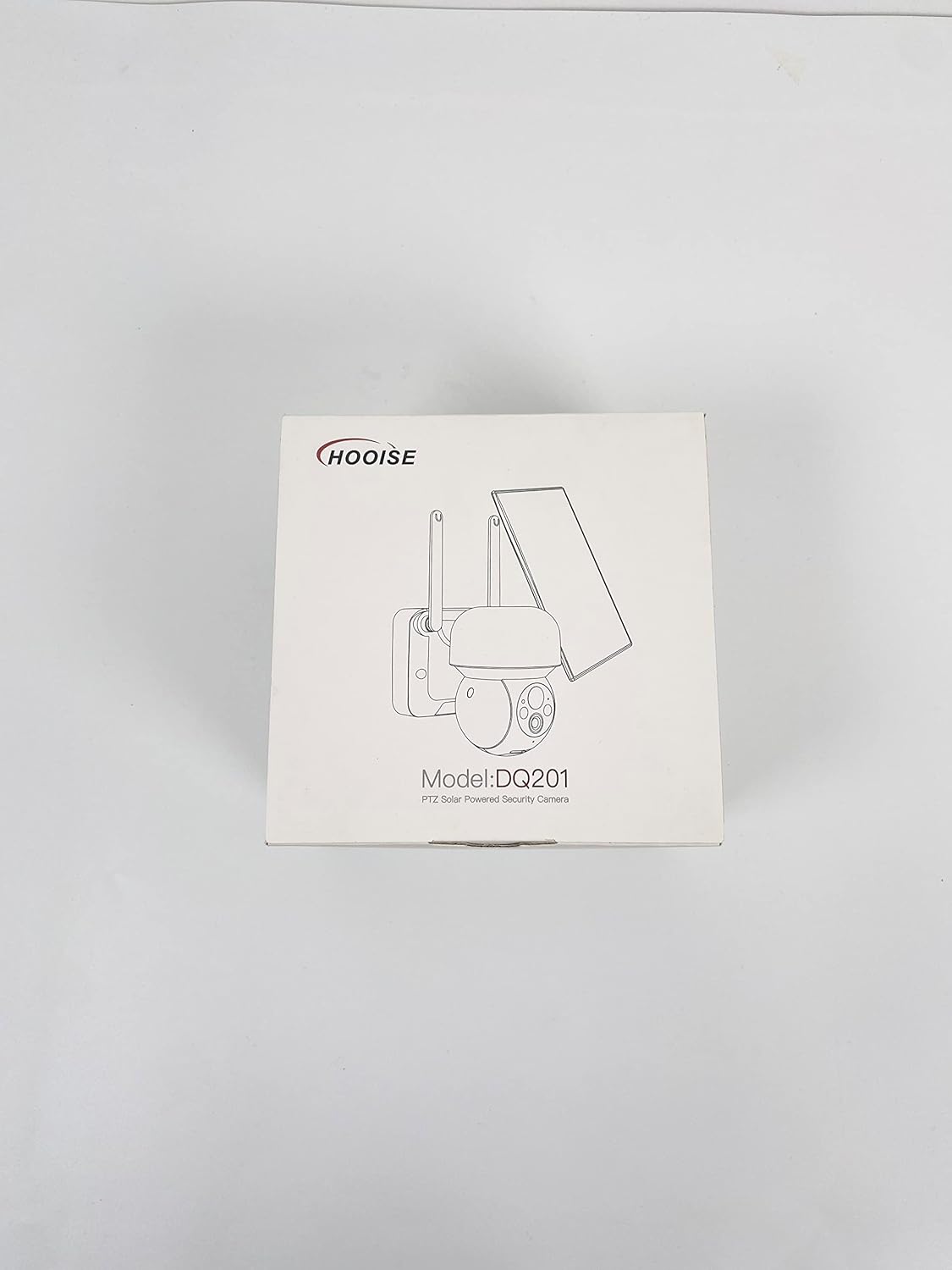
Figure 1: HOOISE DQ201-New product box.

Figure 2: Bottom view of the product box.
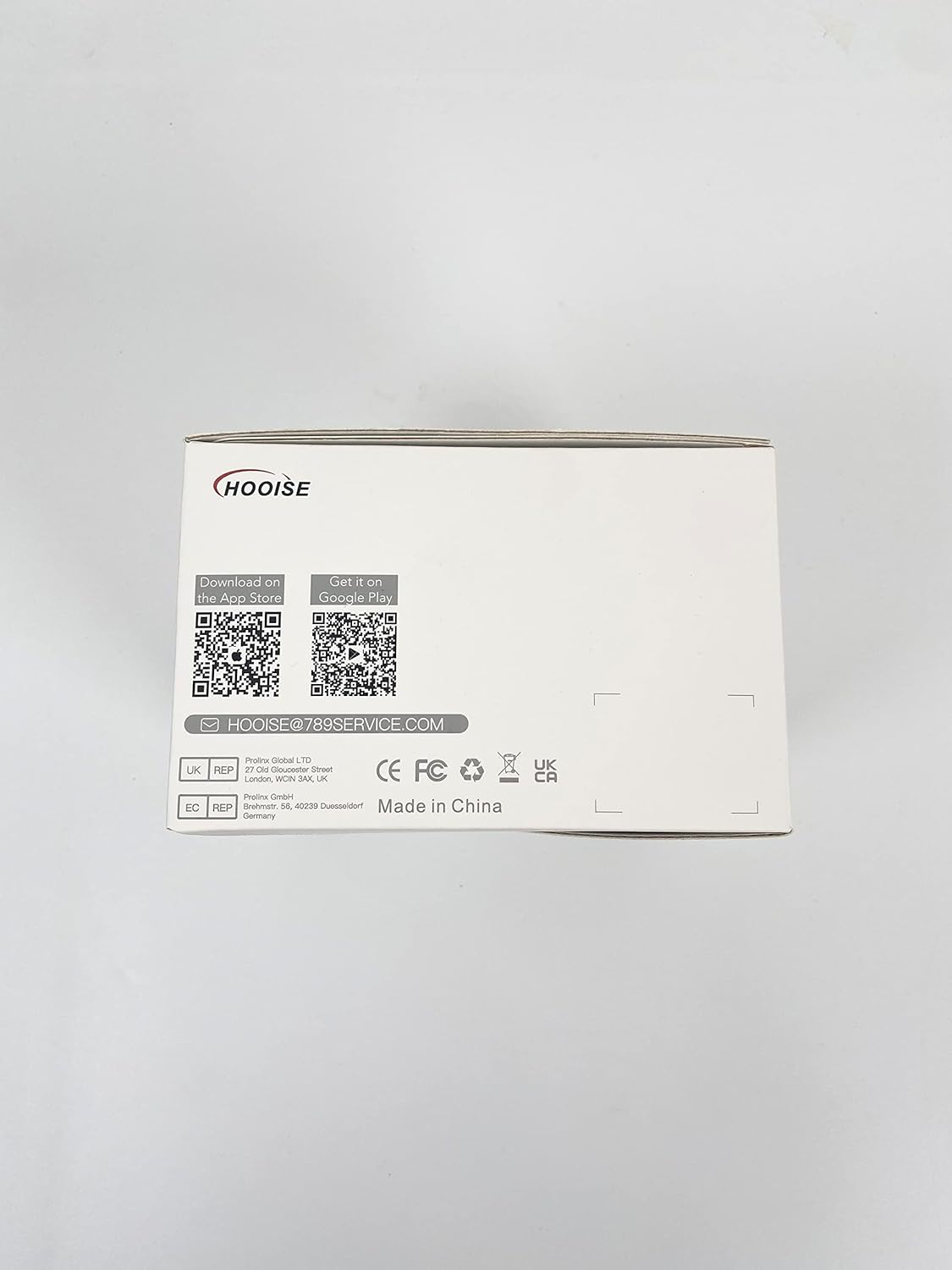
Figure 3: Product box showing QR codes for app download. Download the CloudPlus app from the App Store or Google Play.

Figure 4: Product box highlighting key features such as Wire-Free, 1080P FHD, Two-Way Audio, PTZ, Rechargeable, PIR Motion Detection, Waterproof, Mobile Remote Control, Multi-user Sharing, and Infrared Night Vision.
2. App Download and Camera Pairing
Download the "CloudPlus" app from your smartphone's app store using the QR codes provided on the product box or by searching directly. Follow the in-app instructions to power on the camera and pair it with your device. Ensure your Wi-Fi network is 2.4Ghz, as 5Ghz or hybrid Wi-Fi connections are not supported.
Video 1: Unboxing and initial setup of the HOOISE DQ201-New camera, demonstrating the contents and basic pairing process with the CloudPlus app.
Video 2: Demonstrates the 2K Ultra Clear Image Quality of the camera, showcasing its visual capabilities.
3. SD Card Installation and Formatting
The camera supports SD card storage up to 128GB. Insert the SD card when the camera is powered off. Format the SD card on a PC before inserting it into the camera. For 8GB, 16GB, and 32GB SD cards, select FAT32 format. For 64GB and 128GB SD cards, select exFAT format. If the camera cannot recognize the SD card, reformat or replace it.

Figure 5: The HOOISE DQ201-New camera connected to its solar panel.

Figure 6: The camera installed outdoors, demonstrating its 100% wireless and solar endurance capabilities.
4. Physical Installation
Mount the camera using the provided screw set and metal bracket. The camera is designed for wall mounting. Ensure the solar panel is installed at an angle to expose it to direct sunlight for optimal charging. Avoid blocking the solar panel or placing it parallel to the ground.

Figure 7: Illustrates the 2K resolution and 360° field of view of the camera, showing its wide monitoring area.

Figure 8: Depicts the camera's audible and light warning features, designed to deter intruders.

Figure 9: Shows the PIR motion detection in action, accurately distinguishing between people, vehicles, and pets to reduce false alarms.

Figure 10: Highlights the camera's color night vision capability, providing clear and true-to-life images in low light conditions.

Figure 11: Demonstrates the IP65 waterproof rating, ensuring the camera withstands various weather conditions.

Figure 12: Illustrates the two-way audio feature, allowing communication through the camera.
Operating the Camera
1. Live View and PTZ Control
Once connected, access the live feed through the CloudPlus app. Use the Pan-Tilt-Zoom (PTZ) controls within the app to adjust the camera's viewing angle (336° horizontal / 108° vertical). The app provides a smooth motor control for precise adjustments.
Video 3: Demonstrates the solar security camera's outdoor capabilities with color night vision, including PTZ control.
Video 4: Shows the solar security WiFi outdoor camera for home with night alarm features, including PTZ control.
2. Two-Way Audio and Siren Alarm
Utilize the two-way audio feature to communicate with visitors or deter unwanted guests. The camera is equipped with high-quality speakers and a microphone. Activate the sound and light alarm mode via the app to trigger an alarm bell and expel intruders upon motion detection.
3. Motion Detection and Alerts
The camera uses intelligent AI algorithms for accurate detection of people, vehicles, and pets, reducing false alarms. When a mobile event is detected, the camera records the event and pushes an alarm reminder to your phone. You can customize detection areas and sensitivity settings within the app to minimize frequent disturbances.

Figure 13: App interface for custom area detection, allowing precise monitoring and adjustable alarm sensitivity.
4. Event Recording and Playback
The camera supports both SD card storage (up to 128GB) and cloud storage (7-day trial available). You can review recorded events and play back footage through the app, ensuring you don't miss anything.

Figure 14: App interface showing event recording and playback options, including cloud and SD card storage.
5. Custom Alert Schedule
Set a custom alarm cycle to define specific times during which the device will trigger alarm events, preventing unnecessary alerts.

Figure 15: App interface for customizing the alert schedule, allowing users to set specific times for alarm activation.
6. Multi-Device Integration and Sharing
Manage multiple HOOISE cameras within the same app. Share access to your cameras with family members for collaborative monitoring.

Figure 16: Demonstrates the ability to integrate and manage multiple devices, and share camera access with family.
Maintenance
To ensure continuous operation, regularly check the solar panel for any obstructions (e.g., leaves, dirt) that might hinder sunlight absorption. The IP65 rating ensures the camera is protected against dust and water jets, but occasional cleaning of the lens and solar panel surface is recommended for optimal performance.
Troubleshooting
- SD Card Not Recognized: If the camera fails to recognize the SD card, try reformatting the card on a PC (FAT32 for 8-32GB, exFAT for 64-128GB) or replace the SD card.
- Wi-Fi Connection Issues: Ensure your Wi-Fi network is 2.4Ghz. The camera does not support 5Ghz or hybrid Wi-Fi connections.
- Solar Charging: Ensure the solar panel is not blocked and is installed at an angle to receive direct sunlight.
Warranty and Support
For warranty information and technical support, please refer to the contact details provided in the original product packaging or contact HOOISE customer service directly.
Ask a question about this manual
Ask about setup, troubleshooting, compatibility, parts, safety, or missing instructions. Manuals+ will review the question and use this page’s manual context to help answer it.