
1. Introduction
Thank you for choosing the Firstnum CPE C600 WiFi Router. This device is a versatile 4G LTE CAT7 wireless internet hotspot designed to provide reliable and high-speed internet connectivity in various environments, including homes, offices, RVs, boats, and other remote locations. With its integrated SIM card slot, you can enjoy Wi-Fi without the need for traditional wired internet connections.
The C600 supports a wide range of frequency bands and offers Wi-Fi 5 (802.11b/g/n) at 2.4GHz, delivering speeds up to 300Mbps. Its MIMO 2x2 antenna system ensures extended transmission distance and enhanced signal quality. This manual provides detailed instructions for setting up, operating, maintaining, and troubleshooting your CPE C600 router.
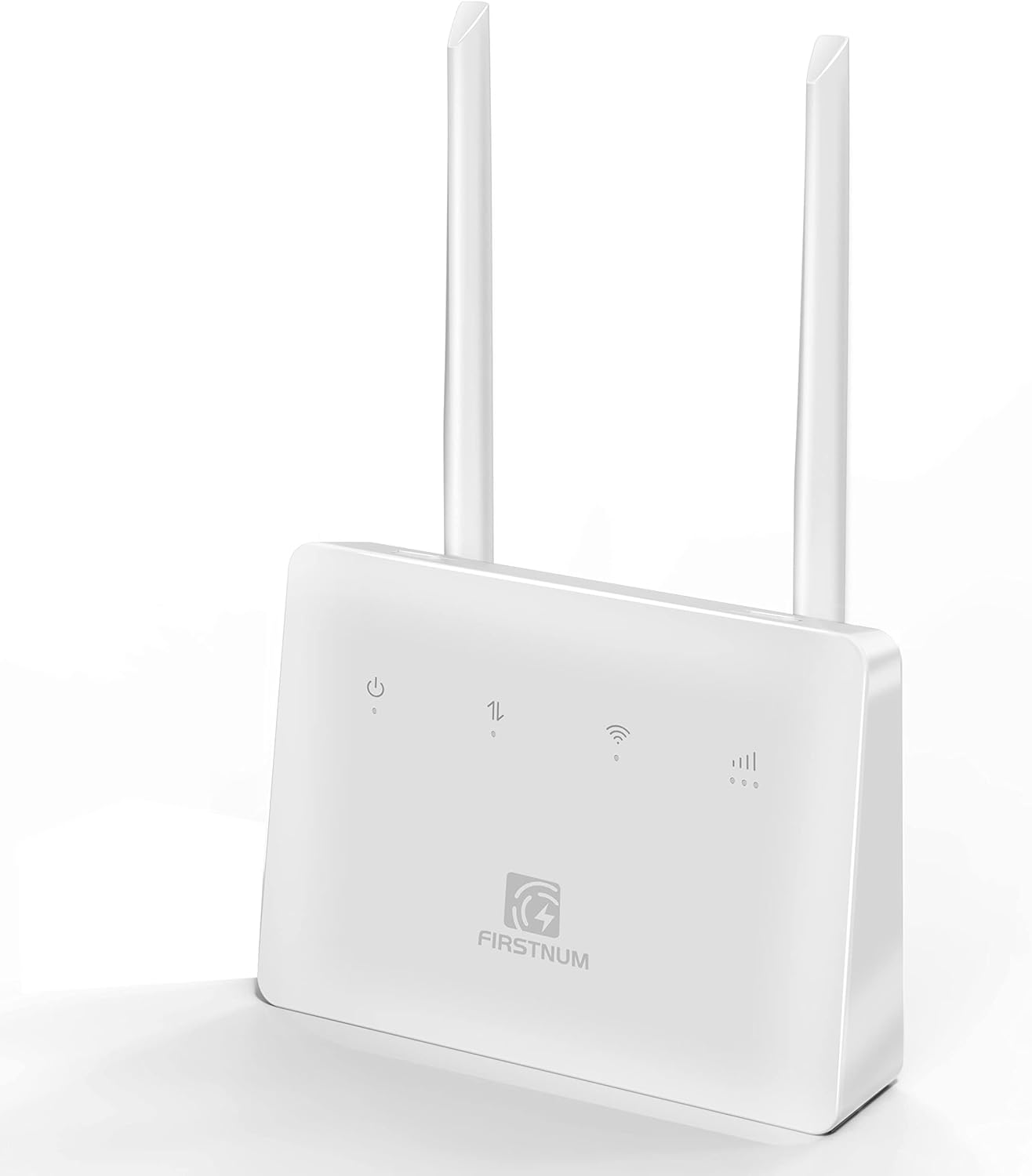
Figure 1.1: Firstnum CPE C600 WiFi Router
This image displays the Firstnum CPE C600 WiFi Router from a front-facing perspective, showcasing its compact design and two external antennas. The device is white with indicator lights and the Firstnum logo on the front panel.
2. Safety Information
Please read and follow these safety guidelines to ensure safe and optimal operation of your device:
- Do not expose the device to extreme temperatures, humidity, or direct sunlight.
- Keep the device away from water and other liquids.
- Use only the power adapter provided with the device.
- Do not attempt to open or repair the device yourself. Refer all servicing to qualified personnel.
- Ensure proper ventilation around the device to prevent overheating.
- Dispose of the device and its components responsibly according to local regulations.
3. Product Overview
3.1 Package Contents
The product package should contain the following items:
- Firstnum CPE C600 WiFi Router
- Power Adapter
- Ethernet cable
- User Manual (this document)
3.2 Device Layout and Indicators

Figure 3.1: C600 Router Front, Back, and Bottom Views with Labels
This image provides detailed views of the Firstnum CPE C600 router, highlighting its front panel indicators (Power LED, Network LED, WiFi LED, Signal LED), rear ports (LAN/WAN, USB, Power, Reset button), and bottom power button. Each component is clearly labeled.
The C600 router features several indicator lights and ports for easy operation and connectivity:
- Power LED: Indicates the power status of the device.
- Network LED: Shows the status of the cellular network connection.
- WiFi LED: Indicates Wi-Fi activity.
- Signal LED: Displays the strength of the cellular signal.
- LAN/WAN Ports (RJ45 x 4): For connecting wired devices or an external internet source.
- SIM Card Slot: For inserting a Micro SIM card.
- USB Port: For potential future functionalities or accessories.
- Power Port: For connecting the power adapter.
- Reset Button: To restore factory settings (press and hold for 5-7 seconds).
- WPS Button: For quick and secure Wi-Fi connection setup.
4. Setup Guide
4.1 SIM Card Installation
The C600 router requires a Micro SIM card for cellular internet connectivity. Ensure your SIM card is activated and supports hotspot services before insertion.
- Locate the SIM card slot on the router.
- Carefully insert your Micro SIM card into the slot with the gold contacts facing down and the notched corner oriented correctly. Push until it clicks into place.
- To remove the SIM card, gently push it in again until it springs out.

Figure 4.1: SIM Card Slot and Multi-Scenario Use
This image highlights the SIM card slot on the Firstnum CPE C600 router and illustrates various scenarios where the router can be used, such as shops, farms, backyards, and RVs, emphasizing its portability and versatility.
4.2 Powering On
- Connect the provided power adapter to the power port on the router.
- Plug the power adapter into a wall outlet.
- Press the power button on the router. The Power LED should illuminate.
4.3 Initial Configuration
The router is designed for easy setup. Follow these general steps:
- After powering on, wait for the Network LED and WiFi LED to stabilize, indicating a successful connection to the cellular network and Wi-Fi broadcast.
- Connect your computer or mobile device to the router's Wi-Fi network using the default SSID and password printed on a label on the router (usually on the bottom).
- Open a web browser and enter 192.168.1.1 into the address bar to access the router's web management interface.
- Log in using the default username and password (typically 'admin' for both, check the label if different).
- Follow the on-screen wizard for initial setup, including changing the default Wi-Fi name (SSID) and password for security.
5. Operating Instructions
5.1 Connecting Devices
You can connect devices to the C600 router via Wi-Fi or Ethernet cable.
- Wi-Fi Connection: On your device, search for available Wi-Fi networks, select your router's SSID, and enter the Wi-Fi password. You can also use the WPS button for a quick connection if your device supports it.
- Ethernet Connection: Use an Ethernet cable to connect a device (e.g., computer, gaming console) to one of the LAN ports on the back of the router.
5.2 Network Management
The web management interface (192.168.1.1) allows you to manage various settings:
- Wi-Fi Settings: Change SSID, password, security type, and Wi-Fi channel.
- Network Settings: Configure WAN connection type, LAN IP address, and DHCP server.
- Security: Set up firewall rules, port forwarding, and parental controls.
- System Tools: View system logs, update firmware, and reboot the router.

Figure 5.1: Key Features of the C600 Router
This image highlights the core features of the Firstnum CPE C600 router, including its portability, fast and secure network capabilities, 4G LTE-A support, 2.4 GHz Wi-Fi, strong coverage, plug-and-play functionality, SIM card support, ability to connect up to 32 devices, and a WPS button for easy setup.
5.3 Multi-Scenario Usage
The C600 router's design allows for flexible deployment in various environments:
- Home & Office: Provides primary or backup internet access.
- RV & Boat: Ideal for mobile internet access during travel.
- Outdoor & Remote Areas: Suitable for farms, orchards, construction sites, or any location without wired internet.

Figure 5.2: Enjoying Connectivity in an RV
This image shows a woman comfortably working on two laptops inside an RV, with the Firstnum CPE C600 router visible on the table, illustrating its utility for mobile internet access during travel.

Figure 5.3: Providing Wi-Fi in Rural Areas
This image depicts individuals enjoying internet connectivity outdoors by a lake, with the Firstnum CPE C600 router providing Wi-Fi, demonstrating its capability to deliver internet in rural or remote settings.
6. Maintenance
To ensure the longevity and optimal performance of your Firstnum CPE C600 router, follow these maintenance tips:
- Cleaning: Gently wipe the device with a soft, dry cloth. Do not use liquid cleaners or aerosols.
- Ventilation: Ensure that the ventilation holes are not blocked to prevent overheating.
- Firmware Updates: Periodically check the router's web management interface for available firmware updates. Keeping the firmware updated can improve performance, add new features, and enhance security.
- Power Cycle: If you experience minor issues, try power cycling the router (unplug the power adapter, wait 10 seconds, then plug it back in).
7. Troubleshooting
If you encounter problems with your Firstnum CPE C600 router, refer to the following common issues and solutions:
| Problem | Possible Cause | Solution |
|---|---|---|
| No Internet Connection | SIM card not inserted correctly or not activated; no cellular signal; incorrect APN settings. | Ensure SIM card is properly inserted and activated. Check Signal LED. Verify APN settings in the web management interface. Contact your SIM card operator. |
| Weak Wi-Fi Signal or Slow Speed | Router too far from devices; interference from other devices; physical obstructions. | Move router closer to devices. Reduce interference by moving other electronic devices. Adjust antenna orientation. Consider changing Wi-Fi channel in settings. |
| Cannot Access Web Management Interface | Incorrect IP address; device not connected to router's network; browser issue. | Ensure you are connected to the router's Wi-Fi or via Ethernet. Verify you are typing 192.168.1.1 correctly. Try a different browser or clear browser cache. |
| Forgotten Login Password | Password for web interface is lost. | Perform a factory reset by pressing and holding the Reset button for 5-7 seconds. This will revert all settings to default, including the login password. |
If the problem persists after trying these solutions, please contact Firstnum customer support for further assistance.
8. Specifications
Key technical specifications for the Firstnum CPE C600 WiFi Router:
| Feature | Description |
|---|---|
| Model Number | C600 |
| Frequency Band Support | FDD-LTE: B2/4/5/7/12/13/17/66/71, TDD-LTE: B38/40/41, WCDMA/HSPA: B2/4/5, GSM-B2/3/5/8 |
| Max Data Rates | Up to 300Mbps (DL) / 100Mbps (UL) |
| Wi-Fi Standard | IEEE 802.11b/g/n (Wi-Fi 5) |
| Wi-Fi Speed | 2.4GHz: 300Mbps |
| Antennas | Two external 4G cellular antennas with MIMO 2x2 system |
| SIM Card Type | Micro SIM |
| Ethernet Ports | 4 x RJ45 LAN ports |
| Connectivity Technology | Ethernet, LTE |
| Special Features | WPS Button, Supports up to 32 devices simultaneously |
| Operating Temperature | Typically -20°C to 50°C (Refer to product packaging for exact range) |
| Manufacturer | Firstnum |
9. Warranty and Support
The Firstnum CPE C600 WiFi Router comes with a standard manufacturer's warranty. Please refer to the warranty card included in your product packaging or visit the official Firstnum website for detailed warranty terms and conditions.
For technical support, troubleshooting assistance, or any inquiries regarding your device, please contact Firstnum customer support through their official channels. Contact information can typically be found on the Firstnum website or on the product packaging.