
Ampire CPM100
AMPIRE CPM100 Smartphone Monitor User Manual
Model: CPM100
Introduction
This manual provides comprehensive instructions for the installation, operation, and maintenance of your AMPIRE CPM100 Smartphone Monitor. Please read this manual thoroughly before using the device to ensure proper functionality and safety.
The AMPIRE CPM100 is a high-resolution 10-inch touchscreen monitor designed to integrate smartphone functionalities like Apple CarPlay and Android Auto into vehicles without a factory-installed display. It also features an integrated Full-HD dashcam and an input for an optional rear-view camera.
Product Features
- 25.4cm (10") IPS Touchscreen Display with 1600 x 600 resolution.
- Wireless Apple CarPlay and Android Auto compatibility.
- Integrated AHD Dual-Dashcam with 1080p Full-HD (Front).
- Connectivity: Bluetooth, USB-C, SD card slot.
- Automatic power-on when operating voltage is applied.
- Audio output options: 3.5mm jack, FM transmitter, or built-in 3W speaker.
- LINUX 4.9 OS operating system with 1GB memory.
- Dedicated input for rear-view camera.
Package Contents
Please verify that all items listed below are included in your package. If any items are missing or damaged, contact your retailer immediately.
- AMPIRE CPM100 Smartphone Monitor Unit
- Power Cable
- Mounting Bracket
- USB-C Cable
- 3.5mm Audio Cable
- User Manual (this document)
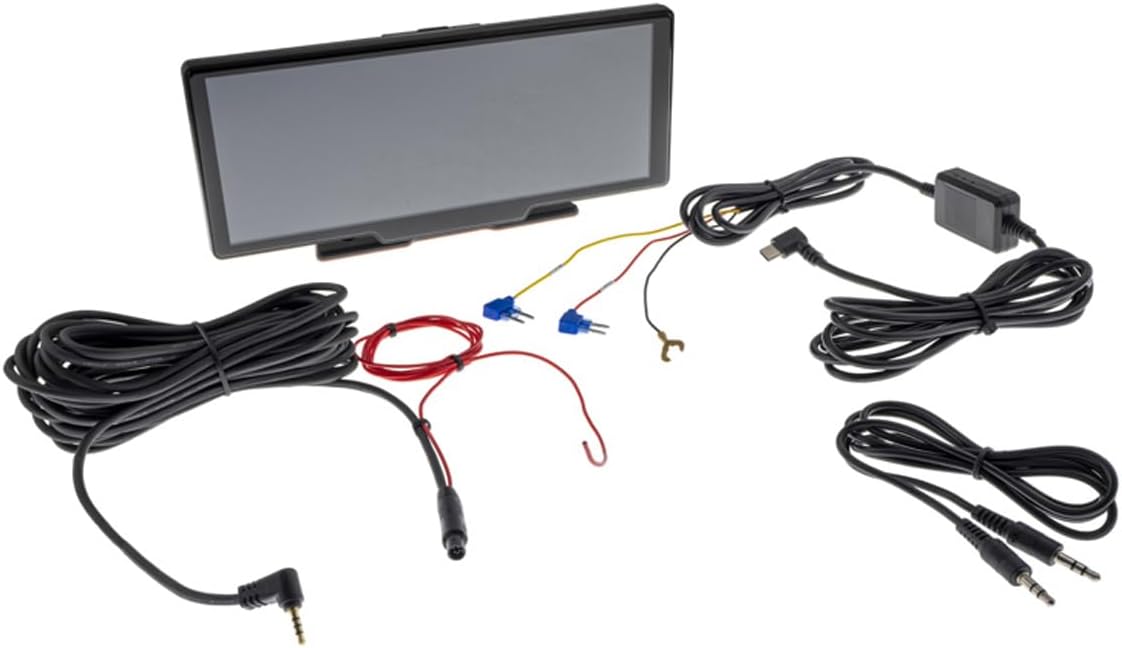
Image: Overview of the AMPIRE CPM100 package contents, including the monitor unit, various cables (power, USB-C, audio), and mounting accessories.
Setup and Installation
1. Mounting the Monitor
The AMPIRE CPM100 comes with a versatile mounting bracket. Choose a stable, flat surface on your dashboard that does not obstruct your view or interfere with airbag deployment. Ensure the chosen location allows for easy access to the touchscreen and ports.
- Clean the mounting surface thoroughly.
- Attach the mounting bracket to the desired location using the provided adhesive pad or screws. If using screws, ensure no vital vehicle components are damaged during drilling.
- Secure the monitor unit to the mounting bracket. The bracket allows for angle adjustment to optimize viewing.

Image: Side view of the AMPIRE CPM100 monitor demonstrating the adjustable angle of the mounting bracket, allowing for various viewing positions.

Image: Close-up of the rear of the AMPIRE CPM100 monitor, highlighting the screw holes for the mounting bracket with dimensions (30mm width, 18.5mm height) for precise installation.
2. Power Connection
Connect the provided power cable to the monitor and to a suitable 12V power source in your vehicle (e.g., cigarette lighter socket or fuse box). The device is designed for automatic power-on when operating voltage is detected.
3. Dashcam Installation
The integrated dashcam is located on the front of the monitor. Ensure its view is unobstructed. For optimal recording, clean your windshield regularly.
4. Optional Rear-View Camera Connection
If you are installing an optional rear-view camera, connect its video output to the dedicated input on the AMPIRE CPM100. Refer to your rear-view camera's manual for specific wiring instructions. The monitor will automatically switch to the rear-view camera display when reverse gear is engaged (requires proper wiring to the vehicle's reverse light signal).
Operating Instructions
1. Initial Power On and Setup
Once connected to power, the monitor will automatically turn on. Follow the on-screen prompts for initial language selection and basic settings.
2. Connecting to Apple CarPlay / Android Auto
The AMPIRE CPM100 supports wireless Apple CarPlay and Android Auto. Ensure Bluetooth and Wi-Fi are enabled on your smartphone.
- On the monitor, navigate to the CarPlay or Android Auto icon.
- On your smartphone, search for the monitor's Bluetooth name (usually "AMPIRE CPM100" or similar) and pair.
- Confirm the pairing code on both devices.
- Once paired via Bluetooth, the system will prompt you to connect via Wi-Fi for the full CarPlay/Android Auto experience.
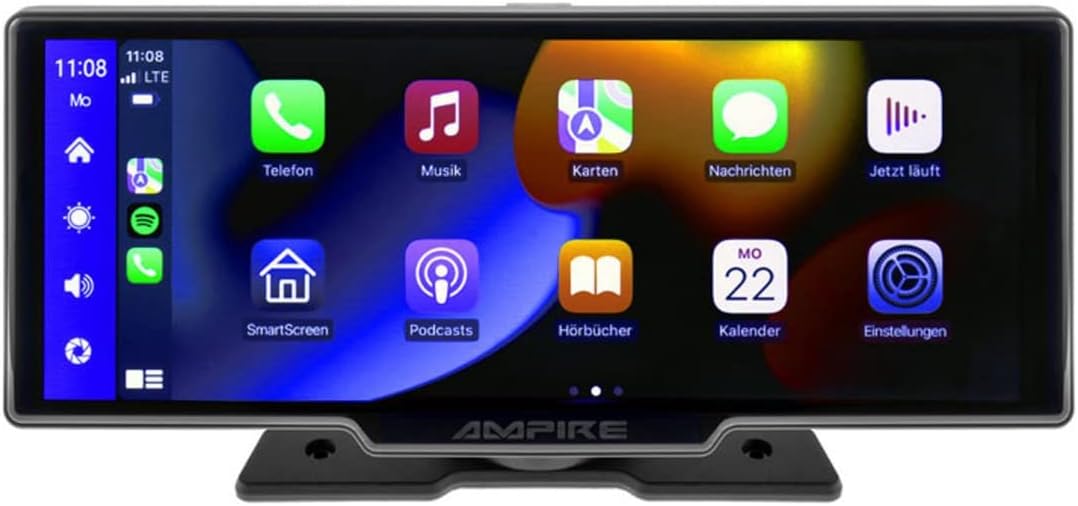
Image: The AMPIRE CPM100 monitor displaying the Apple CarPlay interface with various application icons such as Phone, Music, Maps, Messages, and Podcasts.

Image: A collage of eight different screen views from the AMPIRE CPM100, showcasing various functionalities including Apple CarPlay, Android Auto, navigation, dashcam view, and rear-view camera display.
3. Dashcam Operation
The integrated dashcam automatically begins recording when the device powers on. Recordings are saved to an inserted SD card (not included). Ensure a high-speed SD card (Class 10 or higher) is used. The dashcam records in 1080p Full-HD resolution.
4. Audio Output
You can output audio from the CPM100 via three methods:
- 3.5mm Audio Jack: Connect the provided 3.5mm audio cable from the monitor to your vehicle's AUX input.
- FM Transmitter: Select an unused FM frequency on the monitor and tune your vehicle's radio to the same frequency.
- Built-in Speaker: The monitor has a 3W speaker for direct audio output.
5. Media Playback
The device supports media playback via USB-C and SD card. Insert your storage device, and the monitor will allow you to browse and play compatible audio and video files.
Maintenance
- Cleaning: Use a soft, dry cloth to clean the screen and exterior. Do not use abrasive cleaners or solvents.
- SD Card: Regularly format the SD card (at least once a month) to ensure optimal dashcam performance and prevent data corruption. Back up important recordings before formatting.
- Firmware Updates: Check the manufacturer's website for any available firmware updates to ensure your device has the latest features and bug fixes.
Troubleshooting
| Problem | Possible Cause | Solution |
|---|---|---|
| Monitor does not power on. | No power connection or faulty power cable. | Check power cable connection. Ensure vehicle's power outlet is functional. |
| CarPlay/Android Auto not connecting. | Bluetooth/Wi-Fi issues, incompatible phone, or incorrect pairing. | Ensure Bluetooth and Wi-Fi are on your phone. Forget device and re-pair. Check phone's compatibility. |
| Dashcam not recording. | No SD card, full SD card, or faulty SD card. | Insert an SD card. Format the SD card. Replace with a new, compatible SD card. |
| No audio output. | Incorrect audio output setting or cable issue. | Check audio output settings (AUX, FM, Speaker). Verify cable connections. Ensure FM frequency is clear. |
Specifications
| Feature | Detail |
|---|---|
| Display Size | 25.4 cm (10 inches) |
| Display Type | IPS Touchscreen |
| Resolution | 1600 x 600 pixels |
| Operating System | LINUX 4.9 OS |
| Memory | 1GB |
| Connectivity | Wireless Apple CarPlay, Wireless Android Auto, Bluetooth, USB-C, SD Card |
| Dashcam | Integrated AHD Dual-Dashcam, 1080p Full-HD (Front) |
| Audio Output | 3.5mm Jack, FM Transmitter, 3W Speaker |
| Rear Camera Input | Yes |
| Weight | 1.14 Kilograms |
| Color | Black or Silver |
Warranty and Support
For warranty information and technical support, please refer to the official AMPIRE website or contact your authorized dealer. Keep your purchase receipt as proof of purchase for warranty claims.
Manufacturer: AMPIRE
Model Number: CPM100
First Available: November 23, 2022
Ask a question about this manual
Ask about setup, troubleshooting, compatibility, parts, safety, or missing instructions. Manuals+ will review the question and use this page’s manual context to help answer it.