
1. Introduction
The Cuifati HD 7670 4GB GDDR5 Graphics Card is designed to enhance your computer's visual performance, offering a reliable solution for everyday computing, multimedia, and light gaming. Featuring 4GB of GDDR5 memory, a 128-bit memory interface, and a 1000MHz core frequency, this card supports DirectX 11 and provides versatile display connectivity with HDMI, DVI, and VGA outputs. Its efficient design ensures stable operation and compatibility with various system configurations.
2. Product Specifications
| Feature | Description |
|---|---|
| Item Type | 4GB GDDR5 Graphics Card |
| Material | PCB, Aluminum Alloy, ABS |
| Display Core | For RADEON HD 7670 |
| GPU | Thames |
| Core Process | 40nm |
| CUDA Core | 480 Units |
| Number of Transistors | 716M |
| Core Frequency | 1000MHz |
| Memory Frequency | 3600MHz |
| Video Memory Capacity | 4096MB (4GB) |
| Video Memory Type | GDDR5 |
| Video Memory Bit Width | 128bit |
| DirectX Version | DirectX 11 |
| Bus Interface Type | PCI Express X16 2.1 |
| Display Interface | HD Multimedia Interface x1, DVI x1, VGA x1 |
| Package Dimensions | 8.74 x 5.94 x 2.17 inches |
| Item Weight | 1.01 pounds |
| Manufacturer | CUIFATI |
| Item Model Number | CUIFATIu7patx3hgv |
| Graphics Processor Manufacturer | AMD |
3. Package Contents
- 1 x 4GB GDDR5 Graphics Card
4. Setup and Installation
Follow these steps to properly install your Cuifati HD 7670 Graphics Card:
- Preparation: Power off your computer and unplug it from the power source. Open your computer case.
- Locate PCI Express Slot: Identify an available PCI Express X16 2.1 slot on your motherboard.
- Install Graphics Card: Gently insert the graphics card into the PCI Express slot until it is firmly seated. Secure it with the case screw.
- Connect Display Cables: Connect your monitor(s) to the graphics card using HDMI, DVI, or VGA cables.
- Close Case & Power On: Close your computer case and reconnect the power cable. Power on your computer.
- Driver Installation: Once your operating system loads, install the latest drivers for the AMD Radeon HD 7670 graphics card. These can typically be found on the manufacturer's website.

Figure 1: Front view of the Cuifati HD 7670 Graphics Card.
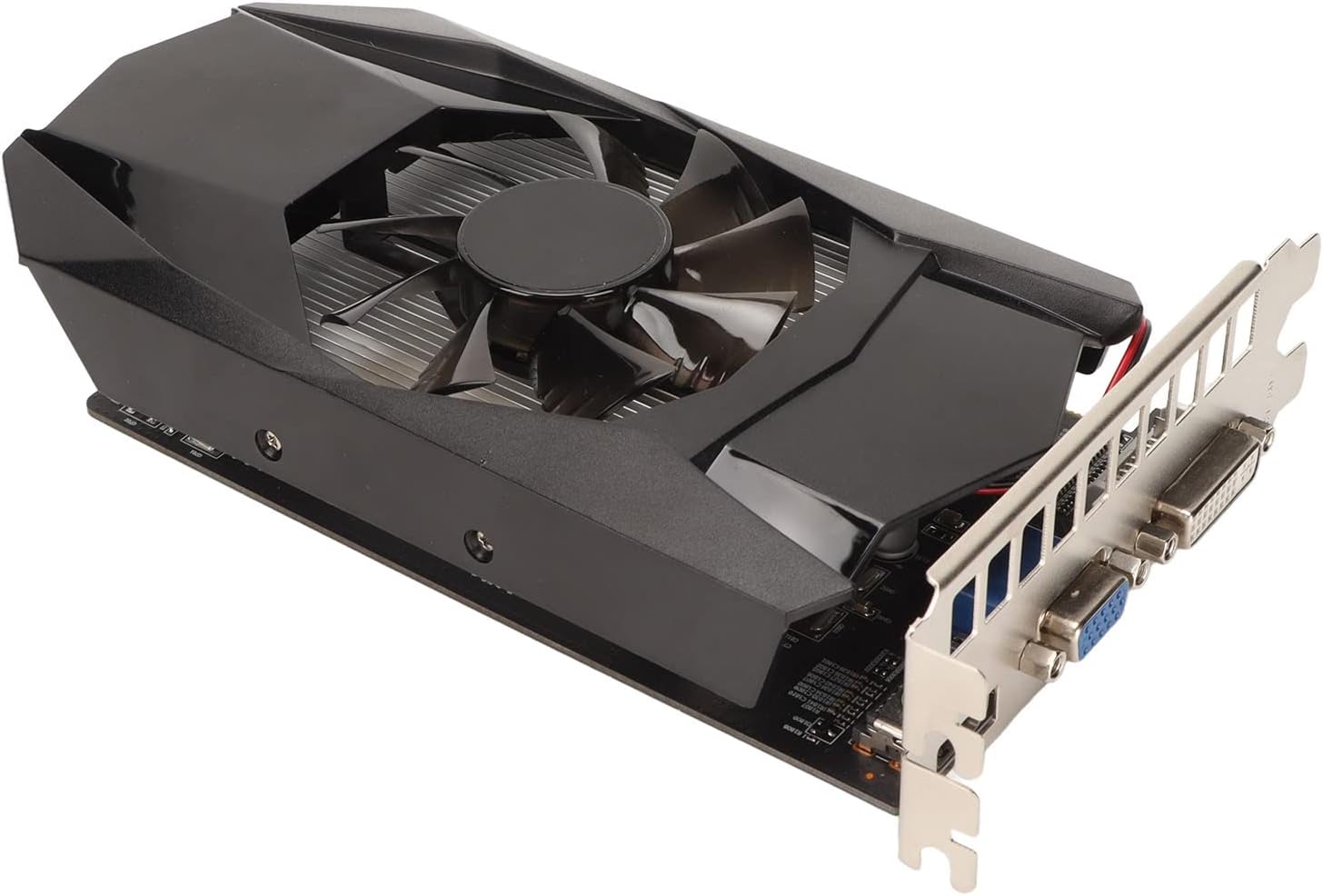
Figure 2: Display ports (HDMI, DVI, VGA) on the graphics card.
Video 1: Installation guide for a similar graphics card model. This video demonstrates the general process of installing a graphics card into a computer system.
Video 2: Unboxing and low-profile bracket installation for a graphics card. This video is useful if your computer case requires a low-profile bracket for the display ports.
Video 3: Demonstration of low-profile GPU installation. This video shows how to adapt a graphics card for smaller form factor PCs.
Video 4: Low-profile graphics card overview and installation. This video provides additional visual guidance on installing a low-profile graphics card.
5. Operating Instructions
Once the graphics card is installed and drivers are updated, your system will automatically utilize the card for display output. You can connect up to three displays simultaneously using the available HDMI, DVI, and VGA ports. The card supports HD, 60Hz output at 4K resolution, providing clear and vibrant visuals for your tasks and entertainment.
- Multi-Display Setup: Connect your monitors to the respective ports (HDMI, DVI, VGA). Your operating system should automatically detect the displays. You may need to configure display settings in your OS or graphics card control panel.
- Resolution: The card supports up to 4K resolution at 60Hz via HDMI. Ensure your monitor and cables support the desired resolution.
- DirectX 11: The card is compatible with DirectX 11, enabling support for a wide range of modern applications and games.
6. Maintenance
Proper maintenance ensures the longevity and optimal performance of your graphics card:
- Dust Removal: Regularly clean dust from the cooling fan and heatsink using compressed air. Accumulation of dust can hinder cooling efficiency.
- Airflow: Ensure your computer case has adequate airflow to prevent the graphics card from overheating. Keep the case vents unobstructed.
- Power: This graphics card does not require an additional power supply connector, drawing all necessary power directly from the PCI Express slot.
7. Troubleshooting
If you encounter issues with your graphics card, consider the following common solutions:
- No Display Output:
- Ensure the graphics card is fully seated in the PCI Express slot.
- Verify that all display cables are securely connected to both the graphics card and the monitor.
- Check if your monitor is set to the correct input source (HDMI, DVI, VGA).
- Driver Issues or Poor Performance:
- Download and install the latest drivers for the AMD Radeon HD 7670 from the official AMD website or your system manufacturer's support page.
- If updating drivers doesn't resolve the issue, try uninstalling existing graphics drivers completely before performing a clean installation of the new drivers.
- For performance issues in games or applications, try lowering the graphics settings.
- Overheating:
- Ensure the cooling fan on the graphics card is spinning freely and not obstructed.
- Clean any dust buildup on the heatsink and fan.
- Improve airflow within your computer case.
8. Warranty and Support
This product is covered by a 90-day exchange policy. For any further inquiries, technical assistance, or to explore other products, please visit the official Cuifati Store on Amazon.

Figure 3: Information regarding the 90-day exchange policy.