
Wooask WOO09
Wooask W09 Language Translator Device User Manual
Model: WOO09
1. Introduction
The Wooask W09 Language Translator Device is an advanced, portable tool designed for real-time two-way voice and photo translation across 144 languages and accents. Utilizing cutting-edge AI technology, it facilitates seamless communication for travel, business, and learning purposes. This manual provides detailed instructions for setting up, operating, and maintaining your device to ensure optimal performance.

Image: Front and back view of the Wooask W09 Language Translator Device, showcasing its sleek design and compact form factor.
2. Key Features
- Two-way Voice Translation: Supports 144 languages and accents with up to 97% accuracy for real-time communication.
- Fast AI Translator: Powered by Google, Microsoft, and Nuance engines, offering response times under 0.5 seconds.
- HD Image Translation: Translates text from images in 42 languages, recognizing both print and handwritten fonts.
- Long Battery Life: 1500mAh battery provides 8 hours of continuous work and a week of standby time.
- HD Touch Screen: 2.4-inch retina screen (240x230 resolution) for intuitive navigation and clear display.
- Connectivity: Supports Wi-Fi and Hotspot connections for online translation.
3. Device Layout and Controls

Image: Diagram illustrating the physical layout of the Wooask W09, including the On/Off Button, Volume buttons, Touch Screen, Translation Keys (A and B), USB Charging Port, Microphone, Camera, and Speaker.
- On/Off Button: Located on the side, used to power the device on or off.
- Vol+ / Vol- Buttons: Adjust the speaker volume.
- Touch Screen: Main interface for navigation and interaction.
- Translation Key A: Press and hold to speak for translation.
- Translation Key B: Press and hold to speak for translation in the second language.
- USB Charging Port: For charging the device.
- Microphone: Captures voice input for translation.
- Camera: Used for photo translation.
- Speaker: Outputs translated audio.
4. Setup Guide
4.1 Initial Charging
Before first use, fully charge the Wooask W09 device. Connect the included USB cable to the device's charging port and plug the other end into a compatible USB power adapter (not included) or a computer's USB port. The charging indicator will show the charging status. A full charge typically takes 1-2 hours.
4.2 Powering On/Off
- To Power On: Press and hold the On/Off button until the screen lights up.
- To Power Off: Press and hold the On/Off button until a power-off prompt appears on the screen. Select "Power Off" to shut down the device.
4.3 Network Connection (Wi-Fi & Hotspot)
The Wooask W09 requires an internet connection for real-time translation. You can connect via Wi-Fi or a mobile hotspot.
- From the main screen, tap on the "Settings" icon.
- Select "WLAN" (Wi-Fi).
- Toggle the Wi-Fi switch to "On".
- The device will scan for available networks. Select your desired Wi-Fi network from the list.
- Enter the password if prompted and tap "Connect".
- Once connected, the Wi-Fi icon will appear in the status bar.

Image: Screenshot of the Wooask W09 screen showing the Wi-Fi and Hotspot connection options, with a list of available Wi-Fi networks.
5. Operating Instructions
5.1 Voice Translation (Two-way)
The W09 supports real-time two-way voice translation. Ensure you are connected to the internet.
- From the main screen, tap on "Voice Translation".
- Select the two languages for translation (e.g., English to Spanish). The left side of the screen will display the first language, and the right side the second.
- To speak in the first language, press and hold Translation Key A (usually the top button). Speak clearly into the microphone. Release the button when finished. The device will translate and speak the text in the second language.
- To speak in the second language, press and hold Translation Key B (usually the bottom button). Speak clearly into the microphone. Release the button when finished. The device will translate and speak the text in the first language.
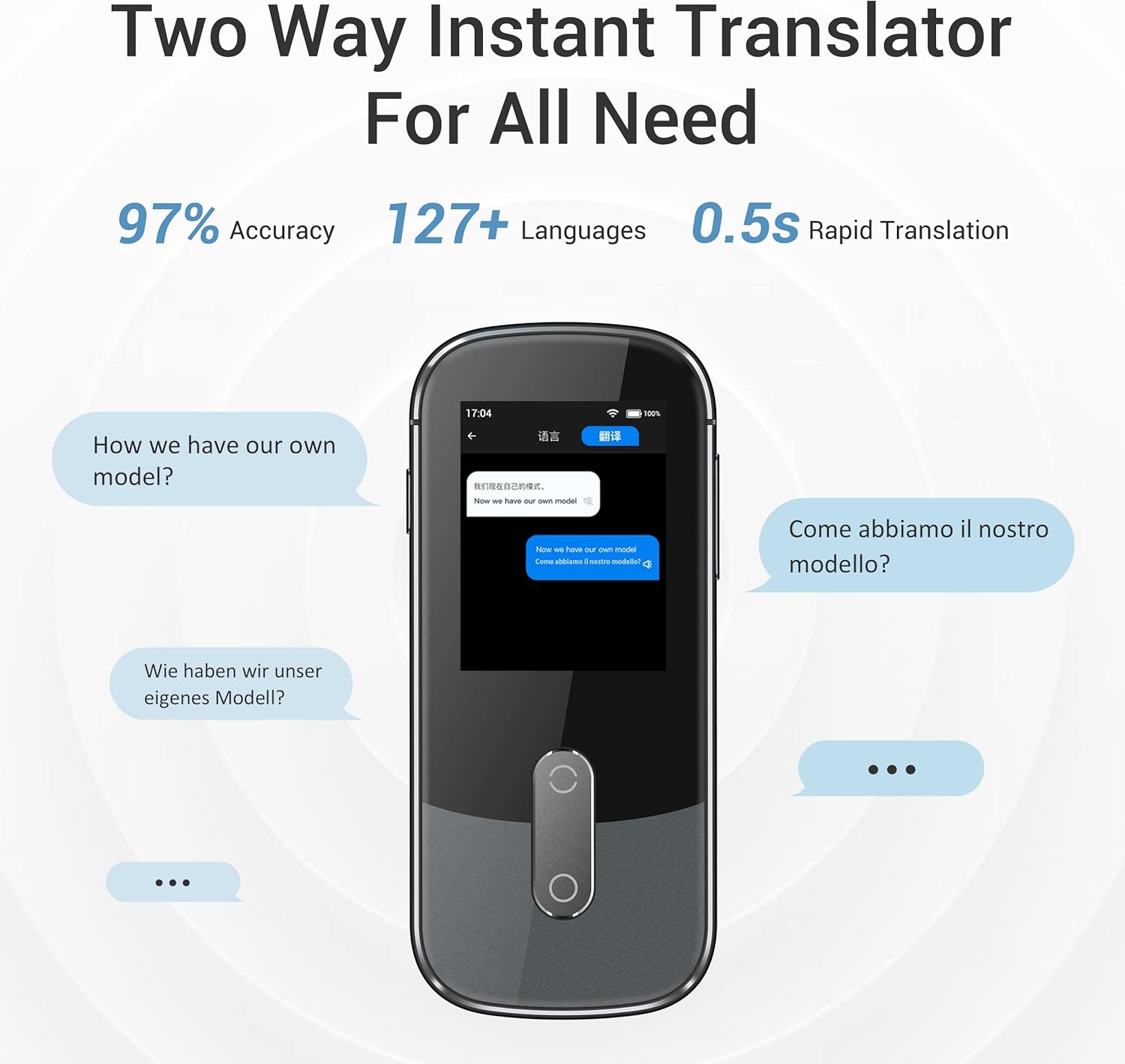
Image: Screenshot of the Wooask W09 screen demonstrating two-way instant translation, showing text bubbles in different languages.
5.2 Photo Translation
The W09 can translate text from images, useful for signs, menus, or documents.
- From the main screen, tap on "Photo Translation".
- Select the source language (language of the text in the image) and the target language (language you want to translate to).
- Point the device's camera at the text you wish to translate. Ensure the text is well-lit and clear within the camera frame.
- Tap the capture button on the screen. The device will process the image and display the translated text.
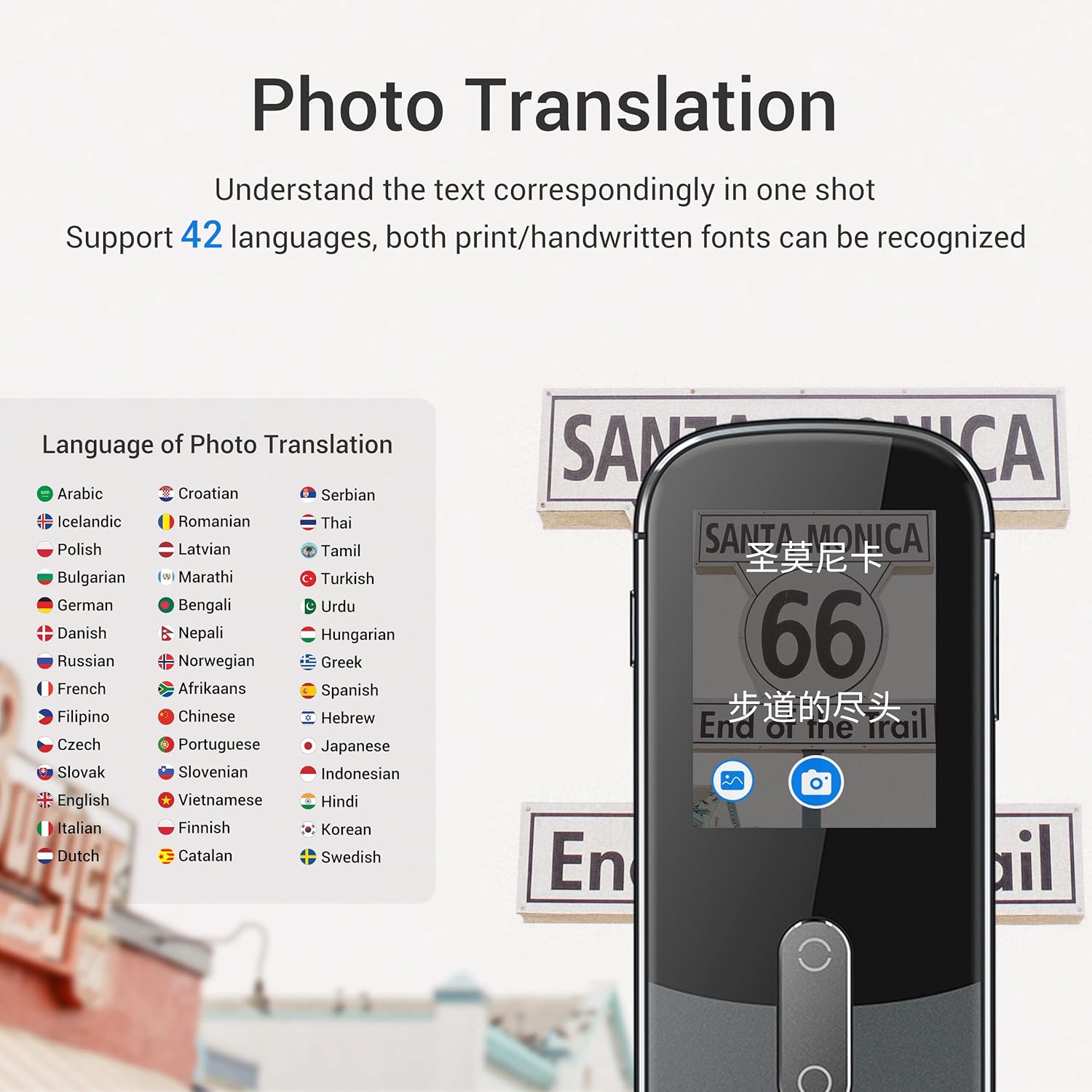
Image: Screenshot of the Wooask W09 screen showing the photo translation interface, with a list of supported languages and an example of text being translated from a sign.
5.3 Offline Translation (If Supported)
Some language pairs may support offline translation. To use this feature:
- Go to "Settings" and then "Offline Download".
- Download the desired language packs while connected to Wi-Fi.
- Once downloaded, you can perform basic voice translation for those language pairs without an internet connection.
6. Maintenance
- Cleaning: Use a soft, dry, lint-free cloth to clean the device. Do not use liquid cleaners or aerosols.
- Battery Care: To prolong battery life, avoid fully discharging the battery frequently. Charge the device regularly, even if not in use for extended periods.
- Storage: Store the device in a cool, dry place away from direct sunlight and extreme temperatures.
- Software Updates: Periodically check for software updates via the "Settings" menu to ensure optimal performance and access to new features.
7. Troubleshooting
| Problem | Possible Cause / Solution |
|---|---|
| Device does not turn on. | Battery might be depleted. Connect to charger and try again. If still unresponsive, perform a hard reset (refer to manufacturer's website for specific instructions if available). |
| Translation is inaccurate or slow. |
|
| Cannot connect to Wi-Fi. |
|
| Photo translation not working. |
|
8. Specifications
| Feature | Detail |
|---|---|
| Model Number | WOO09 |
| Body Dimensions | 120 x 47 x 13 mm |
| Item Weight | 8.8 ounces (97g) |
| Screen Size | 2.4" TFT (IPS) |
| Screen Resolution | 240 x 230 |
| Camera | 500M Pixel |
| Battery Capacity | 1500mAh Lithium Ion |
| Microphone | 2 Mic Array |
| Speaker | Hi-fi speaker |
| Charging Port | Micro USB |
| Network Support | 2.4G WiFi |
9. Warranty and Support
For warranty information, technical support, or further inquiries, please refer to the official Wooask website or contact their customer service directly. Keep your purchase receipt as proof of purchase for warranty claims.
You can visit the Wooask Store on Amazon for more product information and support resources.
Related documentsWOO09


Ask a question about this manual
Ask about setup, troubleshooting, compatibility, parts, safety, or missing instructions. Manuals+ will review the question and use this page’s manual context to help answer it.