
1. Product Overview
The AMROOLOO G2 is an intuitive GPS car head-up display (HUD) designed to provide essential driving information directly on its screen. This device eliminates the need for reflective films, offering a clear and direct view of data. It is compatible with all car models, operating via a built-in GPS chip that acquires satellite signals for accurate, real-time data.

Image 1.1: The AMROOLOO G2 GPS Car Head-up Display mounted on a dashboard, showing current speed.
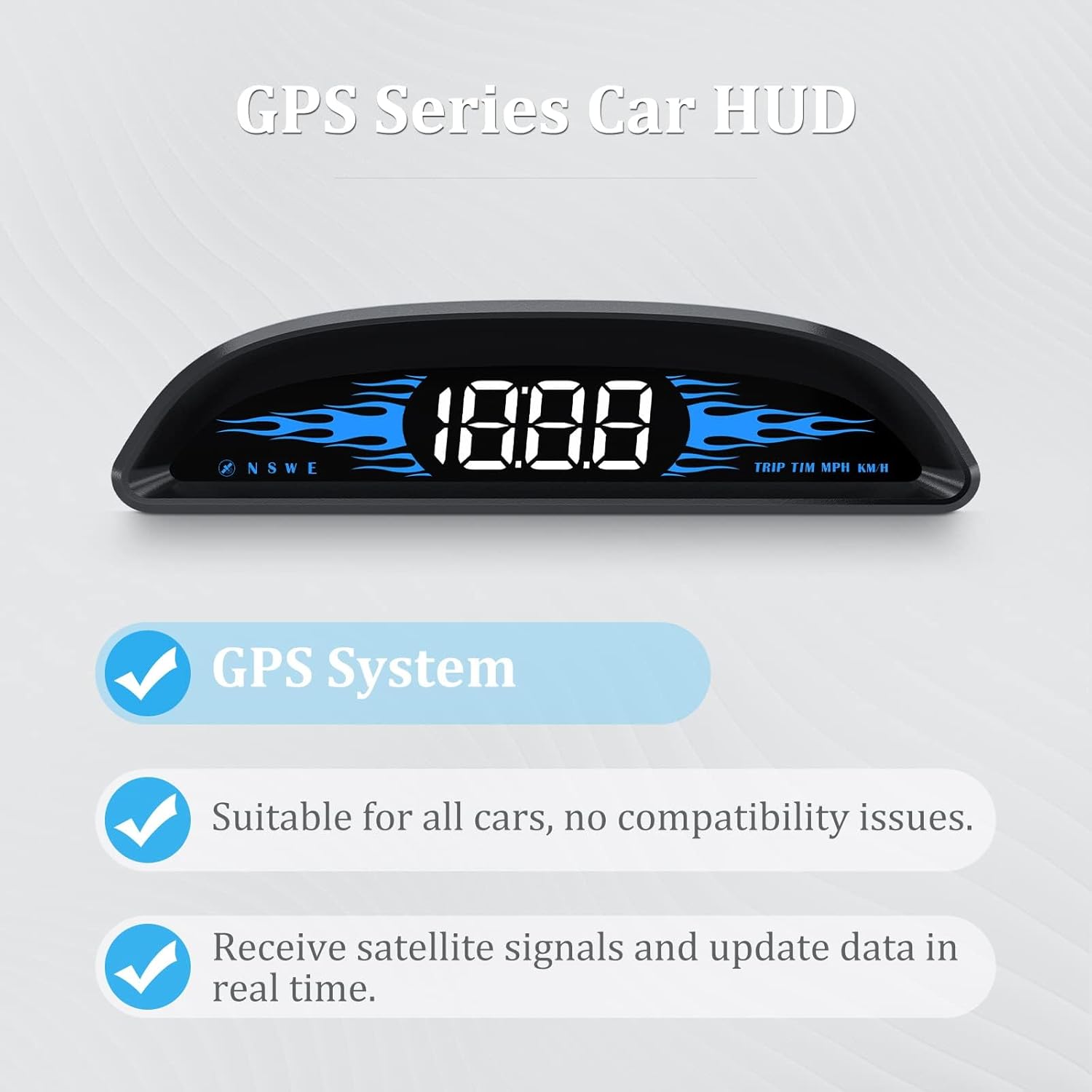
Image 1.2: Key features of the AMROOLOO G2, including GPS system, universal compatibility, and real-time data updates.
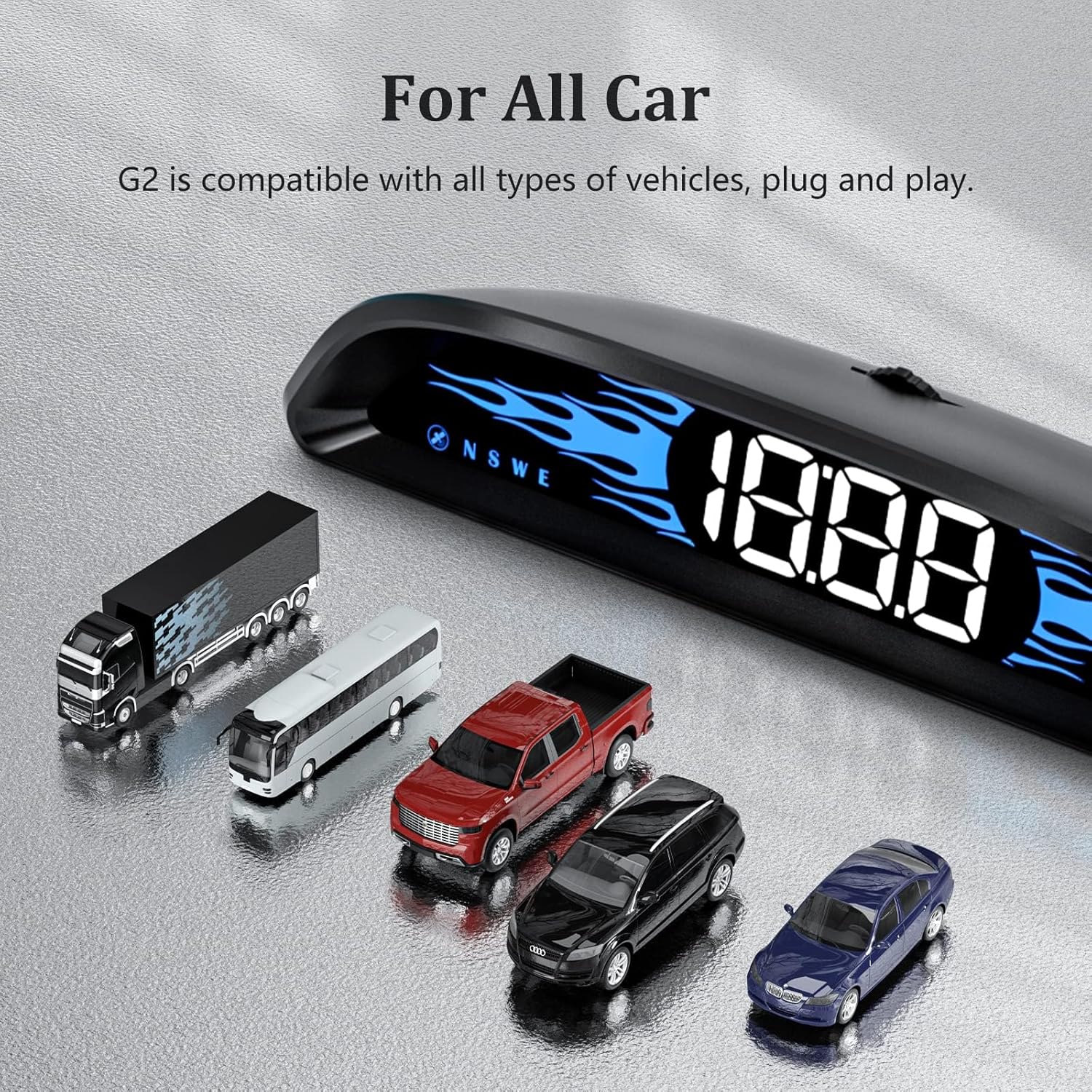
Image 1.3: The AMROOLOO G2 is compatible with all types of vehicles.
2. Package Contents
Verify that all items are present in the package:
- 1 x AMROOLOO G2 GPS Car Head-up Display unit
- 1 x USB Cable
- 1 x Instruction Manual
- 1 x Double-sided Tape

Image 2.1: All included accessories for the AMROOLOO G2 GPS HUD.
3. Device Features and Components
The AMROOLOO G2 features a curved design with a frosted texture and blue flame-like ambient lighting. Key components are located on the top and rear of the device.
- Toggle Key: Located on the top, used for switching between display screens and adjusting settings.
- Buzzer Hole: Located at the rear, for audible alerts.
- USB Jack: Located at the rear, for power connection.
- Automatic Photosensitive Hole: Located at the rear, enables automatic brightness adjustment based on ambient light conditions.

Image 3.1: Labeled components of the AMROOLOO G2 device.
4. Setup and Installation
The AMROOLOO G2 is designed for easy plug-and-play installation.
- Placement: Choose a suitable flat surface on your car's dashboard where the display will be clearly visible without obstructing your view of the road.
- Secure the Device: Use the provided double-sided tape to firmly attach the HUD unit to the chosen location on your dashboard.
- Power Connection: Connect the supplied USB cable to the USB jack on the rear of the HUD unit. Plug the other end of the USB cable into a compatible USB power source in your car (e.g., a car charger, USB port).
- Initial Satellite Acquisition: Once powered on, the device will begin searching for satellite signals. An icon (e.g., a flashing satellite icon) will indicate this process. Wait until this icon stops flashing, indicating a stable satellite connection.
- Ready for Use: After successful satellite acquisition, the device is ready to display driving data.
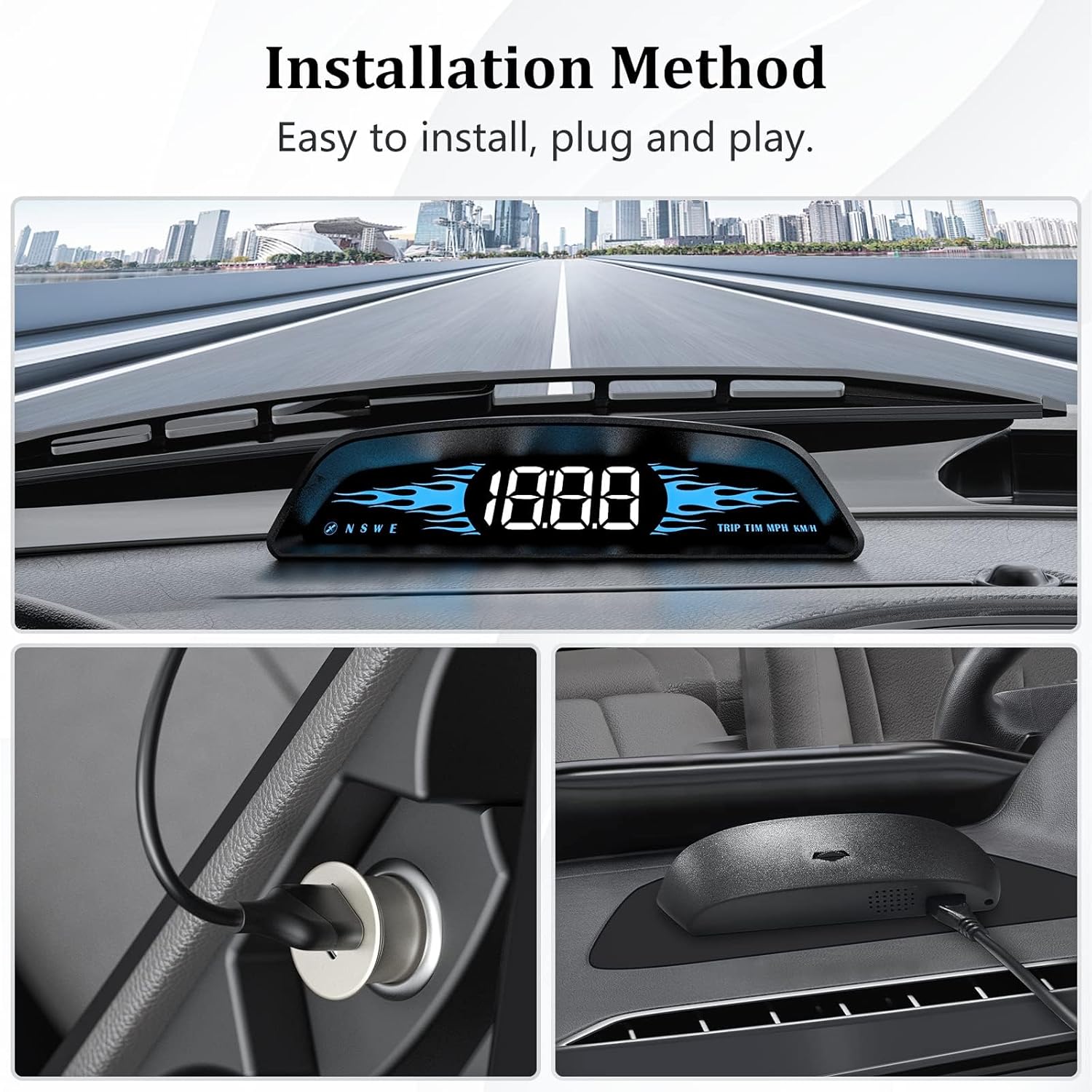
Image 4.1: Steps for installing the AMROOLOO G2 HUD in a vehicle.
5. Operating Instructions
The AMROOLOO G2 utilizes a GPS system to provide various driving data.
5.1. Displayed Functions
The device can display the following information:
- Vehicle Speed: Current driving speed.
- Satellite Time: Time synchronized via satellite (12-hour system).
- Number of Satellites: Indicates the strength and reliability of the GPS signal.
- Mileage: Distance traveled.
- Driving Direction: Compass display (N, S, E, W).
- Overspeed Reminder: Alerts when a preset speed limit is exceeded.
- Fatigue Driving Reminder: Prompts the driver to take a break after a prolonged period of driving.
- Speed Unit: Option to switch between MPH and KM/H.
- Light Sensor: Automatic brightness adjustment.

Image 5.1: Visual representation of the product's functions.
5.2. Adjusting Settings
Use the Toggle Key on the top of the device to navigate through different display modes and adjust settings such as speed unit (MPH/KMH) and overspeed warning thresholds. Refer to the detailed instructions in the included manual for specific adjustment procedures.
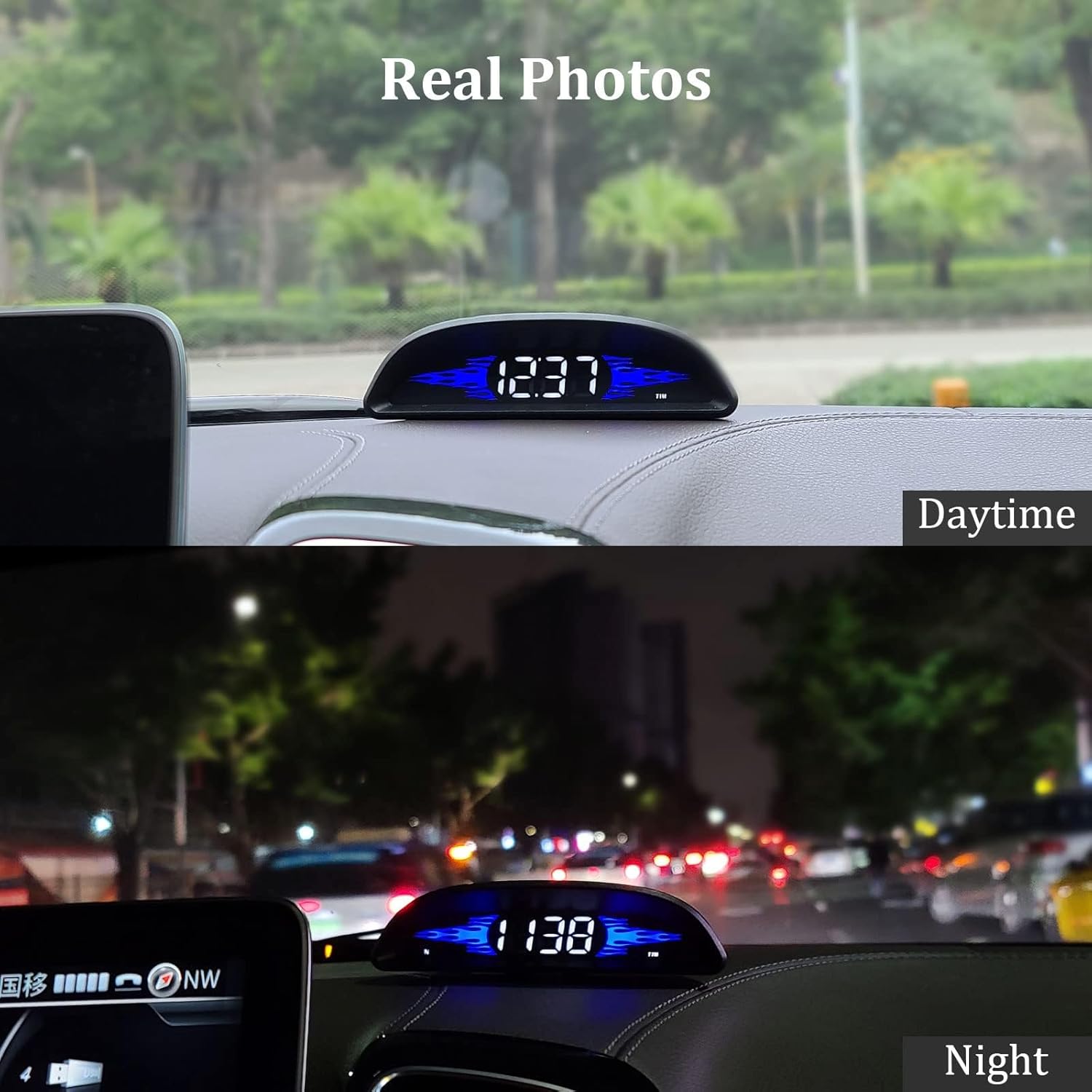
Image 5.2: The HUD display adjusts brightness automatically for optimal visibility in different lighting conditions.
6. Maintenance
To ensure the longevity and optimal performance of your AMROOLOO G2 HUD, follow these maintenance guidelines:
- Cleaning: Use a soft, dry cloth to clean the display and exterior of the device. Avoid abrasive cleaners or solvents that may damage the surface.
- Storage: When not in use for extended periods, store the device in a cool, dry place away from direct sunlight and extreme temperatures.
- Cable Care: Handle the USB cable carefully to prevent damage. Do not bend or crimp the cable excessively.
7. Troubleshooting
If you encounter issues with your AMROOLOO G2 HUD, consider the following common troubleshooting steps:
- No Display/Power:
- Ensure the USB cable is securely connected to both the device and the car's power source.
- Verify that the car's power source (e.g., cigarette lighter adapter) is functioning correctly.
- Try a different USB cable or power adapter if available.
- No Satellite Signal/Data:
- Ensure the vehicle is outdoors with a clear view of the sky. GPS signals cannot be acquired indoors or in tunnels.
- Wait a few minutes for the device to acquire satellite signals after powering on. The satellite icon should stop flashing.
- Relocate the device on the dashboard to a position with better satellite reception, if possible.
- Inaccurate Speed Reading:
- Ensure the device has a stable satellite connection (satellite icon is solid, not flashing).
- The device's speed reading is GPS-based and may differ slightly from your car's built-in speedometer, which often has a slight over-read.
- Consult the detailed manual for calibration options if available.
- Display Too Bright/Dim:
- The device has an automatic photosensitive function. Ensure the photosensitive hole at the rear is not obstructed.
- Manual brightness adjustments might be available via the Toggle Key; refer to the full manual.
8. Specifications
| Feature | Detail |
|---|---|
| Brand | AMROOLOO |
| Model Number | G2 |
| Dimensions (L x W x H) | 12.8 x 3.6 x 2.5 cm |
| Weight | 75 Grams |
| Material | Plastic |
| Power Source | USB (No internal batteries required) |
| Certifications | FCC, CE |
| Compatibility | Universal (Compatible with all cars via GPS system) |
| UPC | 723497750615 |
9. Warranty and Support
9.1. Warranty Information
The AMROOLOO G2 GPS Car Head-up Display comes with a 1-year warranty from the date of purchase. This warranty covers manufacturing defects and malfunctions under normal use. Please retain your proof of purchase for warranty claims.
Spare parts availability in the EU is guaranteed for 10 years.
9.2. Customer Support
For any questions, technical assistance, or warranty claims, please contact AMROOLOO customer support through the retailer where the product was purchased.


