
1. Introduction
This manual provides instructions for the setup, operation, and maintenance of your FightBox F1-UFB-UP5 All Buttons Leverless Arcade Game Controller. This controller is designed for use with various gaming platforms including PlayStation 5, PlayStation 4, PlayStation 3, PC, Xbox Series X, and Nintendo Switch.
2. Product Overview
The FightBox F1-UFB-UP5 is a high-performance leverless arcade controller, featuring an all-button layout for precise input. It incorporates the Brook Universal Fighting Board (UFB) and UFB-UP5 for broad platform compatibility and low-latency performance. The controller is equipped with Sanwa buttons, known for their responsiveness and durability.

This image illustrates the FightBox F1-UFB-UP5 controller alongside its internal components, specifically highlighting the Brook Universal Fighting Board and the UFB-UP5 module, which enable multi-platform compatibility.

A top-down view of the FightBox F1-UFB-UP5 controller, showcasing its all-button layout with red and black Sanwa buttons and the 'FIGHTBOX' branding.
3. Setup
The FightBox F1-UFB-UP5 controller connects to your gaming platform via a standard USB cable. No additional drivers are typically required for console use, but PC users may need to ensure proper drivers are installed for optimal performance.
- Connect the USB cable from the controller to an available USB port on your gaming console (PlayStation 5, PlayStation 4, PlayStation 3, Xbox Series X, Nintendo Switch) or PC.
- The controller should be automatically recognized by most systems. For PC, if not automatically recognized, check your operating system's device manager for driver updates or visit the Brook website for specific driver downloads.
- Ensure the correct input mode is selected if your console requires it (refer to your console's documentation).
4. Operating Instructions
The F1-UFB-UP5 features a leverless button layout, replacing the traditional joystick with directional buttons for precise movement inputs. The primary action buttons are arranged for intuitive gameplay.

This diagram illustrates the button assignments for the PlayStation versions of the FightBox F1-UFB-UP5 controller. It identifies the USB port, Touchpad, Share, R3, L3, Option, and Home buttons, along with the directional and action buttons.
- Directional Buttons: The four red buttons on the left side control movement (Up, Down, Left, Right).
- Action Buttons: The eight black buttons on the right side are for primary game actions.
- Option Button: Typically used for pausing games or accessing menus.
- Home Button: Returns to the console's main menu or dashboard.
- Share Button: Used for sharing gameplay content (on PlayStation platforms).
- Touchpad: Functions as a touchpad input (on PlayStation platforms).
- R3/L3 Buttons: These buttons correspond to pressing down the right and left analog sticks on a standard controller.
For specific button mappings on different platforms (Xbox, Nintendo Switch), the controller automatically adapts. Consult your game's control settings for customization options.
5. Maintenance
Proper maintenance ensures the longevity and performance of your FightBox F1-UFB-UP5 controller.
- Cleaning: Use a soft, dry cloth to wipe down the surface of the controller. For stubborn marks, a slightly damp cloth with mild soap can be used, followed by a dry wipe. Avoid abrasive cleaners or solvents.
- Storage: Store the controller in a cool, dry place away from direct sunlight and extreme temperatures.
- Cable Care: Avoid sharp bends or kinks in the USB cable. Disconnect by pulling the plug, not the cable itself.
- Button Care: Do not apply excessive force to the buttons. If a button feels sticky, it may require professional cleaning or replacement.
6. Troubleshooting
If you encounter issues with your FightBox F1-UFB-UP5 controller, refer to the following common solutions.
- Controller Not Recognized:
- Ensure the USB cable is securely connected to both the controller and the console/PC.
- Try a different USB port.
- Restart your console or PC.
- For PC, check device manager for driver issues and update if necessary.
- Buttons Not Responding:
- Verify the controller is powered on and connected.
- Test buttons in a different game or system menu to isolate the issue.
- If only specific buttons are affected, they may require cleaning or replacement.
- Input Lag:
- Ensure you are using a direct USB connection, avoiding unpowered USB hubs.
- Check for any background processes on your PC that might be consuming resources.
- Ensure your console's firmware and game software are up to date.
7. Specifications
Detailed specifications for the FightBox F1-UFB-UP5 All Buttons Leverless Arcade Game Controller.
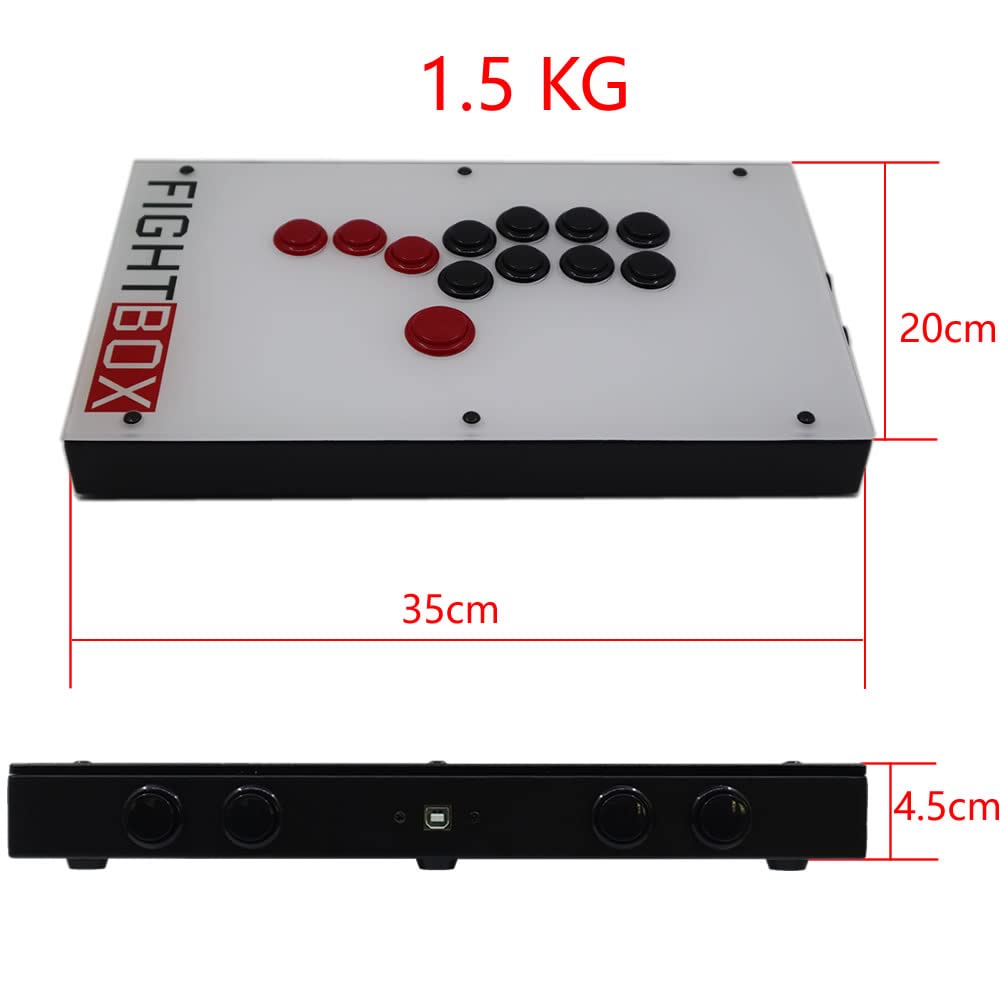
This image provides the physical dimensions of the FightBox F1-UFB-UP5 controller, showing a length of 35cm, width of 20cm, and height of 4.5cm, with a total weight of 1.5 kg.
| Feature | Detail |
|---|---|
| Model | F1-UFB-UP5 |
| Brand | FightBox |
| Connectivity | USB |
| Controller Type | Leverless Arcade Controller |
| Button Quantity | 12 |
| Special Features | Touchpad |
| Compatible Devices | PlayStation 5, PlayStation 4, PlayStation 3, PC, Xbox Series X, Nintendo Switch |
| Dimensions (L x W x H) | 15.75 x 9.84 x 3.94 inches (approx. 35 x 20 x 4.5 cm) |
| Weight | 1.5 Kilograms |
| Internal Board | Brook Universal Fighting Board (UFB) + UFB-UP5 |
| Buttons | Sanwa |
| UPC/GTIN | 635648885254 |
8. Warranty and Support
For warranty information and technical support, please refer to the official FightBox website or contact your retailer. Keep your purchase receipt as proof of purchase.
For further assistance, visit: FightBox Official Store