
TECURS WK007
TECURS Wireless Gaming Keyboard User Manual
Model: WK007
1. Product Overview
The TECURS Wireless Gaming Keyboard (Model WK007) is a full-size, ultra-slim keyboard designed for both gaming and office use. It features 2.4G wireless connectivity, LED backlighting, and multimedia hotkeys for enhanced productivity and entertainment. Its silent design ensures a quiet typing experience, making it suitable for various environments.

Image: The TECURS Wireless Gaming Keyboard, showcasing its full layout with vibrant LED backlighting and the compact USB receiver.
2. Package Contents
Please check the package contents upon unboxing to ensure all items are present:
- TECURS Wireless Gaming Keyboard (Model WK007)
- USB 2.4G Receiver
- USB-C Charging Cable
- User Manual (this document)

Image: The keyboard, USB receiver, USB-C charging cable, and user manual laid out, representing the package contents.
3. Product Features
- 2.4G Wireless Technology: Provides a stable and reliable connection up to 10m/33ft.
- LED Backlighting: Features colorful LED backlighting with adjustable brightness for visibility in various lighting conditions.
- Multimedia Hotkeys: 8 dedicated multimedia keys for quick access to common functions like volume control, media playback, and email.
- Silent Design: Thin-film membrane structure reduces typing noise by over 95%, ideal for quiet environments.
- Ergonomic Design: Full-size layout with an 8° tilt angle for comfortable typing.
- USB-C Rechargeable: Built-in lithium battery, easily rechargeable via the included USB-C cable.
- Broad Compatibility: Works with Windows 7/8/10/later and Mac OS.

Image: A user typing on the keyboard in a quiet setting, highlighting its low-noise operation.
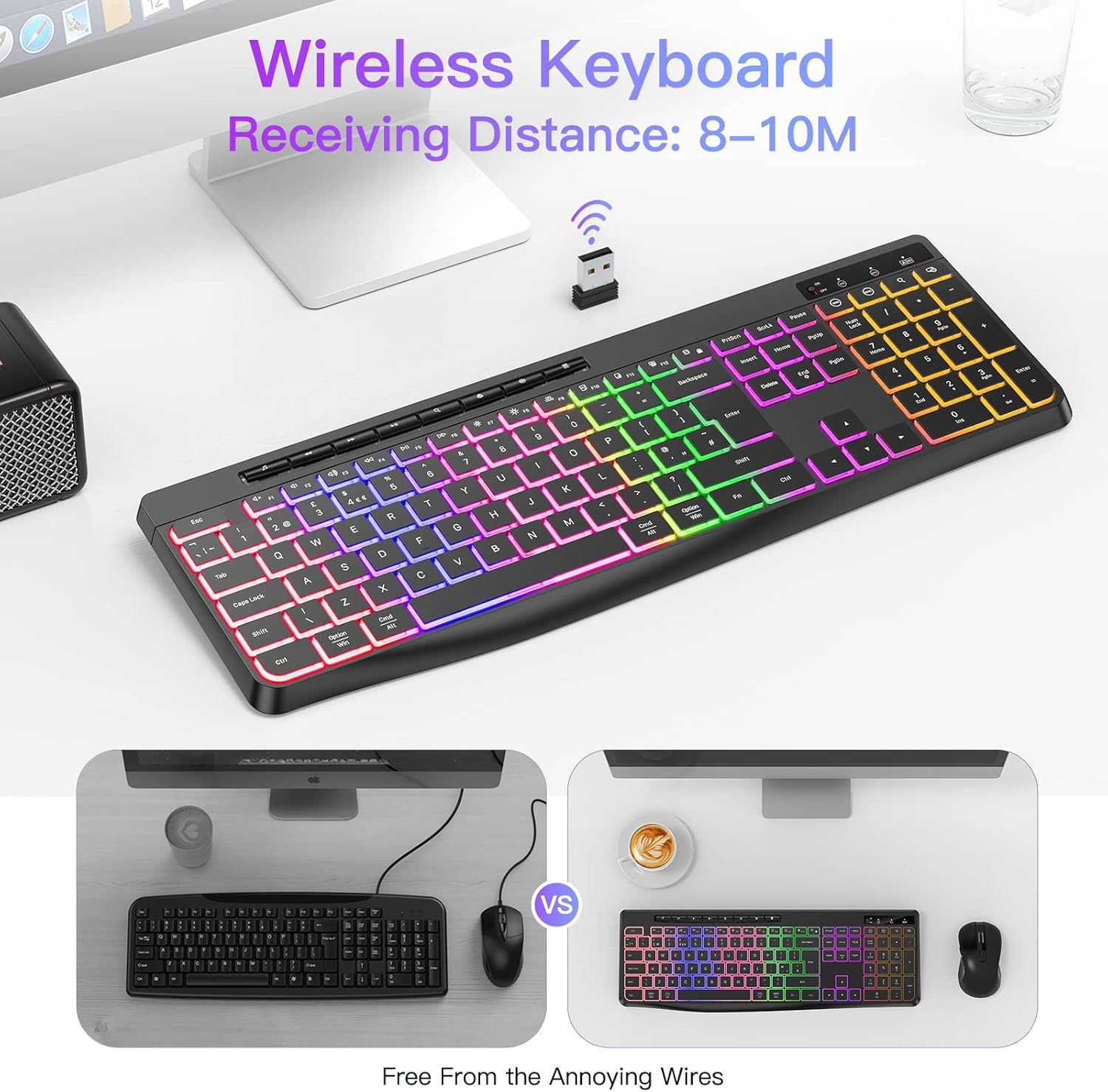
Image: An illustration demonstrating the 8-10 meter wireless receiving distance of the keyboard.
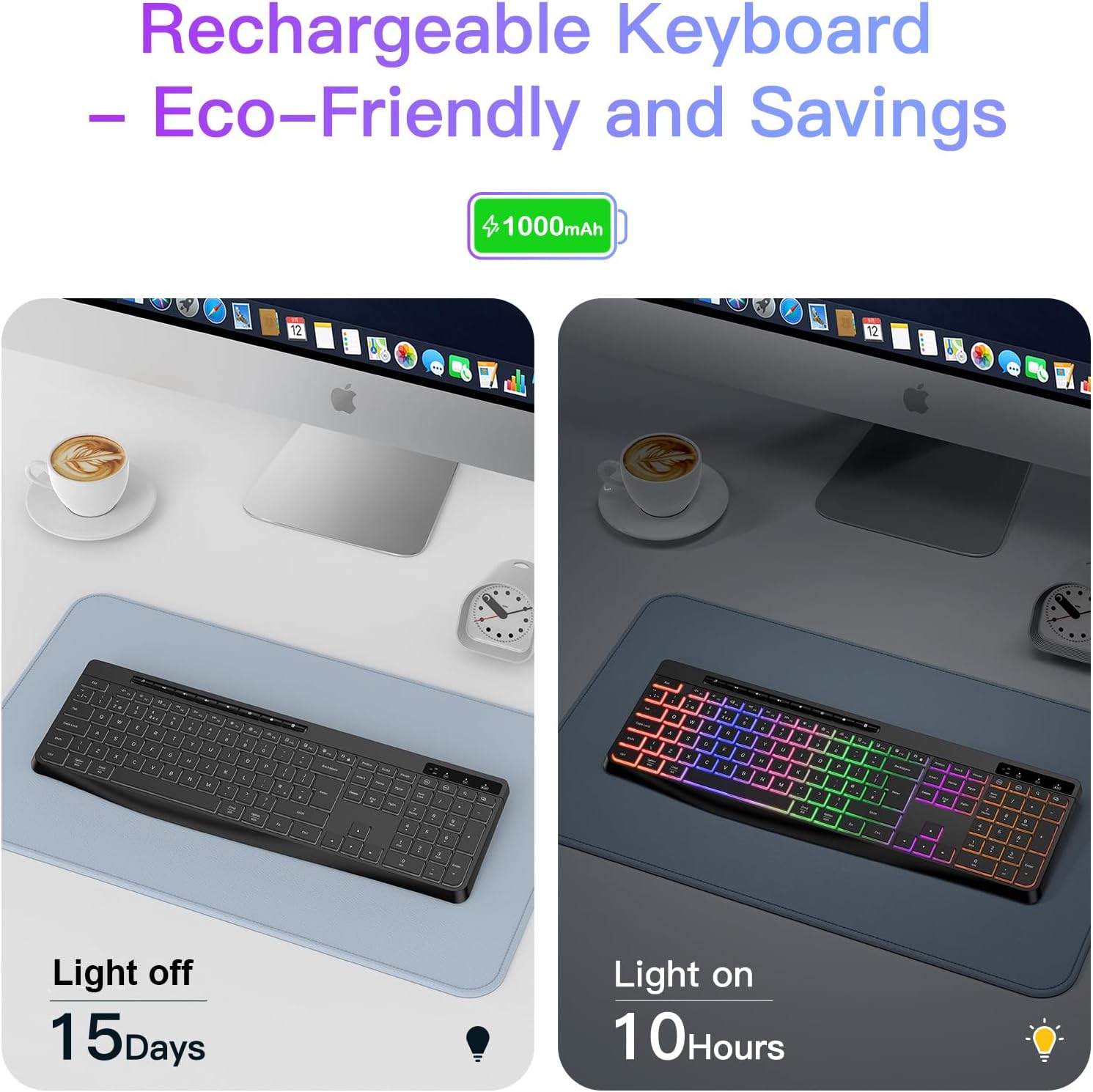
Image: A visual comparison showing the keyboard's battery life with the backlight off (15 days) versus on (10 hours).

Image: Detailed view of the keyboard's dimensions, highlighting its compatibility with Mac and Windows, individual multimedia buttons, and adjustable stand.
Official Product Videos
Video: An overview of the TECURS 2.4G Wireless Keyboard, showcasing its ultra-slim design and full-size layout.
Video: Demonstrates the silent typing experience and multimedia key functionality of the TECURS PC Keyboard.
4. Setup Guide
4.1 Connecting the Keyboard
- Locate the USB 2.4G receiver. It is typically stored in a compartment on the keyboard itself or included separately in the packaging.
- Insert the USB receiver into an available USB port on your computer (PC, laptop, Mac).
- Turn on the keyboard using the power switch, usually located on the top edge of the keyboard.
- The keyboard should automatically connect to your computer. No additional drivers are required for most operating systems.
- Test the connection by typing a few characters in a text editor.
4.2 Charging the Keyboard
The keyboard comes with a built-in rechargeable lithium battery. To charge:
- Connect the included USB-C charging cable to the charging port on the keyboard.
- Connect the other end of the USB-C cable to a USB power source (e.g., computer USB port, USB wall adapter).
- The charging indicator light on the keyboard will illuminate during charging and turn off when fully charged.
- A full charge typically provides up to 10 hours of continuous use with the backlight on, or 15 days with the backlight off.
5. Operating Instructions
5.1 Backlight Control
The keyboard features colorful LED backlighting. You can control it using the dedicated backlight key:
- Press the light bulb icon key (usually near F7/F8) to cycle through brightness levels (e.g., Low, Medium, High, Off).
- The backlight colors are fixed and not customizable.
5.2 Multimedia Hotkeys
The 8 multimedia hotkeys provide quick access to various functions:
| Key Icon | Function |
|---|---|
| ♫ (Music Note) | Open Media Player |
| ◀◀ (Rewind) | Previous Track |
| ▶▶ (Fast Forward) | Next Track |
| ▶▌▌ (Play/Pause) | Play/Pause Media |
| − (Minus) | Volume Down |
| + (Plus) | Volume Up |
| 🔇 (Mute) | Mute/Unmute Volume |
| 📧 (Envelope) | Open Email Client |
| 🔍 (Magnifying Glass) | Search |
| 💻 (Computer) | My Computer / File Explorer |
Note: Specific functions may vary slightly depending on your operating system and software settings.
5.3 Power Saving Mode
To conserve battery life, the keyboard will automatically enter sleep mode after a period of inactivity. To wake it up, simply press any key.
6. Maintenance and Care
- Cleaning: Use a soft, dry cloth to wipe the keyboard surface. For stubborn dirt, a slightly damp cloth with mild soap can be used, ensuring no liquid enters the keyboard. Do not use harsh chemicals or abrasive cleaners.
- Storage: Store the keyboard in a cool, dry place away from direct sunlight and extreme temperatures.
- Battery Care: To prolong battery life, avoid fully discharging the keyboard frequently. Charge it regularly, even if not in constant use.
- Spill Resistance: While the keyboard is designed to be spill-resistant, it is not waterproof. Avoid exposing it to excessive liquids. In case of a spill, immediately disconnect it from power and allow it to dry completely before reuse.
7. Troubleshooting
| Problem | Possible Cause | Solution |
|---|---|---|
| Keyboard not responding. | Low battery; USB receiver not connected; Keyboard not turned on; Out of range. | Charge the keyboard; Ensure USB receiver is firmly plugged in; Turn on the keyboard; Move closer to the receiver (within 10m/33ft). |
| Lag or delayed input. | Interference from other wireless devices; Low battery; Too far from receiver. | Move keyboard closer to receiver; Charge the keyboard; Avoid placing receiver near other wireless devices or large metal objects. |
| Backlight not working. | Backlight turned off; Low battery. | Press the backlight key to turn it on or adjust brightness; Charge the keyboard. |
| Multimedia keys not functioning. | Software conflict; Operating system settings. | Ensure your media player or browser is active; Check your operating system's keyboard settings for multimedia key assignments. |
8. Specifications
| Feature | Detail |
|---|---|
| Model Number | WK007 |
| Connectivity Technology | 2.4G RF Wireless |
| Operating Distance | Up to 10 meters (33 feet) |
| Battery Type | Built-in Lithium Ion (1 included) |
| Charging Port | USB-C |
| Battery Life (Backlight On) | Approx. 10 hours |
| Battery Life (Backlight Off) | Approx. 15 days |
| Number of Keys | 109 |
| Key Life | 50,000,000 clicks |
| Keyboard Backlighting | Single Color (Rainbow effect, not customizable) |
| Dimensions (L x W x H) | 17.2 x 5.87 x 0.78 inches (437 x 149 x 20 mm) |
| Item Weight | 1.56 pounds (approx. 548g) |
| Compatibility | Windows 7/8/10/later, Mac OS |
9. Warranty and Support
For warranty information and customer support, please refer to the official TECURS website or contact their customer service directly. Keep your purchase receipt as proof of purchase for warranty claims.
Online Resources:
- Official TECURS Store on Amazon: Visit TECURS Store
- User Guide (PDF): Download PDF User Guide
If you encounter any issues not covered in this manual, please contact TECURS customer support for assistance.
Related documentsWK007


Ask a question about this manual
Ask about setup, troubleshooting, compatibility, parts, safety, or missing instructions. Manuals+ will review the question and use this page’s manual context to help answer it.