
1. Introduction
This manual provides detailed instructions for the setup, operation, and maintenance of your arVin Wireless Gaming Controller. Please read this manual thoroughly before using the product to ensure optimal performance and longevity.
2. Product Overview
The arVin Wireless Gaming Controller is designed for mobile gaming on both iOS and Android devices. It features a magnetic separation design for portability and a comfortable grip during gameplay. The controller connects wirelessly via Bluetooth 4.2, offering low latency for an enhanced gaming experience.

Image: arVin Wireless Gaming Controller with a smartphone, demonstrating its use during gameplay.

Image: The controller's magnetic design, showing how the left and right handles separate for compact storage.
Video: arVin Folding Game Controller Show. This video demonstrates the compact, magnetic folding design of the controller.
3. Package Contents
Verify that all items are present in the package:
- 1x arVin Wireless Gaming Controller (Left and Right Handles)
- 1x USB Type-C Charging Cable
- 1x User Manual (This document)
4. Setup and Connection
4.1 iOS Device Connection
- Ensure your iOS device is running iOS 13.4 or later.
- On the left-hand controller, press and hold the Down directional key and the Power Button simultaneously for 2 seconds. The blue light on the controller will flash, indicating it is in pairing mode.
- On your iOS device, go to Settings > Bluetooth and turn Bluetooth on.
- In the list of available devices, tap on "Xbox Wireless Controller" to pair.
- Once the left-hand controller is paired, press and hold the Power Button on the right-hand controller for 2 seconds. The blue light will flash and it will automatically pair with the left-hand controller.
- The controller is now ready for use with compatible iOS games.
Video: arVin Controller iOS Wireless Connection Guideline. This video demonstrates the steps to connect the controller to an iOS device via Bluetooth.
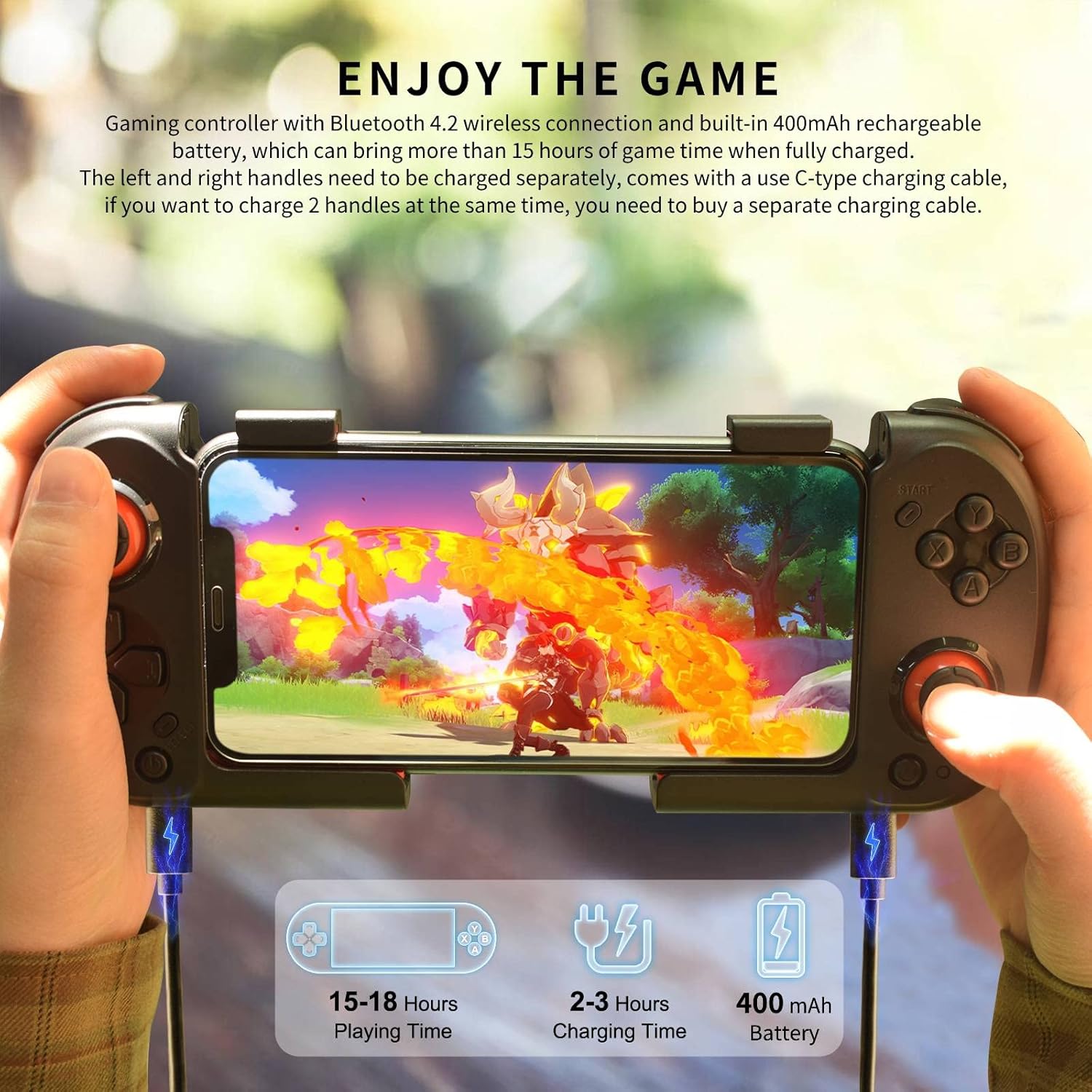
Image: iOS & Android Boot Mode diagram, illustrating the button presses for different connection modes.
4.2 Android Device Connection
- On the left-hand controller, press and hold the Left directional key and the Home Button simultaneously for 2 seconds. The blue light on the controller will flash, indicating it is in pairing mode.
- On your Android device, go to Settings > Bluetooth and turn Bluetooth on.
- In the list of available devices, tap on "MOCUTE-HIDF13-061-L" to pair.
- Once the left-hand controller is paired, press and hold the Power Button on the right-hand controller for 2 seconds. The blue light will flash and it will automatically pair with the left-hand controller.
- The controller is now ready for use with compatible Android games. For some Android games like Call of Duty Mobile, APEX Legends Mobile, or Honkai Impact 3, you may need to turn off the controller and then press the Down directional key + Power Button on the left-hand controller to connect in "Xbox Wireless Controller" mode.
Video: Android wireless connection for Call of Duty. This video demonstrates connecting the controller to an Android device for Call of Duty Mobile.
5. Operating Instructions
5.1 Game Compatibility
The arVin Wireless Gaming Controller supports most controller-compatible games available on the App Store (iOS) and Google Play Store (Android). Popular supported titles include Call of Duty Mobile (COD), Genshin Impact, Diablo Immortal, Combat Modern 5, Asphalt 8: Airborne & Asphalt 9 Legends.
- Note for iOS: Not compatible with PUBG.
- Note for Android: Not compatible with Genshin Impact & PUBG.
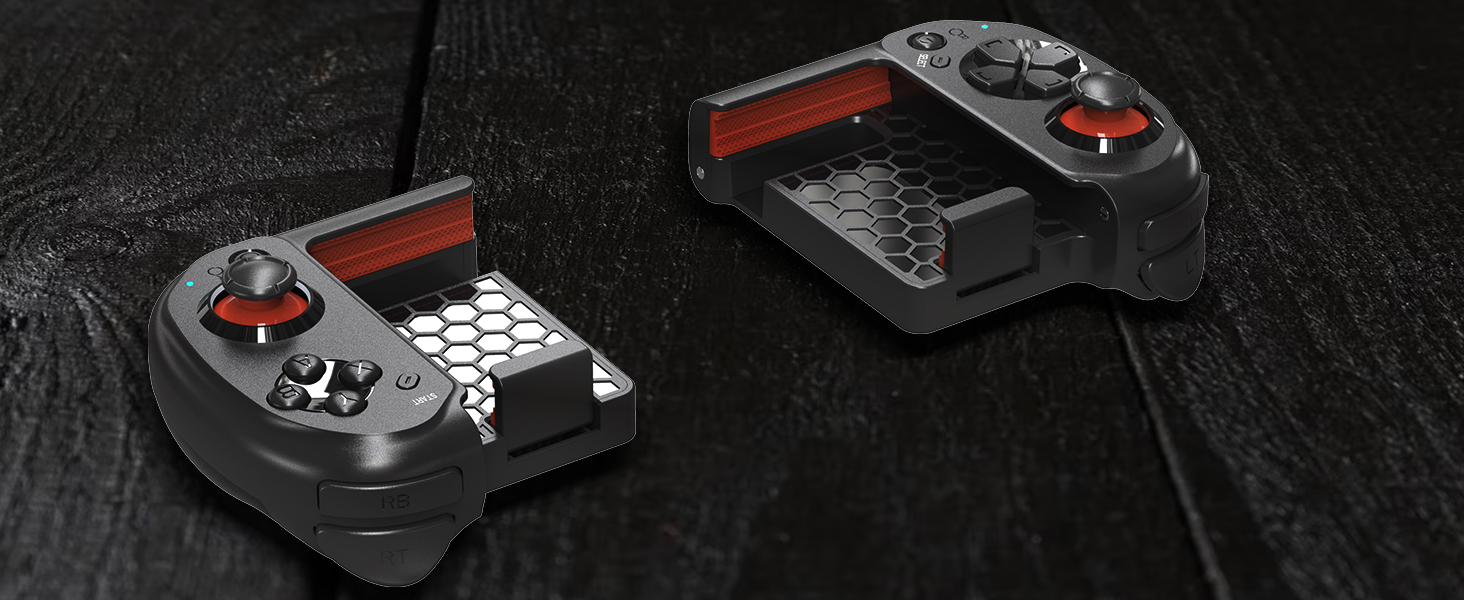
Image: A visual representation of various games compatible with the controller.
5.2 Charging the Controller
Each controller handle has a built-in 400mAh rechargeable battery. A full charge provides over 15 hours of playtime. Use the included USB Type-C charging cable to charge the controllers. Note that each handle charges separately. If you wish to charge both handles simultaneously, an additional Type-C charging cable will be required (not included).

Image: The controller being charged, highlighting its long playing time and separate charging ports.
5.3 Six-Finger Operation
The controller's design facilitates a six-finger operation style, allowing for simultaneous aiming, shooting, moving, and switching angles in games. This can enhance control and responsiveness during intense gameplay.
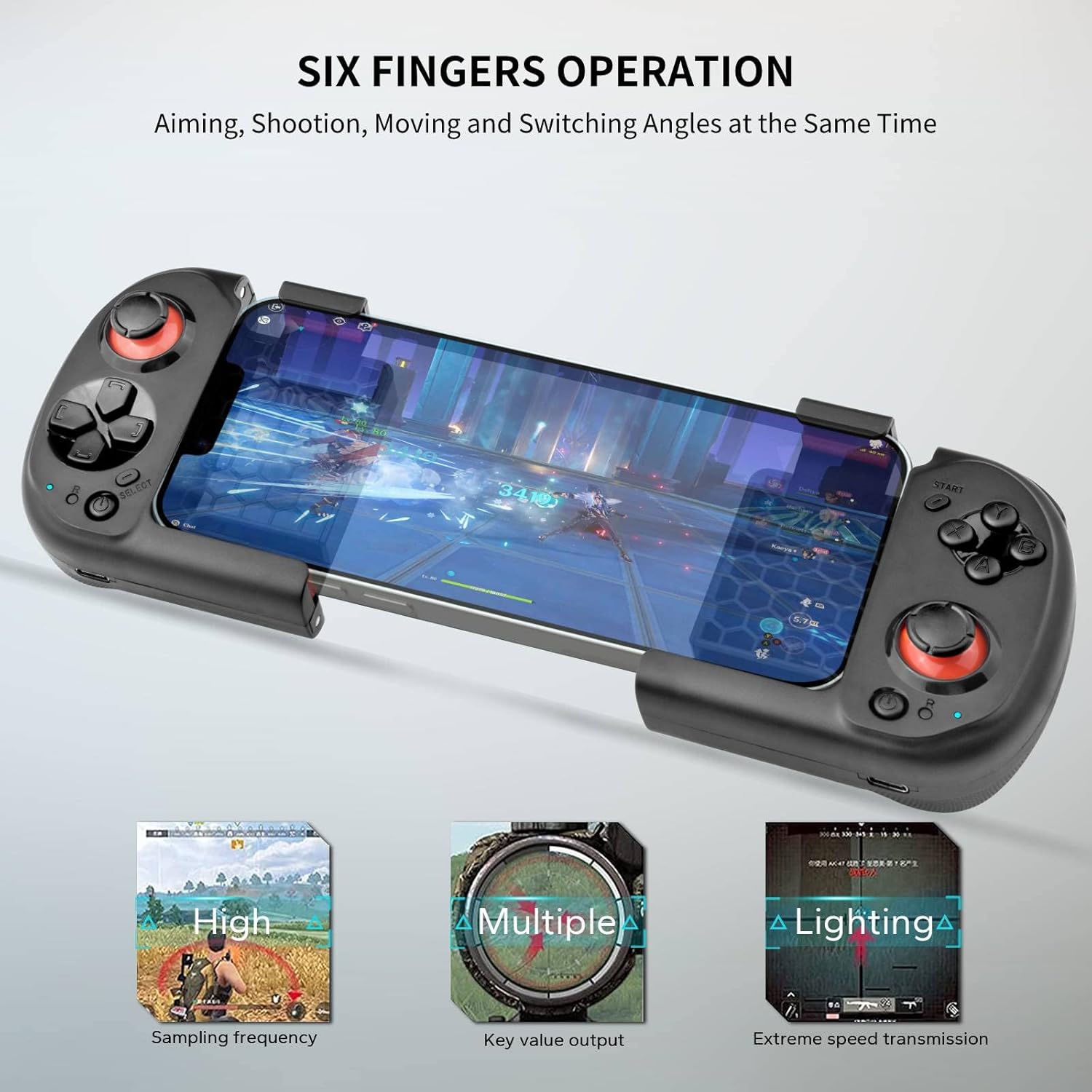
Image: Six-finger operation setup, showing how the controller allows for multiple simultaneous actions.
6. Maintenance
- Keep the controller dry. Avoid exposure to moisture or liquids.
- Clean the controller with a soft, dry cloth. Do not use abrasive cleaners or solvents.
- Store the controller in a cool, dry place, away from direct sunlight and extreme temperatures.
- Utilize the magnetic storage feature to keep the two halves securely together when not in use, protecting the internal components and reducing the risk of damage.
7. Troubleshooting
| Problem | Possible Cause | Solution |
|---|---|---|
| Controller does not connect via Bluetooth. | Incorrect pairing mode, Bluetooth off on device, low battery. |
|
| Input lag or unresponsive controls. | Interference, distance from device, low battery. |
|
| Controller not working with a specific game. | Game not compatible with controllers, incorrect connection mode. |
|
| Right-hand controller does not pair with left-hand controller. | Left-hand controller not paired, right-hand controller not powered on correctly. |
|
8. Specifications
| Feature | Detail |
|---|---|
| Brand | arVin |
| Model | B0BN42TTMD |
| Connectivity Technology | Bluetooth 4.2 |
| Controller Type | Gamepad |
| Compatible Devices | Android, iOS (iPhone 15/14/13/12/11/X/XR/XS/XS Max/8/7/6S series; Samsung Galaxy S22/S21/S20/S10/S9/S8 series; Galaxy Note, One Plus, TCL, Motorola, Huawei, Oppo, etc.) |
| Battery Capacity | 400mAh (per handle) |
| Playing Time | 15+ hours (fully charged) |
| Wireless Range | Up to 32.8 feet (10 meters) |
| Item Weight | 7.8 ounces |
| Package Dimensions | 6.02 x 4.49 x 2.32 inches |
9. Warranty and Support
Your arVin Wireless Gaming Controller comes with a standard manufacturer's warranty. For specific warranty details, please refer to the warranty card included in your product packaging or contact arVin customer service.
If you encounter any issues or have questions regarding your product, please do not hesitate to contact our friendly customer service team. Contact information can typically be found on the product packaging or on the official arVin website.


