
Roinvou 2+64G(Hi-Fi)
Roinvou Android Car Radio User Manual
Model: 2+64G(Hi-Fi) for 2006-2012 Toyota RAV4
1. Product Overview
The Roinvou 5GHz WiFi 2+64G Android Car Radio is an advanced infotainment system designed specifically for the 2006-2012 Toyota RAV4. It features a 10.1-inch HD capacitive touchscreen with 1024x600 resolution, offering a superior visual and audio experience. This unit integrates modern connectivity options such as wireless/wired Apple CarPlay and Android Auto, GPS navigation, Mirror Link, Bluetooth, and FM/RDS radio. It is equipped with a 4-core processor, 2GB RAM, and 64GB ROM for smooth operation.

Image: Roinvou Android Car Radio seamlessly integrated into a Toyota RAV4 dashboard.
2. Package Contents
Upon opening the package, please verify that all the following components are included:
- Roinvou Car Stereo Unit for Toyota RAV4
- Power Cable
- RCA Cable
- GPS Antenna
- AHD Backup Camera
- External Microphone
- Rear Camera Input Cable
- Dual USB Cable
- Installation Tool

Image: A visual representation of all items included in the product package.
3. Setup and Installation
3.1 Compatibility Check
This unit is designed for Toyota RAV4 models from 2006 to 2012. Please ensure your vehicle's dashboard configuration matches the 'Fit' example below.

Image: Visual guide for Toyota RAV4 dashboard compatibility (2006-2012 models).
3.2 General Installation Steps
- Carefully remove the original plastics from your vehicle's dashboard. A 10mm socket will be required to remove the factory radio.
- Transfer any necessary clips from the stock plastic to the new head unit.
- Connect the provided wiring harness. The harness is designed for plug-and-play installation.
- Connect the GPS antenna and external microphone.
- Proceed with connecting the backup camera if applicable (refer to section 3.3).
- Secure the new head unit in place and reassemble the dashboard plastics.
3.3 Connecting the Backup Camera
The reverse input cable must be plugged in, even if the reverse camera is not being used. Failure to do so may affect Bluetooth and Wi-Fi signal reception.

Image: Wiring diagram for connecting the rear view camera, including power and video connections.
The included AHD backup camera supports high-definition reversing images, is waterproof, offers a wide angle view, and features night vision capabilities for enhanced safety.
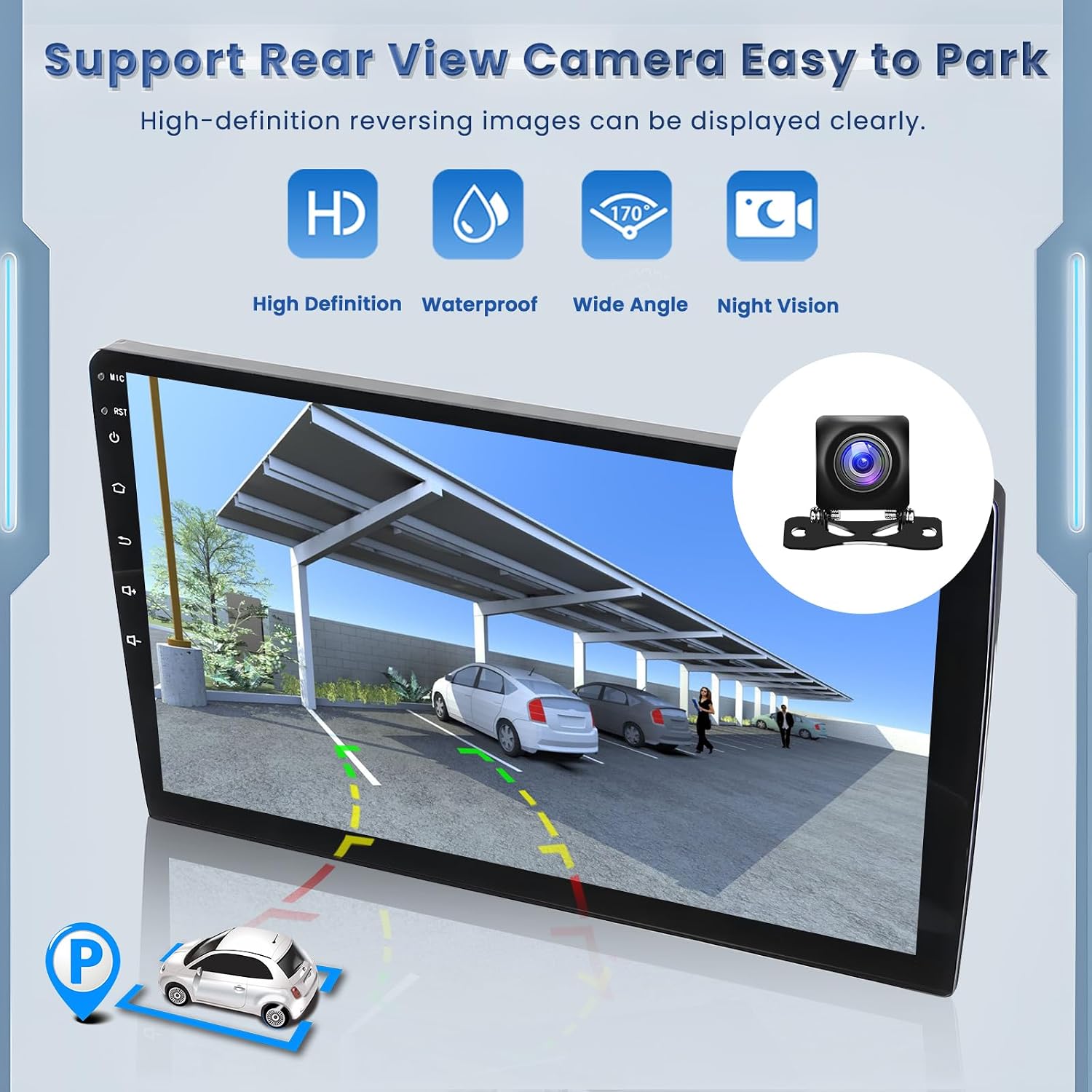
Image: Key features of the supported rear view camera for easy parking.
4. Operating Instructions
4.1 Basic Operation
The unit features a responsive touchscreen for most operations. Capacitive buttons are located on the bezel for quick access to functions. Note that the power button typically functions as a mute button.
4.2 Wireless/Wired CarPlay & Android Auto
The system supports both wireless and wired Apple CarPlay and Android Auto for seamless integration with your smartphone. This allows for voice-assisted control and easy access to navigation, music, calls, and messages.

Image: Display of the CarPlay and Android Auto interfaces, highlighting wireless and wired connection options.
Wireless Android Auto Connection Troubleshooting:
If you experience issues with wireless Android Auto, follow these steps:
- Connect to Bluetooth and wait for the ZLINK app to open automatically.
- Ensure your phone is connected to the head unit's Wi-Fi (this may take a moment to appear).
- Disconnect from Bluetooth (keep Wi-Fi connected).
- Reconnect to Bluetooth.
4.3 GPS Navigation & Wi-Fi Connectivity
The unit includes a built-in GPS module. You can use pre-installed navigation software or download apps like Waze. With a Wi-Fi/hotspot connection, online maps function optimally, and you can download other applications from the Play Store (e.g., YouTube, TikTok) to enhance your in-car experience.

Image: GPS navigation interface and icons representing various online applications accessible via Wi-Fi.
4.4 Mirror Link (Android/iOS)
Mirror Link allows you to synchronize your phone's screen with the head unit. Connect via Wi-Fi hotspot/Bluetooth (wireless) or the original USB cable (wired). Android devices support bidirectional control, while iPhones support unidirectional control. Note: Some Samsung phones may have restrictions.

Image: Illustration of Mirror Link capabilities, enabling screen mirroring from both Android and iOS devices.
4.5 Bluetooth & FM/RDS Radio
The integrated Bluetooth module, along with the built-in and external microphones, supports hands-free calling, music playback, and voice functions. You can also sync contacts. The stable FM radio features 18 preset stations and provides channel broadcasting, weather forecasts, and real-time road conditions via RDS.
4.6 Steering Wheel Control (SWC)
The unit supports steering wheel controls for convenience.
- Without CANBUS Decoder: Connect the plugs or steering wheel control wires (Key1/Key2) in the power cable to the corresponding port or wire of your original car. Then, use the 'SteeringWheelKey' manual match function to activate the button functions.
- With CANBUS Decoder: Connect the CANBUS decoder before powering on the machine. Navigate to Settings > Factory Settings (Password 8888) > Protocol settings. Select the brand of the CANBUS decoder and then the matching model and year according to your vehicle's actual situation.

Image: Instructions for configuring steering wheel controls, with and without a CANBUS decoder.
4.7 Audio Features
The unit offers multiple EQ options and Hi-Fi sound for a superior music listening experience. While it provides sound customization, note that a dedicated subwoofer level adjustment may not be available.
5. Maintenance
To ensure the longevity and optimal performance of your Roinvou car radio, follow these general maintenance guidelines:
- Keep the touchscreen clean using a soft, lint-free cloth. Avoid abrasive cleaners.
- Ensure proper ventilation around the unit to prevent overheating.
- Regularly check cable connections to ensure they are secure.
- Avoid exposing the unit to extreme temperatures or direct sunlight for prolonged periods.
6. Troubleshooting
This section addresses common issues you might encounter with your Roinvou car radio.
6.1 Common Issues and Solutions
- Backup Camera Not Working / Blank Screen: Ensure the reverse input cable is securely plugged in, even if the camera is not in use. Verify all camera connections are correct as per the wiring diagram in Section 3.3.
- Wireless Android Auto Connection Issues: Refer to the detailed troubleshooting steps in Section 4.2.
- Radio Stations Not Staying in Memory / Time Not Setting: Some users have reported this issue. Ensure the constant power wire (usually yellow) is correctly connected to a constant 12V source in your vehicle's wiring harness. This wire maintains memory settings when the ignition is off.
- Stereo Automatically Turns On with Vehicle Ignition: This behavior is often by design for quick startup. If you prefer it not to turn on automatically, you may need to manually power it off before shutting down the vehicle.
- Battery Drain: If you experience car battery drain, ensure all wiring is correctly installed and no wires are shorting. A persistent power draw when the vehicle is off could indicate an incorrect wiring connection (e.g., constant power wire connected to an accessory power source). Professional installation is recommended if issues persist.
- Poor Sound Quality with JBL Speakers: If your Toyota RAV4 has a JBL sound system, you may need a specific 16-pin JBL adapter for optimal sound output. Ensure you have the correct adapter for your vehicle's audio system.
7. Specifications
| Feature | Detail |
|---|---|
| Product Dimensions | 14.96 x 4.33 x 10.63 inches |
| Item Weight | 4.38 pounds |
| ASIN | B0BN3MPYYP |
| Brand | Roinvou |
| Connectivity Technology | Bluetooth, USB, Wi-Fi |
| Controller Type | Android, iOS |
| Special Features | Wireless and Wired CarPlay & Android Auto, 5G Wi-Fi, Bluetooth, IPS Touchscreen, Hi-Fi Sound, FM/RDS, Mirror Link, GPS Navigation, EQ Settings, Steering Wheel Control |
| Compatible Devices | iPhone, Android |
| Connector Type | USB2.0, RCA |
| Audio Output Mode | Stereo |
| Video Encoding | MKV, RMVB, AVI, MP4, MDV, etc. |
| Color | Dumb Black |
| Output Power | 45 Watts |
| Visible Screen Diagonal | 11" / 26 cm |
8. Warranty and Support
8.1 Return Policy
The product is eligible for a 30-day refund or replacement policy from the date of purchase.
8.2 Protection Plans
Extended protection plans are available for purchase:
- 2-Year Protection Plan
- 3-Year Protection Plan
- Complete Protect (monthly billing, covers eligible past and future purchases)
8.3 Customer Support
For any questions, technical assistance, or support, please contact Roinvou customer service. You can typically reach support through the Amazon platform by clicking 'Ask a question' on the seller's page, or directly via email.
Email: roinvouservices@163.com

Image: Information on how to contact Roinvou customer support for assistance.
Related documents2+64G(Hi-Fi)

Ask a question about this manual
Ask about setup, troubleshooting, compatibility, parts, safety, or missing instructions. Manuals+ will review the question and use this page’s manual context to help answer it.