
1. Introduction
The Keychron K4 Pro is a QMK/VIA wireless custom mechanical keyboard designed for versatility and a premium typing experience. It features hot-swappable switches, allowing for easy customization without soldering, and offers both wireless Bluetooth 5.1 and wired USB Type-C connectivity. Compatible with macOS, Windows, and Linux, the K4 Pro provides a robust platform for both productivity and gaming.

Figure 1: Keychron K4 Pro 96% Layout Mechanical Keyboard.
2. What's in the Box
The Keychron K4 Pro Fully Assembled Version package includes the following components:
- 1x Fully Assembled Keyboard (including PCB, Steel Plate, Sound Absorbing Foam, Silicone Bottom Pad, 6 Sets of PCB Screw-In Stabilizers)
- 1x Set of Keycaps (Double-Shot PBT)
- 1x Set of Switches (Keychron K Pro Red)
- 1x Type-A to Type-C Cable
- 1x Switch Puller
- 1x Keycap Puller
- 1x Screwdriver

Figure 2: Package Contents of the Keychron K4 Pro.
3. Setup
3.1 Initial Charging
Before first use, connect the keyboard to a power source using the provided USB Type-C cable. The keyboard includes a Lithium Polymer battery. A full charge ensures optimal wireless performance.
3.2 Connectivity Modes
The K4 Pro supports both wireless Bluetooth and wired USB Type-C connections.
- Wireless Bluetooth: The keyboard can connect to up to three devices simultaneously via Broadcom Bluetooth 5.1. Use the switch on the side of the keyboard to select Bluetooth mode.
- Wired USB Type-C: For a direct connection and 1000 Hz polling rate, use the provided USB Type-C cable. Select the 'Cable' mode using the switch on the side.

Figure 3: Multi-device Bluetooth connectivity.
3.3 Operating System Switch
The K4 Pro includes keycaps for both Windows and macOS. Use the system switch located on the side of the keyboard to select the appropriate operating system mode (Mac/iOS or Windows/Android) for correct key functionality.
4. Operating Instructions
4.1 QMK/VIA Programmability
The Keychron K4 Pro is fully programmable with QMK/VIA firmware, allowing you to remap keys, create macros, and customize keyboard layers. To use VIA:
- Connect the K4 Pro to your device via USB cable.
- Download the appropriate .JSON file for your K4 Pro model from the Keychron website.
- Access the VIA web application (or desktop client).
- Load the .JSON file into VIA.
- Drag and drop desired keys or macro commands to remap any key on any system (macOS, Windows, or Linux).
The keyboard features an ultra-low-power ARM Cortex-M4 32-bit STM32L432 MCU with 128K Flash for advanced customization.

Figure 4: VIA software interface for key remapping.
4.2 Hot-Swappable Switches
The K4 Pro features hot-swappable sockets, enabling you to change mechanical switches without soldering. This allows for personalized typing experiences.
- Use the provided switch puller to carefully remove the existing switch.
- Align the pins of the new 3-pin or 5-pin MX style mechanical switch with the sockets on the PCB.
- Gently press the new switch into place until it clicks. Ensure it is fully seated.
The PCB-mounted screw-in stabilizers provide a smoother typing experience for larger keys like the space bar, shift, enter, and backspace.

Figure 5: Hot-swappable switch installation.

Figure 6: Variety of hot-swappable switches.
4.3 White LED Backlight
The K4 Pro features 14 types of white LED backlight settings. You can adjust the brightness and effect speed directly from the keyboard. Refer to the keyboard's quick start guide for specific key combinations to control the backlight.
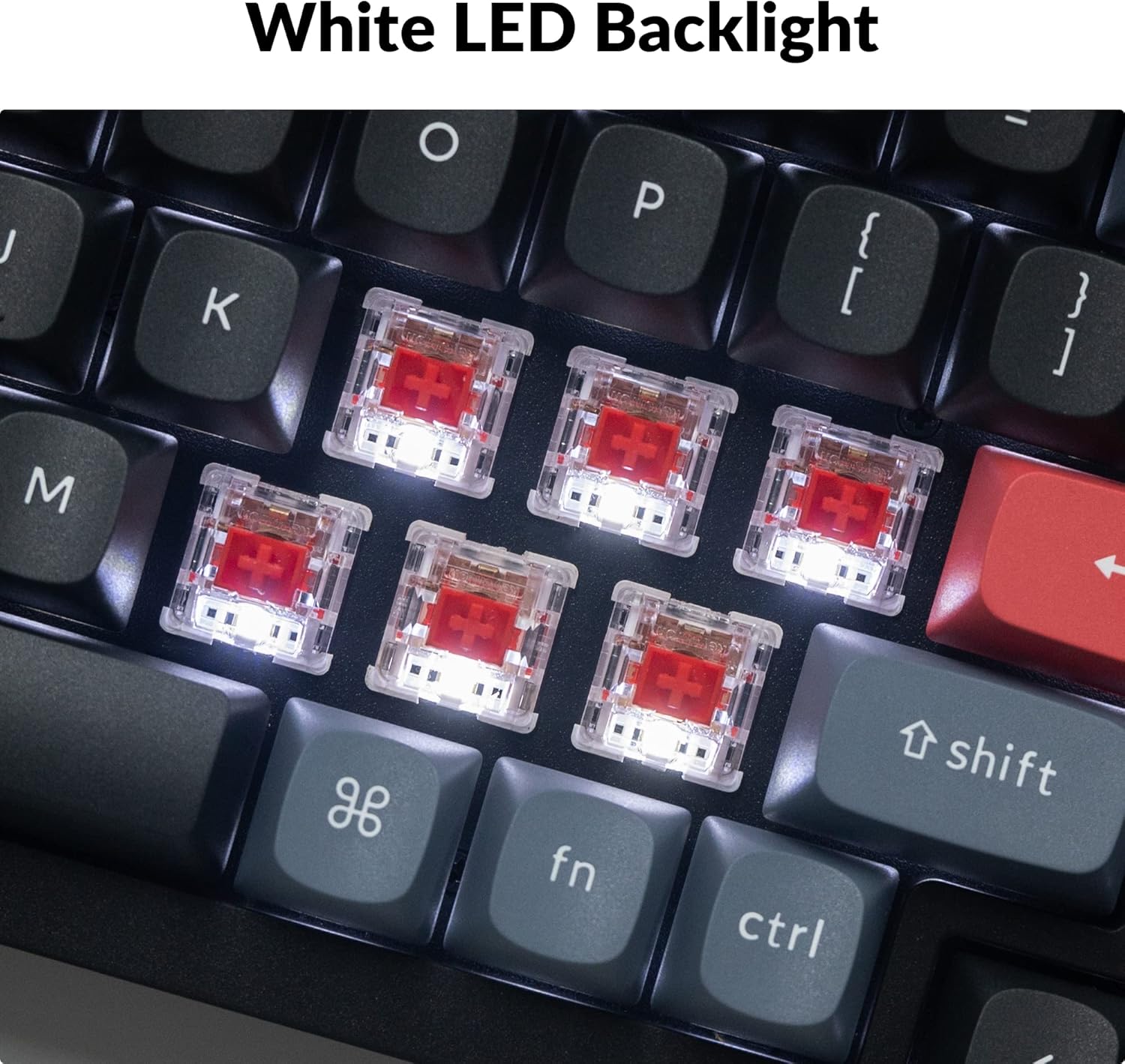
Figure 7: White LED Backlight in operation.
4.4 Ergonomic Support
The keyboard is designed with adjustable feet, offering 3°, 7°, and 10° typing angles to enhance ergonomic comfort during extended use.

Figure 8: Adjustable ergonomic angles.
5. Maintenance
5.1 Cleaning
- Use a soft, dry cloth to wipe the keyboard surface.
- For deeper cleaning, remove keycaps using the provided keycap puller and use compressed air to clear debris from between switches.
- Avoid using harsh chemicals or abrasive materials.
5.2 Switch Care
The K Pro Red switches are pre-lubed for optimal performance. If replacing switches, ensure proper alignment to avoid bending pins. Store spare switches and keycaps in a clean, dry place.
6. Troubleshooting
- Keyboard not connecting via Bluetooth: Ensure the keyboard is in Bluetooth mode and fully charged. Try re-pairing the device. Check if the keyboard is already connected to three devices; if so, disconnect one.
- Keys not responding: Check if the keyboard is in the correct operating system mode (Mac/Windows). If using wireless, ensure sufficient battery. For specific keys, consider hot-swapping the switch to rule out a faulty switch.
- Backlight not working: Ensure the backlight is enabled and brightness is adjusted. Check battery level if in wireless mode.
- VIA software issues: Ensure you have downloaded the correct .JSON file for your specific K4 Pro model from the official Keychron website. Connect the keyboard via USB for VIA programming.
- Intermittent connectivity: Ensure no strong interference sources are nearby. Try updating Bluetooth drivers on your computer. If issues persist, try a wired connection.
7. Specifications
| Feature | Detail |
|---|---|
| Model Number | Keychron K4P-G1 |
| Connectivity | Bluetooth 5.1, USB Type-C |
| Keyboard Description | Mechanical |
| Switches | Hot-swappable Keychron K Pro Red |
| Keycaps | OSA Profile Double-shot PBT |
| Backlight | White LED (14 types) |
| Layout | 96% (100-key) |
| Compatible Devices | Laptop, Tablet (macOS, Windows, Linux) |
| Battery | 1 Lithium Polymer battery (included) |
| Item Weight | 3.79 pounds |
| Material | Polybutylene Terephthalate (PBT) |

Figure 9: Exploded view of Keychron K4 Pro internal components.
8. Warranty and Support
Keychron products are covered by a manufacturer's warranty. For detailed warranty information, product support, or to contact customer service, please visit the official Keychron website. Keep your proof of purchase for warranty claims.
Official Keychron Website: www.keychron.com


