
1. Introduction
The Blackmagic Design ATEM 1 M/E Constellation HD is a high-definition live production switcher designed for professional broadcast and live event environments. This device integrates advanced features into a compact rack-mount design, offering extensive connectivity and control for complex productions.
Key features include:
- 10 standards-converted 3G-SDI inputs for versatile camera and source integration.
- 6 independent 3G-SDI auxiliary outputs.
- Integrated USB webcam output for direct streaming.
- Digital Video Effects (DVE) for transitions and keyers.
- Chroma keyers for advanced compositing.
- Media players for graphics and stills.
- 16-way Multiview for comprehensive monitoring.
- Built-in Fairlight audio mixer for professional audio control.
- Full front panel control with an LCD screen for setup and emergency operation.

Figure 1: Angled front view of the ATEM 1 M/E Constellation HD Live Production Switcher.
2. Setup
Proper setup is crucial for optimal performance of your ATEM 1 M/E Constellation HD. Follow these steps to connect your device.
2.1 Power Connection
Connect the included 6ft power cord to the AC power input on the rear panel of the switcher and then to a suitable power outlet. Ensure the power source meets the device's requirements.
2.2 Video Inputs and Outputs
The switcher features 10 standards-converted 3G-SDI inputs and 6 independent 3G-SDI outputs. Connect your cameras and other video sources to the SDI inputs. Connect your monitors, recorders, and streaming encoders to the SDI outputs as needed. The Multiview output provides a consolidated view of all sources, program, and preview feeds.
2.3 Audio Connections
Utilize the two balanced 1/4" TRS analog audio inputs for external audio sources. The built-in Fairlight audio mixer allows for comprehensive audio control and mixing.
2.4 Control and Talkback
Connect an Ethernet cable to the 'CONTROL' RJ-45 port for remote control via ATEM Software Control on a computer. The 'TALKBACK' RJ-45 port and 5-pin XLR connection are available for communication with camera operators and production crew.
2.5 USB Webcam Output
Connect a USB-C cable from the switcher's USB-C port to your computer to utilize the device as a webcam source for streaming applications.

Figure 2: Rear panel connections of the ATEM 1 M/E Constellation HD.
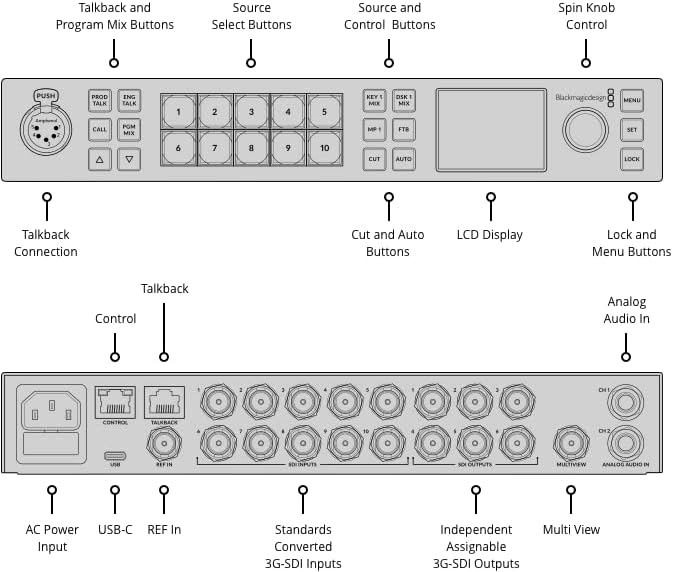
Figure 3: Labeled diagram of the front and rear panels for connection and control identification.
3. Operating Instructions
The ATEM 1 M/E Constellation HD offers intuitive controls for live production. This section outlines basic operation.
3.1 Front Panel Controls
The front panel provides direct access to essential functions:
- Source Select Buttons (1-10): Press these buttons to select video sources for preview or program. Green indicates preview, red indicates program.
- Cut and Auto Buttons: Use 'CUT' for an instant transition between preview and program. 'AUTO' performs a programmed transition (e.g., dissolve, wipe).
- DSK 1 Mix / MP 1 / FTB Buttons: Control Downstream Keyers, Media Player 1, and Fade to Black functions.
- LCD Display: Shows program output, menu options, and various settings.
- Spin Knob Control: Navigate menus and adjust parameters displayed on the LCD.
- MENU / SET / LOCK Buttons: Access system menus, confirm selections, and lock controls to prevent accidental changes.
- Talkback and Program Mix Buttons: Manage talkback communication and program audio mix.

Figure 4: Front panel layout with control buttons and LCD display.
3.2 Software Control
For advanced control and configuration, connect the switcher to a computer via Ethernet and use the Blackmagic Design ATEM Software Control application. This software provides a graphical interface for managing all switcher functions, including media pool, audio mixer, macros, and more.
3.3 Multiview Monitoring
Connect a monitor to the Multiview SDI output to view all your video inputs, program output, preview output, and status indicators on a single screen. This is essential for monitoring multiple sources simultaneously.
4. Maintenance
To ensure the longevity and reliable operation of your ATEM 1 M/E Constellation HD, follow these maintenance guidelines:
- Cleaning: Regularly clean the exterior of the unit with a soft, dry cloth. Avoid using liquid cleaners or solvents, as they can damage the finish or internal components.
- Ventilation: Ensure that the ventilation openings on the sides and rear of the unit are not obstructed. Proper airflow is essential to prevent overheating.
- Environment: Operate the switcher in a clean, dry environment with stable temperature and humidity. Avoid extreme temperatures, direct sunlight, and excessive dust.
- Firmware Updates: Periodically check the Blackmagic Design website for firmware updates. Keeping your device's firmware current can improve performance and add new features.
5. Troubleshooting
This section addresses common issues you might encounter with your ATEM 1 M/E Constellation HD.
5.1 No Video Output
- Verify all SDI cables are securely connected to both the switcher and the display devices.
- Ensure the input sources are active and providing a valid video signal.
- Check that the output format of the switcher matches the capabilities of your display device.
- Confirm that the correct source is selected on the program bus.
5.2 Audio Issues
- Check all audio cable connections.
- Verify audio levels in the Fairlight audio mixer.
- Ensure the correct audio input is selected and routed to the program output.
- If experiencing issues with multiple audio channels, consult the Blackmagic Design support documentation for specific audio configuration details.
5.3 Ethernet Control Not Working
- Ensure the Ethernet cable is properly connected to the 'CONTROL' port on the switcher and your network.
- Verify that your computer's network settings are configured correctly to communicate with the switcher (e.g., IP address settings).
- Restart both the switcher and the computer.
- Confirm that the ATEM Software Control application is installed and running correctly.
- If the issue persists, try a different Ethernet cable or port on your network device.
5.4 Device Not Responding
- If the front panel controls become unresponsive, try pressing the 'LOCK' button to unlock them.
- Perform a power cycle by disconnecting the power cord, waiting 30 seconds, and then reconnecting it.
6. Specifications
Below are the technical specifications for the Blackmagic Design ATEM 1 M/E Constellation HD Live Production Switcher:
- Model Number: SWATEMSCN2/1ME1/HD
- Inputs: 10 x standards converted 3G/HD/SD-SDI, 1 x Reference SDI, 2 x balanced 1/4" TRS input, 1 x 5 pin XLR talkback, 2 x RJ-45 (Control and Talkback)
- Outputs: 6 x 3G-SDI, 1 x USB Type-C (webcam output), 1 x 16-Way Multiview SDI
- Number of Ports: 16 (SDI)
- Video Format: 1080p HD
- Audio Mixer: 28-channel digital audio mixer (Fairlight)
- Keyers: Chroma keyers, DVE for transitions and keyers
- Media Players: Integrated media players
- Control: Ethernet (RJ45), Front Panel
- Manufacturer: Blackmagic Design
- UPC: 718356223409
- Dimensions (Approximate): 11 inches (Width) x 6.94 inches (Depth) x 1.74 inches (Height)
- Weight (Approximate): 4.13 lbs

Figure 5: Physical dimensions of the ATEM 1 M/E Constellation HD.
7. Warranty and Support
This product is covered by a manufacturer's warranty. For detailed information regarding warranty terms, duration, and conditions, please refer to the documentation included with your purchase or visit the official Blackmagic Design website.
For technical support, product registration, and access to the latest software and firmware updates, please visit the Blackmagic Design support page:
When contacting support, please have your product model number (SWATEMSCN2/1ME1/HD) and serial number ready.


