
1. Product Overview
The Samsung Crystal UHD 4K Smart TV UE43AU7090UXZT offers a high-quality viewing experience with its 4K resolution and smart features. This manual provides essential information for setting up, operating, and maintaining your television.
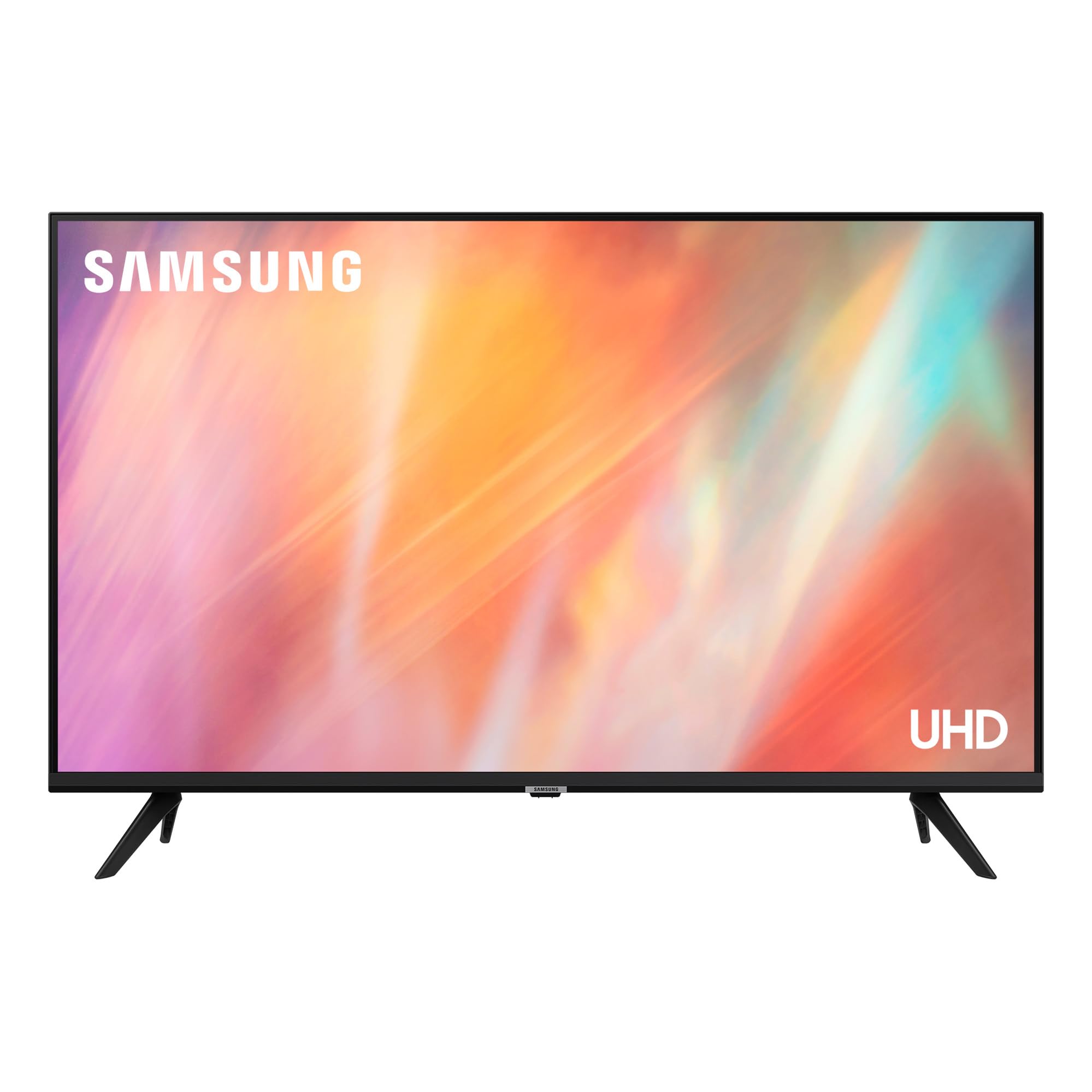
Image 1.1: Front view of the Samsung Crystal UHD 4K Smart TV UE43AU7090UXZT.
2. Setup
2.1 Unpacking and Inspection
Carefully remove the television from its packaging. Inspect all components for any signs of damage. Ensure all listed accessories are present, including the Smart TV and remote control.
2.2 Stand Installation
To install the TV stand:
- Place the TV screen-down on a soft, flat surface to prevent scratches.
- Align the two stand feet with the corresponding slots on the bottom of the TV.
- Secure the feet using the provided screws. Ensure the feet are firmly attached to prevent instability.
Note: If you experience any wobbling after installation, re-check the screw tightness and ensure the feet are correctly seated.
2.3 Wall Mounting
This TV supports VESA wall mounts with a standard of 200 x 200 mm. For wall mounting, consult a professional installer and refer to the wall mount kit's instructions for safe and secure installation.
2.4 Connecting Power
Plug the power cord into the TV's power input, then connect the other end to a wall outlet. The TV will enter standby mode.
2.5 Initial Setup
Upon first power-on, the TV will guide you through the initial setup process:
- Language Selection: Choose your preferred language.
- Network Connection: Connect to your home Wi-Fi network. You can also use an Ethernet cable for a wired connection.
- Smart Hub Setup: Configure your Samsung account to access smart features and applications.
- Channel Tuning: The TV is equipped with a DVB-T2 tuner. Follow the on-screen prompts to scan for available digital terrestrial channels.
- Smartphone Integration: For a streamlined setup, you can connect your smartphone to automatically transfer Wi-Fi settings and Samsung account information.
3. Operating Your TV
3.1 Remote Control
The included remote control features a minimalist design. Use the directional pad and central 'Select' button for navigation. Dedicated buttons provide quick access to power, volume, channel, and the Smart Hub.
3.2 Smart Hub and Applications
The Smart Hub, powered by the Tizen operating system, provides access to a variety of streaming services and applications. Popular apps like Netflix, Disney+, and MyCanal are pre-installed or easily downloadable.

Image 3.1: The Smart TV interface showing various applications and connectivity options.
3.3 Picture Settings
Your TV features a Crystal Processor 4K for enhanced color and clarity, and supports HDR (HDR10) for improved contrast in bright and dark scenes. Adjust picture modes (e.g., Standard, Dynamic, Movie) and fine-tune settings like brightness, contrast, sharpness, and color saturation through the TV's menu.

Image 3.2: Visual representation of the TV's 4K display capabilities.
3.4 Audio Settings
The TV is equipped with OTS Lite for dynamic audio that follows the action and supports Dolby Digital Plus for immersive sound. It features 20W speakers with 5.1 channel audio output. You can customize sound profiles (e.g., Standard, Adaptive Sound) and use the built-in equalizer for detailed audio adjustments to suit your preferences.

Image 3.3: The TV's audio system delivering rich sound, suitable for music and movies.
3.5 Gaming Features
For an enhanced gaming experience, the Motion Xcelerator technology provides smoother motion and reduced blur. Connect your gaming console via HDMI for optimal performance.
3.6 Connectivity and Screen Mirroring
The TV offers multiple connectivity options including 3 HDMI ports, 2 USB ports, Ethernet, Bluetooth, and Wi-Fi. You can mirror content from compatible devices to your TV screen using Wi-Fi Direct or other screen mirroring features.
3.7 Parental Controls
Integrated parental control features allow you to manage content access and viewing times. Refer to the TV's on-screen menu for detailed setup instructions.
4. Maintenance
4.1 Cleaning Your TV
- Screen: Gently wipe the screen with a soft, dry microfiber cloth. For stubborn marks, lightly dampen the cloth with water or a specialized screen cleaner. Avoid harsh chemicals.
- Body: Use a soft, dry cloth to clean the TV's frame and back panel.
- Always unplug the TV before cleaning.
4.2 Software Updates
Regularly check for and install software updates to ensure optimal performance and access to the latest features. You can usually find this option in the TV's settings menu under 'Support' or 'Software Update'.
5. Troubleshooting
If you encounter issues with your TV, refer to the following common troubleshooting steps:
- No Power: Ensure the power cord is securely plugged into both the TV and a working wall outlet. Try a different outlet.
- No Picture/Sound: Verify the correct input source is selected. Check all HDMI and audio cables for secure connections. Increase the volume.
- Remote Control Not Working: Replace the AA batteries in the remote. Ensure there are no obstructions between the remote and the TV.
- Network Connection Issues: Restart your Wi-Fi router and the TV. Re-enter your Wi-Fi password in the TV's network settings.
- Unstable Stand: Re-check the installation of the stand feet, ensuring all screws are tightened properly.
- Voice Assistant Issues: If a voice assistant is speaking unexpectedly, check accessibility settings in the TV menu to disable voice guidance.
- General Issues: Perform a factory reset through the TV's settings menu as a last resort. This will erase all personalized settings.
For further assistance, please contact Samsung customer support.
6. Specifications
| Feature | Specification |
|---|---|
| Model Name | AU7090 |
| Model Number | UE43AU7090UXZT |
| Screen Size | 43 inches |
| Display Technology | LED |
| Resolution | 4K UHD (3840 x 2160) |
| Refresh Rate | 50 Hz |
| HDR Support | HDR10 |
| Operating System | Tizen |
| Audio Output | 20 Watt, 5.1 Channel, Dolby Digital Plus |
| Connectivity | 3x HDMI, 2x USB, Ethernet, Wi-Fi, Bluetooth |
| VESA Mounting Standard | 200 x 200 mm |
| Dimensions (WxHxD with stand) | 95.8P x 63.1l x 21.8H cm |
| Weight (without stand) | 7.4 Kilograms |
| Included Components | 1x Smart TV, 1x Remote |
7. Warranty and Support
7.1 Warranty Information
This Samsung TV comes with a 2-year manufacturer's warranty. Please retain your proof of purchase for warranty claims. The warranty covers defects in materials and workmanship under normal use.
7.2 Customer Support
For technical support, service, or warranty inquiries, please contact Samsung customer service. You can find contact information and additional resources on the official Samsung website.


