
1. Introduction
This manual provides detailed instructions for the installation, operation, and maintenance of your Tenveo PTZ 4K Streaming Camera, Model EU-VL12U. Please read this manual thoroughly before using the product to ensure proper functionality and to prevent damage.
2. Package Contents
Verify that all items listed below are included in your package. If any items are missing or damaged, please contact Tenveo customer support.
- 1x Tenveo PTZ 4K Streaming Camera (EU-VL12U)
- 1x USB Cable
- 1x Power Adapter (DC 12V/2A)
- 1x Wall Mount Bracket
- 1x IR Remote Control
- 1x User Manual (this document)

Image: The Tenveo PTZ 4K Streaming Camera shown with its various connection ports and the accessories included in the package, such as the remote control, USB cable, power adapter, and wall mount.
3. Product Features
The Tenveo EU-VL12U camera is designed for high-quality video conferencing and live streaming, offering advanced features for a seamless experience.
- 4K Ultra-HD Imaging: Equipped with a 4K Ultra-HD imaging system and a 1/2.8-inch CMOS sensor, delivering sharp video and accurate colors at resolutions up to 4K.
- 12X Optical Zoom: Features a 12x optical zoom lens, allowing clear capture of details without image distortion during pan and tilt movements.
- AI Auto-Tracking: Integrates an advanced AI algorithm for human shape and face recognition, enabling precise automatic tracking and perfect framing.
- Multi-Interface Connectivity: Supports USB 3.0, HDMI, and RJ45 (PoE) interfaces for versatile connection options.
- Universal Compatibility: Outputs 4K@30fps via HDMI and USB3.0, and 1080p@60fps via IP streams (MJPG, H.264, H.265). Compatible with major conferencing software like Zoom, Skype for Business, Microsoft Teams, and WebEx.

Image: An infographic highlighting the key features of the Tenveo VL12U camera, including AI auto-tracking, 12X optical zoom, 4K UHD resolution, and multi-interface connectivity.

Image: A visual representation of the camera's resolution capabilities, emphasizing 4K at 30 frames per second, 8.29-megapixel quality, and the 1/2.8-inch sensor with auto/manual focus.
4. Setup
Follow these steps to set up your Tenveo PTZ camera:
- Placement: Position the camera on a stable surface or mount it using the included wall mount bracket. Ensure the camera has a clear line of sight to the area you wish to capture.
- Power Connection: Connect the provided power adapter to the camera's DC 12V port and plug it into a power outlet.
- Video Output Connection:
- USB 3.0: Connect the camera to your computer using the supplied USB cable.
- HDMI: Connect an HDMI cable from the camera to a display or video switcher.
- RJ45 (PoE): For network connectivity and Power over Ethernet, connect an Ethernet cable from the camera to a PoE-enabled network switch. If your network switch does not support PoE, a separate power adapter is required.
- Software Recognition: Once connected, your computer (Windows 7/8.1/10 or Mac OS X 10.7+) should recognize the camera as a standard webcam.

Image: An illustration demonstrating three different setup configurations for the camera: direct USB connection, Ethernet (PoE) connection through a network switch, and HDMI connection via a video switcher, all leading to a PC for live streaming.
5. Operating Instructions
Control the camera's pan, tilt, and zoom functions using the included IR remote control or through a web interface.
5.1 Basic Camera Control
- Pan/Tilt: Use the directional buttons on the remote control to move the camera horizontally (pan) and vertically (tilt). The camera supports a horizontal rotation of ±175° and a vertical tilt of -90° to +90°.
- Zoom: Use the zoom in/out buttons to adjust the 12x optical zoom.
- Preset Positions: The remote control supports setting and recalling up to 10 preset camera positions. Refer to the remote control section for detailed instructions.
5.2 AI Auto-Tracking
The camera's AI auto-tracking feature can automatically follow a presenter or speaker.
- Activation: Press the dedicated AI tracking button on the remote control to activate this feature. The camera will detect human shapes and faces to initiate tracking.
- Dynamic Autoframing: When AI tracking is active, the camera will automatically adjust its frame to keep the subject centered and optimally composed.
- Deactivation: Press the AI tracking button again to deactivate the feature and return to manual control.

Image: A visual demonstrating the AI auto-tracking and dynamic autoframing capabilities, showing how the camera identifies and follows subjects, along with interfaces for remote and web control.
5.3 Remote Control Functions
The IR remote control provides comprehensive control over the camera's functions.
- Auto-Framing: Press the 'A' button to activate or deactivate auto-framing.
- Activate AI Tracking: Briefly press the AI tracking button, then briefly press the target selection button (if multiple people are present), then press Home to confirm.
- Deactivate AI Tracking: Briefly press the tracking exit button to stop tracking (returns to auto-framing). Alternatively, press the AI tracking button directly to disable AI (returns to normal mode).
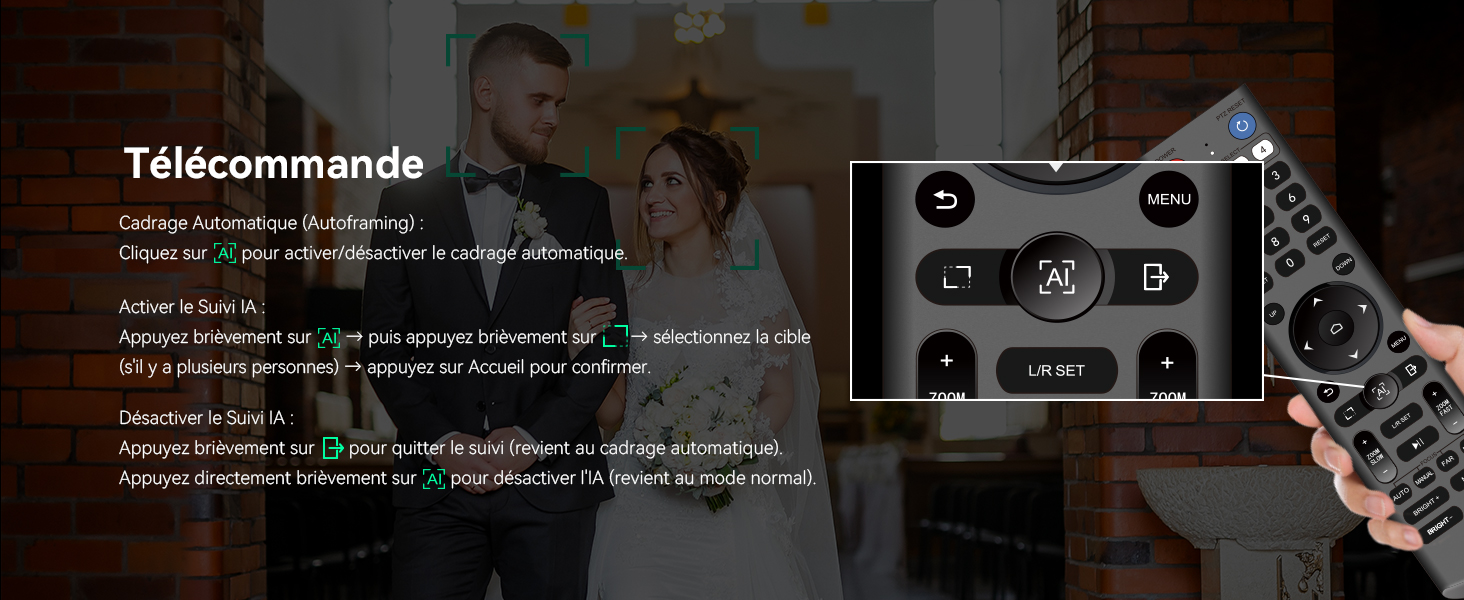
Image: The remote control for the Tenveo camera, showing specific buttons for auto-framing and AI tracking, with instructions on how to use them.
5.4 Web Interface Control
The camera can also be controlled via a web interface, offering advanced settings and real-time preview.
- Access: Connect the camera to your network via the RJ45 port. Open a web browser and enter the camera's IP address (refer to your network settings or camera's default IP).
- Functions: The web interface allows for precise control of pan, tilt, zoom, focus, image settings, and AI tracking modes.

Image: A screenshot of the camera's web-based control interface, displaying options for tracking, pan-tilt-zoom adjustments, and various image settings.
6. Applications and Usage Scenarios
The Tenveo EU-VL12U camera is versatile and suitable for a wide range of professional and educational environments.
- Video Conferencing: Ideal for corporate meetings, remote work, and virtual classrooms.
- Live Streaming: Perfect for broadcasting church services, sports events, concerts, and online content creation.
- Event Capture: Suitable for recording large conferences, presentations, and other public gatherings.
- Education: Enhances distance learning and lecture capture.

Image: A collage of four images illustrating diverse applications for the camera, including church services, hybrid work meetings, indoor live streaming, and event coverage.

Image: The Tenveo PTZ camera positioned in a church, highlighting its 12X optical zoom capability to capture distant subjects clearly.
7. Specifications
| Feature | Specification |
|---|---|
| Brand | Tenveo |
| Model Number | EU-VL12U |
| Sensor Technology | CMOS |
| Optical Sensor Size | 1/2.8 inch |
| Effective Resolution | 8.29 Megapixels |
| Video Recording Resolution | 4K, 1080p |
| Optical Zoom | 12x |
| Digital Zoom | 12x |
| Connectivity Technology | USB 3.0, HDMI, RJ45 (PoE) |
| Pan/Tilt Range | Pan: ±175°, Tilt: -90° to +90° |
| Focus Type | Auto Focus, Manual Focus |
| Supported Operating Systems | Windows 7, 8.1, 10; Mac OS X 10.7 or higher |
| Compatible Devices/Software | Zoom, Skype for Business, Microsoft Lync (Teams), Voovmeeting, CISCO WebEx |
| Image Stabilization | Yes |
| Color | Silver |
8. Troubleshooting
If you encounter issues with your Tenveo PTZ camera, please refer to the following common solutions:
- No Power: Ensure the power adapter is securely connected to the camera and a working power outlet.
- No Video Output: Check all cable connections (USB, HDMI, Ethernet). Verify that the correct input source is selected on your display or video switcher. For network connections, ensure the camera's IP address is correct and accessible.
- Camera Not Recognized: For USB connections, try a different USB port or cable. Ensure your operating system meets the minimum requirements and that drivers are installed if necessary (usually plug-and-play).
- AI Tracking Issues: Ensure the lighting conditions are adequate and there are no obstructions between the camera and the subject. Avoid rapid movements that might confuse the tracking algorithm.
- Remote Control Not Working: Check the batteries in the remote control. Ensure there is a clear line of sight between the remote and the camera's IR receiver.
For persistent issues, consult the full user manual (PDF) available online or contact customer support.
9. Maintenance
Proper maintenance ensures the longevity and optimal performance of your camera.
- Cleaning: Use a soft, dry cloth to clean the camera body. For the lens, use a specialized lens cleaning cloth and solution. Avoid abrasive cleaners or solvents.
- Storage: When not in use for extended periods, store the camera in a dry, dust-free environment.
- Handling: Handle the camera with care to avoid physical damage, especially to the lens and PTZ mechanism.
10. Warranty and Support
Tenveo is committed to providing high-quality products and excellent customer service.
- Warranty: The Tenveo PTZ 4K Streaming Camera comes with a 3-year warranty.
- Money-Back Guarantee: Enjoy a 30-day money-back guarantee for any reason.
- Technical Support: Lifetime technical support is available. For assistance, please contact us at sales@tenveo.com.
- Online Upgrades: Benefit from permanent and free online software upgrades.