
1. Introduction
Thank you for choosing the KUIYN 383 PRO M8 Ultralight Wired Gaming Mouse. This manual provides detailed instructions for setting up, operating, maintaining, and troubleshooting your new gaming mouse. Please read this manual carefully to ensure optimal performance and longevity of your device.
2. Product Overview
The KUIYN 383 PRO M8 is an ultralight wired gaming mouse designed for precision and comfort. It features a honeycomb shell for reduced weight, customizable RGB lighting, and adjustable DPI settings to suit various gaming styles and tasks.
Key Features:
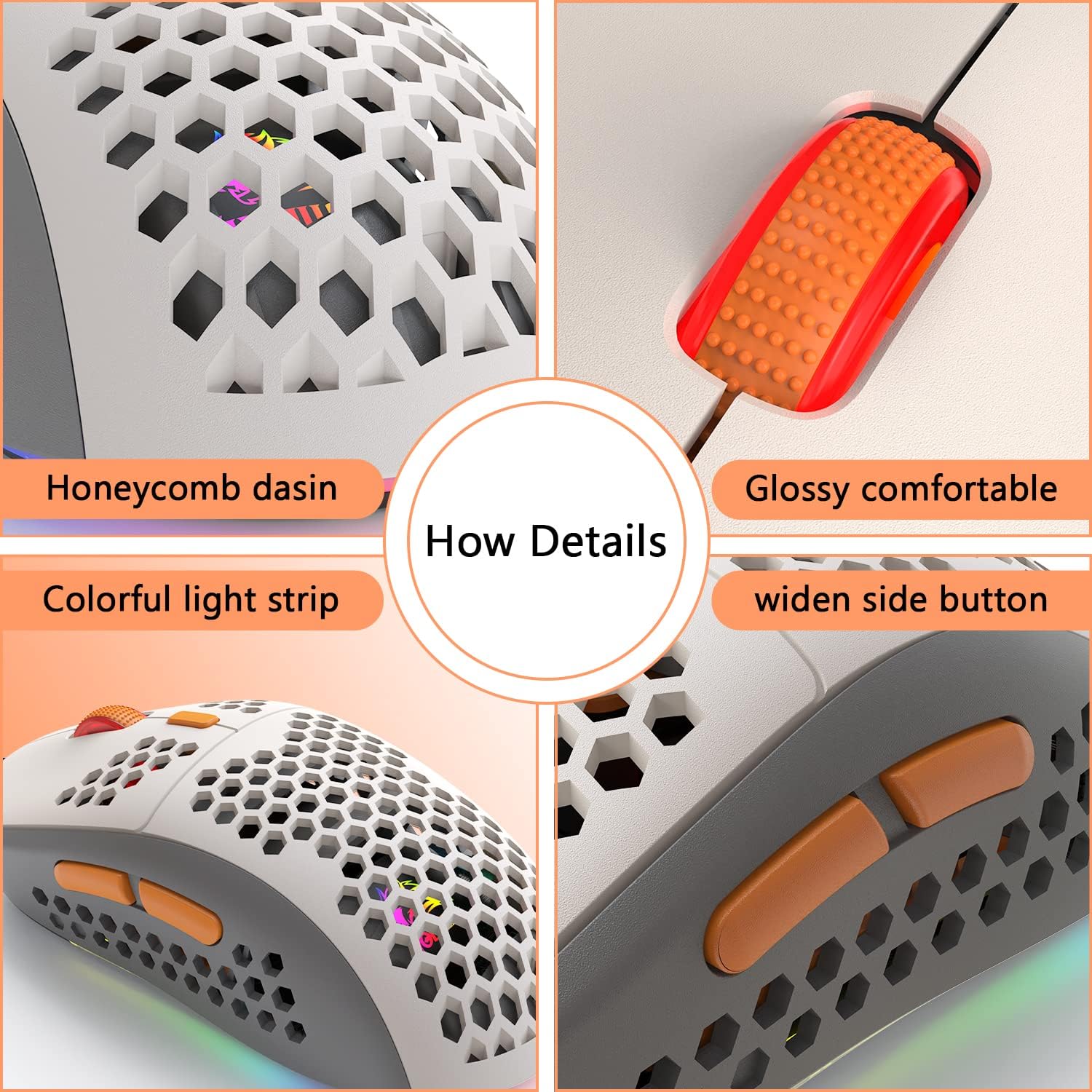
- Ultralight Honeycomb Design: Weighing approximately 69g, the hollow design reduces hand fatigue during extended use.
- 6 RGB Lighting Effects: Customizable lighting modes for personalized aesthetics.
- 6 Adjustable DPI Levels: Ranging from 800 to 6400 DPI for precise control.
- 7 Buttons: Includes 6 programmable buttons and 1 RGB control button.
- Ergonomic Design: Comfortable grip suitable for various hand sizes and postures.
- Wide Compatibility: Supports Windows, Mac, Xbox, and PlayStation systems.
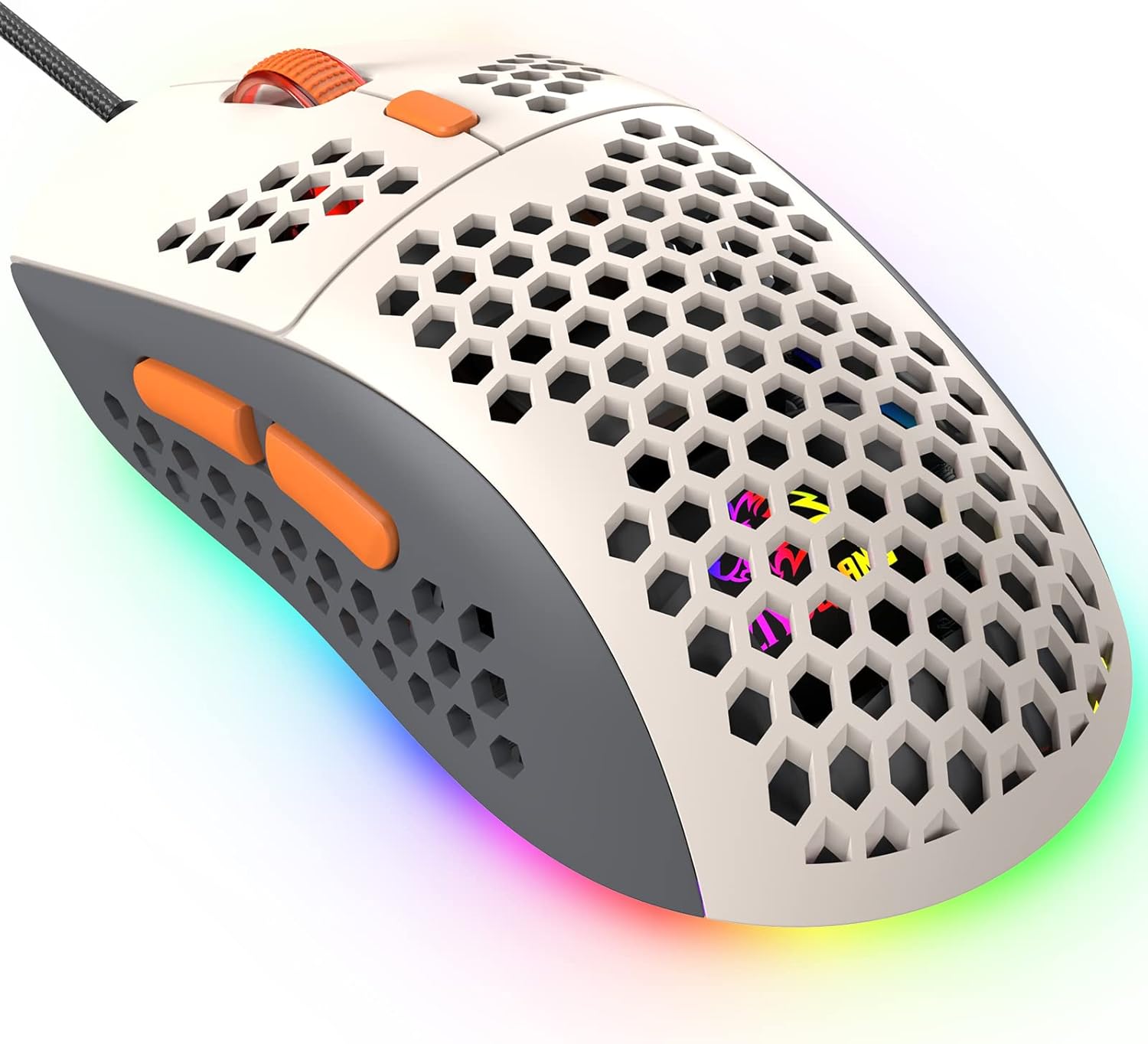
The mouse's lightweight construction and ergonomic shape are designed for comfort and performance.
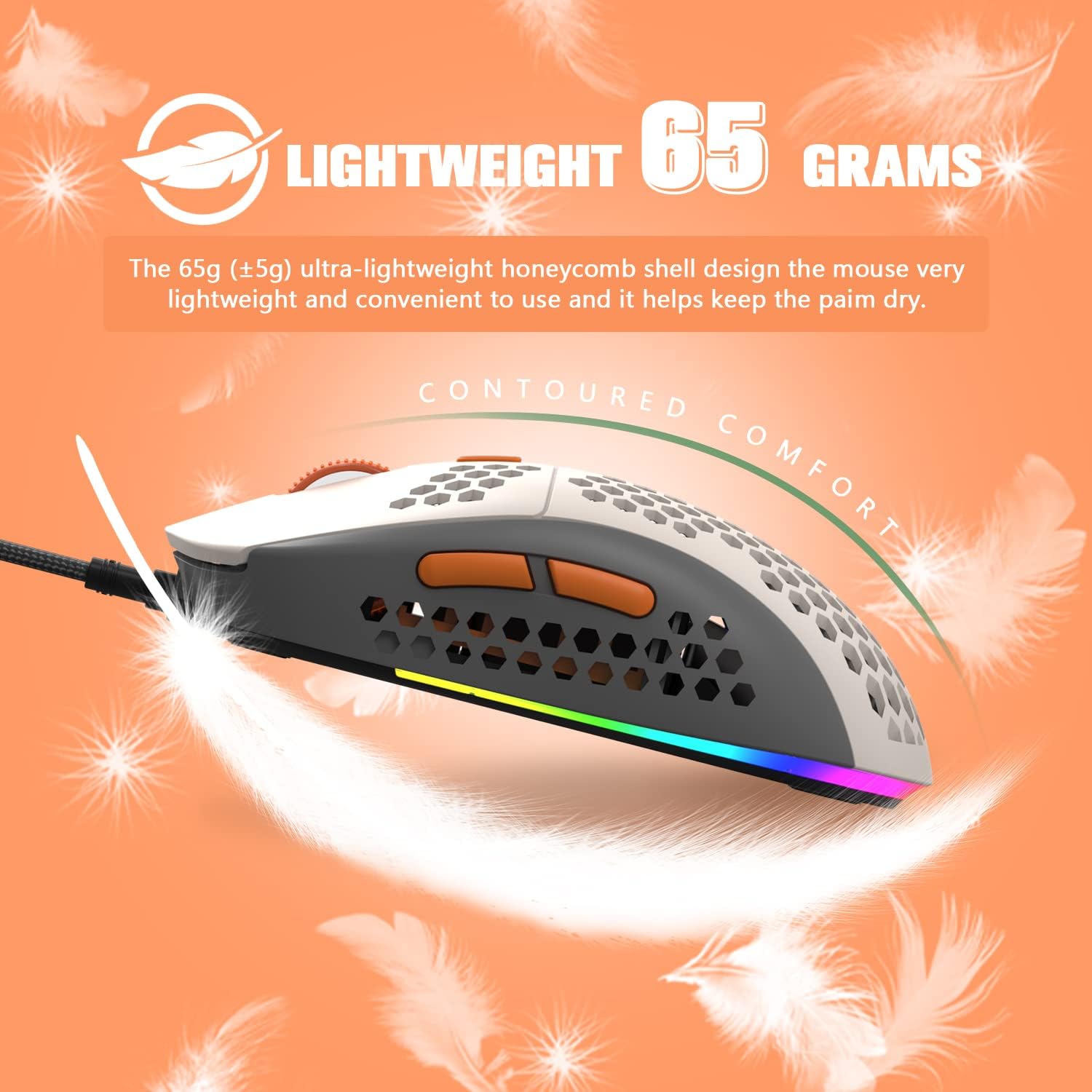
Detailed views of the mouse components, including the honeycomb shell, scroll wheel, RGB light strip, and side buttons, are shown below.

3. Setup
The KUIYN 383 PRO M8 mouse is designed for plug-and-play functionality, requiring no additional drivers for basic operation.
3.1 Connecting the Mouse
- Locate an available USB port on your computer or gaming console.
- Plug the USB connector of the KUIYN 383 PRO M8 mouse into the USB port.
- The mouse will be automatically recognized by your operating system, and the RGB lighting will activate.
3.2 Compatibility
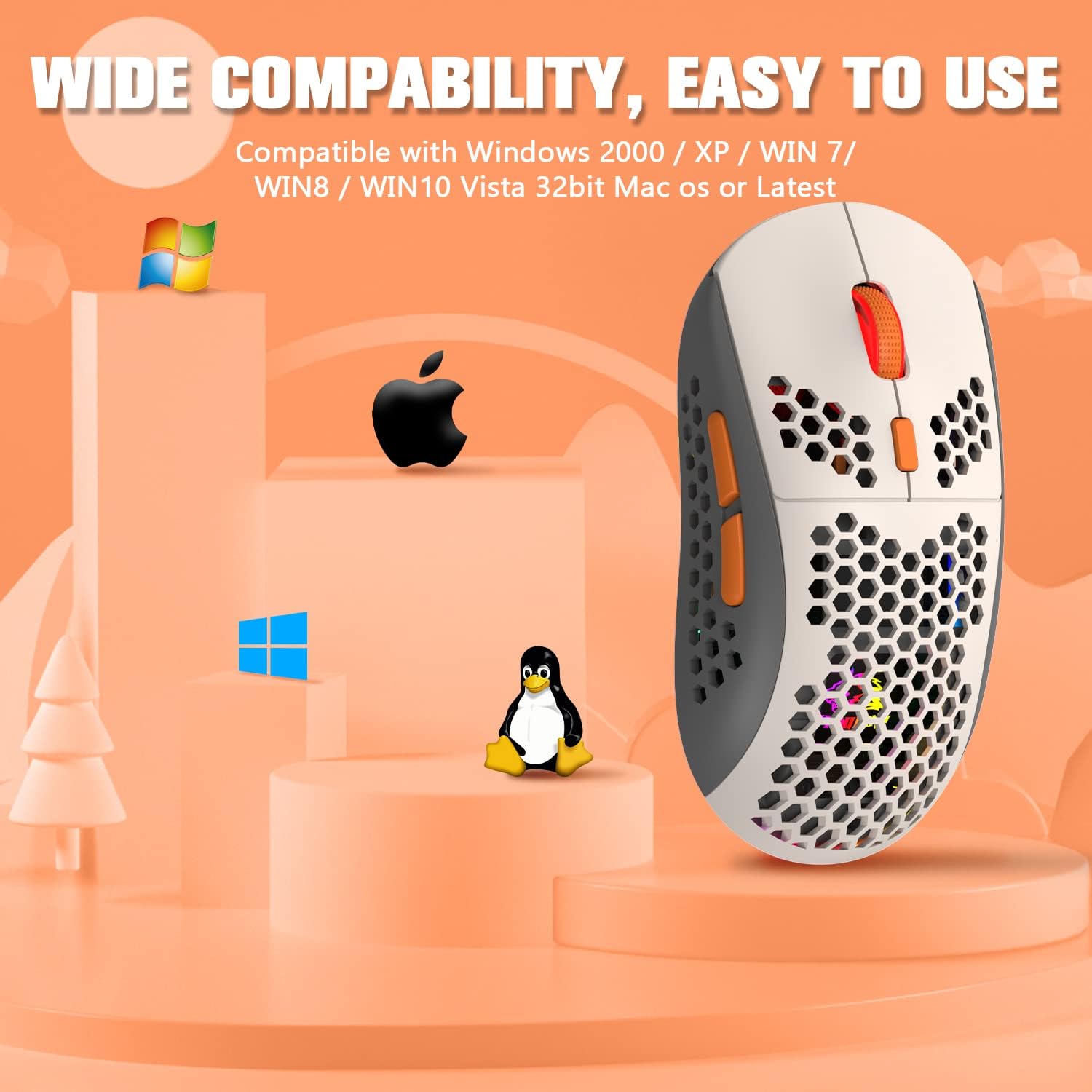
This mouse is compatible with a wide range of operating systems and devices, including:
- Windows 2000 / XP / Win 7 / Win 8 / Win 10 / Vista (32-bit)
- Mac OS (or later versions)
- Xbox
- PlayStation 4 (PS4)
- PlayStation 5 (PS5)
4. Operating Instructions
4.1 Button Functions
The KUIYN 383 PRO M8 mouse features 7 buttons, including standard mouse functions and dedicated controls for DPI and RGB lighting. Six of these buttons are programmable via driver software (not included, typically available from manufacturer's website).
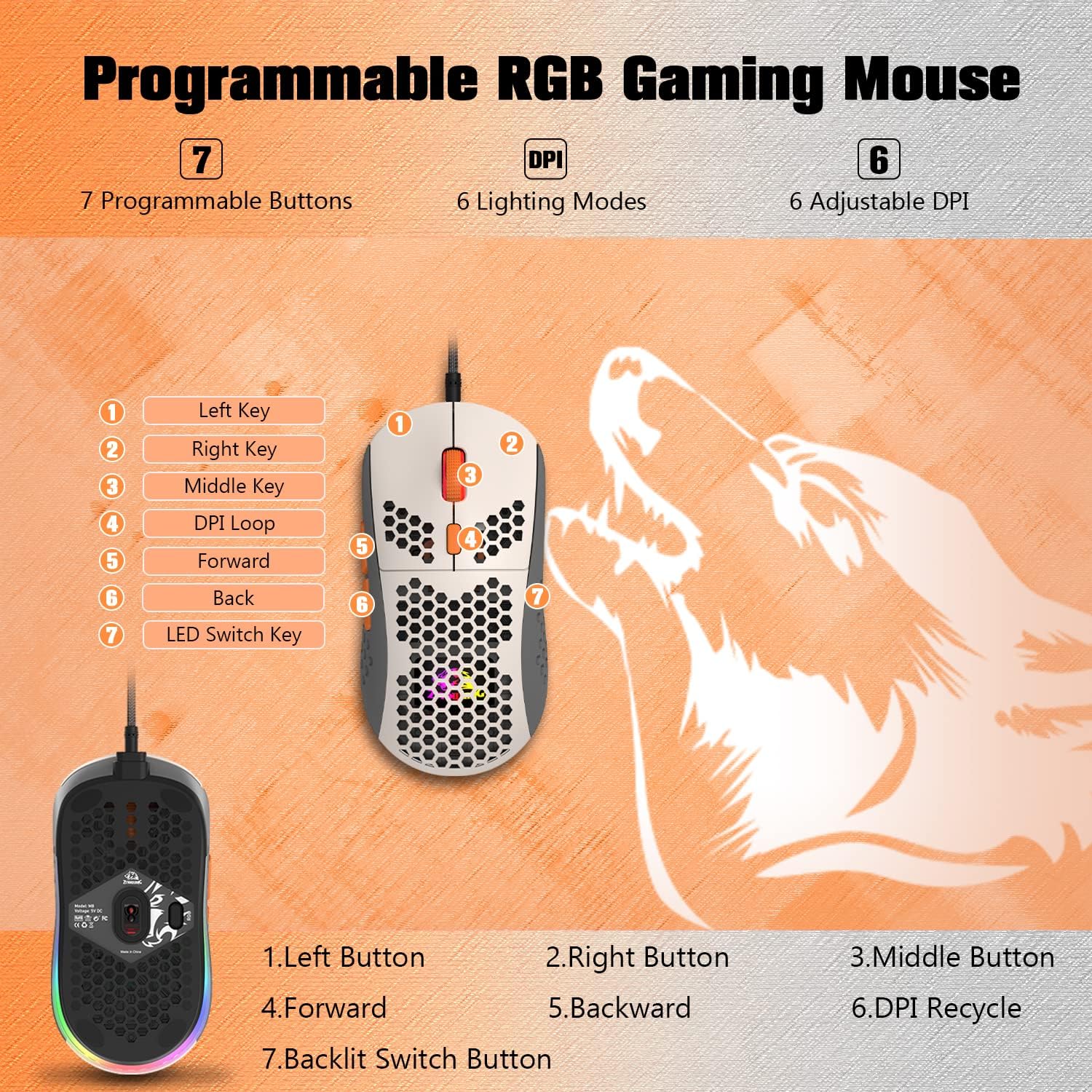
- 1. Left Key: Standard left-click function.
- 2. Right Key: Standard right-click function.
- 3. Middle Key (Scroll Wheel): Scroll up/down, middle-click function.
- 4. DPI Loop: Cycles through DPI settings.
- 5. Forward: Navigates forward in web browsers or file explorers.
- 6. Back: Navigates backward in web browsers or file explorers.
- 7. LED Switch Key: Cycles through RGB lighting modes or turns off lighting.
Note: The LED Switch Key (RGB button) cannot be programmed.
4.2 DPI Adjustment
The mouse offers 6 adjustable DPI (Dots Per Inch) levels, allowing you to customize cursor sensitivity for different tasks or games. The default setting is 1600 DPI.
- Press the DPI Loop button (Button 4 in Figure 4.1) located on the top of the mouse, behind the scroll wheel.
- Each press will cycle through the available DPI settings: 800 → 1600 → 2400 → 3200 → 4800 → 6400.
- The RGB lighting may change color briefly to indicate the current DPI level (refer to product documentation for specific color indications if available).
4.3 RGB Lighting Control
The mouse features 6 built-in RGB lighting modes. You can adjust these effects or turn off the lighting.
- Press the LED Switch Key (Button 7 in Figure 4.1) located on the bottom of the mouse.
- Each press will cycle through the different RGB lighting modes.
- Continue pressing until you reach your desired lighting effect or to turn the lighting off.
5. Maintenance
Proper maintenance ensures the longevity and optimal performance of your gaming mouse.
5.1 Cleaning the Mouse
- Exterior: Use a soft, dry, lint-free cloth to wipe the surface of the mouse. For stubborn dirt, slightly dampen the cloth with water or a mild cleaning solution, then wipe dry immediately. Avoid harsh chemicals.
- Optical Sensor: Occasionally, dust or debris may accumulate around the optical sensor on the bottom of the mouse. Use a cotton swab or compressed air to gently clean the sensor area.
- Honeycomb Shell: Use compressed air to clear dust from the honeycomb cutouts.
5.2 Cable Care
- Avoid sharply bending or twisting the USB cable.
- Do not pull the cable to disconnect the mouse; always grasp the USB connector.
6. Troubleshooting
If you encounter issues with your KUIYN 383 PRO M8 mouse, refer to the following common problems and solutions:
- Mouse is not responding:
- Ensure the USB cable is securely plugged into a functioning USB port.
- Try plugging the mouse into a different USB port on your computer or console.
- Restart your computer or console.
- Test the mouse on another computer to rule out system-specific issues.
- DPI is not changing:
- Ensure you are pressing the correct DPI Loop button.
- Check if the mouse is connected properly.
- RGB lights are not working or stuck:
- Press the LED Switch Key multiple times to cycle through modes or turn them on/off.
- Ensure the mouse is properly connected.
- Buttons are not functioning correctly:
- Verify that the buttons are not physically obstructed.
- If using programmable buttons, ensure any custom software is correctly configured and running.
7. Specifications
Below are the technical specifications for the KUIYN 383 PRO M8 Ultralight Wired Gaming Mouse:
| Feature | Specification |
|---|---|
| Model Number | 383 |
| Product Dimensions | 5.04 x 2.64 x 0.01 inches (12.8 x 6.7 x 0.025 cm) |
| Item Weight | 2.43 ounces (approx. 69 grams) |
| Connectivity Technology | USB Wired |
| Movement Detection Technology | Optical |
| DPI Levels | 800 / 1600 / 2400 / 3200 / 4800 / 6400 |
| RGB Lighting | 6 Modes |
| Number of Buttons | 7 (6 programmable, 1 RGB control) |
| Cable Length | 1.7 meters (66.9 inches) |
| Switch Life | 20 million cycles |
| Manufacturer | KUIYN |
| Date First Available | November 30, 2023 |

8. Warranty and Support
Warranty information for the KUIYN 383 PRO M8 Ultralight Wired Gaming Mouse is typically provided with the product packaging or can be found on the official KUIYN website. For technical support, product inquiries, or warranty claims, please refer to the contact information provided by the manufacturer at the point of purchase or on their official support channels.

