
1. Introduction
This user manual provides essential information for the safe and efficient operation of your ZTE Grand X View 4 tablet. Please read this manual thoroughly before using the device to ensure proper functionality and to prevent damage. Keep this manual for future reference.
2. Product Overview
The ZTE Grand X View 4 is an 8-inch Android tablet designed for multimedia consumption, browsing, and light productivity. It features an HD display, a Qualcomm Quad-core processor, and connectivity options including Wi-Fi and 4G LTE (GSM Unlocked).
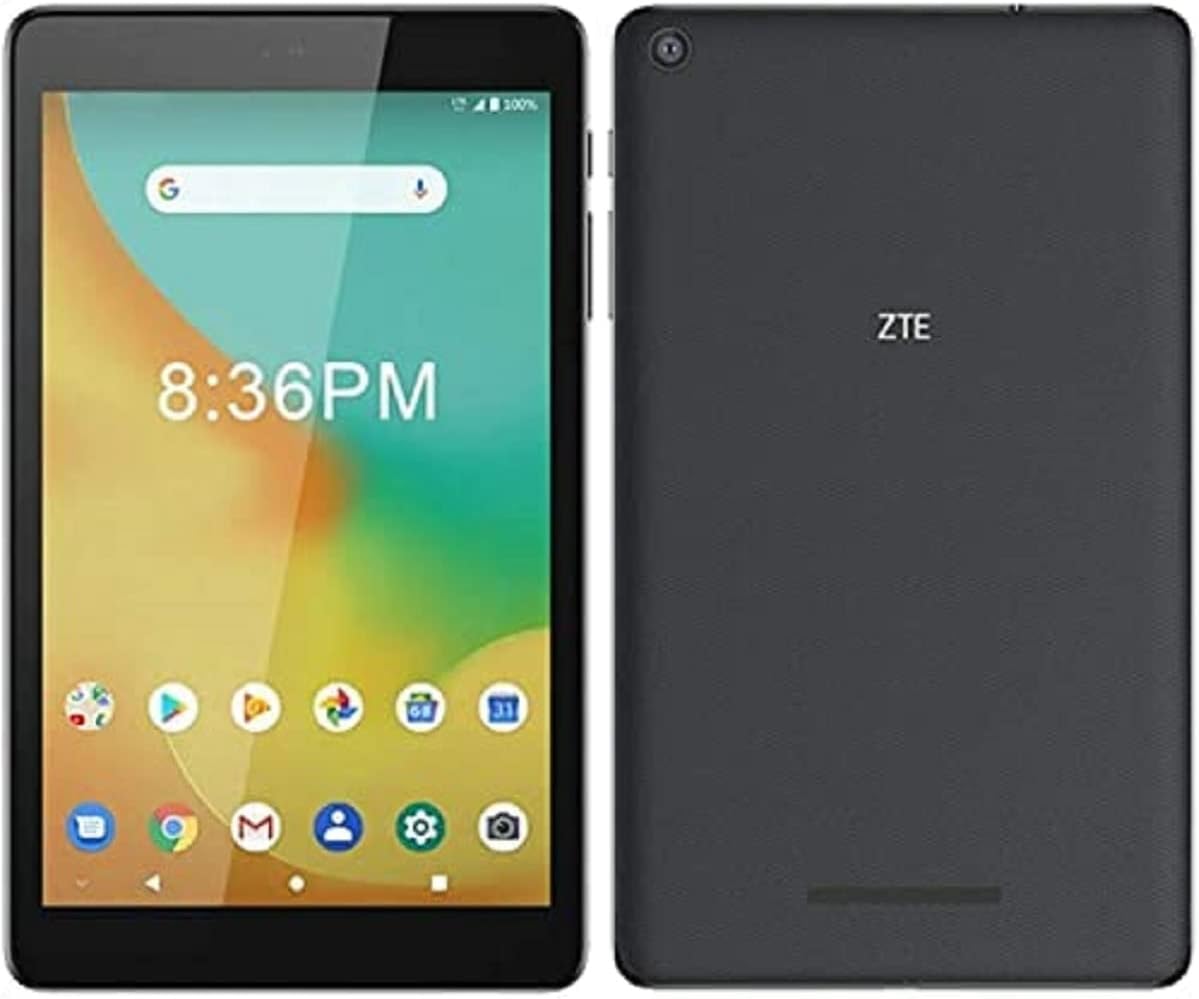
Figure 2.1: Front and back view of the ZTE Grand X View 4 tablet. The front shows the display with app icons and time, while the back displays the ZTE logo and camera lens.
2.1 Key Features
- Display: Brilliant 8-inch Corning Gorilla Glass HD display (1280x800 pixels).
- Processor: Qualcomm Quad-core Processor (1300 MHz, ARM Cortex-A7, 32-bit).
- Operating System: Android.
- Connectivity: UMTS B2/4/5, LTE B2/4/5/7/12(MFBI)/13/66(MFBI), Wi-Fi 802.11b/g/n, Bluetooth.
- Camera: 5 MP Rear Webcam.
- Storage: 32 GB internal memory.
- GSM Unlocked: Compatible with various GSM providers (check compatibility).
2.2 Device Layout
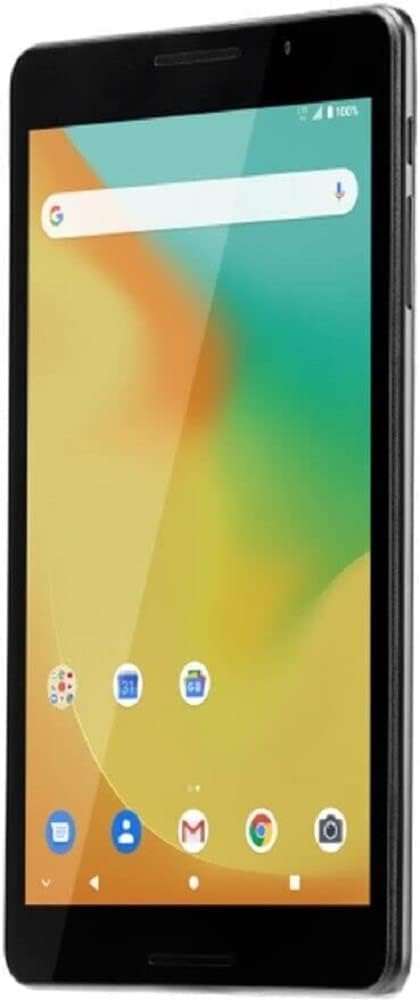
Figure 2.2: Angled front view of the ZTE Grand X View 4 tablet, showing the screen and side buttons.
- Front: 8-inch HD display, front camera, light sensor.
- Sides: Power button, Volume buttons, SIM/microSD card slot, USB port, 3.5mm audio jack.
- Back: Rear camera, ZTE logo, speaker grille.
3. What's in the Box
Upon unboxing your ZTE Grand X View 4 tablet, ensure all the following items are present:
- ZTE Grand X View 4 Tablet
- Charger
- USB Cable
- Quick Start Guide (may vary by region)
If any items are missing or damaged, please contact your retailer or ZTE customer support immediately.
4. Setup
4.1 Charging the Battery
Before first use, fully charge the tablet's battery. Connect the USB cable to the tablet's USB port and the other end to the charger. Plug the charger into a power outlet. The charging indicator will appear on the screen.
Note: Use only the charger and USB cable provided with your tablet or approved by ZTE to avoid damage to the device.
4.2 Inserting a SIM Card (Optional)
If you plan to use cellular data, you may need to insert a SIM card. Locate the SIM card slot on the side of the tablet. Use the provided SIM ejector tool (if included) or a paperclip to open the tray. Insert the SIM card into the tray with the gold contacts facing down, then gently push the tray back into the slot.
Important: This device does not function as a phone. It is designed for data connectivity. For GSM providers, you may need to adjust the APN settings after inserting the SIM card. Consult your carrier for specific APN settings.
4.3 Initial Power On and Setup Wizard
Press and hold the Power button until the ZTE logo appears. The tablet will guide you through the initial setup wizard, which includes:
- Language selection
- Wi-Fi network connection
- Google account sign-in or creation
- Date and time settings
- Security settings (PIN, pattern, password)
5. Operating the Tablet
5.1 Basic Navigation
- Touch: Tap an icon or option to select it.
- Touch and Hold: Press and hold an item to access more options.
- Swipe: Drag your finger across the screen to scroll or navigate between screens.
- Pinch: Use two fingers to zoom in or out on images or web pages.
5.2 Connecting to Wi-Fi
- Go to Settings > Network & internet > Wi-Fi.
- Toggle Wi-Fi On.
- Select your desired Wi-Fi network from the list.
- Enter the password if prompted, then tap Connect.
5.3 Managing Applications
You can download and install applications from the Google Play Store. To manage installed apps, go to Settings > Apps & notifications. From here, you can uninstall apps, clear data, or manage permissions.
5.4 Camera Usage
The tablet features a 5MP rear camera. Open the Camera app from the home screen or app drawer. Tap the shutter button to take a photo. You can switch between photo and video modes within the app.
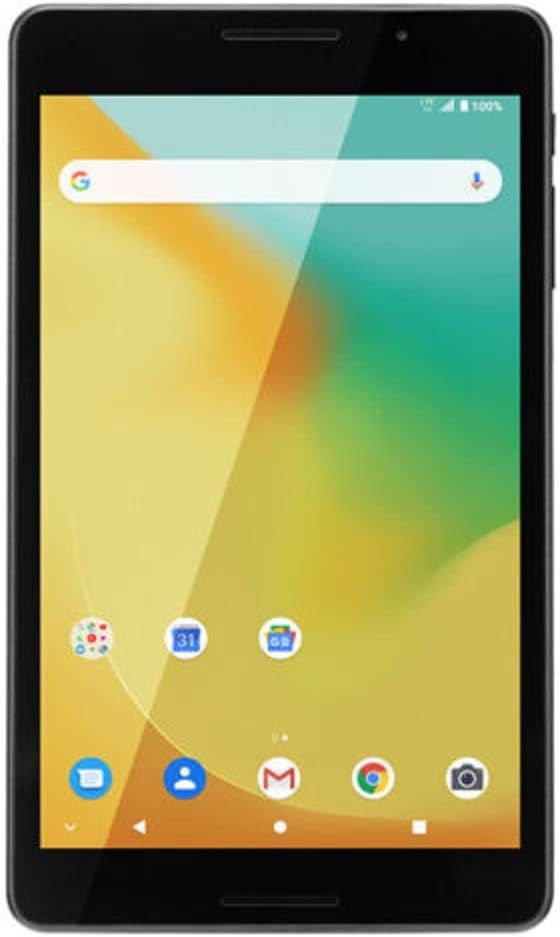
Figure 5.1: Front view of the ZTE Grand X View 4 tablet, showing the vibrant home screen with various app icons.
6. Maintenance
6.1 Cleaning the Tablet
Use a soft, lint-free cloth to clean the screen and body of the tablet. Do not use abrasive cleaners, alcohol, or solvents, as these can damage the device's finish and screen coating.
6.2 Battery Care
- Avoid exposing the tablet to extreme temperatures.
- Do not allow the battery to fully discharge frequently.
- If the tablet will not be used for an extended period, charge it to about 50% before storing.
6.3 Software Updates
Periodically check for software updates to ensure your tablet has the latest features and security patches. Go to Settings > System > System update.
7. Troubleshooting
| Problem | Possible Solution |
|---|---|
| Tablet does not power on. | Ensure the battery is charged. Connect the charger and wait a few minutes before attempting to power on again. |
| Cannot connect to Wi-Fi. | Check if Wi-Fi is enabled in settings. Restart your Wi-Fi router. Ensure you are entering the correct password. |
| Slow performance. | Close unused applications. Clear cache and data for frequently used apps. Consider performing a factory reset as a last resort (Note: This will erase all data). |
| Cellular data not working. | Ensure SIM card is properly inserted. Check APN settings (Settings > Network & internet > Mobile network > Access Point Names). Contact your carrier for correct APN settings. |
If you encounter issues not listed here, please refer to the ZTE support website or contact customer service.
8. Specifications
| Feature | Detail |
|---|---|
| Model Name | Grand X View 4 (K87) |
| Display Size | 8 Inches |
| Screen Resolution | 1280 x 800 pixels |
| Processor | Qualcomm Quad-core, 1300 MHz |
| Operating System | Android |
| Memory Storage Capacity | 32 GB |
| RAM (Flash Memory Size) | 1 GB |
| Rear Camera Resolution | 5 MP |
| Wireless Type | 802.11n (Wi-Fi), Bluetooth |
| Cellular Bands | UMTS B2/4/5, LTE B2/4/5/7/12(MFBI)/13/66(MFBI) |
| Item Weight | 1.43 pounds |
| Product Dimensions | 4.02 x 7.99 x 0.51 inches |
| Color | Grey |
| Batteries | 1 Nonstandard Battery (included) |

Figure 8.1: Screen displaying regulatory labels for the ZTE Grand X View 4 tablet, including Model: K87, FCC ID: SRQ-K87CA, and IC: 5200E-K87CA.
9. Warranty and Support
This product is offered as a renewed item. Renewed products are professionally inspected and tested to work and look like new. If not satisfied with the purchase, renewed products are eligible for replacement or refund under the Amazon Renewed Guarantee.
For specific warranty details, return policies, or technical support, please refer to the Amazon Renewed program terms or contact the seller directly. The seller for this product is eKings.
For general ZTE product information, you may visit the official ZTE website. For issues related to the renewed product, please contact the Amazon Renewed support or the seller.


