1. Introduction
Welcome to the user manual for your CLEYVER ODHW35 DECT Wireless Headset. This document provides essential information for setting up, operating, maintaining, and troubleshooting your device. The CLEYVER ODHW35 is designed for professional use, offering DECT technology for extended range, clear audio with noise cancellation, and seamless integration with communication platforms like Microsoft Teams.
2. Package Contents
Please verify that all items are present in your package:
- CLEYVER ODHW35 Wireless Headset
- Charging Station
- Microphone (integrated with headset)
- Power Adapter (not explicitly listed but implied for charging station)
3. Product Overview
Familiarize yourself with the components of your CLEYVER ODHW35 headset and charging station.
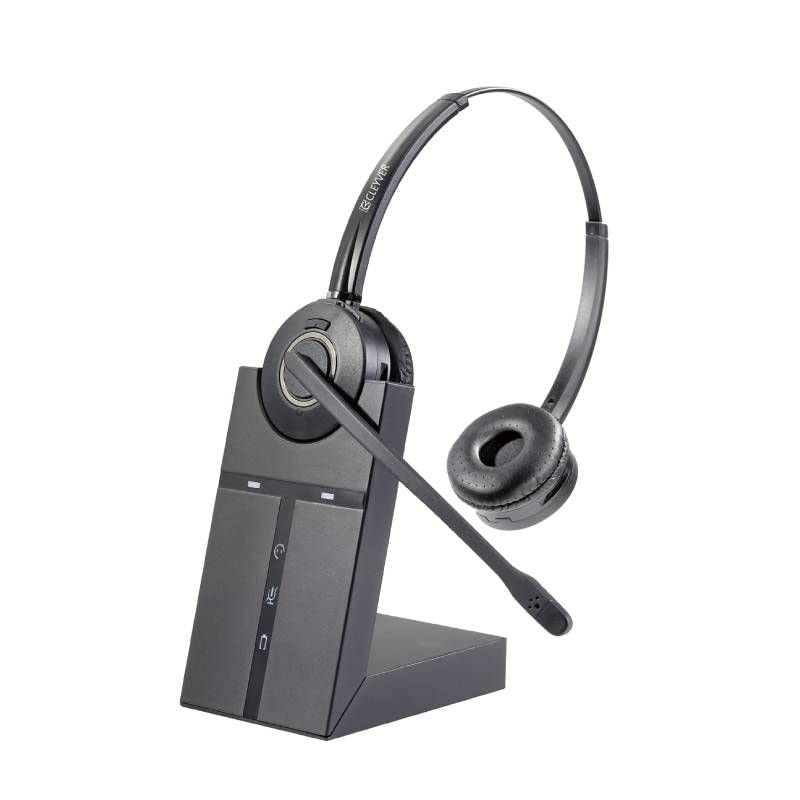
Figure 3.1: CLEYVER ODHW35 Wireless Headset on its charging station. The headset features an adjustable headband, an on-ear speaker, and a boom microphone. The charging station has indicator lights and connection points for the headset.
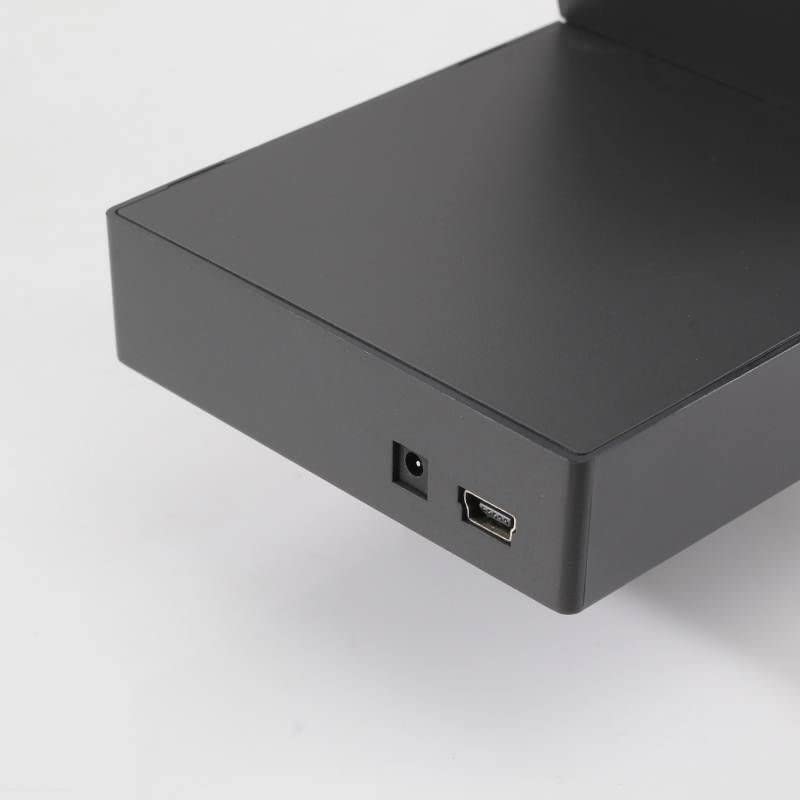
Figure 3.2: Rear view of the CLEYVER ODHW35 charging station, showing the power input port and a USB port for connectivity.
4. Setup
4.1 Charging the Headset
- Connect the power adapter to the charging station and plug it into a power outlet.
- Place the CLEYVER ODHW35 headset onto the charging station. Ensure it is seated correctly and the charging indicator light illuminates.
- Allow approximately 3 hours for a full charge. A fully charged headset provides up to 8 hours of continuous use.
4.2 Connecting to Devices
The CLEYVER ODHW35 uses DECT wireless technology for connection to compatible devices, typically via its charging station acting as a base unit. Refer to your device's specific instructions for pairing with a DECT headset base.
- For Computers/Laptops: Connect the charging station to your computer via the provided USB cable. The system should automatically detect the device.
- For Telephones/Mobile Phones/Tablets: Ensure your device supports DECT headset connectivity or connect the charging station to a compatible phone system.
The headset is optimized for Microsoft Teams and compatible with various softphones, ensuring broad compatibility across different work environments.
5. Operating Instructions
5.1 Call Management
The headset features a multifunction button for simplified call control:
- Answer/End Call: Press the multifunction button once to answer an incoming call or end an active call.
- Volume Control: Use the dedicated volume buttons on the headset to adjust the listening volume.
- Mute Microphone: Press the mute button to temporarily disable the microphone during a call. Press again to unmute.
5.2 Microphone Usage
The integrated microphone features noise cancellation, designed to reduce background noise and ensure clear voice transmission, even in noisy environments. Position the microphone boom approximately two fingers' width from your mouth for optimal performance.
6. Maintenance
6.1 Cleaning
To maintain your headset, gently wipe the surfaces with a soft, dry cloth. For the ear cushions (synthetic leather), a slightly damp cloth can be used, but ensure no moisture enters the speaker or microphone openings. Avoid using harsh chemicals or abrasive cleaners.
6.2 Battery Care
To prolong battery life, avoid fully discharging the headset frequently. Store the headset in a cool, dry place when not in use. If storing for an extended period, ensure the battery has a partial charge (around 50%).
7. Troubleshooting
If you encounter issues with your CLEYVER ODHW35 headset, please refer to the following common solutions:
- No Sound/Microphone Not Working:
- Ensure the headset is fully charged.
- Verify the headset is properly connected/paired with your device.
- Check volume settings on both the headset and your connected device.
- Ensure the microphone is not muted.
- Limited Range:
- DECT technology offers a range of up to 120 meters. Ensure there are no significant obstructions (thick walls, metal objects) between the headset and the charging station.
- Avoid sources of strong electromagnetic interference.
- Headset Not Charging:
- Ensure the power adapter is securely connected to both the charging station and the power outlet.
- Verify the headset is correctly seated on the charging station.
If the problem persists, consult the Cleyver support website or contact customer service.
8. Specifications
| Feature | Specification |
|---|---|
| Model Name | ODHW35 |
| Brand | Cleyver |
| Connectivity Technology | DECT Wireless |
| Wireless Range | Up to 120 meters |
| Battery Life (Talk Time) | Up to 8 hours |
| Charging Time | Approximately 3 hours |
| Microphone Features | Noise Cancellation |
| Ear Placement | On-ear |
| Material | Synthetic Leather, Plastic |
| Compatible Devices | Computer, Laptop, Phone, Mobile, Tablet |
| Optimized For | Microsoft Teams |
9. Warranty and Support
For warranty information and technical support, please refer to the documentation provided with your purchase or visit the official Cleyver website. Keep your proof of purchase for warranty claims.
