
1. Introduction
This manual provides comprehensive instructions for the GW Security 4K 8MP Outdoor/Indoor 2.8-12mm Motorized Zoom Lens PoE IP Microphone Dome Security Camera (Model: GW8571MMIC). This camera is designed to deliver high-quality surveillance for both indoor and outdoor environments.
Key features of this camera include:
- 8 Megapixels (3840x2160) UltraHD 4K Video for superior image clarity.
- 2.8-12mm 4X Optical Motorized Zoom Varifocal Lens allowing remote adjustment of the angle of view and focus.
- Built-in Microphone for integrated audio recording.
- Power over Ethernet (PoE) for simplified installation with a single cable for power and data.
- 18pcs Infrared SMD LEDs providing up to 100 feet of night vision.
- IP66 Waterproof Rating for reliable outdoor performance.
- Motion Detection & Email Alerts for enhanced security monitoring.
- P2P Network Support and remote monitoring via smartphone/PC.

Image: GW Security Logo. This image displays the official logo of GW Security, indicating the brand of the product.
2. Setup
2.1 Unpacking and Inspection
Carefully unpack the camera and verify that all components are present and undamaged. Refer to the packing list for included items.
2.2 Mounting the Camera
Choose a suitable location for installation, either indoors or outdoors. The camera is designed for ceiling mounting. Ensure the mounting surface is strong enough to support the camera's weight. Use appropriate screws and anchors for secure installation.
2.3 Power over Ethernet (PoE) Connection
This camera supports Power over Ethernet (PoE), which simplifies installation by allowing a single Ethernet cable to transmit both power and data. Connect one end of an Ethernet cable to the camera's RJ45 port and the other end to a PoE-enabled Network Video Recorder (NVR) or a PoE switch.
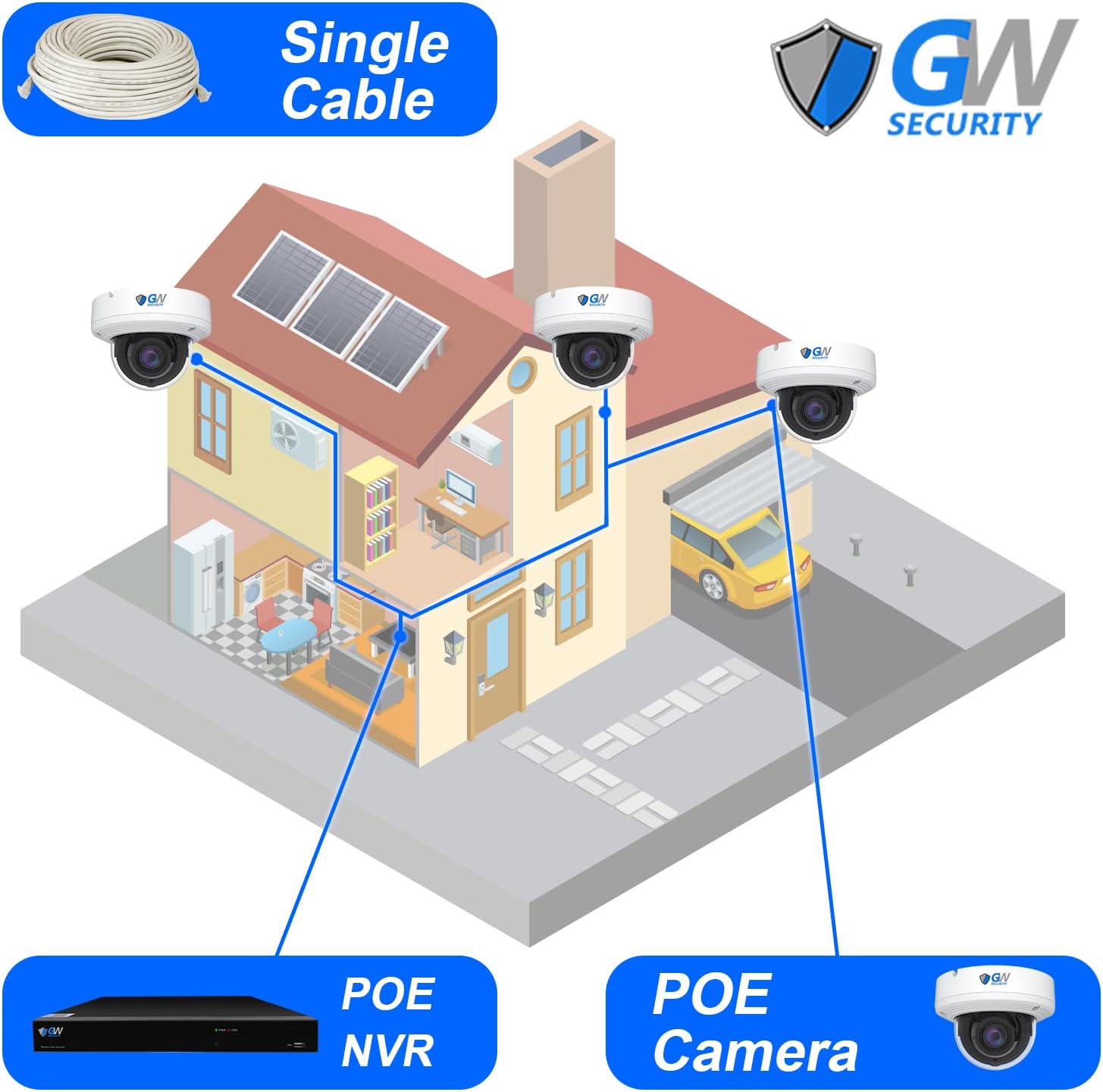
Image: PoE Single Cable Connection Diagram. This diagram illustrates how a single Ethernet cable connects the PoE camera to a PoE NVR, providing both power and data for simplified installation.
2.4 Non-PoE Installation (Optional)
If your network setup does not support PoE, you can power the camera using a separate 12V DC power adapter (not included). Connect the power adapter to the camera's DC power input port. Then, connect an Ethernet cable from the camera's RJ45 port to a standard network switch or router for data transmission.
2.5 Network Configuration
After physical connection, refer to your NVR or network device manual for initial network setup. The camera should be automatically detected by a compatible NVR. For direct network connection, you may need to use a discovery tool provided by GW Security to assign an IP address and configure network settings.
3. Operating Instructions
3.1 Live View and Recording
Access the live video feed from your camera through your connected NVR, dedicated PC software, or the GW Security mobile application. Configure recording schedules (continuous, motion-triggered, or scheduled) on your NVR to store video footage.
3.2 Motorized Zoom and Focus
The camera features a 2.8-12mm motorized varifocal lens. You can remotely adjust the optical zoom and focus through your NVR interface, computer software, or mobile application. This allows you to fine-tune the camera's field of view and image sharpness without physical access to the camera.
3.3 Audio Monitoring
The built-in microphone enables audio recording alongside video. Ensure audio recording is enabled in your NVR or software settings to capture sound from the camera's vicinity.
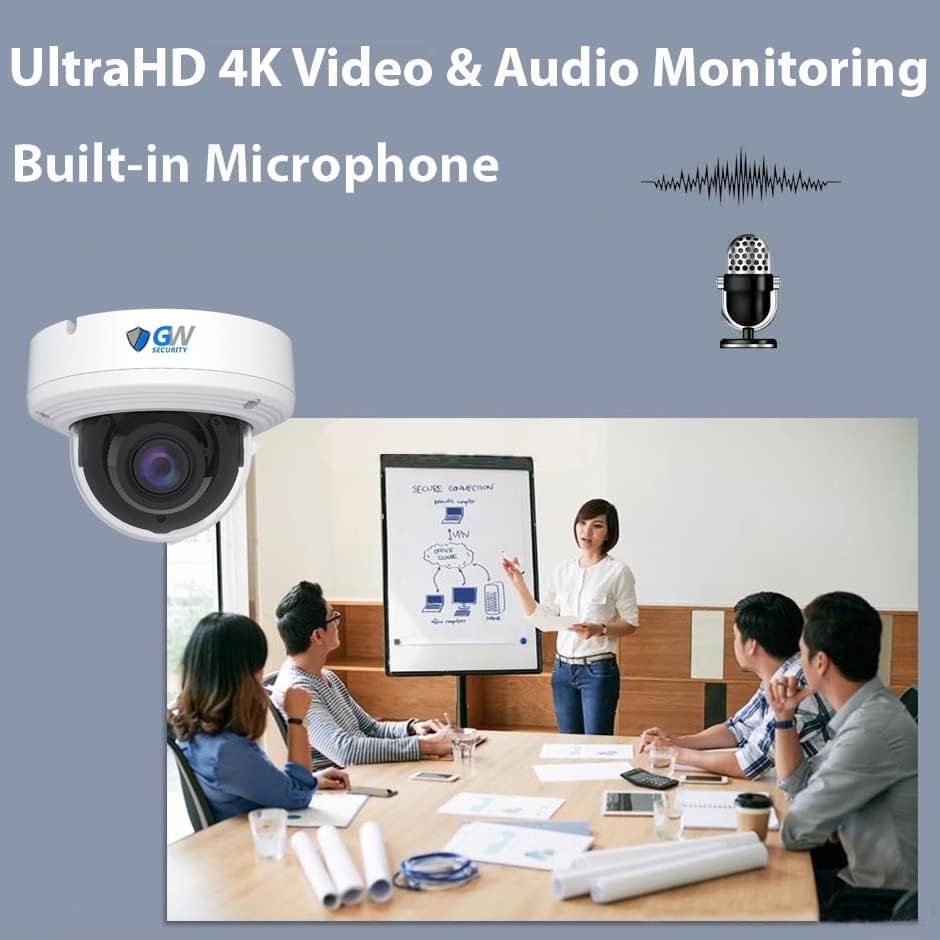
Image: UltraHD 4K Video & Audio Monitoring. This image highlights the camera's capability for 4K video and integrated audio monitoring via its built-in microphone.
3.4 Night Vision
The camera is equipped with 18pcs Infrared SMD LEDs, providing clear black-and-white night vision up to 100 feet in low-light or no-light conditions. The camera automatically switches between day and night modes.
3.5 Motion Detection and Alerts
Configure motion detection zones and sensitivity levels through the camera's web interface or NVR settings. You can set up email alerts to be notified instantly when motion is detected in specified areas.
3.6 Remote Monitoring
Download the official GW Security mobile application (available for iPhone/iPad/Android) or PC software to monitor your camera remotely from anywhere with an internet connection. Follow the app's instructions for adding your device using its P2P ID or IP address.
4. Maintenance
4.1 Cleaning the Camera
Periodically clean the camera lens and housing to ensure optimal image clarity. Use a soft, damp cloth to gently wipe away dust and dirt. Avoid using harsh chemicals or abrasive cleaning materials that could damage the lens or housing.
4.2 Environmental Protection
The camera has an IP66 waterproof rating, making it suitable for outdoor use. However, ensure all cable connections are properly sealed and protected from direct exposure to heavy rain or extreme weather conditions to prevent water ingress.
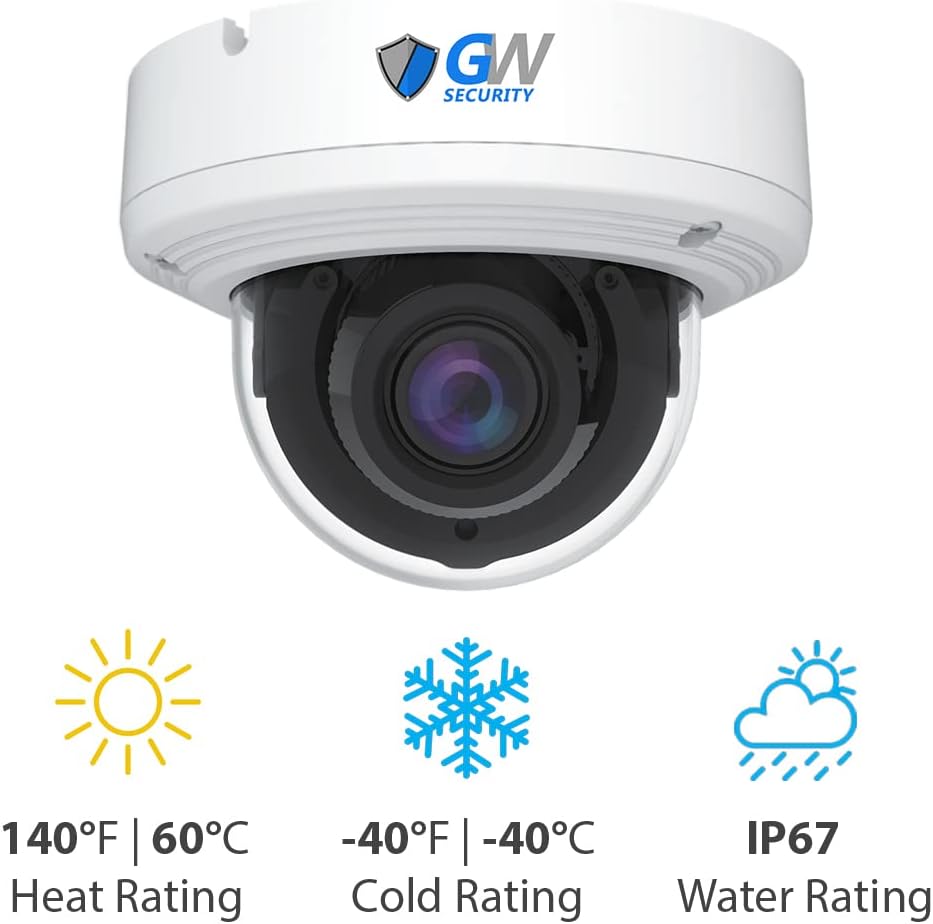
Image: IP67 Water Rating and Temperature Resistance. This image indicates the camera's durability with a heat rating of 140°F (60°C), cold rating of -40°F (-40°C), and an IP67 water rating, ensuring robust performance in various weather conditions.
4.3 Firmware Updates
Regularly check the GW Security official website for any available firmware updates for your camera model. Firmware updates can improve performance, add new features, and enhance security. Follow the provided instructions carefully when performing updates.
4.4 Cable and Connection Inspection
Periodically inspect all cables and connections for any signs of wear, corrosion, or damage, especially for outdoor installations. Ensure all connections remain secure to maintain reliable operation.
5. Troubleshooting
5.1 No Power
- Verify the Ethernet cable is securely connected to a PoE-enabled NVR or PoE switch.
- If using a separate power adapter, ensure it is correctly connected to a working power outlet and the camera's DC input.
- Check if the NVR/PoE switch is powered on and functioning correctly.
5.2 No Video / Camera Offline
- Ensure the Ethernet cable is securely connected at both ends.
- Verify the camera's IP address and network settings are correct and compatible with your network.
- Confirm that the camera is detected and added to your NVR or viewing software.
- Restart the camera by disconnecting and reconnecting its power source. Also, restart your NVR or network device.
5.3 Poor Image Quality
- Clean the camera lens to remove any dust, dirt, or smudges.
- Adjust the focus using the motorized zoom feature through your NVR or software.
- Check for any physical obstructions in the camera's field of view.
- Ensure adequate lighting in the surveillance area for optimal performance, especially during the day.
5.4 Motion Detection Not Working
- Verify that motion detection is enabled in the camera's settings or NVR configuration.
- Adjust the sensitivity levels of the motion detection. High sensitivity may trigger false alarms, while low sensitivity might miss events.
- Ensure that motion detection zones are correctly defined and cover the desired areas.
- Check if recording schedules are configured to activate upon motion detection.
5.5 Audio Issues
- Confirm that the built-in microphone is enabled in the camera's settings or NVR audio configuration.
- Check the audio output settings on your viewing device (monitor, computer, smartphone) to ensure volume is not muted or too low.
6. Specifications
| Feature | Detail |
|---|---|
| Model | GW8571MIC |
| Resolution | 8 Megapixels (3840x2160) UltraHD 4K |
| Lens | 2.8-12mm 4X Optical Motorized Zoom Varifocal HD Auto-focus |
| Night Vision | 18pcs Infrared SMD LED, up to 100ft |
| Audio | Built-in Microphone |
| Connectivity | Power over Ethernet (PoE), ONVIF protocol |
| Video Compression | H.265+ |
| Frame Rate | Real-time 6.0 Megapixel 30 FPS, 8.0 Megapixel 15 FPS (adjustable 1-30 FPS) |
| Weather Rating | IP66 Waterproof |
| Dimensions | 5 x 4 x 3 inches |
| Power Source | Power Over Ethernet (Optional 12V DC) |
| Special Features | Motion Detection, Digital Noise Reduction, Wide Dynamic Range (WDR), P2P network support, Remote monitoring |
7. Warranty & Support
7.1 Product Warranty
This GW Security camera is covered by a Two Years Warranty from the date of purchase. Please retain your proof of purchase for warranty claims. The warranty covers defects in materials and workmanship under normal use.
7.2 Technical Support
GW Security provides Free US-based Technical Support to assist you with any questions or issues you may encounter during the setup, operation, or maintenance of your camera. Our highly-trained support staff are available to help.
- Support Hours: Monday - Friday, 6:00 AM - 7:00 PM PST
- Please refer to the GW Security official website for contact information (phone, email, or live chat).

Image: GW Security 2-Year Warranty and Domestic Tech Support. This image highlights the product's 2-year warranty and the availability of free domestic technical support from GW Security.
7.3 Data Privacy
GW Security prioritizes your privacy. Your video data is stored locally and is accessible via a secure 256-bit Military-Grade Encrypted connection, ensuring your footage remains private and protected.