
Introduction
This manual provides detailed instructions for the installation, operation, and maintenance of your Bileeko 4 Split Screen Reversing Camera System. Please read this manual thoroughly before installation and use to ensure proper function and safety.
Package Contents
Verify that all items listed below are included in your package:
- 1 x 7-inch TFT LCD HD Monitor
- 2 x Car Rearview Cameras
- 2 x 15-meter (33 feet) 4-Pin Aviation Cables
- 1 x Monitor Holder
- 1 x Convert Cable (for power/video input)
- 1 x Outer Frame (for monitor installation)
- 1 x User Manual

Figure 1: Package Contents Overview
Specifications
Monitor Specifications:
- LCD Screen: 7 inch TFT LCD
- Resolution: 800 (W) x 480 (H) pixels
- Video Input: 2-Channel (V1/V2 switchable)
- Video System: NTSC / PAL auto-switching
- Power Consumption: 7W
- Power Supply: DC 12V-24V
Camera Specifications:
- Style: 4 Pin Aviation Connector
- Imaging Device: 1/4-inch Color CMOS
- Effective Pixels: 628 x 586 (PAL); 510 x 496 (NTSC)
- Lens Angle: 120 degrees (2.8mm) / 92 degrees (3.6mm)
- Night Vision: 18 IR LEDs
- Waterproof Rating: IP69
- Power Supply: DC 12V-24V
- Dimensions: 60.5 (L) x 27.5 (W) x 31.6 (D) mm (approx.)

Figure 2: Camera Waterproof Rating and Dimensions
Cable Specifications:
- Type: 4-Pin Aviation Cable
- Length: 15 meters (33 feet) per cable
- Features: Strong anti-interference, stable signal transmission
Installation Guide
1. Monitor Installation
The 7-inch monitor can be installed on your vehicle's dashboard or integrated into the console using the provided outer frame.
- Attach the monitor to the holder.
- Secure the holder to a suitable flat surface on your dashboard.
- Alternatively, for console integration, fit the monitor into the outer frame and then install it into the vehicle's console opening.

Figure 3: Monitor Console Installation Example
2. Camera Placement
The system includes two cameras. You can install them at different locations on your vehicle (e.g., rear, side) depending on your viewing needs. The cameras are IP69 waterproof and suitable for various vehicle types including trucks, RVs, trailers, and buses.

Figure 4: Camera Installation Diagram and Vehicle Compatibility
3. Wiring Connections
The system uses 4-pin aviation cables for stable signal transmission. Follow the wiring diagram carefully.
- Powering the Monitor: Connect the monitor's red and black wires to a constant 12V-24V power source in your vehicle.
- Connecting Cameras:
- Connect each camera to the monitor using the provided 4-pin aviation cables.
- For a camera intended for backup, connect its trigger wire (e.g., blue, green, white, brown for V1-V4 respectively) to the vehicle's reverse light power. This will automatically switch the monitor to that camera's view when reversing.
- Cameras can also be wired directly to the monitor without a reverse trigger if continuous viewing is desired.
- Ensure all connections are secure and waterproof where necessary.

Figure 5: System Wiring Diagram
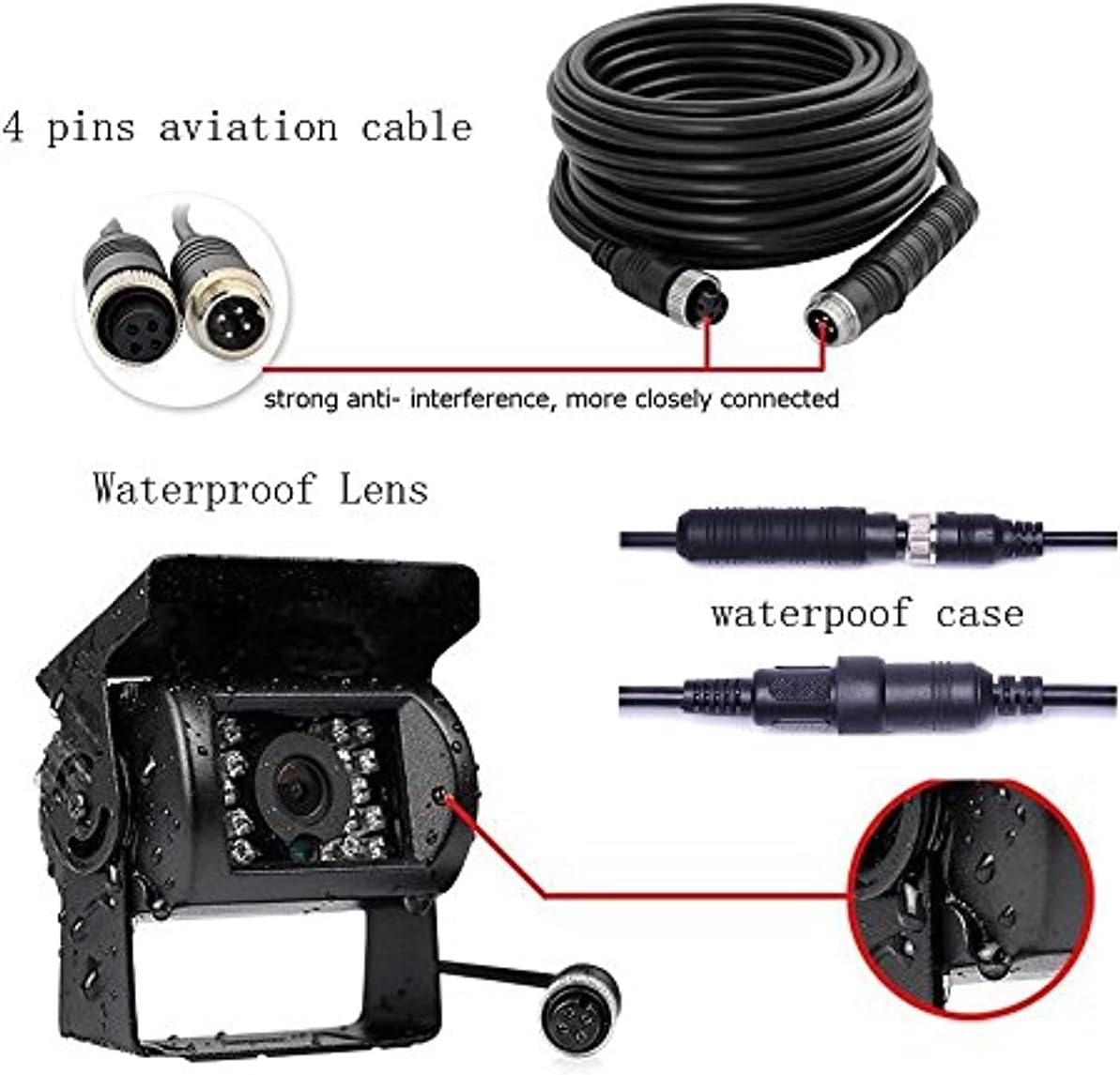
Figure 6: 4-Pin Aviation Cable and Waterproof Camera Lens Detail
Operating Instructions
1. Powering On/Off
Once properly wired, the monitor will power on automatically when the vehicle's ignition is turned on, or when the reverse gear is engaged (if wired with a trigger).
2. Video Input Selection
The monitor supports two video inputs (V1/V2). Use the "V1/V2" button on the monitor or the remote control to switch between camera views. If a reverse trigger is connected, the monitor will automatically switch to the corresponding camera when reversing.

Figure 7: Split Screen Display Example
3. Display Modes
The monitor offers various display modes, including single camera view and split-screen views, allowing you to monitor multiple camera feeds simultaneously. Use the mode buttons on the monitor or remote to cycle through available display configurations.

Figure 8: Available Video Display Modes
4. Image Adjustment
The monitor allows adjustment of brightness, contrast, and color. You can also rotate the image horizontally and vertically to achieve a mirror or normal display, as needed for your camera orientation.
- Use the menu buttons on the monitor or remote control to access display settings.
- Adjust parameters such as brightness, contrast, and color to your preference.
- Select image rotation options (mirror/normal) if required.
Maintenance
- Cleaning the Monitor: Use a soft, dry cloth to clean the monitor screen. For stubborn smudges, a slightly damp cloth with a mild, non-abrasive cleaner can be used. Avoid excessive moisture.
- Cleaning the Cameras: Periodically clean the camera lenses to ensure a clear view. Use a soft cloth and, if necessary, a mild cleaning solution. The cameras are waterproof (IP69), but avoid high-pressure washing directly on the lens.
- Checking Connections: Regularly inspect all cable connections for tightness and signs of wear or corrosion, especially the 4-pin aviation connectors, to ensure stable signal transmission.
- Environmental Protection: While the cameras are designed for outdoor use, extreme temperatures or prolonged direct sunlight can affect component lifespan.
Troubleshooting
| Problem | Possible Cause | Solution |
|---|---|---|
| Monitor does not power on. | No power supply; loose power connection; faulty fuse. | Check power connections to the monitor. Ensure the vehicle's ignition is on. Verify the fuse in the power line. |
| No image displayed on the monitor. | Loose camera cable connection; incorrect video input selected; faulty camera or cable. | Check all 4-pin aviation cable connections. Ensure the correct video input (V1/V2) is selected. Test with another camera or cable if available. |
| Image is blurry or distorted. | Dirty camera lens; damaged cable; electromagnetic interference. | Clean the camera lens. Inspect cables for damage. Ensure cables are routed away from strong electrical interference sources. |
| Monitor does not switch to reverse camera automatically. | Reverse trigger wire not connected or incorrectly connected. | Verify the reverse trigger wire is correctly connected to the vehicle's reverse light power source. |
| Poor night vision performance. | IR LEDs obstructed or faulty; dirty camera lens. | Ensure the camera lens and IR LEDs are clean and unobstructed. |
Warranty and Customer Support
Bileeko is committed to providing 100% customer satisfaction. If you experience any quality problems with this product within 12 months of purchase, please contact our customer service for assistance. We will replace new accessories free of charge to ensure your satisfaction.
For further support or inquiries, please refer to the contact information provided with your purchase or visit the official Bileeko website.
