Product Overview
The Rii K06 Mini Bluetooth Keyboard is a versatile input device designed for various smart devices. It features a dual-mode connection (2.4GHz wireless and Bluetooth), an integrated touchpad, and an IR learning function for remote control capabilities. The keyboard is backlit for use in low-light conditions and is powered by a built-in rechargeable lithium battery.

Image: Top view of the Rii K06 Mini Bluetooth Keyboard, showcasing its QWERTY layout and integrated touchpad.
What's in the Box
- Rii K06 Mini Bluetooth Keyboard
- USB Cable (for charging)
- 2.4G Nano USB Receiver (stored inside the keyboard's battery compartment)
- User Manual (this document)
Setup Guide
Charging the Keyboard
Before first use, fully charge the keyboard using the provided USB Type-C cable. Connect the cable to the keyboard's Type-C charging port and the other end to a USB power source (e.g., computer USB port, USB wall adapter). The charging indicator light will show the charging status.
Connectivity Modes (2.4G and Bluetooth)
The Rii K06 keyboard supports two connection modes: 2.4GHz wireless via USB receiver and Bluetooth.

Image: Diagram illustrating the dual connection modes (2.4G and Bluetooth) and corresponding key combinations.
2.4GHz Wireless Connection:
- Locate the 2.4G Nano USB receiver in the keyboard's battery compartment.
- Insert the USB receiver into an available USB port on your device (e.g., Smart TV, PC, Android TV Box).
- Turn on the keyboard using the power switch.
- Press Fn + Caps keys simultaneously to switch to 2.4G mode. The 2.4G indicator light will illuminate.
- The keyboard should automatically connect to your device.
Bluetooth Connection:
- Turn on the keyboard using the power switch.
- Press Fn + Tab keys simultaneously to switch to Bluetooth mode. The Bluetooth indicator light will illuminate.
- To enter pairing mode, press Fn + Shift keys simultaneously. The Bluetooth indicator light will flash rapidly.
- On your device (e.g., smartphone, tablet, smart TV), go to Bluetooth settings and search for new devices.
- Select "Rii K06" from the list of available devices to pair.
- Once paired, the Bluetooth indicator light on the keyboard will stop flashing and remain solid.

Image: Close-up view of the Rii K06 keyboard's indicator lights for Bluetooth/2.4G connection, full power, battery low, and Caps Lock.
Operating Instructions
Basic Keyboard and Touchpad Use
- Typing: Use the QWERTY keyboard layout for text input.
- Touchpad: The multi-finger touchpad supports various gestures for navigation.
- Single finger tap: Left mouse click.
- Two finger tap: Right mouse click.
- Two finger drag: Scroll up/down.
- Hotkeys: The keyboard includes 8 hotkeys for convenient browsing and media control. These are typically accessed by pressing the Fn key in combination with the corresponding function key (F1-F12) or other designated keys.

Image: A user holding the Rii K06 keyboard, demonstrating its handheld use while interacting with a television screen.
Backlight Control
The keyboard features a backlit mode for enhanced visibility in dark environments. To activate or deactivate the backlight, press the dedicated backlight key (often indicated by a light bulb icon or similar). The backlight will automatically turn off after a period of inactivity to conserve battery.
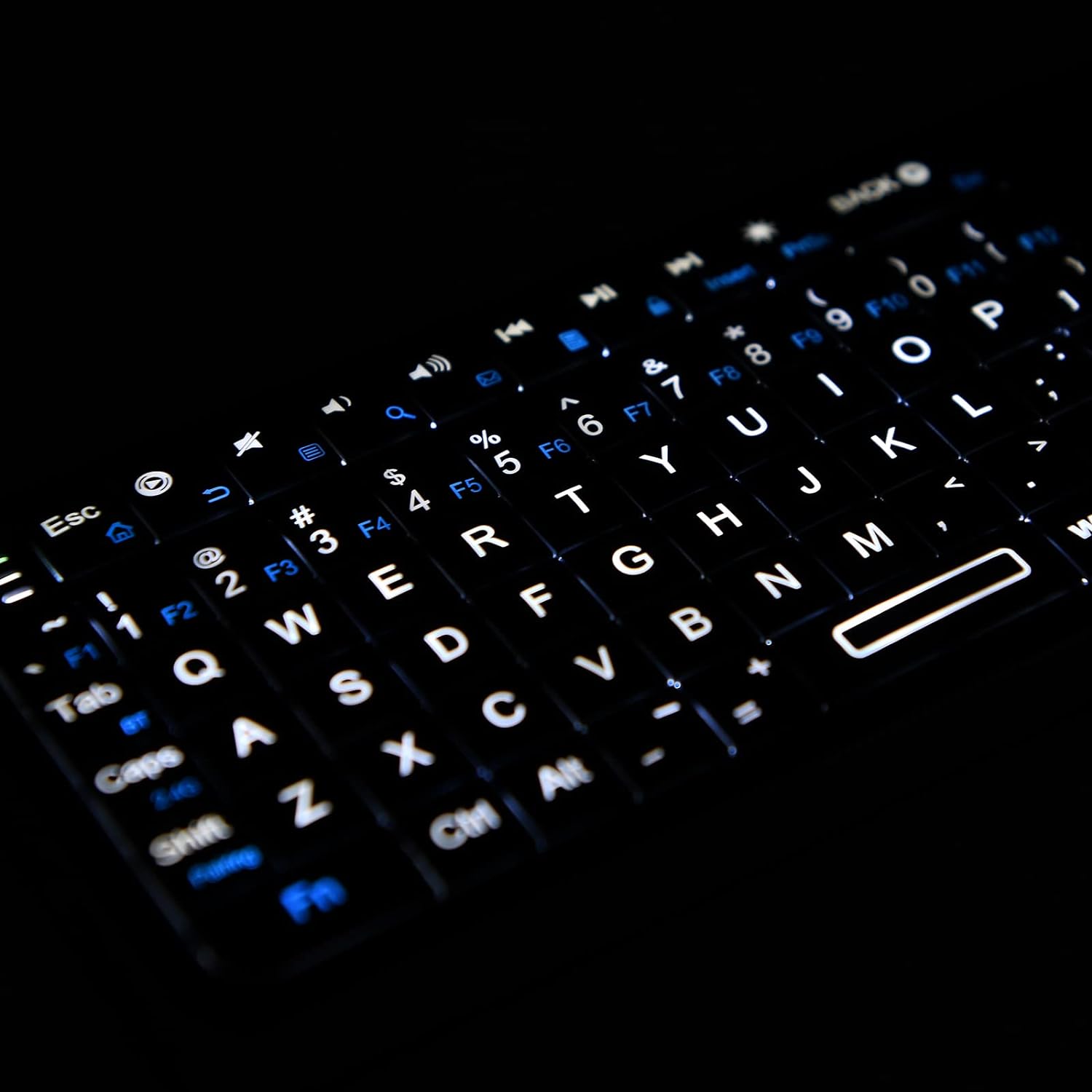
Image: Close-up view of the Rii K06 keyboard with its blue backlight illuminated, showing key visibility in the dark.
IR Learning Function
The Rii K06 keyboard includes an IR learning function with 10 programmable keys, allowing it to mimic functions from your original remote control. This feature is particularly useful for consolidating multiple remotes.

Image: Close-up of the Rii K06 keyboard's dedicated IR learning buttons (C1, C2, and navigation cluster).
How to Use the IR Learning Function:
- Align the mini keyboard parallel to the infrared LEDs of your original remote control. The relative distance should not exceed 5 cm.
- Long press the required learning key on the Rii K06 keyboard for 3 seconds. The indicator light will remain on, indicating the keyboard is in learning state.
- Press the button to be learned on the original remote control. The indicator light of the mini keyboard will flash twice and then go out, signifying successful learning.

Image: Step 1 of IR programming, showing the Rii K06 keyboard and an original remote aligned for learning, with a recommended distance of 5 cm.

Image: Step 2 of IR programming, showing a finger pressing a learning key on the Rii K06 keyboard, with the LED indicator lit.

Image: Step 3 of IR programming, showing a finger pressing a button on the original remote control to transfer its function to the Rii K06 keyboard.
Video: A demonstration of the Rii K06 Mini Keyboard's IR learning function, showing how to program it to control other devices.
Compatibility
The Rii K06 Mini Bluetooth Keyboard is widely compatible with various devices, including:
- Android TV Box
- Smart TV
- PC (Desktop, Laptop)
- x-box
- Smartphones
- VR Glasses
- HTPC/IPTV
- Amazon Fire Stick
- PS4/PS5

Image: Visual representation of devices compatible with the Rii K06 keyboard, including Smart TV, PC/Macintosh Laptops, Tablets, HTPC/IPTV, VR Glasses, and PC/Macintosh Computers.
Specifications
| Feature | Detail |
|---|---|
| Product Dimensions | 5.9 x 2.3 x 0.4 inches |
| Item Weight | 5.6 ounces |
| Manufacturer | Rii |
| Item Model Number | K06 |
| Batteries | 1 Lithium Ion battery (included) |
| Connectivity Technology | Bluetooth, 2.4G Wireless |
| Special Feature | Backlit, IR Learning Function, Touchpad |
| Number of Keys | 84 |
| Keyboard Backlighting Color | Single Color |
| Country of Origin | China |
Maintenance
- Cleaning: Use a soft, dry cloth to clean the keyboard surface. For stubborn dirt, slightly dampen the cloth with water or a mild cleaning solution. Avoid excessive moisture.
- Storage: Store the keyboard in a cool, dry place away from direct sunlight and extreme temperatures.
- Battery Care: To prolong battery life, avoid fully discharging the battery frequently. Charge the keyboard when the low battery indicator appears. If not in use for an extended period, charge it periodically (e.g., every 3 months) to maintain battery health.
- Handling: Avoid dropping the keyboard or subjecting it to strong impacts, which could damage internal components.
Troubleshooting
- Keyboard not responding:
- Ensure the keyboard is charged.
- Verify the correct connection mode (2.4G or Bluetooth) is selected.
- For 2.4G, ensure the USB receiver is properly inserted and try a different USB port.
- For Bluetooth, ensure the keyboard is in pairing mode and your device's Bluetooth is enabled. Try re-pairing the device.
- Restart the keyboard and the connected device.
- Touchpad not working correctly:
- Ensure your fingers are clean and dry.
- Check if the touchpad is enabled (some devices might have a toggle).
- Restart the keyboard and device.
- IR Learning not working:
- Ensure the original remote and keyboard's IR LEDs are aligned and within 5 cm distance.
- Make sure the original remote has sufficient battery power.
- Repeat the learning steps carefully.
- Some remote controls use different IR protocols that may not be compatible.
- Backlight not turning on:
- Ensure the keyboard has sufficient battery charge.
- Press the backlight key to toggle it on/off.
Warranty and Support
This Rii product comes with a standard manufacturer's warranty. For specific warranty terms, duration, and support inquiries, please refer to the warranty card included in your product packaging or visit the official Rii website. Keep your purchase receipt for warranty claims.


