
NETUM DS8100
NETUM DS8100 Wireless Hybrid RFID Imager
User Manual
Model: DS8100
1. Introduction
The NETUM DS8100 is a versatile wireless hybrid device designed for efficient data capture, combining an RFID imager, NFC HF RFID tag reader, and a 1D/2D QR barcode scanner. This device offers flexible connectivity options via Bluetooth and 2.4G wireless, making it suitable for various applications in retail, hospitality, and other systems. Its robust design and advanced scanning capabilities ensure reliable performance.

Figure 1: NETUM DS8100 Wireless Hybrid RFID Imager with its charging base.
Key features include industry-leading scanning technology, seamless mode switching, and superior ease of use. The RFID model integrates both barcode scanning and RFID reading functionalities, enhancing productivity in various environments.
2. Setup
2.1 Package Contents
- NETUM DS8100 Scanner
- Charging Base / 2.4G Wireless Receiver
- USB Cable
- User Manual (this document)
2.2 Charging the Device
Before first use, fully charge the scanner. Connect the USB cable to the charging port on the multifunctional base and then to a power source (e.g., computer USB port or USB wall adapter). Place the scanner into the base to initiate charging.

Figure 2: The multifunctional base features a charging port and serves as the 2.4GHz wireless connection point.
2.3 Connection Modes
The DS8100 supports two primary connection methods:
- Bluetooth Connection: Ideal for mobile devices like smartphones, tablets, and laptops. Supports HID / SPP / BLE modes.
- 2.4G Wireless Connection: Utilizes the included USB dongle for connection to PCs and other devices. Supports RF DONGLE HID-KBW and RF DONGLE AS VIRTUAL COM modes.

Figure 3: The scanner offers both Bluetooth and 2.4GHz wireless connectivity for versatile use.
2.3.1 Bluetooth Pairing
- Ensure the scanner is powered on.
- Scan the Bluetooth pairing barcode (refer to the quick start guide or manufacturer's website for specific barcodes).
- On your host device (smartphone, tablet, PC), enable Bluetooth and search for available devices.
- Select "NETUM DS8100" from the list to pair.
- A successful connection will be indicated by a specific sound or LED indicator on the scanner.
2.3.2 2.4G Wireless Connection
- Insert the 2.4G USB dongle into an available USB port on your computer.
- The computer should automatically recognize the dongle.
- Power on the scanner. It should automatically connect to the dongle.
- A successful connection will be indicated by a specific sound or LED indicator on the scanner.

Figure 4: The DS8100 supports both 2.4G wireless connection via a dongle to a laptop and Bluetooth connection to a smartphone.
3. Operating Instructions
3.1 Scanning Barcodes (1D/2D)
The DS8100 is capable of scanning both 1D and 2D barcodes, including QR codes, Data Matrix, and PDF417. It can read barcodes from printed labels and digital screens.

Figure 5: The device is shown scanning various types of barcodes and RFID tags from different sources, including a laptop screen, a smartphone, and a VIP card.
3.2 RFID/NFC HF Tag Reading
The device integrates an HF RFID reader, supporting 13.56 MHz frequency. It can read ISO15693 (Vicinity Card) and ISO/IEC 14443 A and B (Mifare, Sony FeliCA) tags. The maximum RFID read range is approximately 0.4" - 2" (10 - 30 mm).
Note: RFID writing functionality is currently not available. For customized development needs, please contact NETUM support.
3.3 Trigger Modes
The DS8100 offers three distinct trigger modes for scanning:
- Key Trigger Mode: The scanning light activates only when the trigger button is pressed.
- Continuous Scan Mode: The scanning light remains continuously on when the scanner is powered, allowing for scanning without pressing the button.
- Auto-induction Mode: The scanning light remains off until a barcode is presented in front of the scanner. Upon detection, the light automatically turns on to read the barcode.

Figure 6: The scanner supports Key Trigger, Continuous Scan, and Auto-induction modes for flexible operation.
3.4 Transmission Range
The effective transmission range varies based on the connection type and environment:
- Under Obstacles Environment:
- Bluetooth Mode: Approximately 10m / 32ft
- 2.4GHz Wireless Mode: Approximately 15m / 49ft
- In Barrier-Free Environment:
- Bluetooth Mode: Approximately 20m / 65ft
- 2.4GHz Wireless Mode: Approximately 50m / 164ft
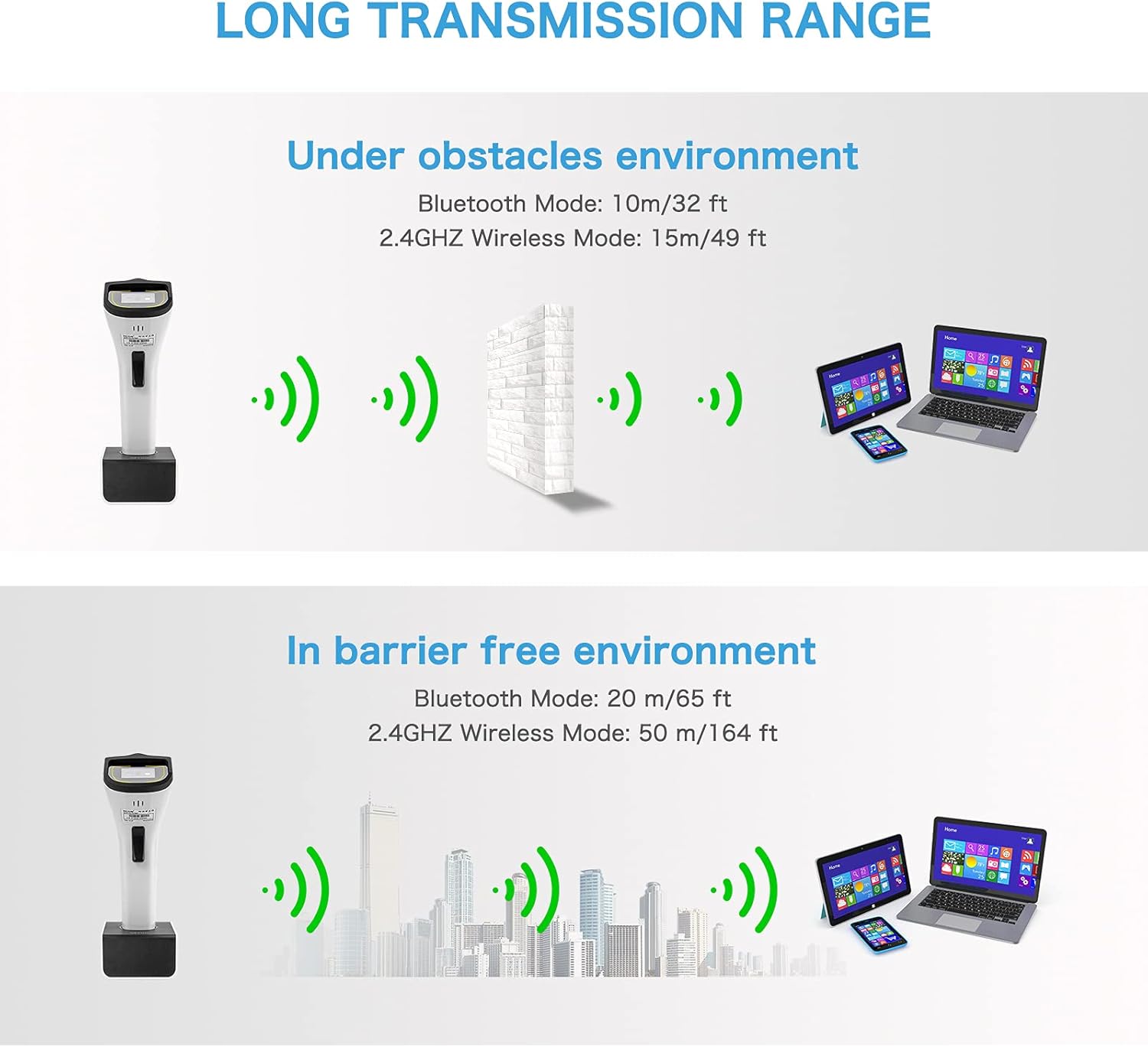
Figure 7: Visual representation of the scanner's transmission range under different environmental conditions.
4. Maintenance
4.1 Cleaning the Device
To maintain optimal performance, regularly clean the scanner's lens and body. Use a soft, lint-free cloth slightly dampened with water or a mild, non-abrasive cleaning solution. Avoid using harsh chemicals or abrasive materials that could damage the device.
4.2 Battery Care
The DS8100 uses a Lithium Metal battery. To prolong battery life:
- Avoid extreme temperatures.
- Do not fully discharge the battery frequently.
- Store the device with a partial charge if not used for extended periods.
5. Troubleshooting
This section addresses common issues you might encounter with your NETUM DS8100 scanner.
5.1 Scanner Not Reading Barcodes/RFID Tags
- Check Power: Ensure the scanner is sufficiently charged and powered on.
- Correct Mode: Verify that the scanner is in the correct trigger mode (Key Trigger, Continuous, or Auto-induction) for your use case.
- Distance and Angle: Adjust the distance and angle between the scanner and the barcode/tag. For RFID, ensure the tag is within the 0.4" - 2" read range.
- Barcode Quality: Ensure the barcode is clear, not smudged, torn, or excessively reflective.
- RFID Tag Type: Confirm the RFID tag type is supported (ISO15693, ISO/IEC 14443 A/B).
5.2 Connectivity Issues (Bluetooth/2.4G Wireless)
- Re-pair Device: Try unpairing and re-pairing the scanner with your host device.
- Dongle Connection: For 2.4G wireless, ensure the USB dongle is securely inserted into the computer's USB port. Try a different USB port.
- Range: Ensure the scanner is within the effective transmission range (refer to Section 3.4). Obstacles can reduce range.
- Interference: Minimize interference from other wireless devices.
- Driver Issues: For PC connections, ensure necessary drivers are installed (usually automatic for 2.4G dongle).
5.3 Device Not Responding
- Reboot: Turn the scanner off and then on again.
- Charge: Connect the scanner to its charging base to ensure it has power.
- Reset: If available, perform a factory reset (refer to specific barcodes in the quick start guide or contact support).
6. Specifications
| Feature | Specification |
|---|---|
| Model Number | DS8100 |
| Connectivity Technology | Bluetooth (LE V4.2 & 2.1+EDR, Class 1), 2.4G Wireless |
| Barcode Decoding Capability | 1D, 2D (QR Code, Data Matrix, PDF417, etc.) |
| RFID HF Performance | Carrier frequency: 13.56 MHz Read/Write Speed: 26 kbps (ISO 15693), 106kbps (ISO 14443) Antenna: Integrated Tag Support: ISO15693, ISO/IEC 14443 A and B (Mifare, Sony FeliCA) |
| Maximum RFID Read Range | 0.4" - 2" (10 - 30 mm) |
| Trigger Modes | Key Trigger, Continuous Scan, Auto-induction |
| Battery Type | Lithium Metal (included) |
| Item Weight | 14.1 ounces |
| Package Dimensions | 8.94 x 4.84 x 3.9 inches |
| Compatible Devices | Laptop, Desktop, Smartphone |
| Manufacturer | NETUM |

Figure 8: Detailed dimensions of the DS8100 scanner and its base.
7. Warranty and Support
NETUM products are designed for reliability and performance. For specific warranty information regarding your DS8100 device, please refer to the warranty card included with your purchase or visit the official NETUM website.
For technical support, troubleshooting assistance beyond this manual, or inquiries about customized development (e.g., RFID writing functionality), please contact NETUM customer service. Contact details can typically be found on the manufacturer's website or product packaging.
You may also find additional resources and FAQs on the NETUM Brand Store on Amazon.
Related documentsDS8100


Ask a question about this manual
Ask about setup, troubleshooting, compatibility, parts, safety, or missing instructions. Manuals+ will review the question and use this page’s manual context to help answer it.