
1. Introduction
Thank you for choosing the AULA F3261 60% Wired Mechanical Gaming Keyboard. This compact and feature-rich keyboard is designed for both gaming enthusiasts and office professionals, offering a customizable RGB backlight, hot-swappable switches, and a durable build. This manual provides detailed instructions to help you set up, operate, and maintain your new keyboard.
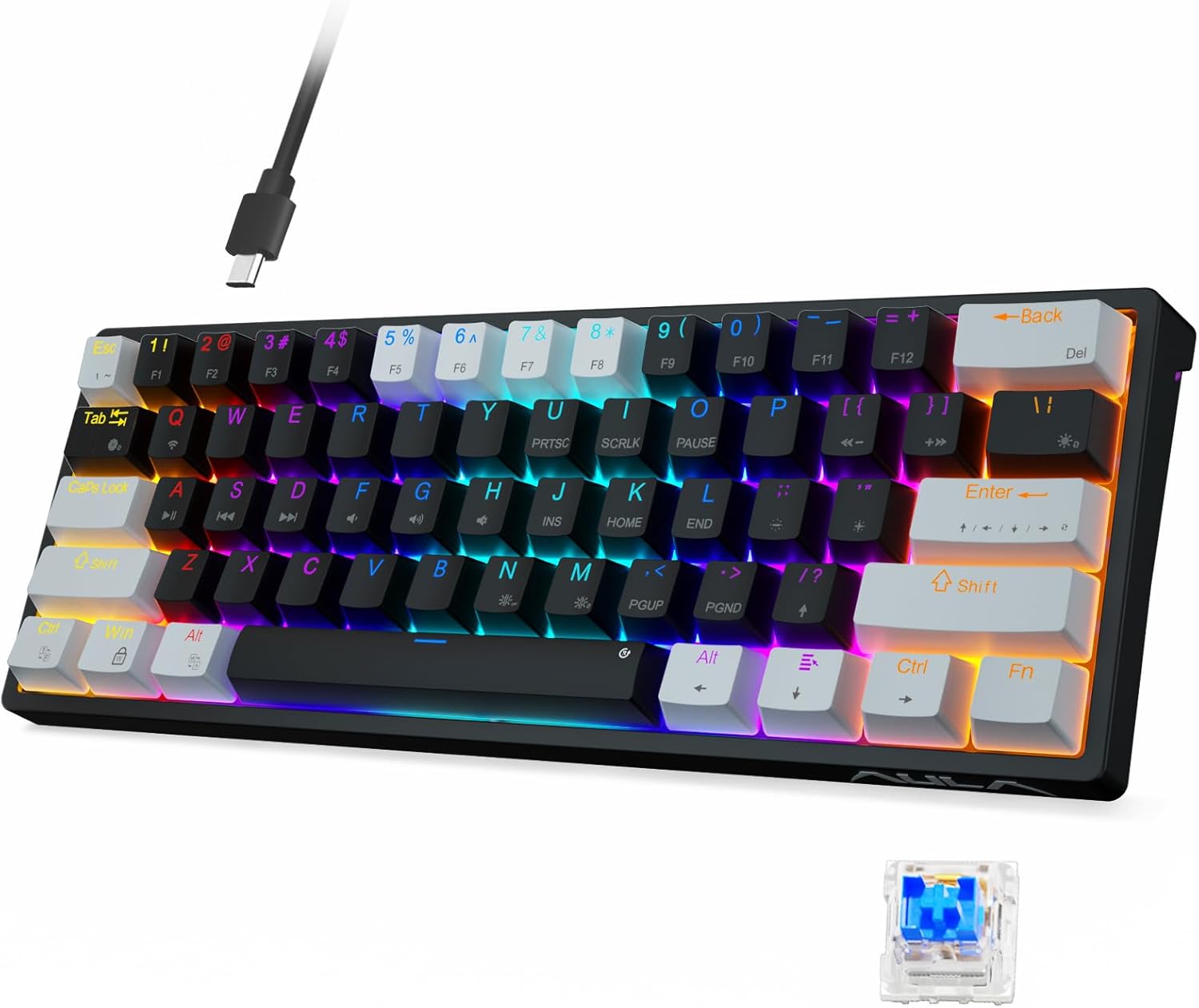
Figure 1: AULA F3261 60% Wired Mechanical Gaming Keyboard
2. What's in the Box
- AULA F3261 60% Wired Mechanical Gaming Keyboard
- USB-C to USB-A Cable
- Keycap Puller
- Switch Puller
- Extra Blue Switches (4 pieces)
- User Manual
3. Features
- Hot Swappable Mechanical Switches: Supports 3-pin hot-swappable switches, allowing for easy customization and replacement of switches without soldering. Comes with durable blue switches for tactile feedback.
- Dazzling 29 RGB Backlight Modes: Features 29 stylish RGB backlight modes, 8 monochrome backlighting options, and 1 full-color backlighting. Adjustable brightness levels and breathing speed. Drivers allow customization of 16.8 million colors and 10 unique music rhythm RGB modes. Side RGB light bars enhance the gaming ambiance.
- 60% Compact Layout: The 61-key design efficiently saves desktop space and is highly portable for travel. All standard functions are accessible via the "FN" key combination, improving efficiency for study, office, and gaming.
- Durable Construction: Built with superb ABS material for long-lasting durability, ensuring characters never fade. Advanced anti-glitch technology allows multiple keys to be pressed simultaneously without conflict (N-key rollover).
- Customizable Wired Connection: Easy to set up shortcuts and key combinations via the driver software. Connects securely via a stable Type-C cable, compatible with PC, Mac, Windows, and Laptops.

Figure 2: Key Features Overview
4. Setup
4.1 Connecting the Keyboard
- Locate the USB-C port on the back of the keyboard.
- Connect the smaller USB-C end of the provided cable to the keyboard's USB-C port.
- Connect the larger USB-A end of the cable to an available USB port on your PC, Mac, or Laptop.
- The keyboard will automatically be recognized by your operating system. No additional drivers are required for basic functionality.

Figure 3: USB Type-C Connection
4.2 Adjusting Ergonomic Height
The keyboard features adjustable feet on the underside to provide three levels of ergonomic height for comfortable typing.
- Flip out the small feet for a slight incline (approx. 5 degrees).
- Flip out the larger feet (if available) for a steeper incline (approx. 8 degrees).

Figure 4: Ergonomic Height Adjustment
5. Operating Instructions
5.1 RGB Backlight Control
The AULA F3261 offers extensive RGB backlight customization directly from the keyboard. Use the FN key in combination with other keys to control lighting effects.
- FN + \|: Selects between 29 different lighting modes.
- FN + Tab: Adjusts the light color in certain modes.
- FN + M: Selects side light modes.
- FN + [/ { or ]/ }: Adjusts lighting brightness.
- FN + ;/: or '/": Adjusts lighting speed.

Figure 5: RGB Backlight Controls
Video 1: Adjusting Light Modes, Brightness, Speed, and Side Modes
5.2 Custom Software
For advanced customization, including 16.8 million color options, music rhythm modes, and macro programming, download the official AULA driver software from the manufacturer's website. The software allows you to personalize your keyboard experience to a high degree.

Figure 6: Custom Software Interface
5.3 Hot-Swappable Switches
The AULA F3261 supports 3-pin hot-swappable switches, allowing you to easily change switches without soldering. This is ideal for customizing typing feel or replacing faulty switches.
- Use the provided keycap puller to gently remove the desired keycap.
- Use the provided switch puller to carefully grip the switch from its top and bottom clips.
- Pull the switch straight up to remove it from the PCB.
- Align the pins of the new 3-pin switch with the holes on the PCB.
- Gently push the new switch down until it clicks into place. Ensure pins are not bent.
- Replace the keycap.

Figure 7: Hot-Swappable Switch Replacement
Video 2: Hot-Swapping Mechanical Switches
5.4 Function Key Combinations
Due to its compact 60% layout, many functions are accessed by combining the FN key with other keys. Refer to the included quick guide or the custom software for a full list of combinations, including arrow keys, media controls, and more.

Figure 8: Compact Layout and FN Key Usage

Figure 9: Versatile Use for Game and Office
6. Maintenance
6.1 Cleaning
- Disconnect the keyboard from your computer before cleaning.
- Use a soft, lint-free cloth slightly dampened with water or a mild cleaning solution to wipe the keycaps and keyboard surface.
- For deeper cleaning, remove keycaps using the provided keycap puller and use compressed air to clear debris from underneath.
6.2 Switch and Keycap Care
- When removing keycaps or switches, apply gentle, even pressure to avoid damaging the components.
- Store extra switches and pullers in a safe place to prevent loss.
7. Troubleshooting
- Keyboard Not Responding: Ensure the USB-C cable is securely connected to both the keyboard and your computer. Try a different USB port or a different cable.
- Backlight Not Working: Check FN key combinations for turning lights on/off or adjusting brightness. Ensure the keyboard is properly powered.
- Keys Not Registering: If specific keys are not working, try hot-swapping the switch for that key with one of the spare switches to check if the switch is faulty.
- Customization Issues: Ensure the AULA driver software is installed correctly and is the latest version. Restart your computer and the software.
8. Specifications
| Attribute | Detail |
|---|---|
| Model Number | AULA-F3261-3 |
| Product Dimensions | 13.3 x 5.87 x 1.89 inches |
| Item Weight | 1.26 pounds |
| Manufacturer | AULA |
| Connectivity Technology | USB-C |
| Keyboard Description | Mechanical |
| Number of Keys | 61 |
| Keyboard Backlighting | RGB (29 modes) |
| Compatible Devices | PC, Mac, Windows, Laptop |
| Special Features | Ergonomic, Backlit, Hotkeys and Media Keys, Customizable Display Keys |
9. Warranty and Support
AULA products come with a standard manufacturer's warranty. For detailed warranty information, technical support, or service inquiries, please refer to the warranty card included in the product packaging or visit the official AULA website. Please retain your proof of purchase for warranty claims.


