
MAONO PD100 XLR
MAONO PD100 XLR Podcast Microphone User Manual
Model: PD100 XLR | Brand: MAONO
1. Introduction
The MAONO PD100 XLR Podcast Microphone is a dynamic microphone designed for high-quality vocal recording, streaming, and content creation. It features a cardioid polar pattern to capture clear, focused audio while minimizing background noise. This manual provides essential information for setting up, operating, and maintaining your PD100 microphone.
2. Features
- Broadcast-Quality Sound: Built-in dynamic core and inner double-layer pop filter for clear, mellow audio with a frequency response range of 60-14kHz.
- Cardioid Polar Pattern: Focuses on sound directly in front of the microphone, reducing ambient noise. Features an "End Address" pickup for detailed voice capture.
- XLR Connectivity: Gold-plated 3-pin XLR interface ensures a stable and strong connection to audio interfaces, mixers, and sound cards.
- Noise Isolation Technology: Attenuates plosive sounds and unwanted background noise for cleaner recordings.
- Wide Compatibility: Works with various audio equipment such as mixers, audio interfaces, and sound cards.
3. What's in the Box
Please check the contents of your package. The standard MAONO PD100 XLR Microphone package typically includes:
- MAONO PD100 XLR Dynamic Microphone
- Desktop Microphone Stand
- XLR Cable
Note: The MAONO MH601 headphones, while compatible and often shown with the PD100, are typically sold separately.
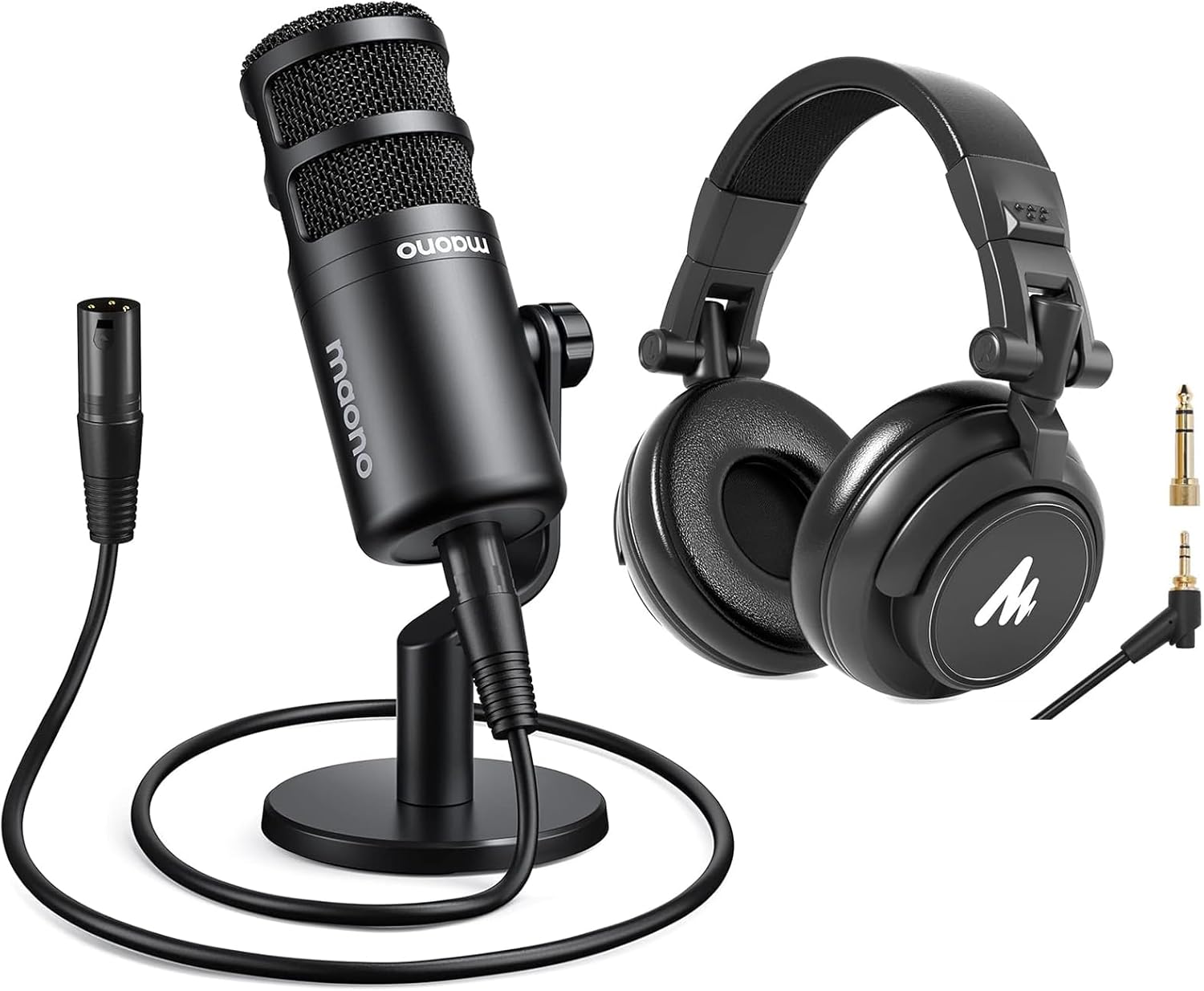
Image: The MAONO PD100 XLR Microphone shown with its included desk stand and XLR cable, alongside compatible MH601 headphones.
4. Setup
- Attach the Microphone to a Stand:
Secure the MAONO PD100 microphone to the included desktop stand or a compatible boom arm. The microphone features standard 5/8" and 3/8" threading for versatile mounting options.

Image: Detail of the microphone's base illustrating the 5/8" and 3/8" threading for mounting on various stands.
- Connect the XLR Cable:
Plug one end of the XLR cable into the 3-pin XLR output port at the bottom of the microphone. Connect the other end of the XLR cable to an audio interface, mixer, or sound card.

Image: A detailed view of the gold-plated 3-pin XLR output on the MAONO PD100 microphone, ensuring a secure connection.
- Connect to Audio Equipment:
Ensure your audio interface, mixer, or sound card is properly connected to your computer or recording device. The PD100 is compatible with professional studio equipment like the Focusrite Scarlett Solo or various audio mixers.

Image: The MAONO PD100 microphone integrated into a studio setup, demonstrating compatibility with an audio interface and mixer.
- Power On and Configure:
Power on your audio interface/mixer. Adjust input gain levels on your audio device. The PD100 is a dynamic microphone and does not require phantom power.
5. Operating Instructions
- Microphone Placement:
Position the microphone 2 to 4 inches (approximately 5-10 cm) from your mouth for optimal sound capture. The PD100 is an "End Address" microphone, meaning you should speak into the top of the microphone, not the side.

Image: Illustration demonstrating the optimal speaking distance of 2-4 inches from the end-address cardioid dynamic microphone.
- Monitoring Audio:
For real-time audio monitoring, connect headphones (such as the MAONO MH601) to your audio interface or mixer. This allows you to hear your voice as it is being recorded or streamed.

Image: A cutaway view of the MAONO MH601 headphones, showcasing the 50mm driver responsible for its audio performance.

Image: The MAONO MH601 headphones illustrating their foldable design and adjustable headband for comfort and portability.

Image: Two users engaged in an audio session, demonstrating the audio sharing function of the MAONO MH601 headphones.
- Adjusting Gain Levels:
Set the input gain on your audio interface or mixer to an appropriate level. Aim for a strong signal without clipping (distortion). Most recording software will have visual indicators for this.
- Recording/Streaming:
Once connected and levels are set, you can begin your recording or live stream. The PD100 is designed to deliver clear and natural sound for various applications.

Image: Two individuals collaborating on a recording project, utilizing MAONO PD100 microphones and an audio mixer to achieve broadcast-grade sound quality.
6. Specifications
| Feature | Specification |
|---|---|
| Brand | MAONO |
| Model Number | PD100 XLR |
| Connectivity Technology | XLR |
| Connector Type | 3.5 mm Jack, XLR |
| Polar Pattern | Unidirectional (Cardioid) |
| Microphone Form Factor | Table Array |
| Frequency Response | 60-14 KHz |
| Recommended Uses | Streaming, Vocal Recording, Podcasting, Voice-Over |
| Compatible Devices | Audio Interface, Audio Mixer, Headphone |
| Power Source | Corded Electric (via XLR connection to audio device) |
| Hardware Platform | PC |
| Number of Channels | 1 |
7. Troubleshooting
- No Sound Output:
- Ensure the XLR cable is securely connected to both the microphone and the audio interface/mixer.
- Verify that the audio interface/mixer is powered on and correctly connected to your computer.
- Check the input gain level on your audio interface/mixer; it might be set too low.
- Confirm that the correct input device is selected in your computer's sound settings or recording software.
- Low Volume:
- Increase the input gain on your audio interface/mixer.
- Ensure the microphone is positioned optimally (2-4 inches from the sound source).
- Check the volume settings in your operating system and recording software.
- Distorted Sound:
- Reduce the input gain on your audio interface/mixer to prevent clipping.
- Ensure the microphone is not too close to the sound source, which can cause overload.
- Check for damaged XLR cables and replace if necessary.
- Background Noise:
- Ensure the microphone is facing the desired sound source directly, utilizing its cardioid pattern.
- Minimize ambient noise in your recording environment.
- Check for any electrical interference from other devices.
8. Maintenance
- Cleaning: Use a soft, dry cloth to wipe the microphone body. Avoid using liquid cleaners or solvents, as they may damage the finish or internal components.
- Storage: When not in use, store the microphone in a clean, dry place, away from extreme temperatures and humidity. It is recommended to keep it in its original packaging or a protective case.
- Cable Care: Avoid sharply bending or twisting the XLR cable. Store cables neatly to prevent damage.
9. Warranty and Support
MAONO products are designed for reliability and performance. For specific warranty information, please refer to the warranty card included with your product or visit the official MAONO website. If you encounter any issues or require technical assistance, please contact MAONO customer support through their official channels.
Official MAONO Website: www.maono.com
Related documentsPD100 XLR


Ask a question about this manual
Ask about setup, troubleshooting, compatibility, parts, safety, or missing instructions. Manuals+ will review the question and use this page’s manual context to help answer it.