
Introduction
This manual provides essential information for setting up, operating, maintaining, and troubleshooting your ASUS AiO A3 Series All-in-One Desktop. Please read this manual thoroughly before using the device to ensure proper functionality and longevity.
1. Setup
1.1 Box Contents
Verify that all items are present in the packaging:
- ASUS AiO A3 Series Desktop
- Power Adaptor
- Wireless White Keyboard
- Wireless Optical Mouse
- User Manuals (this document)
- Warranty Documents
1.2 Connecting the Device
- Power Connection: Connect the power adaptor to the DC-in port on the rear of the desktop, then plug it into a power outlet.
- Wireless Keyboard and Mouse: Insert batteries into the wireless keyboard and mouse. The devices are pre-paired with the desktop. If connection issues occur, refer to the troubleshooting section.
- Optional Peripherals:
- External Display: Connect an external monitor to the HDMI out 1.4 port.
- Network: For a wired network connection, connect an Ethernet cable to the RJ45 Gigabit Ethernet port.
- USB Devices: Utilize the available USB 2.0 Type-A, USB 3.2 Gen 1 Type-A, and USB 3.2 Gen 1 Type-C ports for external devices.
- Audio: Use the 3.5mm combo audio jack for headphones or external speakers.

Image: Rear view of the ASUS AiO A3 Series desktop, highlighting the DC-in, RJ45 Ethernet, HDMI in/out, USB 2.0 Type-A, USB 3.2 Gen 1 Type-C, and USB 3.2 Gen 1 Type-A ports.
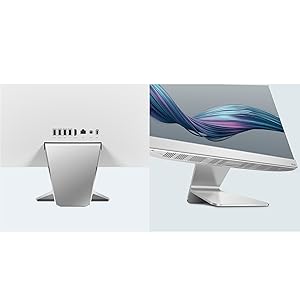
Image: Detailed view of the side and rear I/O ports, including USB 3.2 Gen 1 Type-A, USB 3.2 Gen 1 Type-C, and other connectivity options.
1.3 First Power On
Press the power button located on the side or rear of the desktop. The system will boot into Windows 11 Home. Follow the on-screen instructions for initial setup, including language selection, network connection, and user account creation.
2. Operating the Desktop
2.1 Display Features
The ASUS AiO A3 Series features a 23.8-inch Full HD (1920 x 1080) touch screen display with anti-glare properties. It offers a wide view with 100% sRGB color gamut and 250 nits brightness.
- Touch Screen: Interact directly with the display using touch gestures supported by Windows 11.
- Anti-glare: Reduces reflections for comfortable viewing in various lighting conditions.

Image: The 23.8-inch FHD NanoEdge display, highlighting its narrow bezels and touch panel feature.

Image: Visual representation of the display's vibrant and vivid characteristics, including 178° IPS-wide viewing, 100% sRGB color gamut, 1000:1 contrast ratio, 250 cd/m² brightness, and Anti-Glare display.
2.2 Pre-installed Software
Your desktop comes with the following software pre-installed:
- Operating System: Windows 11 Home (Lifetime Validity)
- Productivity Suite: Microsoft Office Home & Student 2021 (Lifetime Validity)
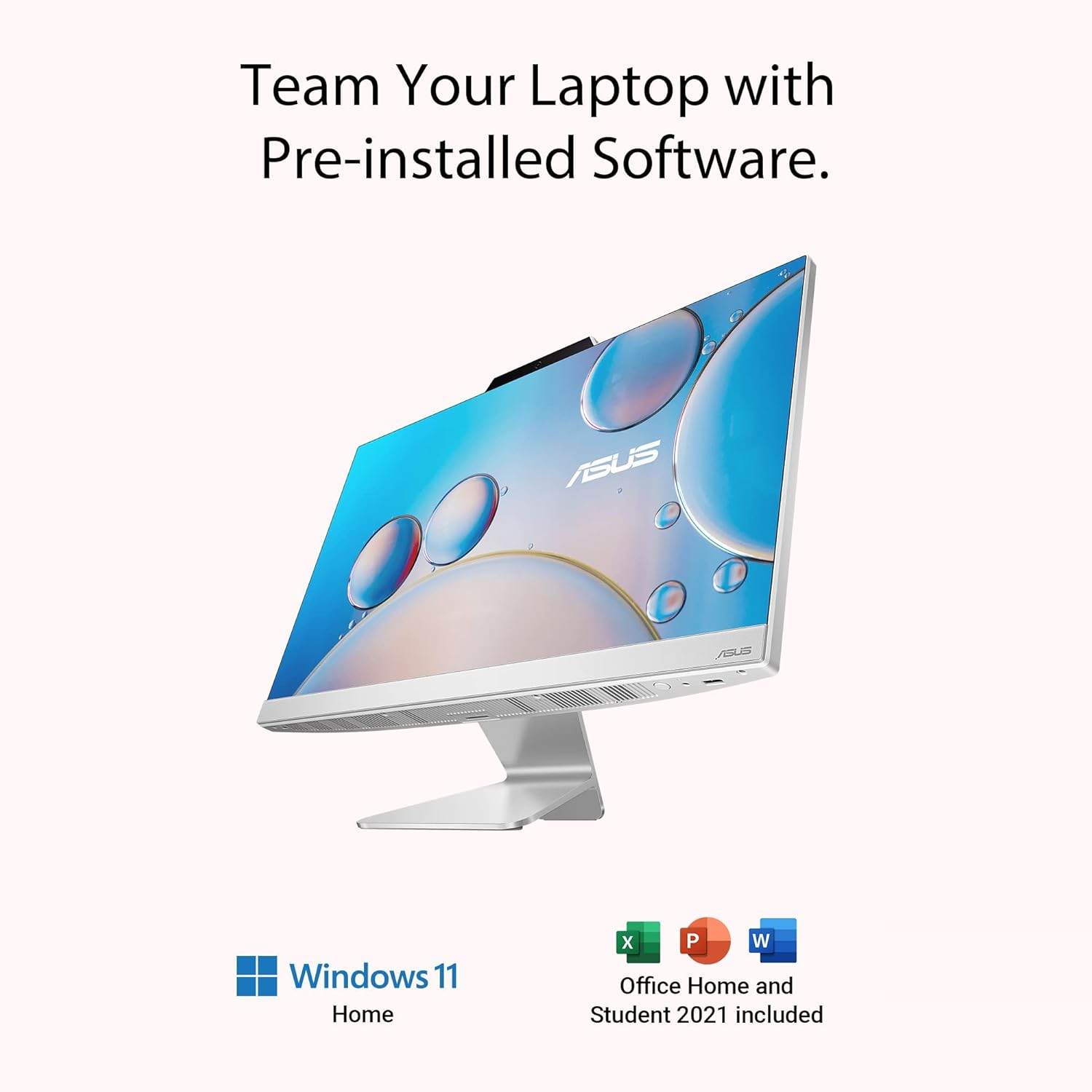
Image: The ASUS AiO A3 Series desktop alongside logos for Windows 11 Home and Office Home & Student 2021, indicating pre-installed software.
2.3 Audio System
The desktop is equipped with 3W x 2 built-in speakers featuring SonicMaster technology for enhanced audio quality. It also includes a built-in microphone and AI Noise-Canceling technology.
- SonicMaster: Provides high-fidelity sound, expertly optimized for clear audio.
- AI Noise-Canceling: Utilizes an AI-trained algorithm to filter out background noise for both upstream (your microphone) and downstream (incoming audio) communications, improving clarity during calls and recordings.

Image: Diagram illustrating the advanced bass-reflex speakers, indicating 3W x 2 stereo speakers with lower bass-reflex for undistorted bass, and Dolby Atmos support.

Image: The ASUS AiO A3 Series desktop displaying a music-related image, emphasizing high-fidelity SonicMaster sound.

Image: The ASUS AiO A3 Series desktop showing a video conference call, illustrating the AI-powered Noise-Canceling technology for both upstream and downstream audio.
2.4 Web Camera
A 720p HD web camera is integrated for video calls and conferencing.
3. Maintenance
3.1 Cleaning
- Screen: Use a soft, lint-free cloth slightly dampened with water or a screen-cleaning solution. Avoid harsh chemicals.
- Chassis: Wipe the exterior with a soft, dry cloth.
- Ports: Keep ports free of dust and debris. Use compressed air if necessary, ensuring the device is powered off.
3.2 Software Updates
Regularly check for and install updates for Windows 11 and Microsoft Office to ensure optimal performance, security, and access to the latest features. These updates can be managed through the Windows Settings application.
4. Troubleshooting
This section addresses common issues you might encounter. For more complex problems, refer to the Support section.
4.1 No Power
- Ensure the power adaptor is securely connected to both the desktop and a working power outlet.
- Verify the power outlet is functional by plugging in another device.
4.2 Display Issues
- If the screen is blank, ensure the desktop is powered on.
- Check display settings in Windows if the resolution or scaling appears incorrect.
4.3 Wireless Keyboard/Mouse Not Responding
- Check and replace batteries in both the keyboard and mouse.
- Ensure the wireless receiver (if applicable, usually a small USB dongle) is plugged into a USB port on the desktop.
- Restart the desktop.
4.4 No Sound
- Check the volume levels in Windows and ensure speakers are not muted.
- Verify that the correct audio output device is selected in Windows sound settings.
5. Specifications
| Feature | Detail |
|---|---|
| Model Name | AiO A3 Series |
| Model Number | A3402WBAT-WA001WS |
| Processor | 12th Gen Intel Core i5-1235U (1.3 GHz Base, up to 4.4 GHz Max Turbo, 10 cores, 12MB Cache) |
| Memory | 8GB DDR4 SO-DIMM 3200MHz RAM (Max 16GB, 2 slots available) |
| Storage | 512GB M.2 NVMe PCIe 3.0 SSD |
| Display | 23.8" (60.45 cm) FHD (1920 x 1080) 16:9, Wide view, Touch screen, Anti-glare, LED Backlit, 250nits, 100% sRGB, 88% Screen-to-body ratio |
| Graphics | Integrated Intel UHD Graphics |
| Operating System | Windows 11 Home (Lifetime Validity) |
| Software | MS Office Home & Student 2021 (Lifetime Validity) |
| Audio | Built-in microphone, 3W x 2 Built-in speakers, SonicMaster |
| Web Camera | 720p HD Web Camera |
| Wireless Connectivity | Wi-Fi 6 (802.11ax) 2*2, Bluetooth 5.2 |
| Rear I/O Ports | 1x DC-in, 1x RJ45 Gigabit Ethernet, 1x HDMI in 1.4, 1x HDMI out 1.4, 1x USB 2.0 Type-A, 1x USB 3.2 Gen 1 Type-C, 3x USB 3.2 Gen 1 Type-A |
| Side I/O Ports | 1x Kensington lock, 1x 2-in-1 card reader SD / MMC, 1x 3.5mm combo audio jack, 1x USB 2.0 Type-A |
| Dimensions (Item) | 42.3 x 53.9 x 1.5 Centimeters |
| Weight (Item) | 5.4 Kilograms |
| Included Accessories | Wireless White Keyboard, Wireless Optical Mouse |

Image: The ASUS AiO A3 Series desktop with text overlays detailing its performance: Core i5-1235U processor, up to 4.4 GHz frequency, Intel UHD graphics, 8 GB DDR4 memory, and 512 GB SSD storage.
6. Warranty Information
This genuine ASUS All-in-One Desktop PC comes with a 1-year Onsite Domestic Warranty from ASUS. This warranty covers manufacturing defects and does not cover physical damage. To activate your warranty, please register on the ASUS brand website.
For product-related queries, you may contact ASUS at:
- Phone: 18002090365
- Email: rc_india@asus.com
7. Support
For further assistance, technical support, or to access additional resources, please use the following contact information and resources:
- MyASUS App: For after-sales support and system diagnostics.
- Customer Service: 1800 209 0365
- Online Support Email: rc_india@asus.com
- ASUS Support Website: https://www.asus.com/in/support/
Image: ASUS support details including MyASUS App, customer service phone number (1800 209 0365), online support email (rc_india@asus.com), and a QR code to access the ASUS Support website.
Manufacturer and Importer Information
Manufacturer: TECH FRONT (CHONGQING) Computer Co. Ltd, NO 18, Zongbao Road, Shapingba Dist, Chongqing, China
Importer: ASUS INDIA PRIVATE LIMITED, 402, Supreme Chambers, 17/18, Shah Industrial Estate, Veer Desai Road, Andheri (West), Mumbai 400053, India