
VTech CS1501
VTech CS1501 DECT Cordless Phone User Manual
Model: CS1501 | Brand: VTech
Introduction
This manual provides comprehensive instructions for the setup, operation, maintenance, and troubleshooting of your VTech CS1501 DECT Cordless Phone system. Please read this manual thoroughly to ensure proper use and to take full advantage of all features.
1. Setup
1.1 What's in the Box
- 1 Base Unit
- 2 Cordless Handsets
- 2 Handset Chargers
- 2 AC Adaptors
- 2 Battery Packs
- Telephone Line Cord
- Quick Start Guide
1.2 Battery Installation
Before using your phone, install the battery pack in each handset. Ensure correct polarity. Charge the handsets for at least 16 hours before initial use to ensure optimal battery performance.

Image: Two VTech CS1501 cordless phone handsets in their charging cradles, ready for use.
1.3 Connecting the Base Unit
Connect the telephone line cord to the base unit and the telephone wall jack. Plug the AC adaptor into the base unit and a power outlet. Place the base unit in a central location for optimal range.
1.4 Handset Registration
Your handsets are pre-registered to the base unit. If a handset displays "Unregistered" or you purchase additional handsets, refer to the Quick Start Guide for registration instructions.
2. Operating Instructions
2.1 Making and Receiving Calls
To make a call, press the Talk button and dial the number. To answer a call, press the Talk button when the phone rings. To end a call, press the End button or place the handset back in the charger.
2.2 Handsfree Speakerphone
Activate the handsfree speakerphone function during a call by pressing the Speaker button. This allows you to converse without holding the handset.

Image: The handsfree speakerphone feature allows for easy communication without holding the handset.
2.3 Nuisance Call Blocker
The VTech CS1501 features a nuisance call blocker. You can block up to 60 blacklisted numbers to prevent unwanted calls. Consult the Quick Start Guide for detailed instructions on adding numbers to the block list.
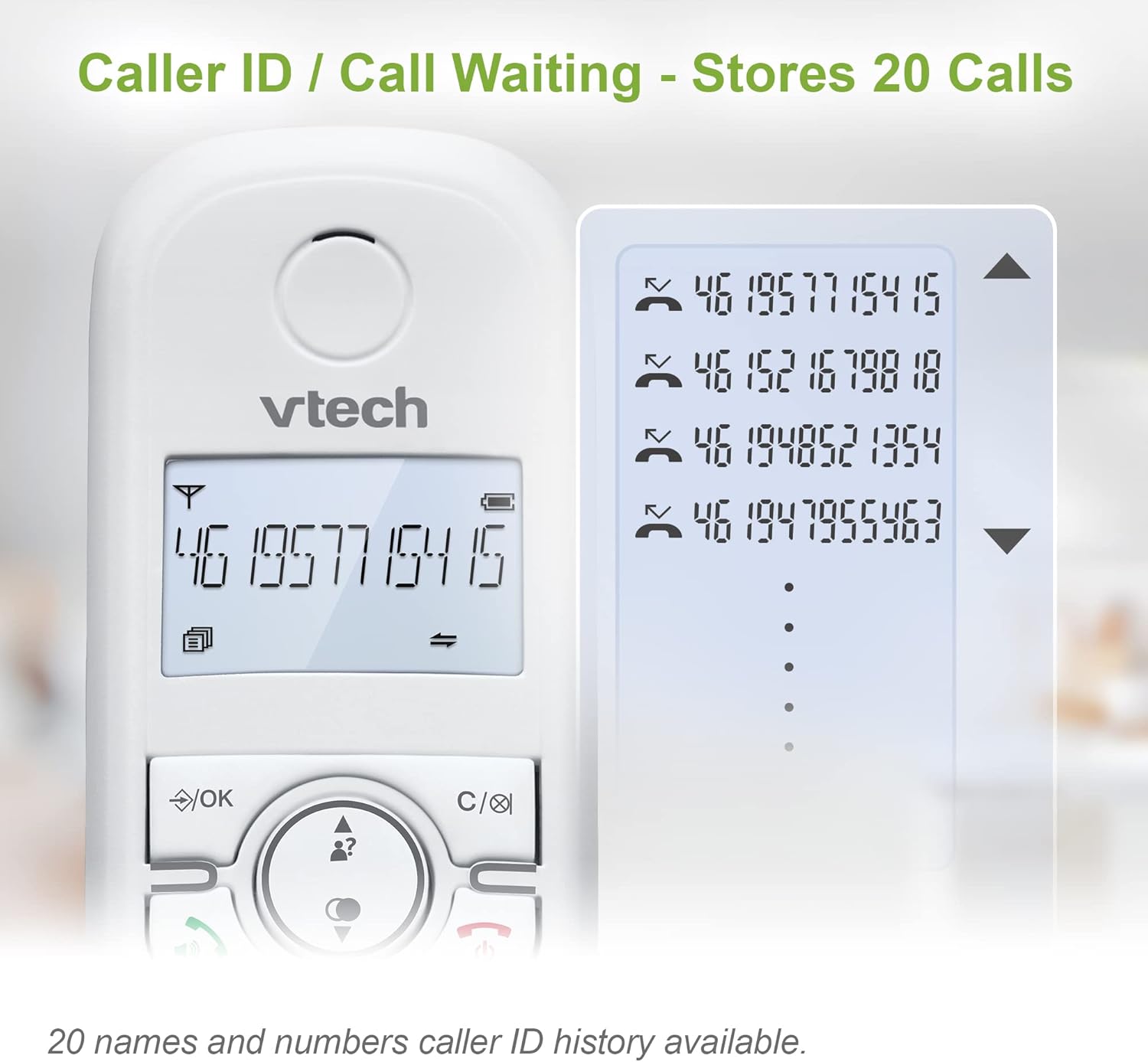
Image: The dedicated call block button helps prevent unwanted calls from ringing through.
2.4 Caller ID and Call Waiting
The phone stores up to 20 names and numbers in its Caller ID history. This feature requires subscription to Caller ID service from your telephone service provider.

Image: The Caller ID feature displays incoming call information and stores a history of up to 20 calls.
2.5 Phonebook
Store up to 60 names and numbers in the phonebook for quick dialing. Access the phonebook via the menu and navigate using the arrow keys.

Image: The phonebook allows for easy access to up to 60 stored names and numbers.
2.6 Intercom and 3-Way Conference
The system supports intercom calls between handsets and 3-way conference calls, allowing multiple users to participate in a conversation simultaneously. Refer to the Quick Start Guide for specific steps.

Image: Handset call transfer and intercom enable multi-user conversations, supporting 3-way conference calls.
2.7 Redial
The phone stores the last 10 numbers dialed, allowing for quick redialing at the touch of a button.
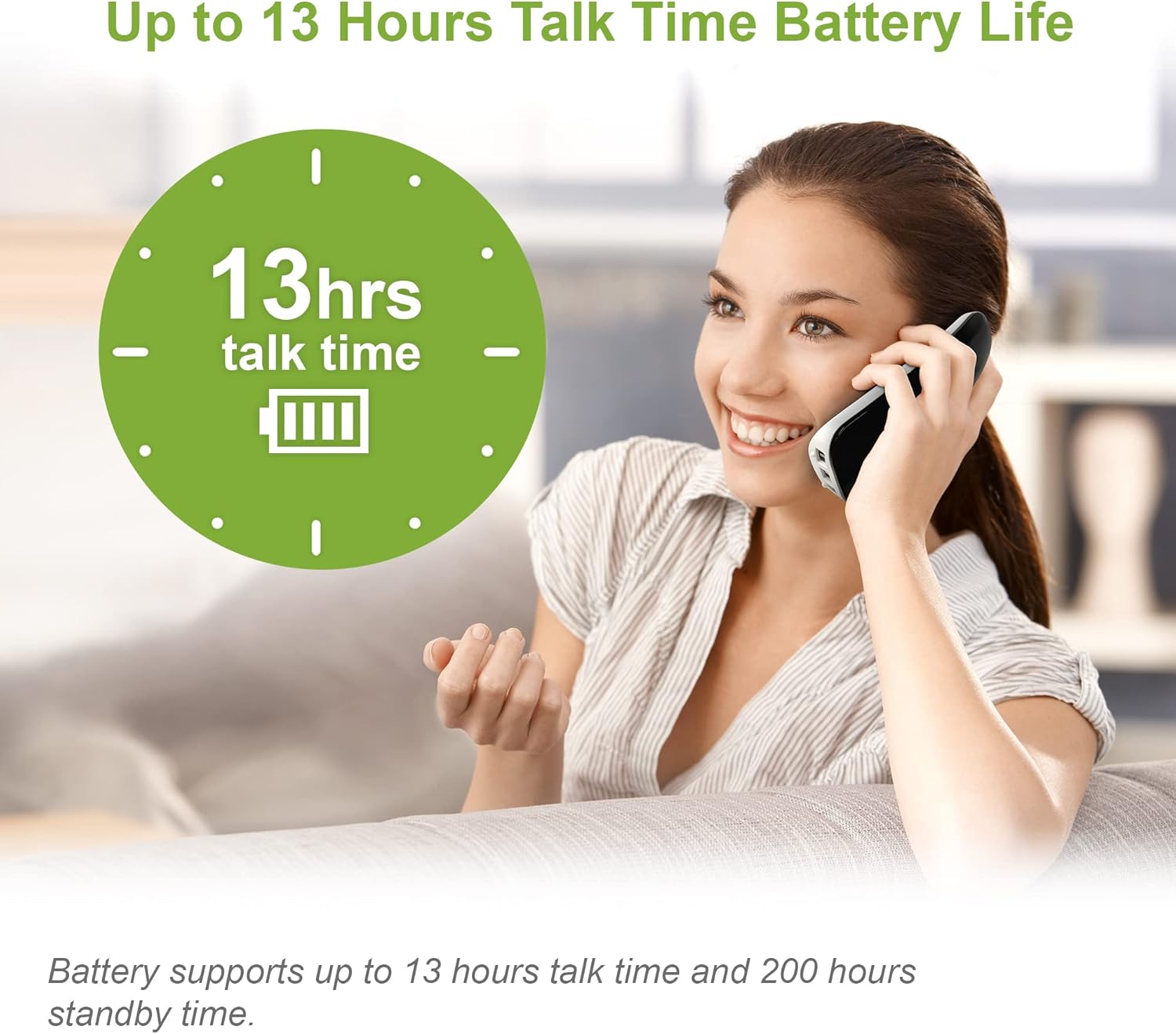
Image: Redial the last 10 numbers called with ease, saving time.
2.8 Alarm and Mute Function
Set convenient alarms on the handset or mute your voice on calls when privacy is needed.

Image: The phone offers alarm and mute functions for convenience and privacy.
2.9 Eco-Power Mode
The phone features an Eco-Power Mode that automatically adjusts and minimizes radio frequency power, contributing to energy efficiency.
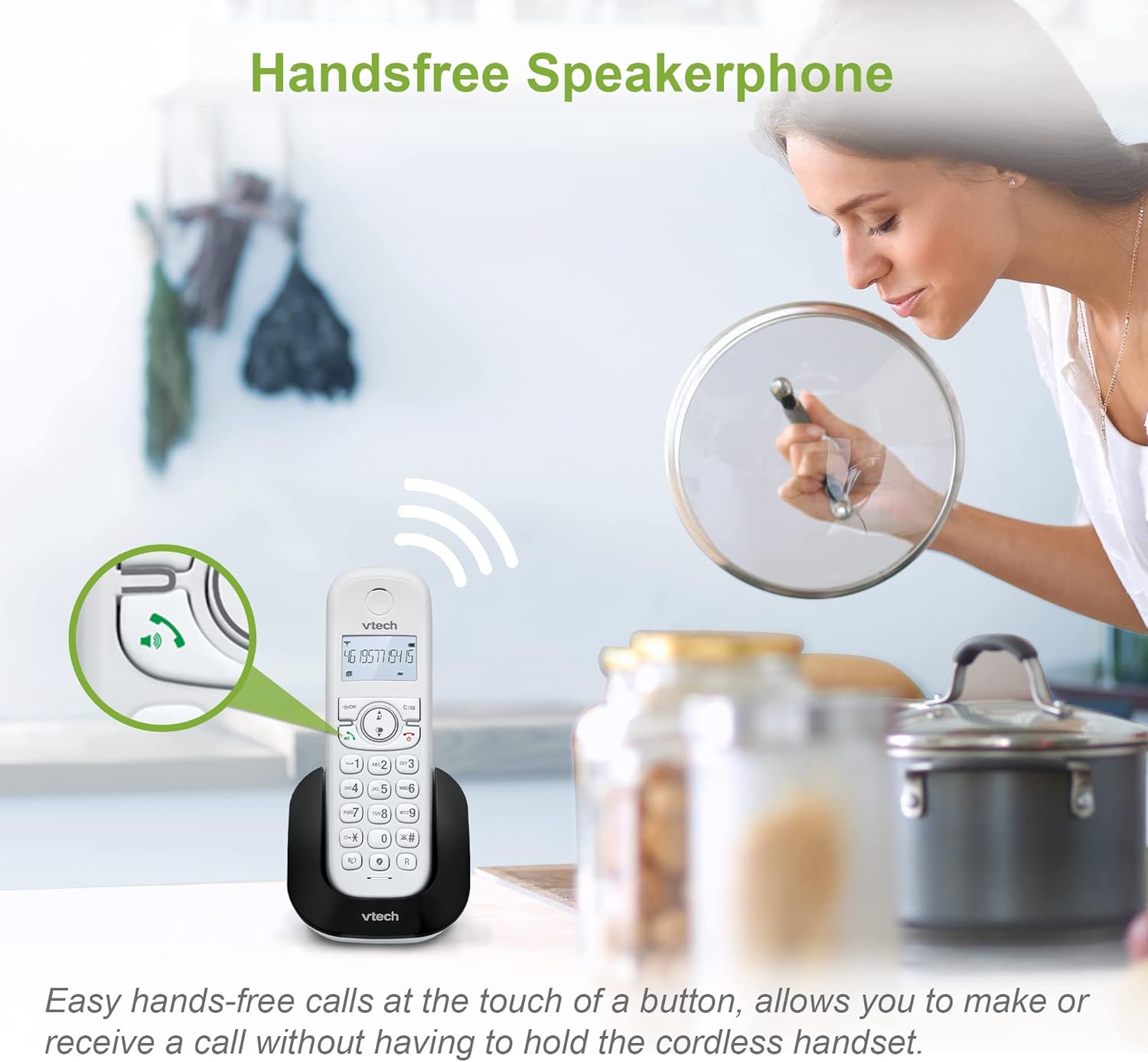
Image: The Eco-Power Mode automatically adjusts and minimizes radio frequency power for energy efficiency.
2.10 Two-way Charging Handset Design
The innovative charging design allows users to charge the handset face-down or face-up. Forward facing allows easy viewing of the display, while rear facing can be convenient for easy placement and retaining the overall sleek design.

Image: The two-way charging design offers flexibility for viewing the display or compact placement.
2.11 Product Overview Video
Video: A summary of the VTech CS1501 DECT Cordless Phone's key features and design.
3. Maintenance
3.1 Cleaning Your Phone
Clean the phone and charger with a soft, damp cloth. Do not use cleaning sprays or abrasive cleaners. Avoid getting moisture in any openings.
3.2 Battery Care
To prolong battery life, avoid overcharging by unplugging the charger when not in use for extended periods. If the phone will not be used for a long time, remove the battery from the handset.
4. Troubleshooting
If you experience issues with your VTech CS1501 phone, try the following troubleshooting steps:
| Problem | Solution |
|---|---|
| No dial tone |
|
| Cannot make or receive calls |
|
| Poor sound quality (static, crackling) |
|
| Handset displays "Unregistered" |
|
5. Specifications
| Feature | Detail |
|---|---|
| Model Number | CS1501 |
| Telephone Type | DECT Cordless |
| Battery Type | 2 Product Specific batteries (included) |
| Talk Time | Up to 13 hours |
| Phonebook Capacity | 60 Names & Numbers |
| Call Block Capacity | Up to 60 blacklisted numbers |
| Caller ID History | 20 Calls |
| Redial Memory | Last 10 numbers |
| Display | Backlit LCD |
| Material | Plastic |
| Item Weight | 550 Grams |
| Country of Origin | China |
6. Warranty
VTech products are manufactured to high quality standards. This product is covered by a standard manufacturer's warranty against defects in materials and workmanship. Please retain your proof of purchase for warranty claims. For specific warranty terms and conditions, refer to the documentation included with your product or visit the VTech official website.
7. Support
For further assistance, technical support, or to inquire about replacement parts, please visit the official VTech support website or contact their customer service line. Contact details can typically be found in the Quick Start Guide or on the VTech website.
Online Support: www.vtech.co.uk/support (Example link, please refer to actual product documentation for correct URL)
Related documentsCS1501


Ask a question about this manual
Ask about setup, troubleshooting, compatibility, parts, safety, or missing instructions. Manuals+ will review the question and use this page’s manual context to help answer it.