
Introduction
This manual provides essential information for the proper installation, operation, and maintenance of your ORICO 2.5-inch USB-C to SATA III Hard Drive Enclosure. This enclosure is designed to convert a 2.5-inch SATA SSD or HDD (7mm/9.5mm thickness) into a portable external storage device. It supports a maximum capacity of 6TB and features UASP accelerated transmission protocol for efficient data transfer.
Safety Information
- Do not expose the device to water, moisture, or extreme temperatures.
- Avoid dropping or subjecting the device to strong impacts.
- Do not attempt to disassemble or modify the enclosure, as this may void the warranty and cause damage.
- Use only the provided USB cable or a compatible cable to ensure proper functionality and prevent damage.
- Keep the device away from strong magnetic fields.
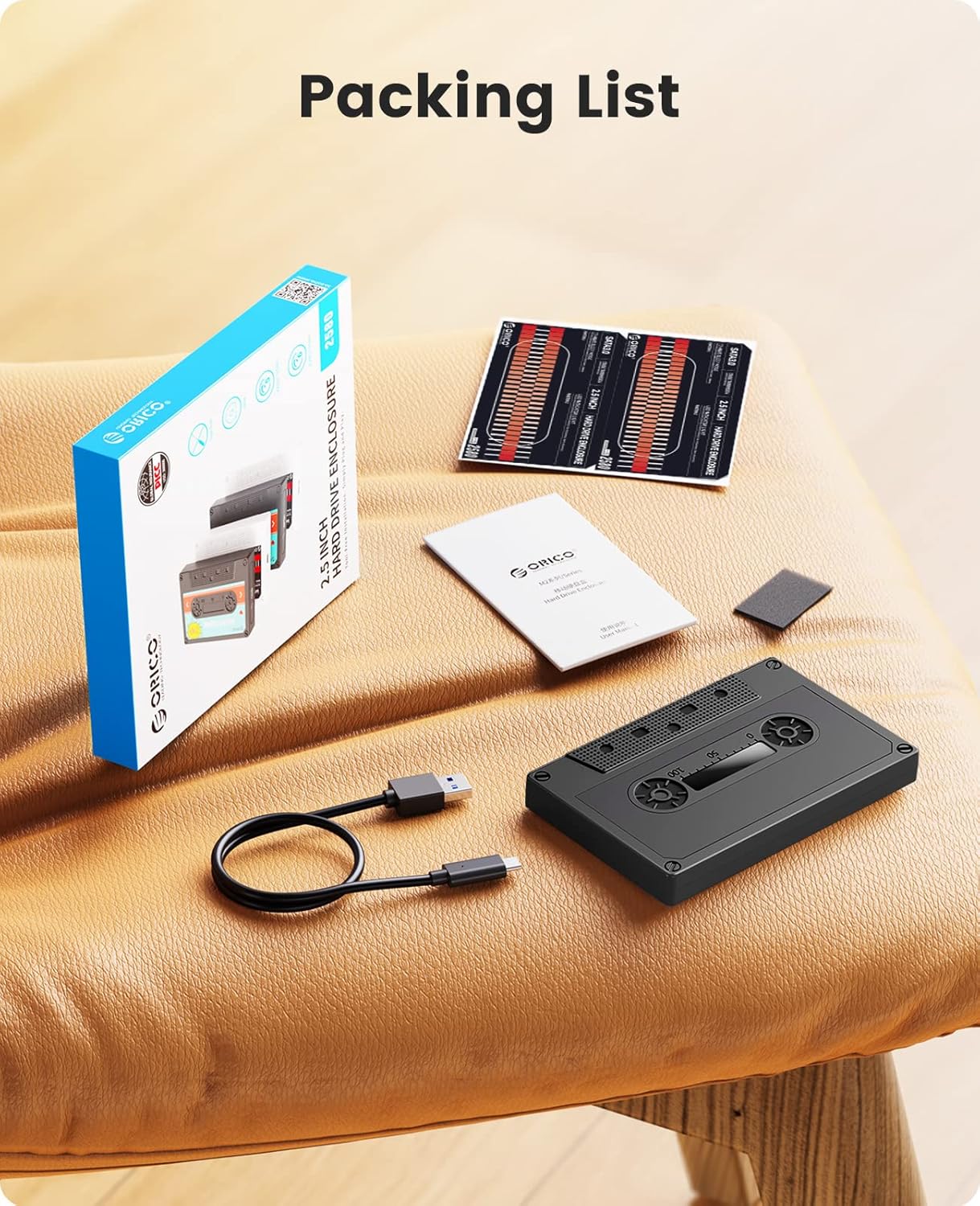
What's in the Box
- ORICO 2.5-inch Hard Drive Enclosure (Model: 2580 Type-C)
- USB-C to USB-A Data Cable
- User Manual
- DIY Vintage Tape Stickers
- Shockproof Sponge Pad
Setup
Follow these steps to install your 2.5-inch SATA SSD or HDD into the enclosure:
- Open the Enclosure: Gently slide the top cover of the enclosure off to reveal the internal tray.
- Apply Shockproof Sponge: Peel off the adhesive backing from the included shockproof sponge pad and carefully place it inside the enclosure's tray. This helps secure the drive and absorb shocks.
- Install the Drive: Align your 2.5-inch SATA SSD or HDD with the SATA connector inside the enclosure. Gently push the drive into the connector until it is firmly seated. Ensure the drive is snug against the sponge pad.
- Close the Enclosure: Slide the top cover back onto the enclosure until it clicks securely into place.
- Apply DIY Stickers (Optional): If desired, peel and apply the vintage tape stickers to the enclosure for a personalized look.


Video: Installation and How to Use with DIY Sticker
Operating
- Connect to Device: Use the provided USB-C to USB-A cable to connect the enclosure to your computer (PC, Mac, Linux), laptop, PS4, PS5, Xbox, router, or smart TV. The enclosure features a USB-C port.
- LED Indicator: A blue LED indicator light on the enclosure will illuminate when connected and blink during data transfer, indicating activity.
- Automatic Sleep Mode: The enclosure is equipped with a 10-minute auto-sleep mode. If there is no operation for 10 minutes, the drive will enter sleep mode to conserve power and extend drive lifespan.
- Data Transfer: The enclosure supports USB 3.0 with a maximum transfer rate of 6Gbps and UASP (USB Attached SCSI Protocol) for improved performance, especially with SSDs.
- Drive Formatting: For new hard drives, you may need to format the drive before use. Refer to the video below for instructions on how to format a hard drive on Windows, Mac, or Linux systems.


Video: How to format Hard Drive when operating Windows/Mac/Linux
Maintenance
- Keep the enclosure clean by wiping it with a soft, dry cloth. Avoid using liquid cleaners.
- Store the enclosure in a cool, dry place away from direct sunlight and dust when not in use.
- Regularly back up important data to prevent loss.
Troubleshooting
- Drive Not Recognized:
- Ensure the hard drive is correctly installed and fully seated in the SATA connector.
- Try connecting the enclosure to a different USB port on your computer.
- Verify that the USB cable is securely connected to both the enclosure and the host device.
- For new drives, check Disk Management (Windows) or Disk Utility (Mac) to see if the drive needs to be initialized or formatted.
- Slow Transfer Speed:
- Ensure you are using a USB 3.0 port on your computer for optimal speed.
- Check if your operating system and drivers support UASP.
- Avoid transferring many small files simultaneously, as this can reduce overall speed.
- LED Indicator Not Lighting Up:
- Confirm the enclosure is properly connected to a powered USB port.
- Check if the internal hard drive is correctly installed.
Specifications
| Brand | ORICO |
| Model Number | Type-C Black (2580 Type-C) |
| Material | ABS Plastic |
| Compatible Drives | 2.5-inch SATA HDD/SSD (7mm & 9.5mm thickness) |
| Max Capacity | 6TB |
| Interface | USB-C to SATA III |
| Data Transfer Rate | Up to 6Gbps (USB 3.0 with UASP) |
| Compatible Systems | Mac OS, Linux, Windows |
| Compatible Devices | Laptop, PS4, PS5, Router, TV, Xbox, Phone with OTG |
| Product Dimensions | 5.12"L x 3.15"W x 0.59"H (130mm x 80mm x 15mm) |
| Item Weight | 3.53 ounces (100 grams) |
Warranty and Support
ORICO products typically come with a standard manufacturer's warranty. Please refer to the warranty card included in your product packaging or visit the official ORICO website for detailed warranty terms and conditions. For technical support, troubleshooting assistance, or any product-related inquiries, please contact ORICO customer service through their official channels.


