Important Safety Information
Read and understand all instructions before using this product. Keep this manual for future reference.
- Ensure the monitor is placed on a stable, flat surface to prevent falling.
- Use only the power adapter and cables supplied by Philips.
- Do not expose the monitor to rain or moisture.
- Do not open the monitor casing. Refer all servicing to qualified personnel.
- Unplug the monitor from the power outlet before cleaning.
- Avoid placing the monitor near heat sources or in direct sunlight.
- Ensure proper ventilation around the monitor.
Package Contents
Verify that all items are present in the package:
- Philips 242S1AE Monitor
- Monitor Stand (Base and Neck)
- Power Cable
- HDMI Cable
- DisplayPort Cable (if included)
- DVI Cable (if included)
- VGA Cable (if included)
- User Manual (this document)
- Quick Start Guide
Setup
1. Assembling the Stand
- Place the monitor face down on a soft, clean surface to prevent scratches.
- Attach the stand neck to the monitor panel. Ensure it clicks into place or is secured with screws if provided.
- Attach the stand base to the stand neck. Secure it with the captive screw at the bottom of the base.
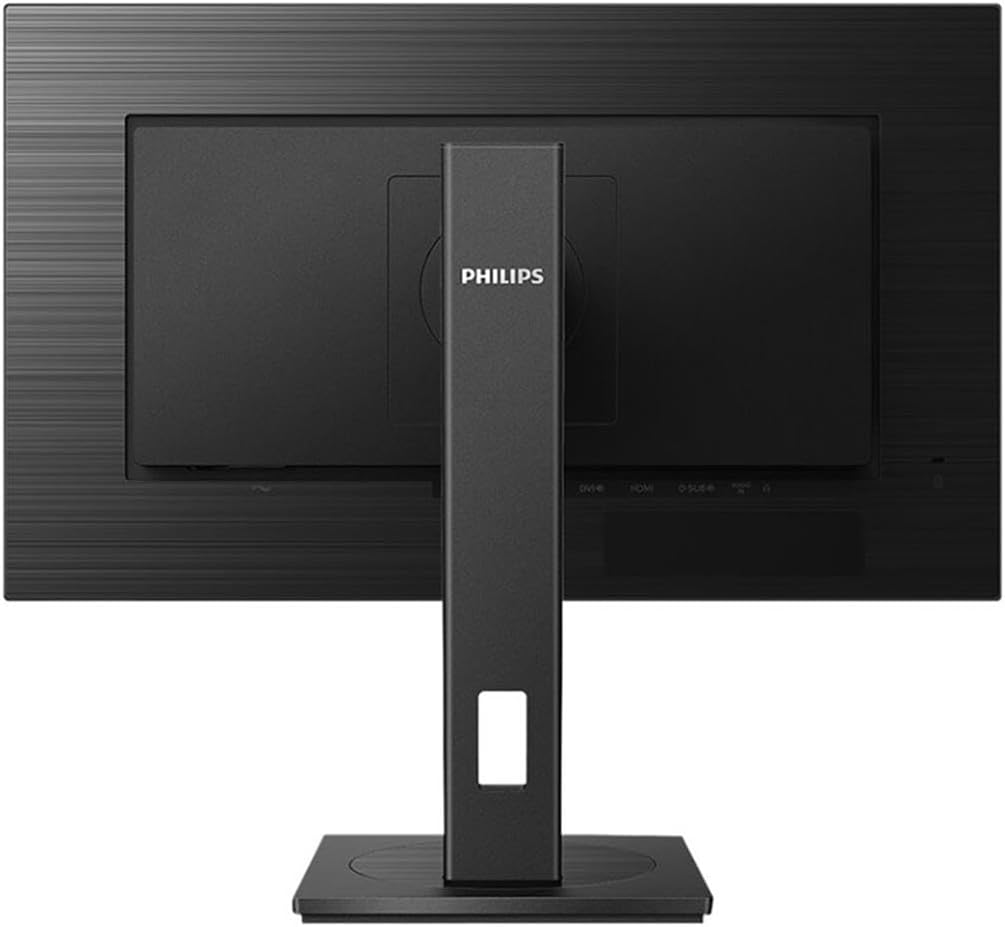
Image: Rear view of the Philips 242S1AE monitor with the stand assembled, highlighting the input ports for connection.
2. Connecting to a Computer
The Philips 242S1AE monitor supports multiple input types: HDMI, DisplayPort (DP), DVI, and VGA.
- Power Off: Ensure your computer and monitor are turned off and unplugged from the power outlet.
- Select Cable: Choose one of the following connection types based on your computer's output:
- HDMI: Connect one end of the HDMI cable to the HDMI port on your computer and the other end to the HDMI port on the monitor.
- DisplayPort: Connect one end of the DisplayPort cable to the DP port on your computer and the other end to the DP port on the monitor.
- DVI: Connect one end of the DVI cable to the DVI port on your computer and the other end to the DVI port on the monitor.
- VGA: Connect one end of the VGA cable to the VGA port on your computer and the other end to the VGA port on the monitor.
- Audio (if applicable): If using HDMI or DisplayPort, audio may be transmitted digitally. For analog audio, connect an audio cable from your computer's audio output to the monitor's audio input (if available).
3. Power Connection
- Connect the power cable to the power input on the monitor.
- Plug the other end of the power cable into a grounded electrical outlet.
4. Initial Power On
- Plug in your computer's power cable and turn on the computer.
- Press the power button on the monitor to turn it on.
- The monitor should automatically detect the input signal. If not, you may need to manually select the input source using the On-Screen Display (OSD) menu.
Operating Instructions
1. Power On/Off
Press the power button located on the monitor's bezel to turn the monitor on or off.
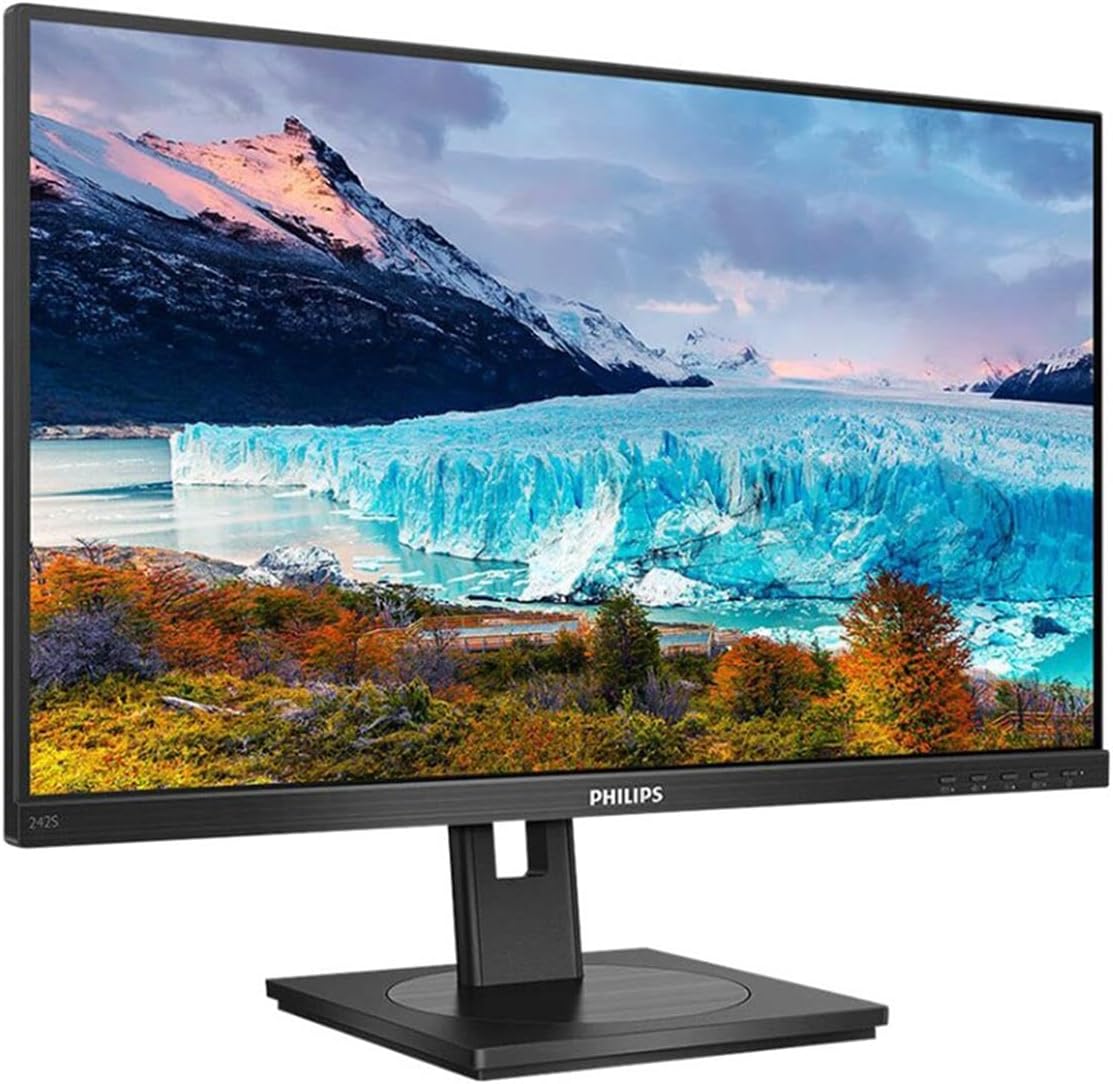
Image: Angled front view of the Philips 242S1AE monitor, indicating the location of the power and OSD control buttons.
2. On-Screen Display (OSD) Menu
The OSD menu allows you to adjust various monitor settings. Use the control buttons on the monitor's bezel to navigate and select options.
- Accessing the OSD: Press one of the OSD buttons to bring up the main menu.
- Navigation: Use the arrow buttons to move between menu items.
- Selection: Press the 'OK' or 'Enter' button to select an option or confirm a setting.
- Exit: Use the 'Exit' or 'Back' button to return to the previous menu or exit the OSD.
Common OSD settings include:
- Picture: Brightness, Contrast, Sharpness, Gamma, Color Temperature.
- Input: Manually select the input source (HDMI, DisplayPort, DVI, VGA).
- Audio: Volume control, Mute.
- OSD Settings: OSD language, OSD position, OSD transparency.
- SmartImage: Pre-set display modes for different content types.
3. SmartImage Modes
The monitor features SmartImage technology with pre-set modes optimized for various applications:
- Standard: General use.
- Internet: Optimized for web browsing.
- Game: Enhanced contrast and response for gaming.
- Movie: Improved brightness and color for video playback.
- Photo: Optimized for viewing photos.
- EasyRead: Reduces blue light and adjusts contrast for comfortable reading, certified by TUV to reduce eye fatigue.
You can switch between these modes using the dedicated SmartImage button or through the OSD menu.
4. Eye Comfort Features
The Philips 242S1AE is designed with eye comfort in mind:
- Flicker-Free Technology: Regulates brightness and reduces flicker for more comfortable viewing.
- LowBlue Mode: Reduces harmful shortwave blue light emissions. Activate this mode via the OSD menu or SmartImage settings.
- EasyRead Mode: Provides a paper-like reading experience, reducing eye strain during long reading sessions.
Maintenance
1. Cleaning the Monitor
- Screen: Gently wipe the screen with a soft, lint-free cloth. For stubborn marks, dampen the cloth with a mild, non-abrasive screen cleaner. Do not spray cleaner directly onto the screen.
- Casing: Use a soft, dry cloth to wipe the monitor casing. Avoid using strong detergents or abrasive cleaners.
- Power Off: Always unplug the monitor from the power outlet before cleaning.
2. General Care
- Avoid placing heavy objects on the monitor or its cables.
- Do not block the ventilation openings on the monitor.
- If the monitor will not be used for an extended period, unplug it from the power outlet.
Troubleshooting
If you encounter issues with your monitor, refer to the following common problems and solutions:
| Problem | Possible Solution |
|---|---|
| No image on screen |
|
| "No Signal" message |
|
| Image is blurry or distorted |
|
| Colors are incorrect |
|
| Monitor flickers |
|
Specifications
Detailed technical specifications for the Philips 242S1AE monitor:
| Feature | Description |
|---|---|
| Panel Size | 23.8 inches |
| Panel Type | IPS Technology, WLED Backlight |
| Aspect Ratio | 16:9 |
| Native Resolution | 1920 x 1080 at 75 Hz (Full HD) |
| Pixel Density | 93 PPI |
| Response Time | 4 ms (Gray to Gray) |
| Brightness | 250 cd/m² |
| Contrast Ratio (Typical) | 1000:1 |
| SmartContrast | 50,000,000:1 |
| Viewing Angle | 178° (H) / 178° (V) |
| Display Colors | 16.7 Million |
| Color Gamut (Typical) | NTSC 91%, sRGB 107% |
| Display Screen Coating | Anti-Glare, 3H, Haze 25% |
| Scanning Frequency | 30 - 85 kHz (H) / 48 - 75 Hz (V) |
| HDCP | HDCP 1.4 (DVI/DP/HDMI) |
| Connectivity | HDMI, DisplayPort, DVI, VGA |
| Product Dimensions (with stand) | 24.5 x 7 x 17 inches (approx.) |
| Weight (with stand) | 17.44 lbs (approx.) |
| Manufacturer | Philips Monitors |
Warranty and Support
For detailed warranty information and technical support, please refer to the official Philips website or the warranty card included with your product.
You can typically find support resources, driver downloads, and contact information by visiting www.philips.com/support and searching for your model number (242S1AE).


